

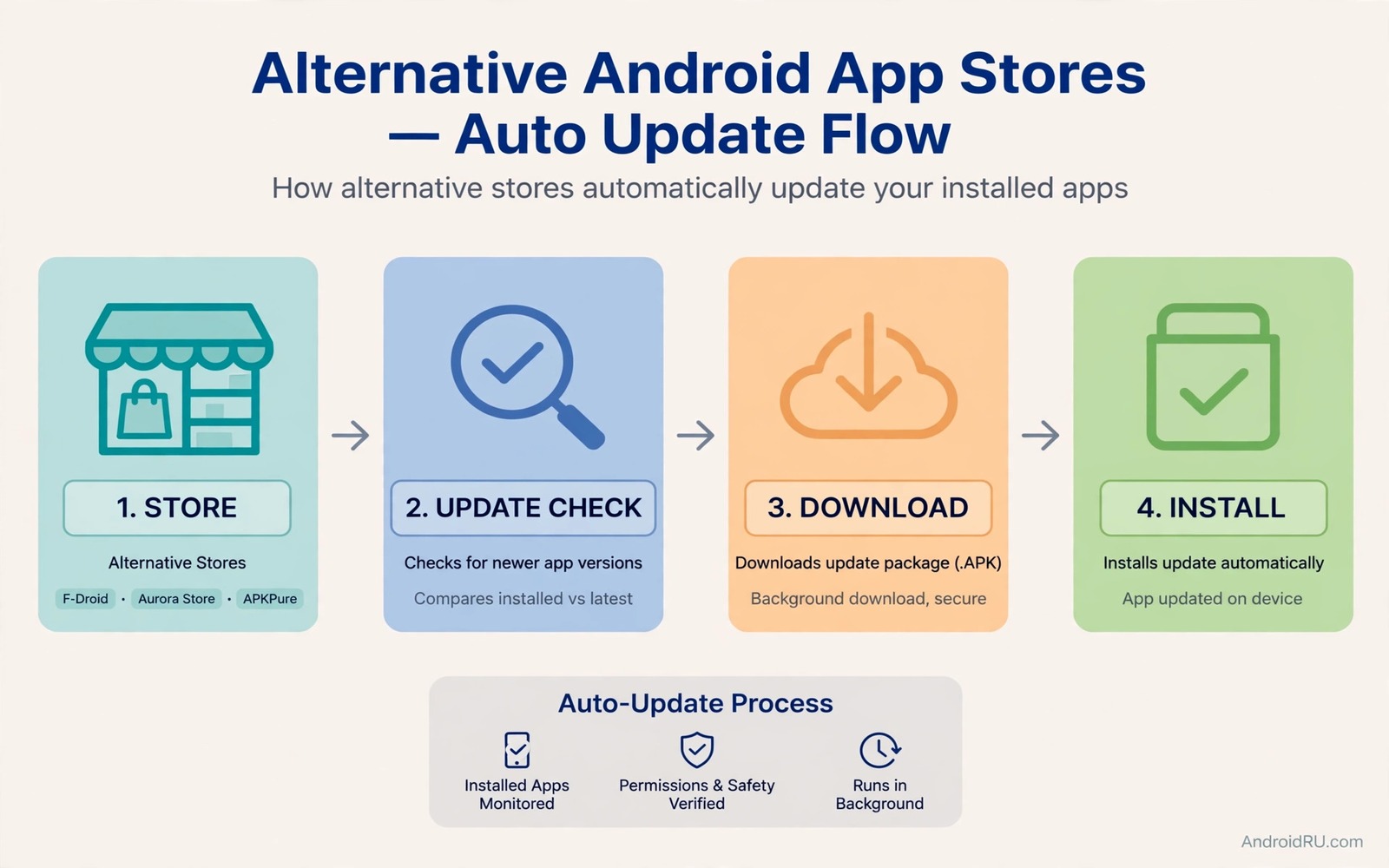
Alternative app stores are useful only if their apps stay updated. An outdated app from an alternative store can miss security fixes and new features. Manual updates for many stores become a chore quickly. You check one store and then another and you forget the third. Automatic updates solve that chore. They check for new versions on a schedule and install them with your permission. Setting them up correctly matters because a bad auto update can break an app you rely on.
Each alternative store handles updates differently. Some update only apps installed from that store. Some update all apps they recognise. Some require a setting per app. Some update only on wireless. Understanding those differences prevents conflicts. Two stores updating the same app can fight over signatures and versions. A clear per store rule avoids that fight. If you are new to alternative stores then first explore third party stores without Google Play services for a map of store options.
One Store Per App Is The Golden Rule
Assign each app to exactly one store for updates. That store should be the store that originally installed the app. If you installed an app from store A then let store A update it. Do not let store B update the same app even if store B offers a newer version. A newer version from a different store may have a different signature. That signature change can block the update or force a reinstall. A reinstall can lose app data if you are not careful.
Write down your per app store assignments in a short note. That note helps you when a new store offers an app you already have. You can decline the duplicate and keep your update path clean. A note also helps after a phone reset. You can reinstall each app from its assigned store instead of grabbing the first store that offers it. That discipline pays off over months of updates.
Configure Auto Update Settings Per Store
Open each alternative store and find its update settings. Turn on automatic updates for trusted apps first. Leave manual updates for new apps until they prove stable. Set updates to run on wireless only to save mobile data. Set updates to run at night if the store offers a schedule. Night updates avoid interrupting your daytime use with a restart prompt.
Check whether the store offers update notifications. A notification for each update helps you spot a broken update quickly. If an app breaks after an auto update you will know which update caused it. Without notifications a broken app can puzzle you for days. Enable notifications for updates even when the install itself is automatic. Awareness and automation work well together.
Handle Signature Conflicts Before They Happen
Signature conflicts happen when two stores sign the same app differently. Android refuses to update an app with a mismatched signature. The error message can be confusing. It may say that the app cannot be installed or that the package conflicts with an existing package. The fix is to uninstall the app and reinstall it from one store. That fix can lose data if the app does not sync. Avoid the conflict by following the one store per app rule from the start.
If a conflict already exists then back up the app data first if possible. Then uninstall and reinstall from your chosen store. Restore data from sync or export after reinstall. Note the chosen store in your assignment list so the conflict does not return. A conflict resolved without a note will return the next time you install from the wrong store.
A Safe Auto Update Routine
Start auto updates with a small set of trusted apps. Enable auto updates for five apps and watch them for two weeks. Check that updates install cleanly and that apps still work after each update. If the test passes then enable auto updates for more apps. If an update breaks an app then switch that app to manual updates. That gradual rollout keeps auto updates safe.
- Assign each app to exactly one store for updates.
- Enable auto updates first for a small set of trusted apps.
- Set updates to run on wireless only and at night when possible.
- Enable update notifications to spot broken updates quickly.
- Switch a broken app to manual updates at once.
- Keep a note of per app store assignments for future resets.
Review your auto update list monthly. Remove apps you no longer use from the auto list. Add new trusted apps only after a manual test period. A monthly review keeps the auto list lean and relevant. It also catches apps that changed store or changed signature since you first set them up.
Updates And Battery And Data
Automatic updates use battery and data when they download and install. Wireless only updates limit data cost. Night updates limit daytime battery impact. Large game updates can still take time even on wireless. If a large update arrives during a trip then pause it until you reach stable wireless. Most stores offer a pause or a download later option. Use it instead of forcing a large download on a weak connection.
Some stores offer delta updates that download only changed parts of an app. Delta updates save data and time. Check whether your store supports them. If not then a full update for a large app will use more data. Plan large updates for a time when you have strong wireless and charger access. That planning prevents a half downloaded update from blocking an app you need.
Check Store Updates With Simple Commands
The commands below list installed packages and show details for one app. They help you confirm which version is installed after an auto update. They do not configure a store by themselves. They are checks for your own device.
adb shell pm list packages -f
adb shell dumpsys package com.example.app
adb shell pm path com.example.app
adb shell cmd package list packages
The commands above are original examples written for this guide. They show safe checks you can run on your own device. They do not come from any outside publication.
Recover From A Broken Auto Update
A broken auto update is not a disaster if you have a plan. First check the store changelog for the new version. It may name a known issue and a fix timeline. If a fix is coming soon then wait and use a web version or an alternative app in the meantime. If no fix is coming then roll back to the previous version if the store offers it. Some stores keep previous versions available for rollback.
If rollback is not offered then uninstall and reinstall an older version from a trusted source. Back up data before you uninstall. Restore data after reinstall. Note the broken version in your list so you do not update to it again. That note prevents a repeat of the same breakage when auto updates resume. A broken update with a note becomes a lesson. A broken update without a note becomes a repeat.
Finally report the broken update to the developer or the store if a report channel exists. A clear report with your phone model and app version helps the developer fix it faster. Many users suffer silently and the developer never learns about the bug. A polite report is a service to other users of the same app.
Plan Updates Around Travel And Work Deadlines
Auto updates are convenient until they arrive at a bad moment. A large update during a trip can use data you need for maps. An update before a work deadline can break an app you need that day. Plan around those moments by pausing auto updates before travel and before deadlines. Resume them when you have stable wireless and spare time. That pause is not a failure of automation. It is a smart use of it.
For work critical apps use a manual update window each week. Pick a quiet time and update those apps one by one. Test each app after its update before you move to the next one. That window gives you control over the apps that matter most. It also gives you a clear rollback point if an update breaks something. Work apps deserve that extra care.
Finally keep a travel checklist that includes app updates. Before a trip update your maps and tickets and messaging apps. Then pause other auto updates until you return. That checklist prevents a travel day surprise. It also ensures that the apps you need on the road are current. A prepared traveller updates before departure and not during a layover.
Common Mistakes
The most common mistake is letting two stores update the same app. That habit creates signature conflicts and data loss risk. Another mistake is enabling auto updates for every app at once. A mass enable makes it hard to trace a broken update. Enable auto updates gradually for trusted apps first. A third mistake is ignoring update notifications. Notifications are your early warning system for broken updates.
- Letting two stores update the same app.
- Enabling auto updates for every app at once.
- Ignoring update notifications that flag a broken update.
- Updating large apps on weak mobile data.
- Rolling back without backing up app data first.
People also forget to review their auto update list after a phone reset. A reset can restore apps from a different store than before. Check assignments after a reset and fix any mismatches early. A reset is a fresh start for update discipline.
Frequently Asked Questions
Will auto updates from an alternative store break store apps?
Not if each app has one assigned store. Conflicts arise only when two stores try to update the same app with different signatures. Keep assignments clean to avoid that problem.
Should I enable auto updates for all apps?
No. Enable them gradually for trusted apps first. Keep manual updates for new apps and for critical apps until they prove stable through several updates.
What should I do if an auto update breaks an app?
Check the changelog and wait for a fix if one is coming. Otherwise roll back if the store offers it. Back up data before any reinstall and note the broken version.
Conclusion
Automatic updates from alternative stores work well when each app has one store and each store has clear rules. Start small and watch updates for two weeks and expand gradually. Keep notifications on and keep a per app assignment note. Those habits turn auto updates from a risk into a convenience. Your concrete next step is to open your alternative stores today and assign each app to one store in a short note. For a wider store map explore third party stores without Google Play services and for safe installs read how to sideload apps safely before you enable auto updates. As a related next step, explore scanning sideloaded APK files for trackers to extend what you set up here.

