

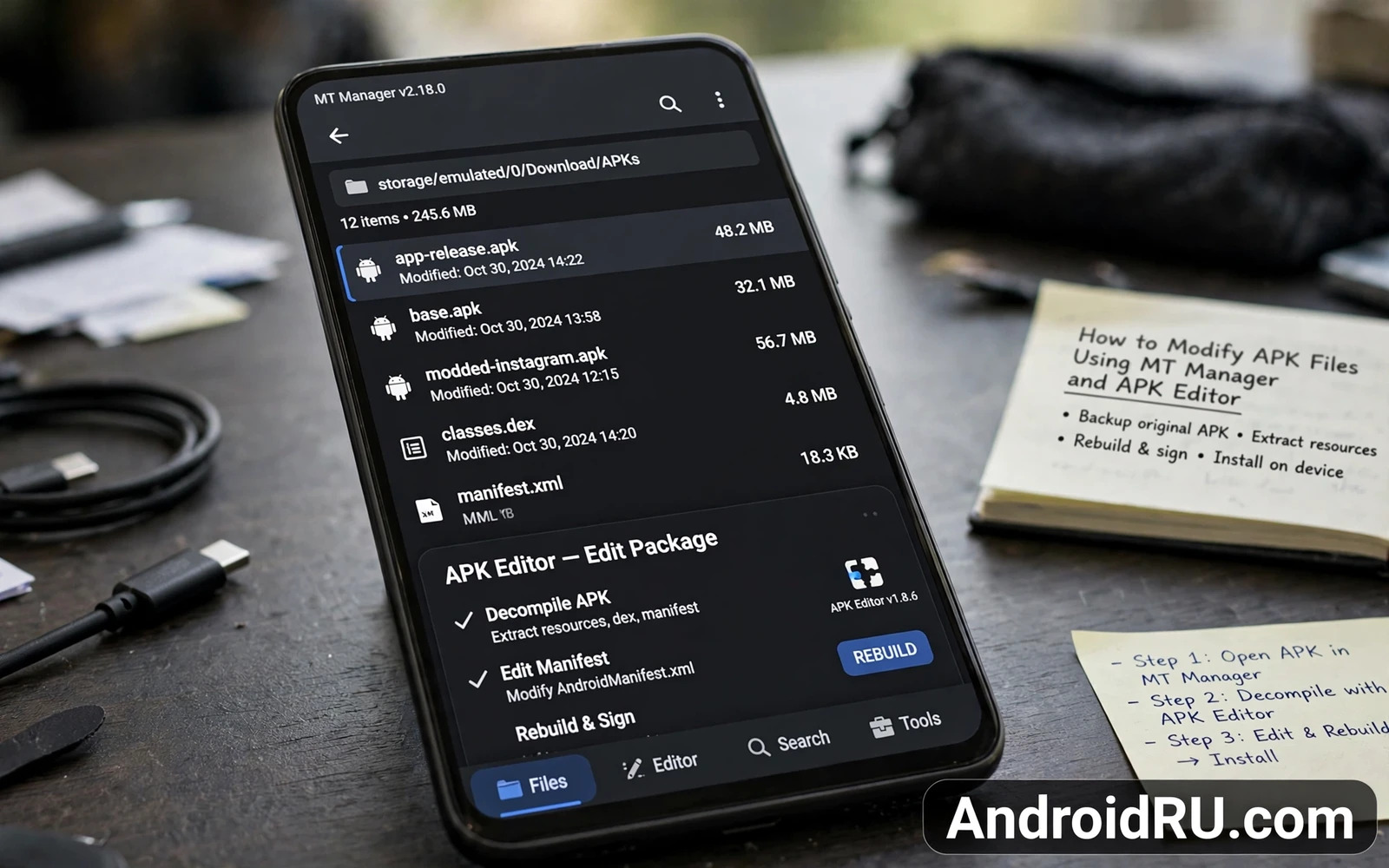
Modifying APK files means opening an app package and changing its resources or code or settings and then rebuilding it. MT Manager and APK Editor are popular tools for this work on Android because they run on the phone itself. MT Manager offers file browsing and editing and APK handling in one tool. APK Editor focuses on editing app resources such as strings and images and manifest entries. This guide explains a safe workflow for both tools and it shows where beginners most often break an app.
Read the safety warning before you modify any APK file. A modified APK can fail to install and can crash and can lose app data when installed over the original app. Modifying apps can also void warranties for related services and can break account access when signature checks fail. A bad system level modification can also cause a bootloop or a brick on a rooted phone. Back up photos and videos and documents and accounts before you start and keep an untouched copy of every original APK. Never install a modified APK from an unknown source and never modify banking or payment apps.
What An APK Contains
An APK is an archive that holds app code and resources and a manifest and a signature. Code files run the app logic while resources hold strings and images and layouts. The manifest declares permissions and activities and app identity. The signature proves who built the package and Android uses it to decide whether an update can replace an existing install. Changing any file inside the package breaks the original signature so a modified APK needs a new signature before Android will install it.
That signature rule explains many beginner failures. A modified APK installed over the original app often fails because the new signature does not match the old signature. Uninstalling the original app first usually allows the modified install but uninstalling deletes app data unless a backup exists. That trade off must be understood before any edit begins. Keep app data backups separate from APK backups because the two backups serve different restore needs.
Choosing Between MT Manager And APK Editor
MT Manager suits users who want full file control because it lets you browse the APK contents and edit text files and replace resources and handle archives in one place. It rewards users who already understand file structure and who work carefully with backups. APK Editor suits users who want guided resource edits because it presents strings and images and manifest options in a simpler interface. It helps beginners change visible text and icons without digging through raw files.
Many users use both tools together by exploring an APK in MT Manager and then making a focused resource edit in APK Editor. That combined workflow uses each tool for its strength. Avoid using both tools on the same file at the same time because simultaneous edits can overwrite each other. Finish one edit and verify the result before you open the file in the other tool.
Safe downloading habits matter before any modding and the safe APK downloading guide explains how to verify a file before you trust it. That guide pairs with this tutorial because modding starts with a trustworthy original file. A modified copy of an already altered APK can hide harmful code that no later edit will reveal. Start only from an original file you verified yourself.
A Safe Editing Workflow
Copy the original APK to a work folder and never edit the only copy. Open the copy in your chosen tool and make one small change first such as a visible string or an icon. Save the modified package and sign it with the tool signing option when the tool offers one. Install the modified package on a test device or in a test profile and check that it opens and that the change appears. A small first change proves the whole edit and sign and install chain before you attempt a larger change.
When a small change works then move to the real change in small steps. Change one resource group at a time and test after each step. Keep a note of each change with the file name and the old value and the new value. That note helps you undo a bad change without starting over from the original file. It also helps you repeat a successful change on a later app version when the app updates and overwrites your modified install.
Copy original APK to a work folder
Make one small change and test install
Sign the package before installing
Common Failures And Fixes
Install failure after an edit usually means a signature mismatch or a broken manifest entry or a corrupted resource file. Uninstall the original app and try the install again only after backing up app data. If the install still fails then restore the original APK and repeat the edit with a smaller change. A manifest edit that removes a required permission or activity can also break startup even when install succeeds. Restore the manifest entry and test again before you blame the code.
Crash at startup after an edit often means a resource reference broke. A string edit that removes a placeholder or an image replacement with a wrong format can crash the app when it loads that resource. Revert the last resource change and test again. A code edit that changes logic needs far more care because a small logic error can corrupt data inside the app. Beginners should avoid code logic edits until resource edits work reliably every time.
Reverse engineering context helps you read what you changed and the APK reverse engineering basics guide explains how decompiling reveals app structure before editing. That guide helps you decide whether a change belongs in resources or in code. Reading structure first prevents edits that target the wrong file. It also helps you recognize when an app protects its code against modification.
Extraction skills also help because the APK extraction guide shows how to obtain a clean original package from an installed app. That guide pairs with this tutorial when you need a fresh original after a failed edit. A clean original is the safest starting point for every new attempt.
Legal And Safety Boundaries
Modify only apps you own or apps with a license that allows modification and never modify an app to remove payment checks or to bypass licensing or to steal paid features. Respect developer work and respect user privacy in any app you edit. Do not distribute modified versions of apps you do not own. Keep modified APKs private to your own test devices and do not share them as if they were official releases.
Resource Editing In Depth
String resources control most visible text in an app including labels and messages and menu items. Editing a string is low risk when the new text keeps the same placeholders as the old text. A placeholder is a marker that the app fills with a name or a number at runtime. Removing a placeholder can crash the app when it tries to fill a value that no longer has a place to go. Keep every placeholder intact and keep the new text similar in length to the old text when possible.
Image resources control icons and backgrounds and illustrations inside an app. Replacing an image works best when the new image matches the old image size and format. A much larger image can bloat the package and slow loading. A wrong format can fail to display or can crash the image loader. Test image replacements on a test install before you replace many images at once.
Layout resources control how elements sit on screen and layout edits carry more risk than string edits. Moving an element can overlap another element or push content off screen on small phones. Layout edits need testing on the exact screen size you target because a layout that looks fine on a large phone may break on a small phone. Keep layout changes minimal unless you understand the layout system well.
Manifest Editing Risks
Manifest edits control permissions and components and app identity declarations. Adding a permission that the app does not need can trigger store warnings and user suspicion. Removing a permission that the app needs can break a feature silently without a clear error. Adding a component without the matching code can crash the app at startup. Manifest edits deserve a full test of every major feature after the change.
App identity fields in the manifest interact with signature checks and store identity. Changing the package name creates a different app in the eyes of the system rather than an updated version of the same app. That new app cannot access the old app data and cannot receive updates as the old app. Change package identity only when you intend to create a separate app and you understand the data separation that follows.
Version fields in the manifest affect update logic because the system compares version codes to decide whether a package is newer. Raising the version code carelessly can block future official updates or can cause update confusion. Keep version fields honest and document any version change with a clear reason. A version lie creates update problems that appear long after the edit feels successful.
Testing Modified Apps Thoroughly
Thorough testing means opening every major screen of a modified app after an edit. A string change can affect one screen while a resource change can affect many screens. Walk through settings and main features and sharing flows before you call an edit successful. A quick launch test alone misses crashes on deeper screens.
Test a modified app with real data patterns such as long text and large images and offline mode. Real data exposes layout breaks and resource failures that empty test data hides. A layout that handles short labels may break on long labels. A modified app should handle the same data range as the original app.
Test modified app updates carefully because an official update will replace the modified install in most cases. Plan to redo the modification on each new version rather than blocking updates forever. Blocking updates leaves security issues open and creates a stale app that grows less compatible over time.
APK modification is a powerful learning tool when it stays within those boundaries. Start from a verified original and edit in small steps and test after each step and keep the original safe. With that discipline MT Manager and APK Editor can teach you how Android apps are built without turning a learning project into a broken phone or a lost account.

