

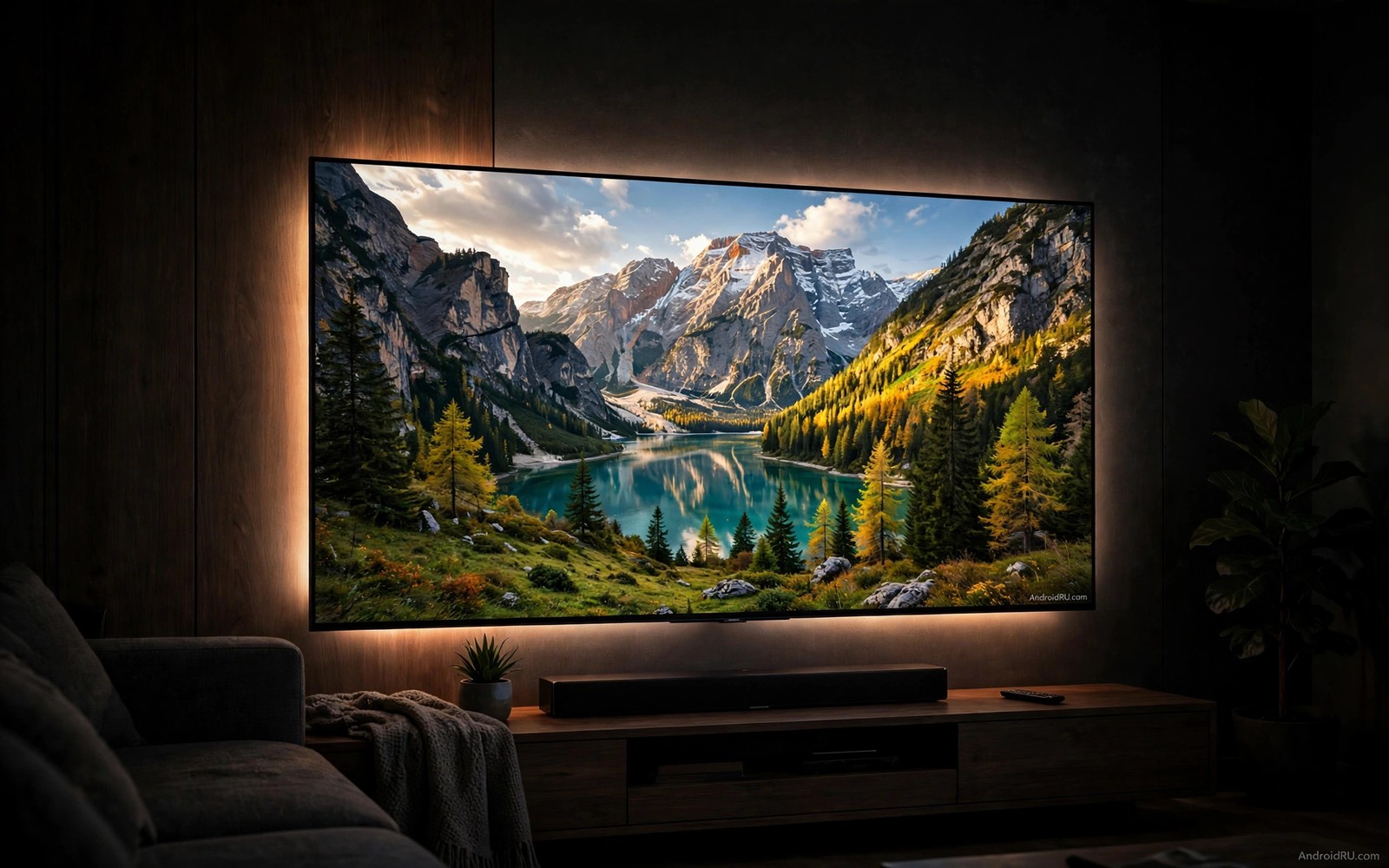
OLED televisions produce deep blacks and vivid colour by lighting each pixel on its own. That strength creates a risk when a bright static image stays on screen for hours. A channel logo or a game HUD or a news ticker can wear those pixels unevenly. Over time the worn area may show as a faint ghost when the picture changes. Screen saver modes and smart habits exist to stop that wear before it becomes visible.
Burn-in is not instant damage from a single evening of viewing. It builds from repeated long exposure to the same bright static elements. Modern OLED televisions include pixel shift and logo dimming and refresh cycles to spread that wear. Those tools work quietly in the background when you let them run. Problems appear mainly when owners disable protection or leave static images on screen for extreme periods.
This guide explains how screen saver modes work and how to use them well. You will learn which settings matter most and which habits help without ruining picture quality. You will also learn how to check for early wear and what to do if you spot it. For a related TV care topic see fixing audio sync lag on soundbars because a well set up TV should look and sound right together. Prevention stays easier than any cure.
OLED care also matters for viewers who use a television as a computer monitor for long periods. A static taskbar or a browser toolbar can wear the same pixels for hours. Hide taskbars and use full screen modes when the television serves as a monitor. Vary tasks across the day so no single toolbar dominates. Those habits extend OLED life in a work setting as well as a viewing setting.
How Burn-In Develops On OLED Screens
Each OLED pixel dims slowly as it ages and bright pixels age faster than dark ones. A static white logo forces the same pixels to stay bright while neighbours rest. After many hours those pixels become dimmer than their neighbours. The difference appears as a ghost of the logo on plain colours. Varied content ages pixels evenly and keeps that difference invisible.
Bright menus and game interfaces pose a similar risk because they repeat the same layout every session. A health bar or a score box sits in the same corner for hours of play. News channels with bright banners pose a risk during all day viewing. The risk grows with brightness and with duration and it shrinks when content changes often. That is why varied viewing is the simplest protection of all.
Screen Saver Modes That Actually Protect
A screen saver replaces a static image with moving art or a dark screen after a short idle period. That change lets bright pixels rest and it stops a paused frame from wearing one area. Set the idle timer to a few minutes rather than a long delay. A short timer protects the screen during phone calls and cooking breaks without annoying normal viewing. Choose a moving saver rather than a fixed photo that simply swaps one static image for another.
# OLED protection profile
screen_saver_delay_minutes = 5
pixel_shift = on
logo_dimming = on
pixel_refresh = automatic_in_standby
static_brightness = reduced
The snippet above is an original example written for this guide. It shows generic settings that you can adapt to your own device. It does not copy code from any outside source.
Pixel shift moves the whole picture by a few pixels at intervals so edges never sit on the exact same pixels. Logo dimming lowers brightness only around a detected static logo while the rest of the picture stays vivid. Pixel refresh runs a longer cycle when the television is off and it evens out minor wear. Leave the television in standby rather than cutting power at the wall so refresh cycles can run. Those three tools together handle most daily risk.
Daily Habits For Mixed Viewing
Vary your content across the week so no single logo dominates viewing time. Watch films in full screen and switch channels during long news sessions. Lower brightness for news and menus because high brightness accelerates wear on static areas. Use a slightly lower OLED light setting for daily television and save maximum brightness for films in a dark room. That balance keeps pictures vivid while reducing wear where it matters.
Take breaks from long gaming sessions with static HUD elements. Hide the HUD when the game allows it or switch to a different game after a couple of hours. Pause with a moving screen saver rather than a frozen frame when you leave the room. Those small pauses give pixels a rest and they also give your eyes a rest. A television that serves varied content for years will age far more evenly than one that shows one channel all day.
Check For Wear And Respond Early
Check for wear with a plain grey or white test image at moderate brightness in a dark room. Look for faint shapes that match a logo or a menu from regular viewing. A faint ghost after a long static session may fade after a pixel refresh cycle. Run the refresh cycle from settings and recheck after it finishes. Do not run refresh cycles daily because they also age pixels and the television will prompt you only when needed.
If a ghost persists after a refresh then reduce brightness for static content and increase content variety at once. That step stops further wear in the same area. Contact the maker if the ghost appears under normal varied use within warranty because that pattern may indicate a panel fault. Keep a note of your viewing habits and settings for that conversation. Honest notes help support teams judge whether the panel behaved normally.
Protect OLED During Gaming Sessions
Gaming poses a special risk because HUD elements stay fixed while gameplay moves around them. Choose games that allow HUD opacity reduction or HUD hiding during exploration. Lower HUD brightness in game settings when that option exists. Take a break every hour and let a moving screen saver run for a few minutes. Those breaks also help eyes and hands during long play.
Vary games across a week so the same HUD does not dominate every session. A week of one game at high brightness wears its HUD area faster than mixed play. Alternate a bright HUD game with a film or a game with a minimal HUD. That variety spreads wear across the panel naturally. Mixed use is the simplest gaming protection available.
Check game settings for a safe area adjustment that keeps HUD elements away from the extreme edge. An inset HUD still wears pixels but it changes the worn area slightly across games. Combine safe area use with pixel shift for the best effect. Neither tool alone replaces varied content. Together they slow wear in the most repeated areas.
Use Television Settings As A Complete System
OLED protection settings work as a system rather than as isolated toggles. Pixel shift and logo dimming and screen saver and refresh each handle a different part of wear. Enable all of them together for full coverage. Disabling one tool to gain a small brightness boost weakens the whole system. Keep the system intact and adjust brightness globally instead.
Essential apps for a new television can also affect how long static menus stay on screen. A good starter set is covered in essential apps for Android TV box owners and those apps tend to use varied full screen layouts. Avoid apps that leave a bright static menu open for hours. Choose apps that dim or move their interface during idle time.
Review OLED settings after a major system update because updates can reset a protection toggle. Open the picture settings once after each update and confirm every protection tool is still on. That one minute check prevents months of unprotected viewing. Add the check to your update routine alongside app updates. A protected panel stays protected only when settings stay on.
Common Mistakes
The most common mistake is disabling screen saver and pixel shift to gain a tiny brightness boost. That trade removes the main protection for a gain most viewers cannot see in normal content. Another mistake is cutting power at the wall every night which blocks pixel refresh cycles. Leave the television in standby so maintenance can run. A third mistake is running pixel refresh manually every day because frequent cycles add wear of their own. Picture protection works best alongside hidden Android TV settings worth enabling for the rest of the television.
People also leave a paused game or a news channel on screen while they do other tasks for hours. A paused frame is the worst case for burn-in because nothing moves at all. Use the screen saver timer to cover those breaks automatically. Do not set brightness to maximum for all content because static areas suffer most at maximum light. A moderate setting for daily viewing protects the panel without dulling films.
Owners also use maximum brightness for sports in a bright room and forget to lower it at night. A bright room needs more light but a dark room does not. Adjust brightness to the room each evening rather than leaving maximum on all day. That habit reduces wear on static score boxes during night matches. Room aware brightness is a simple daily win.
Frequently Asked Questions
Can screen burn-in be reversed once it appears?
Mild image retention often fades after varied viewing and a pixel refresh cycle. True burn-in from long uneven wear is usually permanent because those pixels have aged more than their neighbours. Early action matters so check for ghosts and change habits at the first sign. Prevention and quick response give the best chance of a clean panel.
How long does it take for burn-in to develop?
It takes many hours of the same bright static image to cause visible burn-in on a modern OLED television. Varied viewing over months rarely causes a problem. All day viewing of one news channel at maximum brightness poses a higher risk. Pixel shift and logo dimming extend that time further when left enabled.
Should I avoid OLED if I watch a lot of news?
You can watch news on OLED if you vary content and keep brightness moderate. Switch channels during long sessions and let the screen saver run during breaks. Use logo dimming and pixel shift at all times. If one channel dominates your viewing for most of the day then a different panel type may suit that habit better.
Conclusion
Open your OLED settings today and confirm screen saver and pixel shift and logo dimming are all on. Set the screen saver delay to five minutes and leave the television in standby tonight so a refresh cycle can run. Then vary your viewing this week and lower brightness for news and menus. Those four steps protect the panel without changing how you enjoy films.
After a month of varied viewing check the panel again with a plain grey test image in a dark room. A clean panel confirms that your settings and habits are working. A faint ghost calls for lower brightness on static content and more varied viewing at once. Do not run a manual refresh cycle daily because that habit adds wear of its own. A monthly check is enough to catch problems early.

