

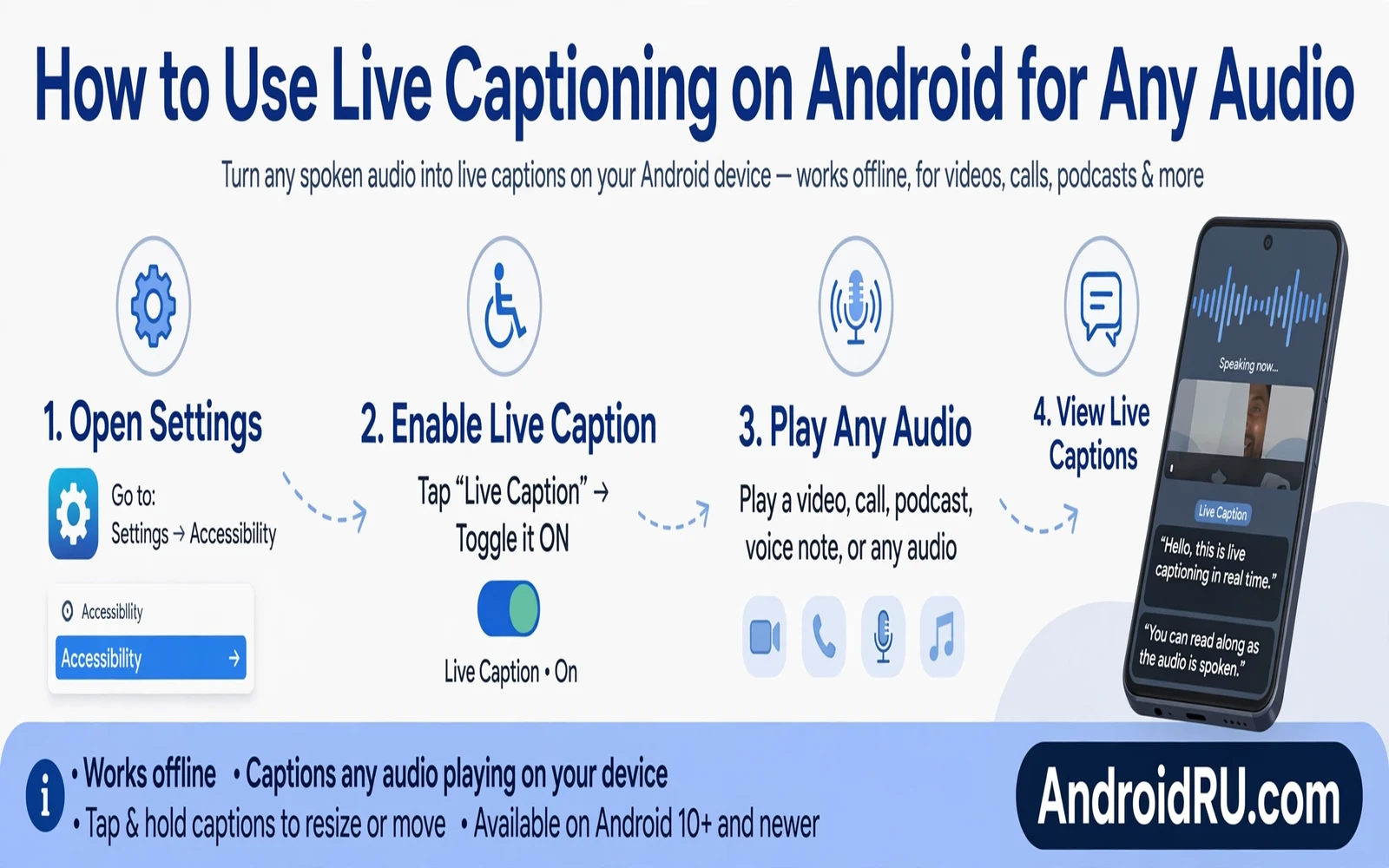
Live Caption turns spoken audio on an Android phone into readable text on the screen. The feature works for media playback and for calls and for many apps that play sound. Captions appear in a movable box that follows the audio in real time. This guide explains how to use Live Caption on Android for any audio without extra apps. It covers setup and controls and limits and practical tips. Readers who cannot hear audio clearly or who must keep sound off will find it especially useful.
Live Caption runs on the device itself rather than sending audio to a remote server for captioning. On device processing keeps spoken words private during captioning and keeps captions working without a network connection for local media. Accuracy depends on audio clarity and on speaker speed and on background noise. Clear speech in a quiet video usually captions well. Fast overlapping speech in a noisy call may produce errors. Owners should treat captions as a strong aid rather than as a perfect transcript.
The wider update story helps owners understand where caption features sit inside Android. Readers who enjoy hidden system features can browse the top hidden features in the latest Android update for more tools that sit quietly inside system settings. Live Caption belongs in that quiet tool group because many owners never open the sound settings where it lives. A short tour of sound and accessibility settings often reveals several useful tools at once. Owners who explore those settings tend to use their phones with less friction.
How To Turn Live Caption On
Owners can enable Live Caption from sound settings on supported phones. The path usually runs through settings and then sound and then Live Caption. A toggle turns the feature on for media and for calls where supported. Some phones also offer a caption button inside the volume panel for quick access. Tapping that button during playback starts captions without leaving the current app. Owners should test the volume panel button once after setup so that the gesture feels natural later.
- Open settings and then open sound settings
- Find Live Caption and turn the toggle on
- Check the volume panel for a caption shortcut
- Play a video and confirm that captions appear
- Drag the caption box to a comfortable screen spot
Caption language settings matter for owners who watch media in more than one language. Live Caption supports a set of languages that varies by device and by Android version. Owners should check the language list on their own phone rather than assuming support for a given language. A caption box that shows the wrong language often means that the language setting needs a change. Some phones download language data on first use so a network connection may help the first setup. After that first setup captions work well for local media without network help.
Using Live Caption For Media And Calls
Media captions help in quiet rooms and in loud rooms and in shared spaces where sound would disturb others. A viewer can follow a video at low volume while captions carry the spoken words. A listener can follow a podcast in a noisy train while captions fill gaps that noise hides. Captions also help language learners who want to see words while hearing them. The caption box can move so that it never hides subtitles that a video already includes. Owners should place the box where it least blocks important visuals.
Call captions help owners who struggle to hear a caller clearly on a phone call. The feature captions the other side of a call in supported regions and on supported devices. Call captions raise privacy questions because spoken words become visible text on the screen. Owners should keep the phone screen private during sensitive calls. Owners should also tell callers when captions matter for understanding if that honesty helps the conversation. Captioned calls work best when both sides speak clearly and pause between thoughts.
Controls And Customization
Owners can resize caption text and adjust the caption box position to fit different screens. Larger text helps low vision readers while smaller text keeps more video visible. The caption box can collapse when no speech plays so that it never crowds the screen needlessly. Some phones let owners hide profanity in captions through a filter setting. That filter suits shared screens and family viewing. Owners who need exact wording for study should turn such filters off.
System settings hold many small controls that change daily comfort in similar ways. The guide on essential system settings to change on new Android phones covers sound and notification and display controls that pair well with captions. A calm notification setup keeps captions readable without constant interruptions. A sensible display setup keeps caption text sharp at any brightness. Owners who tune those layers together get a phone that respects both hearing needs and attention needs.
Limits And Troubleshooting
Live Caption may miss captions for music without speech and for heavily distorted audio. It may also struggle with strong accents that fall outside its trained language data. Songs often caption poorly because singing differs from normal speech patterns. Overlapping speakers in a group call can confuse the caption engine. Owners should not rely on captions alone for emergency instructions or for legal details. A second source such as written show notes or an official transcript gives a safer record for critical information.
When captions fail to appear owners should check three basics before deeper troubleshooting. First confirm that Live Caption stays on in sound settings after a system update. Second confirm that media volume is high enough for the engine to detect speech. Third restart the media app because a stuck audio session can block caption detection. A phone restart clears deeper audio session problems in many cases. Split screen multitasking can also help owners test captions while keeping notes visible at the same time. The split screen workflow in how to use Android split screen like a pro shows how to pair a captioned video with a notes app on one screen.
Practical Habits For Everyday Caption Use
Owners who use captions daily should build a small set of habits that keep captions reliable. Keep the caption language matched to the media language before pressing play. Keep the caption box away from video controls and away from embedded subtitles. Keep volume at a moderate level because very low volume starves the caption engine. Keep the phone software updated because caption models improve with system updates. These habits cost little attention and they raise caption quality noticeably.
Live Caption turns a phone into a more flexible listening tool for many different lives. Deaf and hard of hearing owners gain direct access to spoken media. Commuters gain a quiet way to follow videos in shared spaces. Language learners gain a bridge between hearing and reading. Parents gain a way to watch videos while a child sleeps nearby. The feature asks for one setup pass and then stays ready in the volume panel. That low effort and broad payoff make Live Caption one of the most practical tools inside modern Android.
Live Caption For Learning And Work
Language learners gain a powerful study tool from Live Caption because they can hear and read words together. A learner can pause a video and compare caption spelling with spoken sound. That pairing builds vocabulary faster than audio alone. Learners should still check difficult words in a dictionary because captions can err on uncommon terms. Caption errors become learning moments when learners verify them. That verification habit turns a convenience feature into a study method.
Work meetings benefit from captions when audio quality drops or when accents challenge listening. A participant can follow a speaker through captions while audio stutters on a weak connection. Captions also help participants who join from noisy offices or busy streets. Meeting hosts should speak clearly and pause between points to help caption accuracy. Clear speech helps both caption engines and human listeners. That shared benefit makes caption friendly speaking a good meeting habit.
Content creators should remember caption users when recording videos and podcasts. Clear speech and moderate pace and low background music all improve caption accuracy. Creators who mumble or who layer loud music over speech make captions unreliable. Creators who add pauses between ideas help both captions and listeners. Good recording habits therefore serve accessibility and audience growth together. Creators who care about reach should record with caption users in mind.
Caption Privacy And Etiquette
Caption privacy deserves thought because spoken words become visible text on a screen. A captioned call in a public place may expose private conversation to nearby eyes. Owners should angle screens away from strangers during captioned calls. Owners should also consider whether callers know that captions display their words as text. Honesty about caption use builds trust in sensitive conversations. A brief mention at call start prevents awkward surprises later.
Caption storage raises a related question for owners who worry about data retention. On device caption processing means audio does not travel to a server for captioning in typical use. That design limits exposure compared with cloud caption services. Owners should still check device settings for any caption history features on their phone. A phone that stores caption history needs a clear deletion habit. Owners who handle sensitive calls should verify history settings before relying on captions.
Caption etiquette in shared spaces balances access needs with courtesy to others. An owner who needs captions in a quiet library should keep volume low and screen dim. An owner who needs captions in a meeting should place the phone where captions stay readable yet discreet. Fellow participants usually accept caption use once they understand its purpose. A short explanation at meeting start prevents misunderstanding. Access tools work best when owners use them openly and considerately.
Live Caption And Accessibility Culture
Accessibility culture grows when owners treat caption tools as normal rather than as special extras. A meeting host who enables captions helps every participant including those with hearing loss. A video creator who checks caption quality helps viewers in noisy places and quiet places alike. Normalizing captions reduces stigma around access needs. Owners who use captions openly encourage others to use them too. That openness builds a more inclusive phone culture one meeting at a time.
Schools and workplaces can support caption culture through simple policy choices. A school that encourages caption use in videos helps students with varied hearing and language needs. A workplace that enables captions in calls helps remote workers on poor audio. Policy support costs little yet it signals inclusion clearly. Individuals still benefit even without policy support by enabling captions personally. Personal action and policy action together change norms fastest.

