

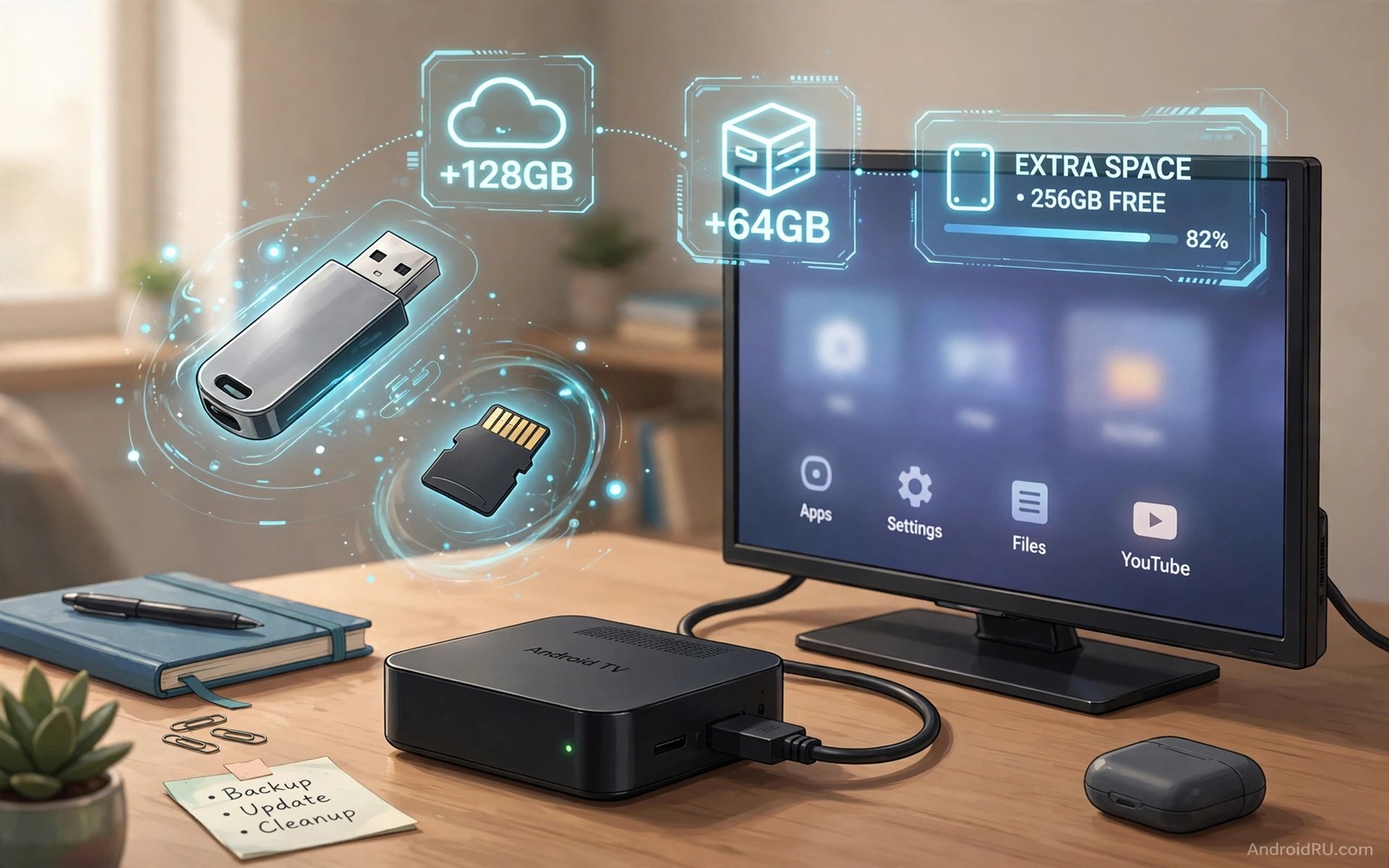
How to Expand Limited Storage Space on Android TV Box Devices
My living room streamer showed the dreaded low-space warning after I had installed only six streaming apps. The box was sold as 16 GB, yet barely 8 GB was free on day one, and one failed update later the home screen started stuttering. That experience is normal for these little boxes, and it is fixable without buying a new one. A cheap flash drive, a memory card, or a settings change can give the device room to breathe again.
This guide walks through every practical way to add room to a television streamer, from a plug-in flash drive used for films to adopted storage that lets apps live on external media. You will learn which option fits your box, how to format a drive correctly, what speeds actually matter, and how to clear hidden clutter first so you do not spend money you do not need to spend. The steps use menu names you will find on most Android TV and Google TV devices, including Nvidia Shield TV, Xiaomi Mi Box S, Chromecast with Google TV, and the many generic Amlogic and Rockchip boxes sold online.
Before spending anything, it helps to know why these boxes run out of room so fast. The operating system reserves several gigabytes, preinstalled apps take another slice, and every streaming service keeps cached artwork, thumbnails, and temporary video chunks. A box that only streams video can still fill up, because the apps themselves grow with every update. Knowing where the gigabytes went decides whether you need a drive, a card, or simply a clean-up.
Why 8 GB and 16 GB Android TV Boxes Fill Up So Fast
Manufacturers quote total flash memory, not free memory. On a 16 GB model, the Android TV system, the bootloader, and the recovery partition can swallow 6 to 8 GB before you install a single app. Preinstalled apps add another gigabyte or two, and the Play Store updates them in the background, quietly growing their footprint. That leaves a working margin far smaller than the number on the retail packaging suggests.
Streaming apps are heavier than people expect. Netflix, YouTube, Disney+, and Prime Video each keep cached posters, preview clips, and offline data. Games are worse: a single casual title can exceed 1 GB, and a racing or role-playing game can pass 3 GB with its downloaded data packs. Sideloaded apps add their own weight, and their cache folders are easy to forget. A guide to how to sideload apps onto a smart TV is worth reading before adding more sideloaded software, because each extra app competes for the same small pool of internal flash.
Where the gigabytes actually go on a television streamer
Open Settings, then Device Preferences, then Storage, and you will see the breakdown. Apps usually lead the list, followed by cached data, then system files, then downloads. On my Mi Box, cached data alone reached 4 GB after a month of nightly streaming. Downloads are the silent culprit on boxes used by children: game updates and video downloads pile up in a folder nobody opens. Screenshots and screen recordings also land here by default.
System updates need free room to install. Android TV typically wants at least 1 to 2 GB free before it will apply an update, and it will fail silently or loop if the margin is too thin. That is why a box can work fine for months, then suddenly refuse updates and start crashing apps. The fix is not a faster internet connection; it is headroom.
Why cached data grows back after every clean-up
Clearing cache buys a week or two, not a cure. Streaming services rebuild their thumbnail and preview caches the moment you browse again, because that is how they make scrolling feel instant. The cache is doing its job. Treating it as the enemy misses the point: a streamer with too little internal flash will always refill, so the lasting answer is more capacity or fewer resident apps, not repeated cache clearing.
Check What Is Eating Room Before You Buy Anything
Start with the built-in breakdown, then look at individual apps. In Settings, open Apps, then See All Apps, then sort by size if your box offers that option. You will often find one app holding 2 GB of data while the rest sit under 300 MB each. A single game or a video app with offline downloads can dominate the whole device.
Check the ports on the box itself before ordering a drive. Look for a USB-A port, a USB-C port, or a microSD slot, and check the Storage settings for a format option. A port that only powers a remote cannot hold a drive. A full-size USB port usually can. Some compact sticks, such as the Chromecast with Google TV, have no USB-A port at all and need a powered USB-C hub to attach external media.
Read the built-in breakdown the right way
Note three numbers: total capacity, used capacity, and the size of the largest three apps. If apps take more than half the drive, you need capacity for apps, which points toward adopted storage or a bigger internal margin. If cached data dominates, a clean-up plus a media drive may be enough. If downloads dominate, move those files to removable media and change the download location in each app.
Confirm the ports and the Android version on your box
Android TV 9 and later handle adopted storage more reliably than older versions, and Android 11 and 12 improved USB drive handling further. Check Settings, then Device Preferences, then About to confirm the version. A box stuck on Android 9 can still use removable media well, but adopted storage behaves better on newer releases. This check takes a minute and prevents buying a drive your box cannot use properly.
USB Flash Drives as Removable Media for Films and Files
The simplest expansion path is a flash drive used as removable media. Plug it in, let the television prompt you to set it up, and move films, photos, and downloads onto it. Playback reads files in order, so even a modest drive handles 1080p video smoothly, and most handle 4K remuxes if the bitrate stays reasonable. Internal flash stays free for apps and system updates, which is the whole point.
Keep the drive in the same port after setup. Moving it between ports can change how apps see the files, and some media players lose their library index when the path changes. A small label on the drive helps when you own several. Leave the drive plugged in during reboots so the media scanner finds it every time.
Speed matters more than size here. A USB 3 flash drive on a USB 3 port loads large libraries noticeably faster than a USB 2 stick, and it copies a 10 GB film in minutes instead of half an hour. For media playback alone, a USB 2 drive still works, so use the faster drive for apps and the slower one for films if you own both. Check the port colour: blue usually means USB 3, black usually means USB 2.
Picking the right size and brand for a living room box
A 64 GB stick suits most living rooms, because apps and cache stay modest in size and films rotate through. A 128 GB stick suits boxes that keep downloaded films or large games, and 256 GB makes sense only if the box doubles as a media library. Buying a huge drive for a streamer that only plays online video wastes money that could go toward a better remote or a faster network adapter. Stick to known brands such as SanDisk, Samsung, Kingston, or Lexar, and avoid unbranded sticks with suspiciously low prices, since a failed drive loses every film on it.
Formatting a flash drive so large films copy cleanly
File format decides whether a big film copies at all. A drive formatted as FAT32 cannot hold a single file larger than 4 GB, so a film will stop copying partway with a confusing error. exFAT formatting handles files of any practical size and works on Android TV, Windows, and Mac, which makes it the best choice for removable media. Back up the drive first, then reformat it to exFAT on a computer if the box formatted it as FAT32. NTFS also works on many boxes, but exFAT is the safer universal pick.
exFAT versus NTFS on older television boxes
Very old boxes sometimes read NTFS but refuse to write to it, which means films copy in one direction only. exFAT avoids that trap entirely, since read and write both work on nearly every Android TV release. If a drive formatted as NTFS mounts as read-only, reformat it to exFAT and copy the films back.
Adopted Storage Turns a Drive Into Part of the System
Adopted storage lets Android TV treat an external drive as part of internal flash. Apps can then install onto that drive, and the system manages the capacity as one pool. This option suits boxes where apps fill the internal drive and media storage alone cannot help. The trade-off is real: the drive becomes tied to that one box, encrypted to it, and unreadable on a computer without reformatting. Unplugging it can make apps vanish until it is reconnected.
Choose a fast and reliable drive for this role. A cheap stick can fail early, and a failed adopted drive can break every app that lives on it. Buy a known-brand drive, test it for a week as removable media before adopting it, and keep it plugged in at all times. A USB 3 SSD in a small enclosure is the most reliable adopted-storage setup I have used, because it handles constant small writes far better than a bargain flash stick.
How to format a drive as adopted storage step by step
Plug the drive in, open Settings, then Device Preferences, then Storage, and select the drive. Choose Set up as internal storage, or Format as internal on some boxes, then confirm the warning that the drive will be erased. The box formats and encrypts the drive, then asks whether to move existing app data onto it. Say yes, then wait: moving several gigabytes takes time, and interrupting it can corrupt the migration. Leave the box alone until the confirmation appears.
What happens when an adopted drive is removed or fails
If the drive is unplugged, apps stored on it disappear from the home screen and their icons grey out. Plug it back into the same port and they usually return. If the drive itself dies, those apps must be reinstalled, and their saved data is gone unless it was synced to an account. That risk is why adopted storage deserves a quality drive and a backup of anything irreplaceable, such as game saves tied to a local profile.
MicroSD Cards for Boxes With a Card Slot
Many generic Android TV boxes and some Xiaomi models include a microSD slot, and a card is the neatest expansion of all because it sits flush inside the box. A card works as removable media for films and photos, and on many boxes it can also be adopted as internal storage. The same encryption warning applies: an adopted card cannot be read in a phone or camera afterwards without reformatting.
Card speed ratings matter. Look for a UHS-I card rated U3 or V30, which guarantees sustained write speeds suitable for video and app data. A slow Class 10 card from a drawer can make the whole box feel sluggish when apps live on it, because the system waits on the card for every small read. A 128 GB card from Samsung EVO or SanDisk Ultra hits the sweet spot for most boxes, while 64 GB is enough for a streamer that mainly needs breathing room for updates.
Insert the card with the box powered off, then power on and follow the format prompt. If no prompt appears, open Settings, then Storage, and select the card manually. After formatting, move a few apps first and use the box for a day before moving everything, so a faulty card shows itself early. A card that disconnects randomly is a sign to replace it, not to keep retrying.
External Hard Drives and SSDs for Big Movie Libraries
A portable hard drive or SSD is the right answer when the goal is a film library rather than app room. A 1 TB portable hard drive holds hundreds of films and costs little per gigabyte, while a 500 GB portable SSD is silent, faster, and far more resistant to knocks. Both plug into the same USB port a flash drive uses, and both appear as removable media the box can read.
Power is the catch. A spinning hard drive draws more current than a flash stick, and some boxes cannot power a 2.5-inch drive from a single USB port. If the drive clicks, disconnects, or never appears, use a powered USB hub or a drive with its own power adapter. An SSD draws less power and almost always works directly, which is one reason it is the safer pick for a low-power streamer.
Keep expectations realistic: a hard drive is fine for playback, but it is a poor choice for adopted storage because its random read speed is slow and its moving parts wear out under constant small writes. Use hard drives for media, SSDs for apps, and flash drives for the middle ground. That division keeps each device doing the job it does best.
| Expansion option | Best use | Typical size | Works for apps |
|---|---|---|---|
| USB flash drive, removable | Films, photos, downloads | 64 to 256 GB | No |
| USB flash drive, adopted | App room on a full box | 64 to 128 GB | Yes |
| MicroSD card | Neat expansion in a slot | 64 to 256 GB | Yes, on most boxes |
| Portable hard drive | Large film library | 1 to 2 TB | Not recommended |
| Portable SSD | Fast app room and media | 500 GB to 1 TB | Yes, best reliability |
| Network drive (NAS) | Shared household library | Several TB | No |
A network drive deserves a mention for households that already own one. A NAS or a shared folder on a computer can feed films to the box over the local network using an app such as Kodi or VLC, and it adds no hardware to the television at all. It does not expand app room, and it depends on a solid Wi-Fi or Ethernet connection, but for a shared film collection it beats buying a drive per television.
Freeing Room Without Buying Hardware
Before ordering a drive, spend ten minutes removing what does not deserve space. Uninstall apps nobody opens: open Settings, then Apps, then See All Apps, and remove anything unused. Many boxes ship with duplicate video apps and demo games that can go. A lean app list also makes the home screen faster and updates smaller.
Clear the cache of the biggest apps one at a time, starting with the browser and the video apps. In each app’s info page, choose Clear Cache, not Clear Data: clearing data signs you out and deletes downloads, while clearing cache only removes temporary files. Do this monthly and the box keeps a healthier margin between expansions.
Choosing which apps deserve the remaining room matters as much as the drive itself. A roundup of essential Android TV box apps helps you spot the tools worth keeping and the ones you can drop, and a leaner list means the new capacity goes further. The same thinking applies to sideloaded software: keep the two or three sideloaded apps you actually use and remove the experiments.
Move downloads and recordings off internal flash
Open the file manager or the Downloads app and move video downloads, APK files, and recordings to the external drive. Then change the download location inside each app that allows it, so new files land on the drive automatically. Old APK installer files are easy to forget: each one is small, but a dozen of them add up, and they serve no purpose after the app is installed.
Stop updates from refilling the box overnight
Automatic updates are convenient, but on a nearly full box they can fail halfway and leave partial files behind. Open the Play Store, then Settings, then Auto-update apps, and switch to over Wi-Fi only, or turn it off and update manually once a week after checking free room. Manual updates also let you skip an update for an app you barely use, which saves both capacity and time.
Troubleshooting Expansion Problems on Android TV Boxes
When a drive does not appear, try the other USB port, then try a powered hub, then test the drive on a computer to confirm it works at all. A drive formatted as exFAT or FAT32 appears on almost every box, while a drive formatted with an unusual file system may not. If the box sees the drive but refuses to adopt it, the drive may be too slow: Android TV runs a speed test during adoption and rejects drives that fail it.
When adopted apps crash after a reboot, the drive may have been mounted late. Wait a minute after the home screen appears before opening apps, and keep the drive in the same port. When films stutter from a drive, copy one film to internal flash temporarily and play it there: if it plays smoothly, the drive or the port is the bottleneck, not the film file.
Old televisions gain the most from this whole project. A box that adds modern apps to a ten-year-old screen is already a bargain, and how Android TV boxes revive old screens explains why that combination works so well. Adding a modest drive to that setup costs less than a takeaway dinner and keeps the old screen useful for years longer.
Frequently Asked Questions About Expanding Android TV Box Storage
Can I use a USB drive as internal storage on any Android TV box?
Most boxes running Android TV 9 or later support adopted storage, but some manufacturers disable the option, and sticks such as Chromecast with Google TV need a powered USB-C hub first. Check Settings, then Storage, for a format-as-internal option on your own box. If the option is missing, removable media plus a clean-up is still a strong answer, and a portable SSD used for films frees internal flash for apps.
Will adopted storage slow down my Android TV box?
It depends entirely on the drive. A fast USB 3 flash drive or a portable SSD keeps apps responsive, and many people notice no difference at all. A slow USB 2 stick or a cheap unbranded card can make app launches lag and the home screen stutter, because the system waits on the drive for every small read. If the box feels slower after adoption, move apps back, reformat the drive as removable media, and try a faster drive.
How much extra capacity does a typical Android TV box need?
For a streamer that mainly plays online video, 64 GB of extra capacity is plenty: it covers app growth, cache, and a few downloads. For a box that keeps films offline or runs large games, 128 GB is the sensible pick, and 256 GB suits a household media library. More than that only makes sense for a portable hard drive holding a film collection, not for app room.
Is it safe to unplug a USB drive from an Android TV box?
A drive used as removable media can be unplugged safely once playback stops, though ejecting it from Settings, then Storage is cleaner. A drive used as adopted storage should never be unplugged while the box is on, because apps stored on it will vanish from the home screen until it returns. Power the box off first if you must remove an adopted drive, and expect to reformat it before another device can read it.
What to Do Tonight to Give Your Box Breathing Room
Start with the ten-minute clean-up: check the breakdown in Settings, uninstall the apps nobody opens, and clear the cache of the biggest video apps. That alone often frees 2 to 4 GB and lets pending updates install. Then decide on hardware. If films and downloads are the problem, buy a 128 GB USB 3 flash drive, format it as exFAT, and move the media across. If apps are the problem, buy a quality 128 GB drive or a small portable SSD, adopt it as internal storage, and move the biggest apps onto it.
Test the new setup for a week before calling it done. Open the apps you use daily, play a film from the drive, and check the free-room figure in Settings after a few days of normal use. A number that stays stable means the fix worked. A number that keeps sliding means one app is still hoarding data, and the per-app size list will name it. A television streamer does not need a huge internal drive to feel fast; it needs enough headroom for updates, cache, and the apps you actually love, and that headroom now costs less than a single month of streaming subscriptions.

