

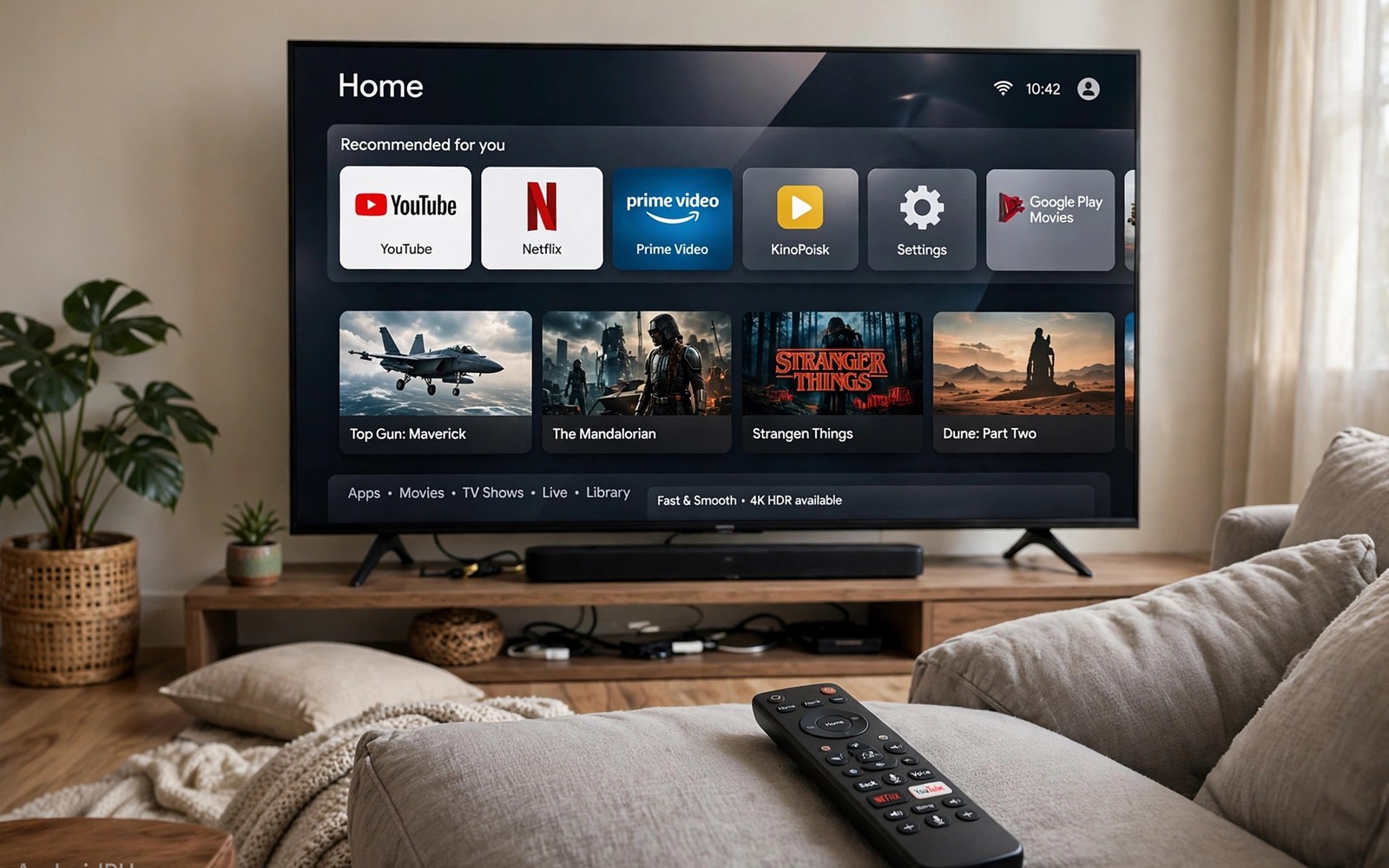
A laggy Android TV interface makes every action feel slow. Opening an app takes too long. Scrolling through a list stutters. Animations that should be smooth look choppy. The TV hardware may not be the only cause. Software settings and background processes often contribute to the lag. This guide explains the secret trick to speed up laggy Android TV UI animations with simple settings and cleanup steps.
Animations are visual transitions between screens and menus. A well tuned animation feels smooth and helps the user understand where they are in the interface. A laggy animation feels like the TV is struggling. The animation itself is not the problem in most cases. The problem is that the TV processor is busy with other work while trying to animate. Reducing that competing work makes animations smoother without changing the hardware.
Animation scale is a developer setting that controls how long animations take. Reducing the scale makes animations finish faster. Turning animations off completely makes navigation feel instant but it can feel abrupt. A scale of one half gives a good balance for most users. It speeds up transitions while keeping a sense of movement. That single change is the secret trick that many guides mention. It works best when combined with the cleanup steps in this guide.
Reduce Animation Scale Safely
Enable developer options on the TV by tapping the build number several times in the about menu. Open developer options and find the three animation scale settings. Those settings control window animations and transition animations and animator duration. Set each one to one half for a noticeable speed improvement. Set them to off only if you prefer instant transitions without any animation. Test navigation after changing the settings. Menus should feel snappier immediately.
Record the original animation values before changing them. The default is usually one times for all three settings. A note with those values makes it easy to restore the original feel if you dislike the faster setting. Some users find half speed animations too fast at first. Give the new setting a few days before deciding. The brain adapts to faster transitions quickly and the old speed then feels slow by comparison.
Do not change other developer options unless you understand them. Developer options include settings that can affect background processes and graphics rendering. Changing a setting at random can cause instability or unexpected behaviour. Change only the animation scales for this optimisation. Leave other developer settings at their defaults. That restraint keeps the TV stable while still delivering a speed benefit.
Free Memory And Storage
Low storage slows a TV system. The system needs free space for caches and for app updates. A TV with almost full storage may stutter during animations because it cannot write temporary data quickly. Check storage in settings and free at least ten percent of total storage if possible. Uninstall apps that you no longer use. Clear cache for apps that have grown large over time. Do not clear data for apps that you use regularly unless you are prepared to sign in again.
Background apps consume memory even when they are not visible. A TV with limited memory will close background apps frequently. That closing and reopening cycle causes lag when switching apps. Force stop apps that run in the background without a clear need. Avoid installing many apps that start automatically at boot. Each auto start app adds to boot time and to background load. A lean app set keeps more memory free for the interface.
Restart the TV regularly. A restart clears temporary memory and stops runaway background processes. A TV that stays on for weeks without a restart can accumulate memory leaks from apps. A weekly restart is a simple maintenance habit. Use the restart option in settings rather than only putting the TV into standby. Standby does not clear memory in the same way as a full restart. A full restart takes a minute and it often restores smooth animations immediately.
Optimise Home Screen And Network
A cluttered home screen with many recommendation rows can slow navigation. Each row loads images and data when it appears. A home screen with fewer rows loads faster and scrolls more smoothly. Hide rows from apps that you rarely use. Pin favourite apps to the top for quick access. That organisation reduces the work that the interface must do on every home screen visit. It also makes the TV easier to navigate for other household members.
Network delays can look like interface lag. A recommendation row that waits for network data will appear slowly. A search that waits for a server response will feel laggy even when animations are fast. Check network speed and stability if rows load slowly. A wired connection or a stronger Wi-Fi signal improves row loading time. That improvement is separate from animation speed but it contributes to the overall feeling of responsiveness.
System updates can improve interface performance over time. A maker update may include optimisations for the launcher and for animations. Keep system software up to date. After an update recheck animation scale settings because updates can reset developer options. A quick recheck after each update preserves the speed benefit. Also check for app updates for the launcher if the launcher is a separate app on your device.
Code That Checks TV Performance Settings
The code below shows a command pattern for checking animation scale and memory on an Android TV box from a computer. Use it only on a device that you own. Adapt the address to your own box.
adb connect 192.168.1.51:5555
adb shell settings get global window_animation_scale
adb shell settings get global transition_animation_scale
adb shell dumpsys meminfo | head -n 20
adb disconnect
The snippet above is an original example written for this guide. It shows a generic performance check pattern that you can adapt to your own television. It does not copy code from any outside source.
Adapt the snippet by replacing the example address with the address of your own TV. The animation scale values should show one half after your change. A value of one indicates the default speed. A value of zero indicates animations off. Use that output to confirm that your setting actually applied. A setting that looks changed in the menu but shows the old value in the output needs to be applied again.
When Hardware Limits Remain
Some older TVs have processors that struggle with modern interfaces regardless of settings. Animation reduction and cleanup help but they cannot turn a very old processor into a modern one. If lag remains severe after all software steps then an external Android TV box may be a better solution. A box with a modern processor can deliver a smooth interface to the old screen. That upgrade costs far less than a new TV and it preserves a working panel.
Overheating can also cause lag. A TV or box in a closed cabinet may throttle its processor when it gets hot. Throttling reduces performance to protect the hardware. Improve airflow around the device. Keep vents clear and avoid stacking other hot devices on top of the TV box. A cool device maintains its rated performance for longer sessions. That thermal factor is often overlooked in interface lag troubleshooting.
Check for a failing storage drive on a TV box with external storage. A failing USB drive can cause stutter when the system reads from it. Remove external storage temporarily and test interface speed. If speed improves then the drive may be the cause. Replace the drive with a healthy one. A storage problem that looks like animation lag is a common misdiagnosis that wastes time on settings changes.
Common Mistakes
One common mistake is to turn animations off completely and then complain that navigation feels confusing. Animations help users track where they are in an interface. A half speed animation preserves that orientation cue while still feeling fast. Try half speed first before turning animations off entirely. That middle ground suits most users better than either extreme. Readers who study hidden Android TV settings you must enable will see a similar benefit from balanced settings rather than extreme changes.
Another mistake is to install a cleaner app that promises to speed up the TV by killing background processes aggressively. Such apps can kill processes that the system needs and cause more lag when those processes restart. Use built in settings and manual cleanup instead. A cleaner app that runs constantly adds its own background load. That load can offset any benefit from killing other processes. Manual maintenance is safer and more predictable.
A third mistake is to change animation settings and then forget to restart the TV. Some settings apply immediately while others need a restart to take full effect. Restart the TV after changing animation scales and after clearing large caches. That restart ensures that the new settings and the freed memory work together. The same restart habit helps when blocking ads across Android TV because a restart clears stale network and interface state.
A further mistake is to blame animations when the real cause is network lag. A row that loads slowly due to a weak network will look like animation lag. Test interface speed with local menus that need no network data. If local menus are fast then the problem is network related. Fix the network rather than changing animation settings further. That diagnosis saves time and leads to the correct fix.
Frequently Asked Questions
Is reducing animation scale safe for my TV?
Yes reducing animation scale through developer options is a standard setting and it is reversible. It does not damage hardware. It only changes how long transitions take. Restore the default value of one times if you dislike the faster feel. Avoid changing other developer options that you do not understand.
Will turning animations off make my TV faster?
Turning animations off makes navigation feel instant because there is no transition to wait for. It does not increase processor speed. It removes a visual delay. Some users prefer that instant feel. Others find it disorienting because they lose the visual cue of movement between screens. Half speed is a good compromise for most users.
Why does my TV become laggy again after a while?
Background apps and caches accumulate over time. A TV that has not been restarted for weeks may have memory pressure from long running apps. Restart weekly and clear large caches periodically. Check storage free space as well. A combination of restart and cleanup usually restores smooth animations without any hardware change.
Conclusion
Start today by enabling developer options and setting all three animation scales to one half. Then restart the TV and clear cache for apps that you no longer use. Test navigation through the home screen and through a favourite app. If menus feel snappier then keep the setting and add a weekly restart to your routine. That simple sequence will make your TV feel newer without buying hardware. It will also prepare you to connect better input by studying connecting a mouse and keyboard to a TV because faster input and faster animations together transform daily TV use.

