

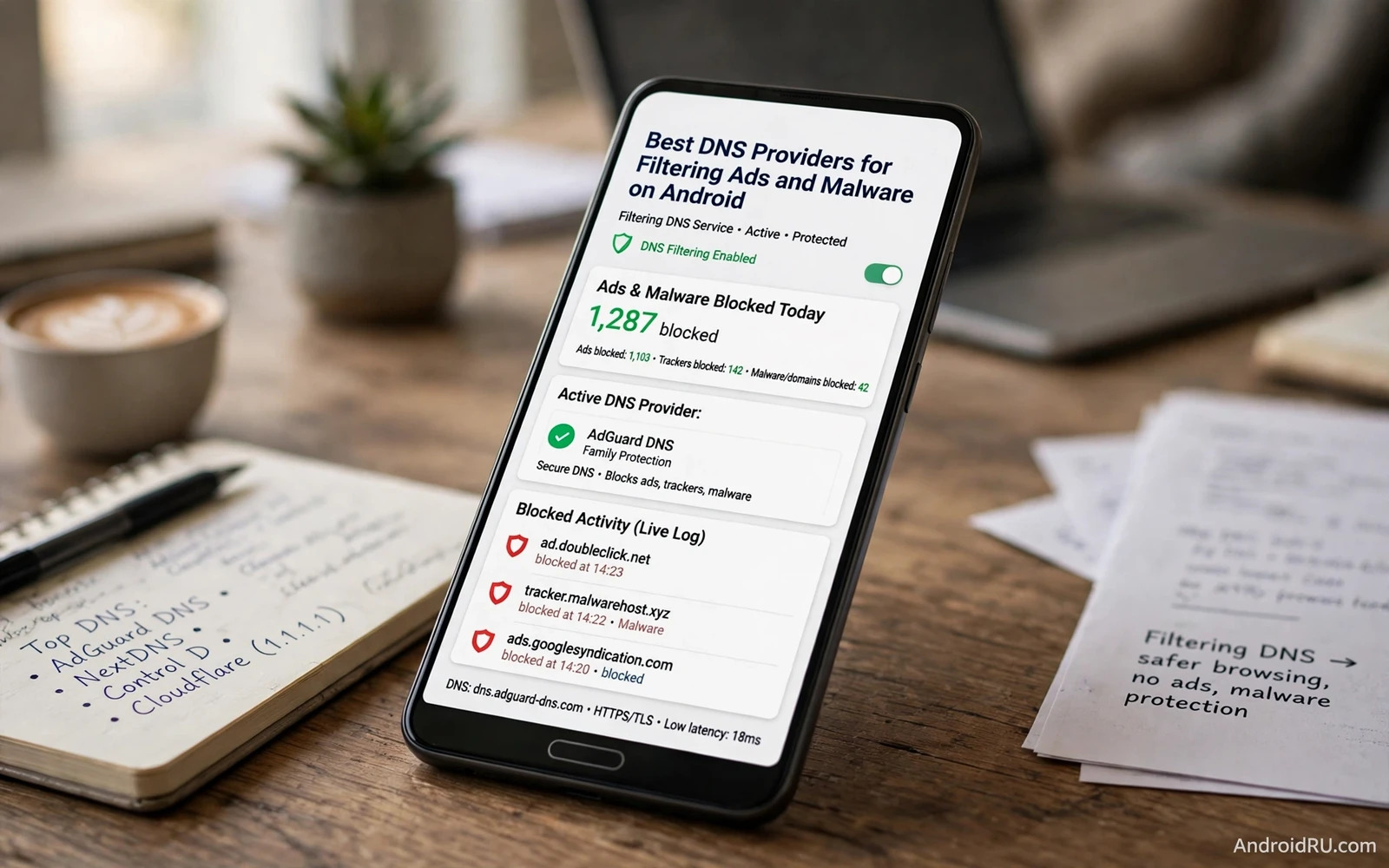
Every website visit and every app connection starts with a DNS lookup that translates a readable name into a network address. That lookup normally goes to a resolver chosen by your network and that resolver can log your requests and can return addresses for trackers and ad servers without any filtering. A filtering DNS provider changes that first step. It refuses to resolve known ad domains and known malware domains so the unwanted connection never starts. Blocking at DNS level protects every app on the phone rather than protecting only the browser.
Filtering DNS works best as a quiet background layer rather than as a dramatic security product. You set a private DNS hostname once and the phone routes lookups through the filtering resolver on Wi-Fi and on mobile data. Ads disappear from many apps and known malicious domains fail to load and tracking domains lose a major channel. The layer does not replace a VPN or an antivirus scan or careful app choice. It removes a large volume of low effort unwanted traffic before those other tools ever need to act.
This guide explains how filtering DNS differs from ordinary DNS and which filtering strengths suit different users and how to test that filtering actually works and what to do when a legitimate site breaks. Provider choice matters less than correct setup and honest testing because even the best filtering resolver protects nothing when the phone silently falls back to an unfiltered resolver on some networks.
How Filtering DNS Blocks Ads And Malware
A filtering resolver holds blocklists of domains linked to advertising and tracking and malware distribution and phishing. When your phone asks for a blocked domain the resolver returns a blocked answer instead of the real address. The app or browser then fails to load that ad or tracker or malicious payload. That failure happens before any tracking script downloads and before any malicious file reaches the device. DNS filtering therefore saves data and battery as well as improving privacy because unwanted downloads never begin.
Blocklist quality decides real world results more than marketing promises about speed. A resolver with careful curation blocks current ad and malware domains quickly while leaving legitimate services alone. A resolver with aggressive lists may block a content delivery domain that a legitimate app needs and then break videos or images or logins. A resolver with stale lists may miss new malicious domains for days. Test a provider with your own daily apps rather than trusting a block percentage quoted on a sales page.
Choosing A Filtering Strength For Your Household
Filtering strengths range from security only filtering to full family filtering that also blocks adult content and gambling and social media categories. Security only filtering suits most adults because it blocks malware and phishing while leaving ordinary browsing untouched. Ad blocking filtering adds tracker and advertising domains and suits users who want cleaner apps and faster pages. Family filtering suits shared devices used by children because it adds content categories that parents want blocked by default.
Household needs should drive the choice rather than the maximum blocking level available. Maximum blocking sounds safest but it creates the most breakage and the most temptation to disable filtering entirely when something fails. A moderate level that stays switched on every day protects more than a strict level that gets switched off during frustration. You can also use different profiles for different devices when a provider offers that option. A child tablet can run family filtering while an adult work phone runs security plus ad filtering.
Setting Private DNS On Android Correctly
Open Settings and then open Network and internet and then open Private DNS and then enter the hostname supplied by your chosen provider. The hostname is a domain name rather than a numeric address and Android uses it to establish an encrypted DNS session. Save the setting and then test it by visiting a known ad heavy page and by checking a DNS leak or resolver test page. The test page should show the filtering provider as your resolver. If it shows your carrier or your Wi-Fi router instead then private DNS is not active on that network and filtering is not protecting you.
Some networks interfere with private DNS by blocking the encrypted port or by forcing their own resolver. Public Wi-Fi portals and some corporate networks behave this way. When private DNS fails on a particular network check whether the network requires a captive portal login first and then retest after login. If the network still blocks encrypted DNS then treat that network as unfiltered and rely on browser protections and app protections for that session. Do not disable private DNS globally because one network interferes with it.
Testing Filtering And Fixing Broken Sites
Test filtering with a deliberate method rather than guessing from a single page load. Visit pages that previously showed heavy advertising and note whether ads disappear. Try a known test domain that your provider documents as blocked and confirm that it fails to load. Check that banking and email and messaging apps still work normally after setup. A good filtering setup shows cleaner pages and working essential apps together. Cleaner pages with broken essential apps signal a list that is too aggressive for your needs.
When a legitimate site breaks first check whether DNS filtering caused the break by temporarily switching private DNS off and reloading the site. If the site works with filtering off then the blocklist blocked a domain that the site needs. Most providers let you allowlist a domain or switch to a lighter filtering profile. Allowlist only the specific domain that the site needs rather than disabling filtering for the whole phone. That narrow fix preserves protection everywhere else while restoring the one broken service.
Limits Of DNS Filtering You Must Understand
DNS filtering cannot see inside encrypted app traffic and it cannot block a tracker that shares a domain with essential content. An app that serves ads from its own main domain will keep showing those ads because blocking that domain would also block the app itself. DNS filtering also cannot block ads inside videos that arrive through the same delivery domain as the video content. Browser content blockers and app level controls remain necessary for those cases. DNS filtering is a broad first layer rather than a complete solution.
Privacy claims from DNS providers also deserve scrutiny because the resolver sees every domain that you look up. Choose a provider with a clear no logging policy for personal query data and with an independent audit or a transparent policy history. A free filtering resolver that logs and sells query data trades one tracker for another. Paid providers and well established nonprofit resolvers often offer stronger privacy guarantees but you should still read the policy yourself and check how long logs are kept and whether queries are anonymised.
DNS filtering works best beside encrypted transport so learn securing your Android phone on public Wi-Fi networks and study best mobile VPN services for Android security and speed for a full tunnel option while stopping pop-up ads and trackers on Android browsers covers browser level blocking that DNS alone cannot reach.
- Set private DNS with the provider hostname rather than a numeric address
- Test with a resolver check page to confirm filtering is active on Wi-Fi and mobile data
- Choose a filtering strength that stays on daily rather than a strict level you disable
- Allowlist only the specific domain a broken site needs instead of disabling filtering
- Read the provider logging policy before trusting it with every domain you visit
Testing Filtering DNS Across Every Network You Use
Filtering DNS must be tested on every network that you use because behaviour on home Wi-Fi does not predict behaviour on mobile data or on a workplace network. Run a resolver test on home Wi-Fi and on mobile data and on any public network that you join regularly. Record which resolver each test shows and whether filtering blocks a known test domain on that network. A network that forces its own resolver will show up immediately in those results and you can then decide whether to trust that network for sensitive browsing.
Test filtering with your real daily apps rather than with a single browser page. Open a news app and a game and a shopping app and note whether advertising disappears and whether content loads normally. An app that breaks under filtering needs a narrow allowlist entry or a lighter filtering profile rather than a complete disabling of private DNS. Keep a short note of which apps needed allowlist entries so that a future provider change does not force you to rediscover the same fixes from scratch.
Review your filtering provider choice once a year because blocklists and privacy policies change over time. Check whether the provider still publishes a clear logging policy and whether independent audits remain current. Check whether new filtering categories suit your household better than the profile that you chose originally. A yearly review keeps a quiet background layer honest and prevents a provider that slowly weakened its privacy stance from retaining your trust by inertia alone.
Filtering DNS And Public Wi-Fi Portals
Public Wi-Fi portals interact awkwardly with filtering DNS because portal login pages often need plain DNS before authentication succeeds. Connect to the portal and complete login first and then test whether private DNS becomes active after login. Many portals release DNS interception after authentication and filtering resumes normally. If filtering stays blocked after login then treat that network as unfiltered for the session and rely on browser protections and app protections instead of assuming that DNS filtering works.
Avoid sensitive browsing on portal networks where filtering and encryption cannot be verified. Use mobile data for banking or for account changes when a public network blocks encrypted DNS. Mobile data costs more than free Wi-Fi but it preserves resolver trust and encryption that a hostile portal would remove. A short mobile data session for a sensitive task is cheaper than recovering from credential theft that a compromised portal enabled. Choose network trust deliberately rather than defaulting to the nearest free Wi-Fi.
The best filtering DNS provider for Android is the one that blocks ads and malware reliably and leaves your essential apps working and respects your query privacy. Set private DNS once and test it on every network that you use and tune the filtering level to a setting that you can leave switched on. That quiet layer will then protect every app on the phone without demanding attention every day.

