

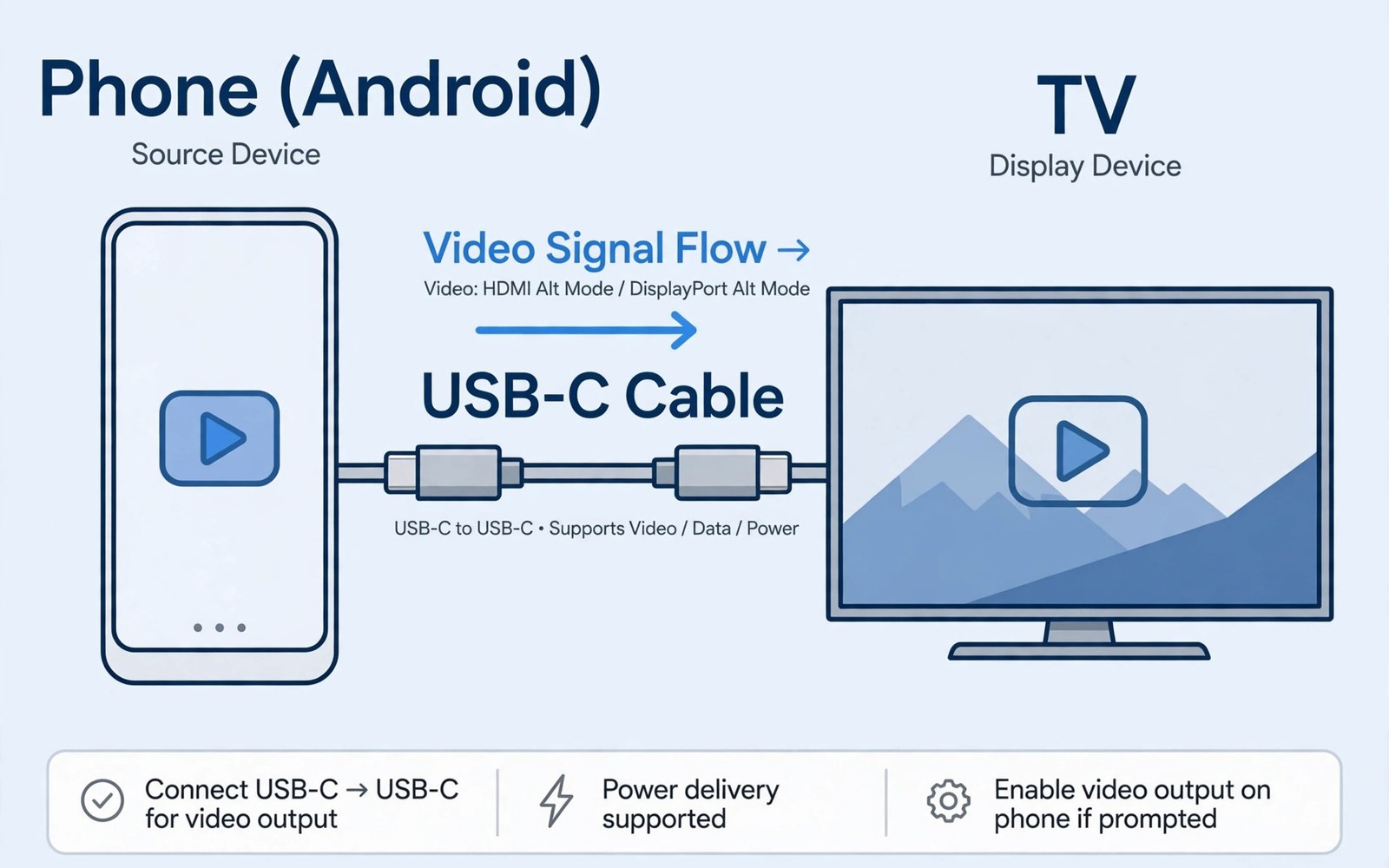
How DisplayPort Alt Mode Lets USB-C Cables Stream Video to TV
A USB-C cable can carry video to a television without a separate HDMI adapter in many cases. That ability comes from DisplayPort Alt Mode. Alt Mode lets a USB-C port send DisplayPort video signals through the same cable that charges the phone. A phone that supports Alt Mode can show its screen on a large TV for films and presentations. A phone without Alt Mode cannot do this trick no matter how good the cable is. This guide explains how Alt Mode works and how to test whether your phone and cable support it.
I first tried this on a Saturday night with a phone, a cheap cable, and a TV that refused to show anything at all. The cable charged the phone perfectly, which made the blank screen feel like a fault in the TV. It was not. The cable was a charging-only cable, and no amount of reconnecting it was ever going to produce video. Once I understood what Alt Mode actually does inside the cable, the whole setup became simple: check the phone, buy the right cable, connect directly, and test before you need it.
What follows is the full picture — how the signal works, which phones support it, how to pick a cable that really carries video, the exact steps to connect, what resolution and power to expect, and how to fix the blank screen that almost everyone meets at least once.
What DisplayPort Alt Mode Actually Does Inside a USB-C Cable
USB-C is a connector shape rather than a single capability. Different phones use the same USB-C shape for different functions. Some phones support only charging and data through USB-C. Others support video output through Alt Mode as well. The difference lies in the phone hardware and in the cable wiring. A cable must carry the video signals on specific wires inside the connector. A charging-only cable may lack those wires even though it fits the same port. That is why a random USB-C cable often fails for video even when it charges well.
DisplayPort Alt Mode repurposes high-speed lanes inside a USB-C cable for video. Those lanes normally carry fast data. In Alt Mode they carry video signals to a display instead. The phone and the display negotiate Alt Mode when connected. If both sides support it, video appears on the TV. If one side lacks support, the connection falls back to charging only. That negotiation happens automatically and it needs no app on the phone. A user only needs the right phone, the right cable, and a compatible display input.
The word “alternate” is the key. The USB-C port is not adding a new connector; it is switching some of its existing high-speed lanes from data duty to video duty. That is also why Alt Mode and full-speed USB data cannot always run at full speed at the same time: the lanes are shared, and the phone has to divide them between video and data. For watching a film on a TV, that division does not matter. For a desktop setup with a monitor, a keyboard, and a drive all running through one hub, it matters a lot, and it explains why some hubs cap video resolution when their USB ports are busy.
The Four High-Speed Lanes and What They Carry
A full-featured USB-C cable contains four high-speed data lanes, plus the USB 2.0 wires, plus power wires. In normal use, those lanes carry USB data at high speed. When Alt Mode starts, the phone assigns two or four of those lanes to DisplayPort video, depending on how much bandwidth the video needs and whether USB 3 data still has to run alongside it. A 1080p picture at 60 frames per second fits comfortably on two lanes, which leaves the other two free for data. A 4K picture at 60 frames per second generally wants all four lanes, which means USB data drops back to USB 2.0 speed while the video runs.
You never see this lane juggling happen — it is handled by the phone and the display in the first second after you plug in — but knowing it exists explains two everyday mysteries. First, why a hub that advertises 4K video sometimes drops to 1080p when you plug a fast drive into it: the hub gave two lanes back to data. Second, why a cable that works fine for a film can stutter when you also try to run a desktop mode with a keyboard, a mouse, and a wired network adapter through the same hub.
Alt Mode vs HDMI Adapters vs Wireless Casting
There are three common ways to get a phone picture onto a TV, and Alt Mode is only one of them. A wired HDMI adapter takes a different route: some phones output video through a chip that converts the signal, and some adapters contain an active converter that turns a DisplayPort signal into HDMI. Wireless casting sends the picture over Wi-Fi instead of a cable. Each route has a place, and picking the wrong one is the most common source of disappointment.
Alt Mode wins on latency and on simplicity. A wired connection usually has lower latency than wireless casting, which helps fast games and helps lip-sync in films. It also needs no Wi-Fi network, no casting app, and no pairing step — you plug in and the picture appears. HDMI adapters win on compatibility with older TVs, because almost every TV has an HDMI port while very few have a USB-C video input. Wireless casting wins on convenience when you want to walk around the room with the phone in your hand. For a film night on the sofa, Alt Mode is the best of the three. For a presentation in a venue you have never visited, a hub with an HDMI output is the safer choice.
How to Check If Your Phone Supports DisplayPort Alt Mode
Check phone specifications for DisplayPort Alt Mode or video output over USB-C before buying a cable. A specification that only lists USB-C charging does not prove video support. Look for terms such as DisplayPort Alt Mode or video out in the official specification. Some phones support a desktop mode that implies video support. Others support only screen mirroring through wireless casting. Wireless casting is not Alt Mode and it will not work through a cable. A clear specification check saves money on a cable that cannot work with your phone.
As a rough guide, video output over USB-C is common on flagship and upper mid-range phones from Samsung, Huawei, Motorola, and Sony, and on some models from OnePlus, Xiaomi, and Google. Samsung’s DeX mode, for example, only exists on phones that output video over USB-C, so a Samsung phone with DeX supports Alt Mode by definition. Budget phones, on the other hand, very often have a USB-C port that charges and transfers data but carries no video at all. The connector looks identical, which is exactly why the specification check matters. Never assume support from the shape of the port.
-
Open the official specification page for your exact phone model, not a review or a shop listing. Look for “DisplayPort Alt Mode”, “video output”, “USB-C video out”, or a desktop mode such as DeX.
-
Check the USB version listed. A phone that lists USB 3.1 or higher is far more likely to support video than one that lists USB 2.0 only, though the USB version alone is not proof.
-
Search the phone maker’s support pages for your model plus “connect to TV” or “connect to monitor” and read what the maker itself says.
-
If the specification is silent, borrow a known full-featured cable and a known compatible TV and test. A five-minute test settles the question faster than an hour of searching.
Phones That Usually Support Video Out and Those That Do Not
Samsung’s Galaxy S and Galaxy Z lines have supported video out for years, and their DeX desktop mode is the most polished version of phone-to-monitor video on Android. Huawei’s Mate and P lines support a desktop mode of their own. Motorola’s Edge phones support a desktop mode called Ready For. Sony’s Xperia 1 and Xperia 5 lines support video out. On the other side, many budget phones from every maker skip video out entirely, and some mid-range phones support it on paper but cap the output at 1080p. Google’s Pixel phones were a famous exception for years — the hardware could do it, but the software did not enable it — and support arrived gradually across later models, so check your exact Pixel model rather than trusting a general rule.
The Quickest Check: Your Phone Maker’s Own Spec Page
The fastest reliable check is the specification page on the phone maker’s own website, because makers list video output when the phone has it and stay silent when it does not. Shop listings are unreliable: they copy specifications from each other, and a shop that lists “video out” for a phone that lacks it will happily sell you a cable that cannot work. If the maker’s page says nothing about video, treat the phone as unsupported until a live test proves otherwise.
How to Pick a Full-Featured USB-C Cable That Carries Video
Cable choice matters as much as phone support. A full-featured USB-C cable supports video and fast data and power delivery together. A charging-only cable may look identical yet lack video wires. Check the cable description for DisplayPort Alt Mode support or video support. A cable rated for high-speed data is more likely to support video than a cheap charging cable. Test a new cable with a known compatible phone and TV before relying on it for a presentation. That test confirms the cable rather than assuming it from packaging claims.
The price gap is real but small. A decent full-featured cable costs a little more than a charging cable, and the extra money buys the high-speed lanes and the wiring that video needs. A cable that costs less than a coffee and promises nothing on the packet is almost certainly a charging cable. Buy from a maker that prints its speed rating on the cable or the box, and keep the receipt until you have tested it.
| Cable type | Carries video | Data speed | Power delivery | Best use |
|---|---|---|---|---|
| Charging-only USB-C | No | USB 2.0 or none | Yes | Charging only |
| USB 2.0 full-featured | Yes, usually 1080p | USB 2.0 | Yes | Basic TV mirroring |
| USB 3.2 full-featured | Yes, up to 4K | Up to 10 Gbps | Yes | Films, presentations, desktop use |
| USB4 cable | Yes, up to 4K or higher | Up to 40 Gbps | Yes, up to 240 W on rated cables | Desktop setups and high-resolution monitors |
| Thunderbolt 3 or 4 cable | Yes | Up to 40 Gbps | Yes | High-end monitors and docks |
Two notes on that table. First, a Thunderbolt cable will carry phone video fine, but it is overkill for a phone and costs far more than a USB 3.2 full-featured cable that does the same job. Second, length matters: a full-featured cable longer than two metres can struggle with 4K video, and the longest cables on the market often cap their speed rating for exactly that reason. For a TV across the room, a hub with an HDMI output and a normal HDMI cable is usually a better answer than a very long USB-C cable.
Labels and Logos Worth Looking For
A cable that supports video will usually say so. Look for “DisplayPort Alt Mode”, “video support”, “4K video”, “full-featured”, or a USB speed rating such as “10 Gbps” or “USB 3.2” on the box or the listing. Certified cables carry a USB-IF logo and a printed speed rating, and that certification is worth a small extra cost because it means the cable was tested rather than merely claimed. A listing that only says “fast charging” and says nothing about data or video is telling you, by omission, that it is a charging cable.
Cable Length, Speed Ratings, and What They Do to Resolution
Resolution depends on bandwidth, and bandwidth depends on the cable’s speed rating and its length. A USB 3.2 cable rated at 10 Gbps can carry 4K at 30 frames per second comfortably, and often 4K at 60 with all four lanes given to video. A USB 2.0 full-featured cable can carry 1080p but will struggle with 4K. A cheap cable with no speed rating at all might carry 1080p on a good day and nothing on a bad one. If your TV shows a lower resolution than you expected, the cable is the first suspect, not the phone.
Why a Cheap Cable Fails Video Even When It Charges Fine
Charging needs only the power wires, which every USB-C cable has. Video needs the high-speed lanes as well, and those lanes need careful wiring and shielding that costs money to build. A cheap cable skips those lanes entirely and still charges perfectly, which is why it feels like a working cable right up to the moment you plug it into a TV. There is nothing wrong with a charging-only cable — it is the right tool for a bedside charger. It is simply the wrong tool for video, and no setting on the phone can change that.
Connecting Your Phone to a TV Step by Step
Connect the USB-C cable directly to the phone and to the TV or to a hub that links to the TV. Avoid long adapter chains because each adapter can break Alt Mode negotiation. Select the correct TV input for the USB-C or HDMI port in use. The phone screen should appear on the TV within a few seconds. If nothing appears, try a different TV input and check that the TV supports the signal type. Some TVs need a specific input mode for USB-C video. Check the TV manual for a USB-C video input setting.
-
Check that the phone supports Alt Mode and that the cable is full-featured, using the checks above. Do not skip this step: it is the step that saves the most time.
-
Plug the cable directly into the phone and into the TV’s USB-C video input, or into a hub that is already connected to the TV by HDMI. Use the shortest connection you can.
-
Switch the TV to the right input. For a direct USB-C connection, that is the USB-C input. For a hub, it is the HDMI input the hub uses.
-
Wait five seconds. The phone and the TV negotiate Alt Mode, and the picture should appear. If the phone asks how to handle the display, choose screen mirroring for a film or desktop mode if your phone offers it.
-
Check the picture: is it filling the screen, is the resolution right, is the sound coming from the TV? If the sound still comes from the phone, open the phone’s sound output settings and switch it to the TV.
-
For a long session, plug a charger into the hub or into the TV’s power-delivery port now, before the film starts, rather than halfway through it.
Direct Cable vs Hub: Which Setup Fits Which Room
A direct cable is the simplest setup and the one I recommend for a film night at home: one cable, no hub, no extra power brick, nothing to go wrong. A hub earns its place when you need more than video — charging at the same time, a keyboard and mouse for desktop mode, or an HDMI output for a TV that has no USB-C video input. For a desktop style setup on a monitor then accessories to turn a phone into a PC explain hub and monitor choices. For hub speed and power details then USB hub features that matter most help you choose a hub that preserves video. For magnetic charging while using video then magnetic cable protection for charging ports shows a wired charging option that reduces port wear.
The rule of thumb is to use the fewest pieces you can. Every adapter in the chain is a place where Alt Mode negotiation can fail, and a chain of three adapters that works on Monday can fail on Tuesday when one of them is seated slightly differently. If your setup needs more than a phone, a hub, and a TV, test it twice before you rely on it.
Picking the Right TV Input and Picture Mode
TVs with a USB-C port do not always treat it as a video input. On some TVs the USB-C port is for service or for power only, and the video input is an HDMI port instead — which means you need a hub with HDMI, not a direct cable. On other TVs the USB-C port accepts video but only when the TV is set to a specific input mode, sometimes labelled “PC” or “USB-C video” in the input menu. Check the TV manual for the exact label. It takes two minutes and it is the fix for a surprising number of blank screens.
Once the picture appears, set the TV to game mode for gaming and to movie or cinema mode for films. Game mode cuts the TV’s picture processing, which is what makes a wired connection feel responsive. Movie mode does the opposite: it allows the processing that makes films look richer. The wrong mode will not break anything, but it will make a good connection feel sluggish or washed out.
Resolution, Refresh Rate, and Power Delivery While Streaming Video
Alt Mode can support high-resolution video, but the actual result depends on phone, TV, and cable together. A phone may output a lower resolution than the TV maximum. A cable with a lower speed rating may limit resolution or refresh rate. A hub in the chain can also limit video if its video port is weak. Test the actual resolution in TV settings after connecting. If the TV shows a lower resolution than expected, test a direct cable without a hub. That direct test isolates whether the hub or the cable limits the output.
Refresh rate is the number people forget. A film at 24 or 30 frames per second looks fine at almost any refresh rate, but a game at 60 frames per second needs a 60 Hz output to feel right, and a phone that outputs 30 Hz will make even a simple game feel sluggish on a big screen. If your games feel laggy on the TV while films look fine, check the refresh rate in the TV’s info panel before you blame the phone or the cable.
Power delivery during video output matters for long films and presentations. A phone driving a TV drains battery faster than normal use. A hub with power delivery can charge the phone while it outputs video. A direct USB-C to TV cable without power delivery cannot charge the phone at the same time unless the TV supplies power. Check whether the TV USB-C port supplies power before a long session. If it does not, use a hub with a charger to keep the phone powered during the film.
What Resolution You Can Realistically Expect
Most phones that support Alt Mode output 1080p at 60 Hz without any fuss, and that is enough for a film night on a normal living-room TV. Many flagships can output 1440p or 4K at 30 Hz, and some can do 4K at 60 Hz with a good cable and a direct connection. The honest expectation is 1080p, the pleasant surprise is 4K, and the thing to check is the TV’s info panel after connecting, because the phone will not always tell you what it is actually sending. If the TV reports 1080p and you expected 4K, test a direct cable first, then a better cable, and only then blame the phone.
Keeping the Phone Charged During a Long Film
A phone driving an external display is doing real work: decoding video, driving a second screen, and keeping its radios alive. Expect the battery to drain noticeably faster than it does during normal use, and faster still if the phone is also acting as a desktop with a keyboard and mouse attached. A powered hub solves this cleanly, because it charges the phone through the same cable that carries the video. A TV that supplies power through its USB-C port solves it too, though many TVs supply only a trickle — enough to slow the drain, not enough to charge the phone while it plays. For a film longer than two hours, a powered hub with a proper charger is the setup that actually works.
Desktop Mode, Gaming, and Presentations Over USB-C Video
Video out is not only for films. On phones that support it, the same cable can turn a monitor into a desktop, a TV into a game console, or a projector into a presentation screen. Each use has its own quirks, and each one is worth testing at home before you depend on it in front of other people.
Turning Your Phone Into a Desktop on a Monitor
Samsung DeX, Motorola Ready For, and Huawei’s desktop mode all do the same basic trick: when the phone detects an external display, it offers a desktop-style interface with windows, a taskbar, and a mouse pointer, instead of simply mirroring the phone screen. You connect the phone to a monitor through a hub, plug in a keyboard and mouse, and the phone becomes a usable computer for email, documents, and browsing. It will not replace a laptop for heavy work, but it is a genuine computer for light work, and it runs from a device that is already in your pocket.
The practical details matter. A hub with HDMI output, at least two USB-A ports for keyboard and mouse, and a power-delivery input is the minimum useful hub for desktop mode. Bluetooth keyboard and mouse work too, and they free up the hub’s ports. Set the monitor to its native resolution and check that text is readable from your normal sitting distance — desktop mode at 1080p on a large monitor can make text uncomfortably small, and bumping the phone’s display scaling up a notch fixes it.
Gaming on the Big Screen With Low Latency
Gaming on a TV through Alt Mode can work well when latency stays low. A wired Alt Mode connection usually has lower latency than wireless casting. That lower latency helps fast games that need quick reactions. A wireless controller paired to the phone can complete a TV gaming setup without extra cables. Test game latency on a short session before a long gaming night. If latency feels high, check the TV game mode setting, because a TV in a processing-heavy mode can add delay.
Cloud gaming and emulators are the two cases where Alt Mode shines most. Cloud games already carry network latency, so adding casting latency on top makes them feel mushy; a wired connection removes one whole layer of delay. Emulators benefit the same way, and a phone running a retro game on a TV with a Bluetooth controller is one of the cheapest console-style setups you can build. Keep the phone cool during long sessions — a phone that is charging, decoding, and driving a display all at once will warm up, and a warm phone can throttle and drop frames.
Presentations: Speaker Notes on the Phone, Slides on the TV
A phone that outputs video while charging through a hub can also run a presentation app in a windowed mode. A windowed presentation lets you see speaker notes on the phone while the audience sees slides on the TV. Test that windowed mode before a live talk, because not every phone supports it. A phone that only mirrors will show notes to the audience as well. Knowing the mode before a talk prevents an embarrassing notes display.
A presentation setup with Alt Mode should be tested in the actual venue before the audience arrives. Venue TVs vary in input support and some require a specific input mode. Arrive early and test the phone and cable on the venue TV. Bring a backup hub and a backup cable in case the venue TV needs a different input. That preparation prevents a blank screen in front of an audience and it gives time to switch to a casting backup if needed.
Common Mistakes That Leave Your TV Blank
One common mistake is assuming every USB-C cable supports video. A charging-only cable will never show video no matter how many times you reconnect it. Another mistake is using a long adapter chain that breaks Alt Mode negotiation. A third mistake is blaming the phone when the TV input is wrong. Check TV input and cable type before buying new gear.
Some users also forget power delivery during long video sessions. A phone can drain during a long film if the TV does not supply power. Another error is expecting the highest TV resolution from a low-speed cable. A full-featured cable is needed for high-resolution video. Test resolution after connecting and upgrade the cable if the result is low.
-
Using a charging-only cable is the most common failure of all, and it is also the most confusing, because the cable charges the phone perfectly while showing nothing on the TV.
-
Forgetting to switch the TV to the right input, then concluding that the phone or the cable is broken, when the TV was simply listening on the wrong port.
-
Chaining a cable through two or three adapters, each of which can silently break Alt Mode negotiation, instead of using one direct connection.
-
Expecting 4K from a cable rated for 1080p, then blaming the TV when the picture tops out at the cable’s limit.
-
Starting a long film with no power plan, then watching the phone die halfway through the second act.
The Adapter Chain Trap
Every adapter between the phone and the TV is a negotiation point, and Alt Mode negotiation is a handshake between exactly two devices. Put a USB-C to HDMI adapter, then an HDMI switch, then an HDMI to DisplayPort converter in the chain, and the handshake has to survive three translations. It often does not. The fix is boring but reliable: remove adapters until the picture appears, then add them back one at a time until you find the one that breaks it. That one adapter is the part to replace.
The Wrong Input and the Forgotten Power Problem
A cable that works for video on one TV may fail on an older TV with a different input chip. Older TVs sometimes need a hub that converts the signal to a standard HDMI format. A hub with a built-in converter can bridge that gap for older displays. Test the setup on the oldest TV you plan to use rather than only on a new TV at home. That test reveals converter needs early.
A TV remote that can switch inputs quickly helps during a presentation when video drops briefly. A quick input switch can restore video without unplugging the cable. Keep the remote within reach during a presentation rather than across the room. That small preparation saves a long pause in front of an audience when a signal hiccups.
Check Video Output With Commands
A computer check can show display information on the phone. Run these display checks on a trusted computer. They read display state without changing any setting. Use them to confirm that the phone reports an external display when connected through Alt Mode. That confirmation helps you decide whether a blank TV comes from the phone or from the TV input.
adb shell dumpsys display
adb shell wm size
If the phone shows no external display, the cable or the phone may lack Alt Mode support. Try a different full-featured cable before concluding that the phone lacks support. If a second cable also fails, check the phone specification again. A phone without Alt Mode will never show an external display through a cable. In that case wireless casting remains an option for films even though it adds lag for interactive work.
A TV that supports a specific colour format may need a setting change for phone video. A TV set to a limited colour range can make phone video look washed out. Check the TV picture settings for a full colour range option and test it with phone video. A correct colour setting makes films look richer without changing the cable. That setting is easy to overlook when a blank screen problem takes all attention.
DisplayPort Alt Mode FAQ: Real Questions From Real Setups
Does every USB-C phone support DisplayPort Alt Mode?
Not every USB-C phone supports DisplayPort Alt Mode. Support depends on phone hardware and it must be listed in the phone specification. A phone with only charging and data over USB-C cannot output video through a cable. Check the specification for video output before buying a video cable. Flagship and upper mid-range phones are the most likely to support it, and budget phones are the most likely to lack it.
Can I charge my phone while using Alt Mode video?
You can charge while using video if the hub or TV supplies power through the same connection. A hub with power delivery charges the phone during video output. A direct cable to a TV without power supply will drain the phone during a long session. Use a powered hub for long films and presentations, and check the wattage: a hub that delivers only 15 W may slow the drain without actually charging a phone that is working hard.
Why is my TV blank with a USB-C cable connected?
A blank TV often means the cable lacks video support or the TV input is wrong or the phone lacks Alt Mode. Try a full-featured cable and check the TV input setting. Test the cable on a known compatible phone if possible. If both cables fail, the phone may lack Alt Mode support. Work through the checks in order — cable, input, phone — instead of replacing everything at once, because the first check solves the problem most of the time.
Is Alt Mode better than wireless casting for films?
For picture quality and latency, yes: a wired Alt Mode connection is steadier and quicker than wireless casting, and it does not depend on your Wi-Fi network. For convenience, casting wins, because you can keep the phone in your hand and walk around the room. If you are sitting down to watch a film, use the cable. If you want to show a quick clip to people in the room, casting is the faster choice.
Can Alt Mode output 4K video from a phone?
Yes, on phones and cables that support it, but 4K needs all four high-speed lanes, a cable rated for the bandwidth, and a direct connection or a hub whose video port can handle it. Many phones top out at 1080p or 1440p, and many hubs cap video at 4K 30 Hz even when the phone can do more. Check the TV’s info panel after connecting to see what the phone is actually sending, and treat 1080p as the normal result and 4K as a bonus.
The Bottom Line: One Cable, One Check, One Test Tonight
DisplayPort Alt Mode lets a supported USB-C phone stream video to a TV through a single cable. Check phone specification and cable video support before buying. Connect directly where possible and test resolution and power delivery. Use a powered hub for long sessions. Your concrete next step is simple. Tonight, check your phone specification for DisplayPort Alt Mode and test a full-featured cable on your TV.
If the test works, you have a film night, a game night, and a presentation setup hiding in a cable you may already own. If it does not work, you now know exactly which of the three suspects to blame — the phone, the cable, or the TV input — and you know the order to check them in. That is the whole trick. Alt Mode is not complicated once you see it clearly; it is just a cable that carries video on lanes most people never knew were there.

