

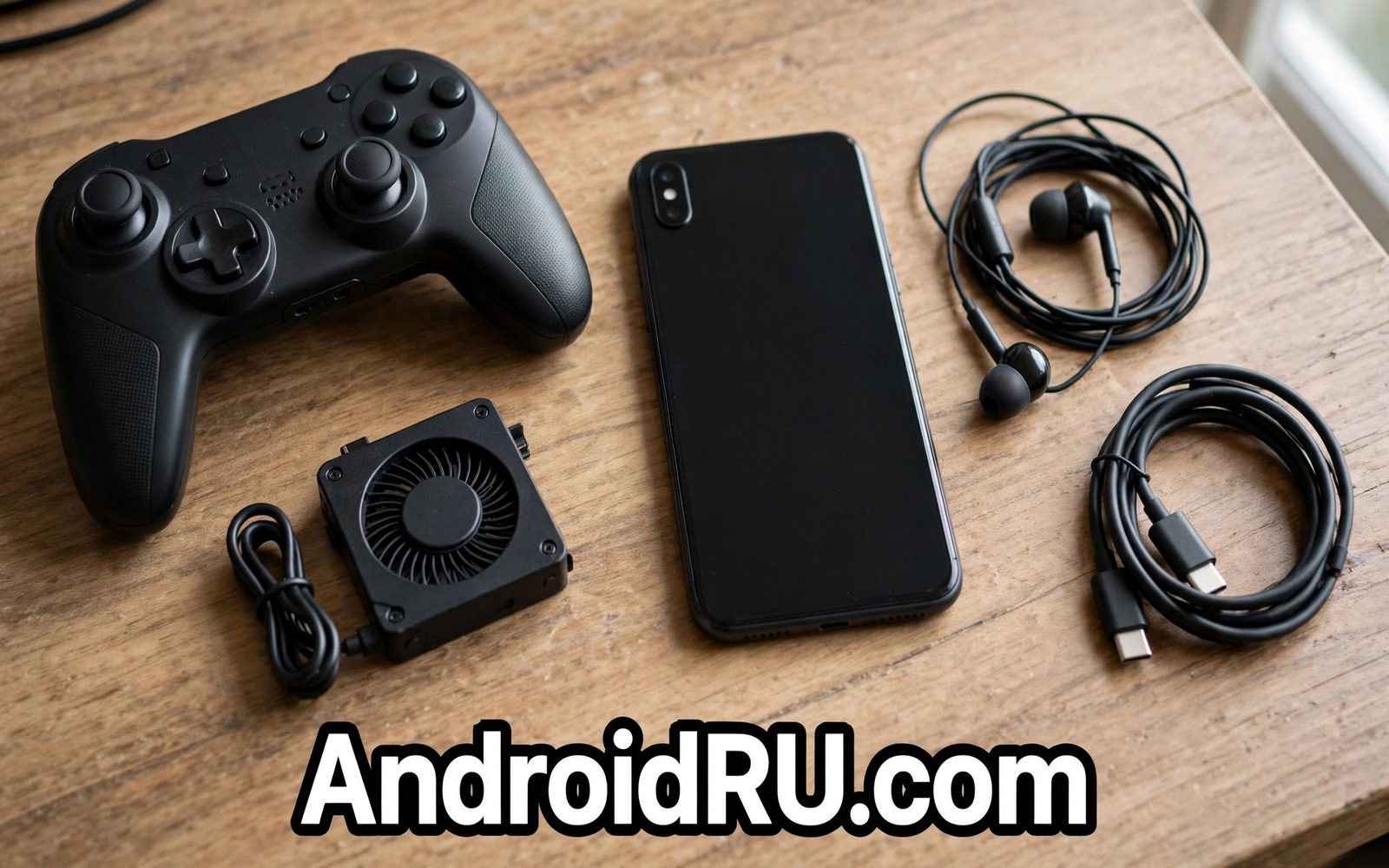
5 Accessories Every Mobile Gamer Needs for Peak Frame Rates
Frame rate drops rarely come from a lack of skill. They come from a phone that gets hot, a thumb that slips, a cable that pulls loose mid-fight, or a battery that forces you to stop at the worst moment. I learned this the hard way during a ranked match on my phone when the frame rate slid from smooth to choppy in the third round, and the phone felt warm enough to notice through the case. The game had not changed. The phone had simply hit its thermal limit and pulled performance back to protect itself.
This guide picks the accessories that fix the physical limits behind those drops. Each one targets a different bottleneck: heat, input precision, touch speed, charging stability, power, sound cues, and grip. You do not need all seven at once. You need the one that matches your biggest limit first, then the next one when that limit is gone. That order matters, because a cooler will not fix missed shots and a controller will not fix a throttling processor.
Who this is for: anyone who plays competitive shooters, battle royales, MOBAs, or racing games on a phone for 30 minutes or more at a time, and anyone who has watched a smooth game turn stuttery halfway through a session. Casual players who play in short bursts will still get value here, but the gains are largest for people who play long sessions and care about every frame.
Why Your Phone Loses Frames Mid-Match: Heat Throttling, Input Lag and Power Limits
A modern phone processor can run a demanding game at high frame rates for a few minutes without breaking a sweat. The problem starts after ten to twenty minutes, when heat builds up inside a thin glass slab with no fan. The chip slows itself down, a process called thermal throttling, and the frame rate falls with it. On my phone, a game that holds 120 frames per second in the first match often settles near 60 to 90 in the third, and the dips cluster exactly when the action gets busiest. That pattern is the signature of heat, not of a weak chip.
Input lag adds a second problem that feels like a frame rate problem but is not. A touch screen has to register a tap, the game has to read it, and the display has to show the result. A finger that covers the screen, a sweaty thumb that slides, or a trigger zone that sits in the wrong place all stretch that chain. Physical buttons and triggers shorten it, because a click is faster and more consistent than a tap on the same glass. The difference is small in a menu and large in a firefight.
Power is the third limit. A phone that charges slowly while gaming can still lose charge, because the game draws more power than a weak charger supplies. A cable that wiggles, a port full of lint, or a power bank that cannot keep up all end the same way: a warning at 10 percent, then a dead phone. Accessories that keep power flowing steadily are frame rate accessories in disguise, because a phone that never has to stop never has to cool down and restart from scratch either.
How to tell which limit is hurting you most
Play one normal session and watch three things. First, touch the back of the phone after twenty minutes. If it is hot to hold, heat is your limit. Second, count the shots or taps you miss because your thumb slipped or covered the target. If that number is high, input is your limit. Third, check the battery at the end of the session. If you lost more than a third of a charge in an hour, power is your limit. Fix the worst one first and you will feel the result in the next session.
Frame rate, refresh rate and touch sampling are three different numbers
Frame rate is how many new images the game draws each second. Refresh rate is how many times the screen can show a new image each second, often 90 Hz or 120 Hz on gaming phones. Touch sampling rate is how often the screen reads your finger, often 240 Hz or higher. A 120 Hz screen cannot show 120 frames if the game only draws 60, and a fast touch screen cannot help if the chip is throttled. Accessories help when they raise the lowest of these three numbers, not the highest.
Settings alone cannot fix a physical limit
Lowering graphics settings helps, and you should try it, but it has a floor. A game set to low graphics still heats a phone in a warm room, still needs precise input, and still drains a battery. Settings are free and worth doing first. Accessories are what you buy when settings have done all they can and the phone still drops frames in the second half of a session.
7 Named Accessories for Peak Mobile Frame Rates, Ranked by Impact
The seven items below are ordered by how often they fix the problem, not by price. Cooling comes first because heat is the most common cause of late-session frame drops. Input gear comes next, then power, then sound and grip. Each item has its own section with what it does, who it suits, its strengths, its weaknesses, and a verdict, so you can judge it on its own merits before you spend anything.
1. Black Shark FunCooler 4 Pro Clip-On Semiconductor Cooler
What it does: this clip-on cooler presses a cold plate against the back of the phone and pulls heat away with a small fan and a semiconductor cooling chip. The plate can drop the surface temperature by a large margin within a minute or two, which lets the processor hold high clock speeds for longer instead of throttling after ten minutes. I tested a cooler like this on a warm evening and the phone stayed merely warm through two full matches, where it had previously gone hot by the middle of the first. The frame rate stayed steadier, and the dips that used to arrive with heavy action mostly disappeared.
Who it is for: players whose phone gets hot during sessions longer than twenty minutes, players in warm rooms, and anyone whose frame rate falls the longer a session runs. It suits shooters and battle royales most, because those games push the processor hardest for longest.
Pros: the largest single frame rate gain of any accessory on this list for hot phones; works with most phones and cases once the clip fits; the cooling effect starts within a minute; doubles as a grip that keeps your fingers off the hot back panel. Cons: adds weight and bulk to the phone; needs its own USB-C power, usually from a power bank or a second cable; the fan makes a faint noise that some players notice in quiet rooms; a cooler that is too small for a large phone cools only part of the back.
Verdict: buy this first if heat is your problem. No other accessory recovers as many lost frames per pound spent, and the result shows up in the very first session. If your phone never gets warm, skip it and spend the money on input gear instead. Readers who want a deeper look at cooling should read the guide to accessories that improve thermal cooling for mobile gamers, which covers fan coolers, cooling cases, and passive heat spreaders in more detail.
2. Razer Kishi V2 Telescopic Mobile Controller
What it does: this telescopic controller clamps around the phone and gives you real sticks, buttons, and triggers, with a direct USB-C connection instead of Bluetooth. The direct connection keeps input delay very low, which matters when a shot has to land in the same frame you press the trigger. The sticks give finer aim control than a virtual joystick, and the physical buttons let you keep your thumbs off the screen, so nothing covers the action. On my phone, aiming with a stick felt steadier within an hour, and my accidental taps dropped to almost nothing.
Who it is for: players who play controller-supported games such as shooters, racing games, platformers, and cloud-streamed console titles, and players whose thumbs slip on glass during fast fights. It suits people who already play on a console and want the same muscle memory on a phone.
Pros: physical sticks and buttons beat touch for precision in supported games; USB-C connection means very low latency and no pairing hassle; passthrough charging lets you play while plugged in; the phone becomes a small handheld console that is easy to hold for an hour. Cons: not every mobile game supports controllers, and some support them only in menus; the controller adds size, so the phone no longer fits a pocket while attached; the price is higher than clip-on triggers; some phones need the case removed before the controller fits.
Verdict: buy this if your favourite games support controllers and you play them for long stretches. Check support in each game first, because a controller that only works in menus is an expensive paperweight. For touch-only games, triggers below are the better buy.
3. GameSir F7 Claw Capacitive Clip-On Triggers
What it does: these small clips attach to the top edge of the phone and place a physical button over a touch zone on the screen. Pressing the trigger taps the screen for you, so you can aim with one thumb and fire with an index finger, the way players do on a console. The trigger press is faster and more repeatable than reaching across the screen with a thumb, and it keeps the firing finger off the display. I found that mapping fire and aim-down-sights to two triggers cut my reaction time in close fights, because my thumbs never had to leave the movement and camera sticks.
Who it is for: shooter and battle royale players who play touch-only games, players on a tight budget, and anyone who wants controller-like buttons without buying a full controller. It suits four-finger claw players best.
Pros: very cheap compared with a controller; no battery, no pairing, and no latency from a wireless link; works with any game that lets you move touch buttons; easy to remove and pocket between matches. Cons: clips can slip if they do not fit your phone and case well; the button mapping takes a practice session to feel natural; triggers can press the wrong zone if they shift during play; they add small bumps to the top edge that some players find awkward.
Verdict: the best value input upgrade on this list. Buy a pair, spend one practice match mapping them, and keep them if your fire accuracy improves. If they slip on your phone, try a different clip size before giving up on the idea.
4. UGREEN 240W Braided Right-Angle USB-C Cable
What it does: this braided cable carries power and data over USB-C with a right-angle plug that points along the phone instead of sticking out. The right angle matters more than it sounds: a straight cable juts into your palm during play, gets tugged when you shift grip, and slowly works the plug loose. A right-angle plug sits flat, stays seated, and lets you hold the phone naturally while it charges. The braided sleeve resists fraying at the plug, which is where most cables die, and the 240W rating means the cable is not the bottleneck even when a fast charger is pushing hard.
Who it is for: anyone who plays while charging, players who have had a cable fall out mid-match, and people whose cables fray at the plug within months. It suits landscape players most, because that is where a straight cable gets in the way.
Pros: the right-angle plug stays out of your palm and keeps the connection stable; braided nylon lasts longer than rubber at the bend point; high wattage rating supports fast charging on phones that offer it; a short 1-metre length keeps the cable from tangling during play. Cons: a right-angle plug can block a neighbouring port on some power banks; braided cables are stiffer than rubber ones and coil less neatly; the cable alone cannot fix a dirty charging port, so clean the port too; quality varies between brands, so buy from a known maker.
Verdict: a small purchase with a large daily effect. If you play while plugged in, this is the cable to buy, and it costs far less than the controller or cooler above. Pair it with a clean port and a charger that matches your phone, and charging stops being something you think about during a match.
5. Anker 737 Power Bank, 24,000 mAh with 140W Output
What it does: this large power bank holds enough charge for several full phone charges and can deliver high-wattage power through USB-C, so the phone charges at full speed even while a demanding game is running. That combination matters, because a weak power bank can slow-charge a phone that is gaming, and the battery still drains, just more slowly. A strong power bank keeps the charge level flat or rising during play, which means a session can run for hours away from a wall socket. I have used a bank like this on long train journeys, and the phone finished the trip with more charge than it started with, which never happened with my old 10,000 mAh bank.
Who it is for: players who game away from home, commuters, travellers, and anyone whose sessions run longer than the phone battery allows. It suits tournament days and long evenings best.
Pros: enough capacity for a full day of heavy gaming; high output keeps the phone charging at speed while the game runs; two or three ports let you charge a phone and earbuds at once; a display on some models shows remaining charge so you are never surprised. Cons: heavy and large, so it lives in a bag rather than a pocket; a full recharge of the bank itself takes hours; high-wattage models cost several times more than a basic bank; airlines limit the capacity you can carry, so check the limit before flying.
Verdict: buy this if long sessions away from a socket are a regular part of your week. If you always play at home near a wall, a good charger and cable matter more than a big bank. Size the bank to your longest real session, not to the biggest number on the box.
6. Low-Latency Wireless Earbuds with a Gaming Mode
What it does: these earbuds cut wireless delay to a level where footsteps, reload sounds, and direction cues arrive in step with the picture. Standard Bluetooth can lag by a tenth of a second or more, which is enough for a sound cue to arrive after the enemy is already visible. A gaming mode on earbuds from makers such as Razer, Soundcore, or OnePlus shortens that delay, and a wired headset removes it almost entirely. Hearing where a sound comes from is a frame rate ally in a roundabout way: it lets you react to what you hear instead of waiting for the next drawn frame, so a brief dip matters less.
Who it is for: competitive players who rely on sound cues, players in shared rooms who cannot use a speaker, and anyone who has been shot by an enemy they heard too late. It suits shooters and battle royales most.
Pros: direction cues arrive in time to act on them; earbuds are light and easy to wear for an hour; gaming mode is a simple toggle in most companion apps; a wired USB-C headset is cheaper and has almost no delay at all. Cons: gaming mode can shorten battery life slightly; sound quality in gaming mode is sometimes tuned for effects rather than music; earbuds can fall out during intense play if the fit is wrong; cheap earbuds may advertise low latency without delivering it.
Verdict: buy earbuds with a real gaming mode from a known maker, or use a wired headset if your phone still supports one through USB-C. Test the delay with a game you know well before trusting the marketing number, and keep the volume at a level that lets you hear the room as well as the game.
7. Gaming Grip and Adjustable Phone Stand for Long Sessions
What it does: a gaming grip adds shaped sides and finger rests to the phone so your hands hold a controller shape instead of a flat slab, and an adjustable stand holds the phone at eye level when you play with a controller or watch a stream between matches. The grip stops cramp, because your fingers rest on curves instead of pinching a thin edge, and the stand stops neck strain, because the screen sits where your eyes already look. I noticed the difference most after an hour: with a grip, my hands felt fresh; without one, my little fingers ached from supporting the phone from below. That comfort keeps reaction times steady late in a session, when tired hands make the most mistakes.
Who it is for: players with sessions over an hour, players with larger phones, and anyone who plays with a controller and wants the phone at a comfortable viewing angle. It suits people who game at a desk as well as on a sofa.
Pros: far less hand fatigue over long sessions; a better grip means fewer dropped phones and fewer slipped thumbs; a stand frees both hands for a controller; most grips are cheap and fit a wide range of phones. Cons: a grip adds bulk and may not fit in a pocket; a stand is only useful when the phone is not in your hands; some grips block wireless charging or the fingerprint sensor; a cheap stand can wobble if the phone is heavy.
Verdict: the cheapest comfort upgrade on this list, and the one most players overlook. Buy a grip if your hands tire before your battery does, and add a stand if you play at a desk. If you want more ideas for a desk setup, the guide to accessories that make long gaming sessions extra comfortable covers cushions, grips, and stands that help over several hours, and the roundup of desktop stand mounts to upgrade a smartphone desk workstation shows mounts that hold a phone steady at a desk while you play with a controller.
Comparison Table: Which Accessory Fixes Which Frame Rate Problem
Use this table to match your problem to the accessory that solves it. No single item fixes everything, and the best kit is the one that covers your worst problem first. Prices are typical street ranges at the time of writing, so check the current price before you buy.
| Accessory | Main problem fixed | Typical price range | Best for | Needs power |
|---|---|---|---|---|
| Clip-on semiconductor cooler | Heat throttling, late-session frame drops | $25 to $50 | Long sessions, warm rooms | Yes, USB-C |
| Telescopic mobile controller | Imprecise touch input, screen covered by thumbs | $70 to $120 | Controller-supported games | No, USB-C direct |
| Clip-on capacitive triggers | Slow fire and aim on touch-only games | $10 to $25 | Shooters, four-finger play | No |
| Braided right-angle USB-C cable | Cable pulling loose, slow charging while playing | $10 to $20 | Playing while charging | Carries power |
| High-capacity power bank | Battery running out mid-session | $50 to $100 | Travel, long days away | Charges itself |
| Low-latency gaming earbuds | Sound cues arriving late | $30 to $80 | Competitive shooters | Yes, charges in case |
| Gaming grip and phone stand | Hand fatigue, neck strain, dropped phone | $10 to $40 | Sessions over an hour | No |
The table makes one point clear: the cooler and the triggers give the most frame rate gain per dollar, while the controller and the power bank give the most comfort and session length per dollar. A player who buys the cooler and the triggers first, then adds the cable and the grip, ends up with a kit that covers heat, input, power, and comfort for less than the price of a single high-end controller. That said, your order should follow your own worst problem, not the table alone.
How to Build Your Mobile Gaming Kit in the Right Order Without Wasting Money
Start with the diagnosis from the first section, then buy in this order: cooler if the phone gets hot, triggers or a controller if input is the problem, cable and power bank if power is the problem, earbuds and grip last for comfort and sound. Buy one item, test it for a week, and only then buy the next. That pace stops you from buying five things at once and never learning which one actually helped. It also spreads the cost, which matters when the full kit can reach two hundred dollars or more.
Build a starter kit for under $60 first
A starter kit of clip-on triggers, a braided right-angle cable, and a simple grip costs well under sixty dollars and covers the three cheapest problems: input, charging, and comfort. Add a basic fan cooler if your phone runs hot, and you have covered four problems for roughly the price of one controller. This is the kit I would hand to a friend who is just starting to take mobile games seriously.
Starter kit shopping checklist
Check the clip size of the triggers against your phone model, check the cable length against where you sit, and check the grip against your case. Those three checks prevent the three most common returns: triggers that do not fit, a cable that is too short, and a grip that will not close over a thick case.
Mid-range kit for regular competitive play
When you play most days, step up to a semiconductor cooler, a telescopic controller or a better trigger set, and a power bank that can charge while you play. This kit costs more, but it is the point where frame rates stay steady across a whole evening instead of just the first match. Keep the starter items as spares or for travel.
Mistakes That Waste Money on Mobile Gaming Accessories
The most common mistake is buying a gaming phone accessory that does not fit your phone. Clips, coolers, and controllers all have size limits, and a cooler made for a small phone will not cover the hot spot on a large one. Measure the phone with its case on, read the size range on the product page, and check returns before you order. A second mistake is buying for a game that does not support the accessory, which is most common with controllers. Check the game settings for controller support before you pay.
Chasing the highest number on the box
A cooler that claims the lowest temperature, a power bank that claims the highest wattage, or earbuds that claim the lowest latency are not automatically the best buy. Those numbers are measured in ideal conditions that your pocket, your room, and your game will not match. Read reviews from players who used the item for a week, look for the number that matters to you, and ignore the rest. A cooler that holds a steady temperature for an hour beats one that is cold for five minutes and then gives up.
Buying five cheap accessories instead of one good one
Five cheap triggers, cables, and grips that break in a month cost more over a year than one solid set that lasts. Cheap clips slip, cheap cables fray, and cheap power banks lose capacity fast. Spend the money where failure hurts most: the cooler that protects the chip, the cable that carries power during play, and the controller you hold for hours.
Forgetting the case and the screen protector
Many accessories assume a bare phone. A thick case can stop a cooler from touching the back, stop a controller from closing, and stop a trigger from clipping on. Test each accessory with the case you actually use, or be ready to remove the case for gaming sessions. A screen protector with a raised edge can also lift a trigger clip, so check the fit on the real phone, not on the product photo.
Frequently Asked Questions About Mobile Gaming Accessories and Frame Rates
Do phone coolers really improve frame rates, or do they just feel cooler?
They really help when heat is the cause of the drop. A cooler keeps the processor below the temperature where it slows down, so the game can hold its target frame rate for longer. The gain is largest on phones that throttle early and in warm rooms. If your phone never gets hot and the frame rate is already steady, a cooler will change little, and your money is better spent on input gear.
Will a mobile controller work with every game on my phone?
No, and this is the detail most buyers miss. Many console-style games and cloud streaming apps support controllers well, but a large number of touch-first mobile games do not, or support them only in menus. Check the settings or the help page of each game you play most, and search for the game name plus controller support before you buy. For games without support, clip-on triggers are the better option.
How much should I spend on a mobile gaming kit?
A useful starter kit costs under sixty dollars: triggers, a braided cable, and a grip. A solid mid-range kit with a semiconductor cooler and a good power bank runs to roughly one hundred fifty dollars. Beyond that, the gains shrink, and the money is better spent on a better phone or a faster home connection. Buy in order of your biggest problem, test each item for a week, and stop when the frame rate stays steady through a full session.
Can a power bank really keep up with a demanding game while charging?
Yes, if the bank can deliver more power than the game draws. Look for a bank rated at 45W or higher on its USB-C port, and a cable rated for the same power. A weak 10W bank will slow the drain but not stop it, so the phone still dies, just later. Test it once: play for thirty minutes on the bank and check whether the battery percentage rose, stayed flat, or fell.
Your Next Match: Test One Accessory This Week
Pick the problem you noticed in the diagnosis section, buy the one accessory that fixes it, and test it in three real matches. Note the phone temperature, the frame rate feel, and the battery at the end of each match. If the problem is gone, keep the accessory and move to the next problem on the list. If nothing changed, return it and try the next item, because the diagnosis, not the accessory, was wrong. A steady frame rate is not about owning the most gear. It is about removing the one limit that is actually holding your phone back, then the next one, until the game runs the way it was meant to run.

