

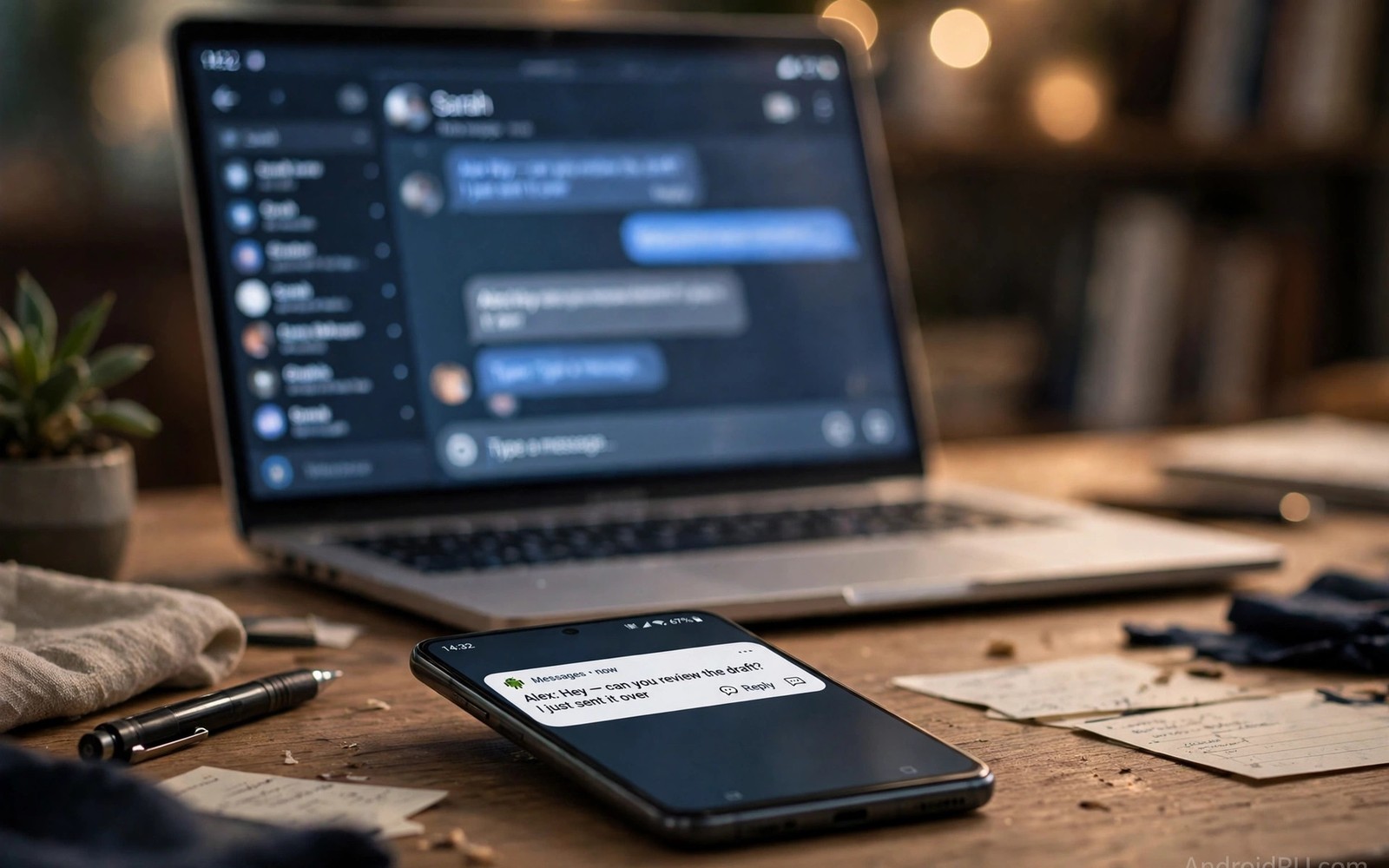
Push notifications help an app stay useful when it is not open. A message or a reminder or a delivery update can reach the user at the right moment. Firebase Cloud Messaging gives Android developers a reliable way to send those messages. It handles delivery across device states and network changes. This guide explains how to implement push notifications using Firebase FCM framework in a clean and testable way.
FCM works through a token that identifies one app install on one device. The app requests a token from Firebase when it starts. The app then sends that token to its own server. The server stores the token and uses it when it needs to send a message to that user. If the token changes then the app must send the new token promptly. A stale token leads to silent delivery failures that are hard to debug.
A notification message and a data message serve different purposes. A notification message shows a visible alert with a title and a body. A data message carries custom key value pairs for the app to process in code. Many apps need both types. A chat app may use a notification message for a simple alert. It may use a data message when it needs to update a conversation list silently. Choosing the right type early prevents confusion later.
Set Up Firebase In Your Project
Start by adding the Firebase configuration file to the app module. That file links the app package name to the Firebase project. Without a matching package name the token request will fail. Check the package name in the app build file before you download the configuration. A mismatch is a common cause of setup failure and it wastes time if it is found late.
Add the messaging dependency to the app build file next. Keep the dependency version in line with other Firebase libraries in the project. Mixed versions can cause runtime conflicts that are hard to trace. Sync the project and confirm that the build succeeds before you write messaging code. A clean build at this stage makes later debugging much easier.
Create a service class that extends the Firebase messaging service. That service receives messages and token refresh events. Register the service in the manifest with the correct intent filter. Without that registration messages may arrive but the app code will never see them. Test the registration with a simple log line before you build notification display code. That small test confirms the plumbing works.
Handle Tokens And Delivery States
Token handling must be robust against app reinstalls and data clears. A reinstall creates a new token. A data clear can also invalidate the old token. The app should request a fresh token on first launch after install and it should send it to the server with a user identifier. Store the last sent token locally so the app can detect a change. Send an update only when the token differs from the stored value. That check avoids needless server traffic.
Delivery is not guaranteed for every message in every device state. A device in Doze mode may delay a normal priority message. A high priority message can wake the device but it should be used only for time sensitive alerts. Overuse of high priority messages can lead to quota limits and to user annoyance. Reserve high priority for chat messages and for urgent alerts. Use normal priority for news and for promotional content that can wait.
Notification channels control sound and vibration and visibility on modern Android. Create a channel for each type of notification that the user may want to control separately. A chat channel and a reminder channel should not share one channel. If they share a channel then the user cannot silence one type without silencing the other. Name channels clearly so the user understands what each channel controls in system settings.
Code That Receives And Shows A Message
The code below shows a minimal service that receives a message and builds a notification. It reads the title and body from the message and it opens the main activity when the user taps the notification. Adapt the channel identifier and the activity to your own app. Keep the code simple at first and add custom actions only after the basic path works.
class AppMessagingService : FirebaseMessagingService() {
    override fun onMessageReceived(message: RemoteMessage) {
        val title = message.notification?.title ?: "New update"
        val body = message.notification?.body ?: ""
        val builder = NotificationCompat.Builder(this, "general")
            .setSmallIcon(R.drawable.ic_notify)
            .setContentTitle(title)
            .setContentText(body)
            .setAutoCancel(true)
        NotificationManagerCompat.from(this).notify(1, builder.build())
    }
    override fun onNewToken(token: String) {
        sendTokenToServer(token)
    }
}
The snippet above is an original example written for this guide. It shows a generic message handling pattern that you can adapt to your own app. It does not copy code from any outside source.
Adapt the snippet by replacing the placeholder server function with your real token upload code. Add error handling for network failures during token upload. If an upload fails then retry it on the next app launch. A token that never reaches the server is the same as no token at all. Test token upload on a real device and on an emulator with a fresh install to confirm both paths work.
Test Delivery On Real Devices And Networks
Test delivery on a slow network as well as on a fast network. A message that arrives instantly on Wi-Fi may arrive late on a weak mobile connection. A user on a train or in a rural area should still receive important alerts within a reasonable time. If delivery is slow on a weak network then check message priority and check payload size. A small payload travels faster and it is less likely to be dropped. Keep notification payloads short and load detailed content when the user opens the app.
Test with multiple users at once before a large rollout. A server that sends to one token correctly may struggle when it sends to thousands of tokens. Batch sending and error handling matter at scale. Log failed token deliveries and remove invalid tokens from the server store. A clean token store improves delivery rates and it reduces wasted server work. It also prevents repeated attempts to dead tokens that will never succeed.
Respect user choice at every step of notification design. Ask for notification permission at a moment when the user understands the benefit. A chat app can ask after the user sends a first message. A news app can ask after the user follows a topic. Asking too early leads to a denial that is hard to reverse. If permission is denied then explain the benefit in settings rather than asking again immediately. A respectful prompt earns more opt-ins than a forced prompt.
Track delivery and open rates without tracking personal content. A count of delivered messages and a count of taps gives enough signal to improve timing and wording. Avoid logging message bodies in analytics. That restraint protects user privacy and it keeps the analytics store small. Review the metrics weekly during a rollout and adjust message frequency if open rates fall. A falling open rate is a signal that messages are too frequent or too generic.
Common Mistakes
One common mistake is to send the token to the server only once at first install. Tokens can refresh at any time. The service callback for a new token must always trigger an upload. Apps that ignore that callback lose delivery silently after a token refresh. That loss often appears as a bug report that says notifications stopped working for no reason. The reason is usually a stale token.
Another mistake is to use the same notification channel for every message type. Users who want chat alerts may not want marketing alerts. A single channel forces them to choose all or nothing. Many users will choose nothing and silence the whole app. Separate channels give users control and they keep important alerts visible. That control improves long term retention more than any extra message volume.
A third mistake is to test only on a device that is awake and charging. Real users receive messages while the phone is idle and while the battery is low. Test delivery in Doze mode and with battery optimisation enabled. If a message is delayed in those states then check its priority and check the app battery settings. Readers who practise handling lifecycle state changes without crashes will recognise the value of testing in realistic device states rather than only in ideal conditions.
A further mistake is to ignore data message handling when the app is killed. A data message may need to update local data before the user opens the app. Test that path by force stopping the app and then sending a data message. If the update does not happen then review the service registration and the message type. The same systematic testing helps when managing WorkManager tasks under background limits because background behaviour changes with device state.
Frequently Asked Questions
Why does FCM work on one phone but not on another?
Device makers apply different battery optimisation rules. Some makers kill background services aggressively. Check battery optimisation settings for the app on the failing phone. Also check that the token on that phone matches the token stored on the server. A mismatch is a common cause of single device failure.
Should I use notification messages or data messages?
Use notification messages when you only need a visible alert. Use data messages when the app must process custom data or update its state. Many apps use a mix of both types. Start with notification messages for simple alerts and add data messages when you need custom handling.
How do I test FCM without a production server?
Use the Firebase console to send a test message to a single token. That test confirms token handling and channel setup quickly. For repeated testing build a small test endpoint that sends to a token on demand. Keep test tokens separate from production tokens to avoid sending test alerts to real users.
Keep a simple checklist for every release that touches notifications. The checklist should cover token upload and channel creation and permission timing and Doze testing. A short checklist prevents regressions when a new developer joins the project. It also makes a release review faster because the reviewer can see that each step was tested.
Conclusion
Start today by adding the messaging service to a test build and sending a console test message to your own phone. Confirm that the notification appears and that tapping it opens the right screen. Then implement token upload with retry handling and create separate channels for each message type. That working end to end path is the foundation for reliable notifications. It will also make later work on third-party Android library vulnerabilities easier because you will already understand how a core dependency behaves on real devices.

