

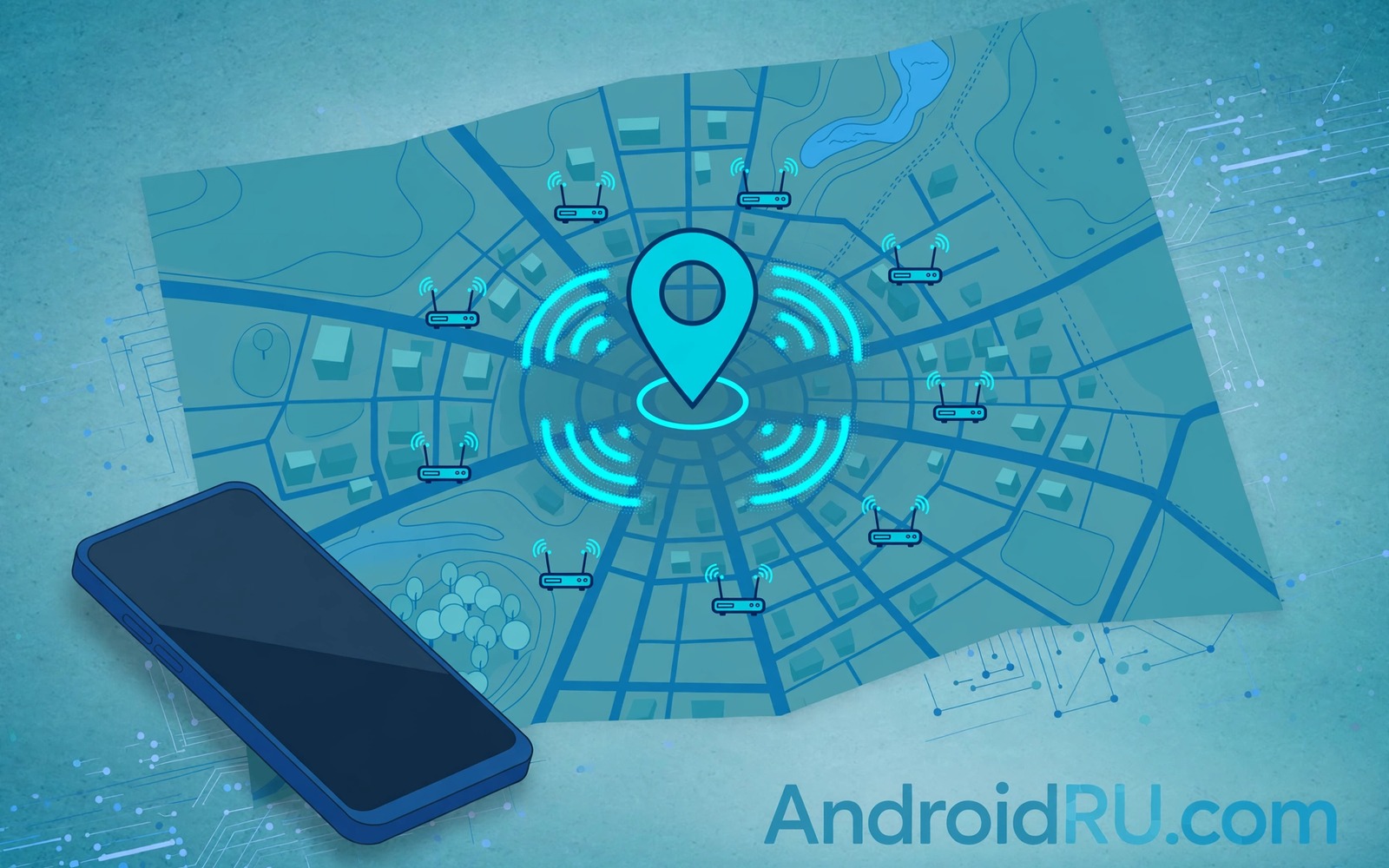
Your phone can struggle to find you indoors even when the sky is clear outside. GPS signals weaken through roofs and walls. Wi-Fi scanning fills that gap by using nearby networks as location clues. Your phone compares the networks it sees with a database of known network locations. That comparison can place you inside a building or on a city street far faster than GPS alone.
Wi-Fi scanning works best when the phone can see several networks at once. A single network gives a rough area. Several networks give a tighter estimate because the combination is more unique. A phone with Wi-Fi scanning off loses those clues and it must rely on GPS and cell towers alone. That loss matters most in malls and offices and dense city streets where GPS fades.
This guide shows how to turn on Wi-Fi scanning for location and how to tune the related settings. You will learn the difference between Wi-Fi on and Wi-Fi scanning on. You will learn how to test accuracy in a real place. You will also learn the privacy trade-offs so that you can choose a balance that suits you.
Turn on Wi-Fi scanning for location
Open Settings and tap Location and then tap Location services or Location accuracy depending on your phone brand. Look for Wi-Fi scanning in that menu. Turn the switch on. That switch lets the phone scan for Wi-Fi networks for location even when Wi-Fi itself is off. The phone uses those scans only for location estimation. It does not join the networks that it scans.
Check the main location permission as well. A maps app needs location permission to use the improved estimate. Set the permission to allow while using the app for normal navigation. A permission set to deny will block the app even with scanning on. A permission set to allow all the time is rarely needed for navigation and it raises privacy cost without a clear gain.
Restart the maps app after you change the scanning setting. A running app may keep an old location estimate for a while. A fresh launch forces a new estimate with the new scans. Test the location in a place where GPS previously struggled. A faster and tighter blue dot proves that scanning helped. A dot that still wanders may need more networks in view.
Understand Wi-Fi on versus scanning on
Wi-Fi on means that the phone can join networks and show them in the Wi-Fi list. Wi-Fi scanning on means that the phone can look for networks for location even when Wi-Fi is off. Those two switches do different jobs. A phone with Wi-Fi off and scanning on can still improve location without joining any network. A phone with both off loses the Wi-Fi clues entirely.
Keep scanning on for daily navigation if accuracy matters to you. Keep Wi-Fi itself on only when you need a network connection. That split gives you location help without the battery cost of constant Wi-Fi joining. A phone that joins every open network can waste battery and it can expose you to weak networks. Scanning alone is a cleaner compromise for many users.
Check the scanning switch after a system update. An update can reset location services on some phones. A quick check after an update prevents a silent loss of accuracy. A reset switch is easy to miss because the maps app will still work with GPS alone. It will simply work more slowly indoors. A habit of checking after updates keeps the gain consistent.
Improve accuracy with more network clues
Move near a window or a corridor with more networks in view when accuracy matters. A spot with many networks gives the phone more clues to work with. A spot deep inside a concrete room with no networks gives few clues. A short move can tighten the location dot dramatically. Test the dot in two spots in the same building to see the difference.
Join a trusted Wi-Fi network when you need the best indoor accuracy. A joined network gives a strong clue about your building and floor in some systems. A joined network also helps the phone download map data faster. A trusted home or office network is a safe choice for that test. A public network can also help accuracy but it adds security questions that a trusted network does not.
Keep Bluetooth scanning on as well if your phone offers it for location. Bluetooth beacons in malls and airports can add clues similar to Wi-Fi networks. A combined scan of Wi-Fi and Bluetooth gives a richer set of clues. A richer set usually gives a tighter estimate. Turn Bluetooth scanning on only if you accept the extra scanning cost. A single scan type is often enough for street navigation. Real signal values help judge a weak area and the guide to measuring signal strength in dBm explains how to read those values.
Use this location test routine
Test accuracy in the same place before and after you change the scanning setting. Open a maps app and note how long the dot takes to settle. Note how far the dot sits from your true position. Change the setting and repeat the test in the same spot. A fair comparison needs the same spot and the same app.
Step one: open maps app and note dot settle time
Step two: note distance from true position
Step three: turn on Wi-Fi scanning in Location
Step four: restart maps app for fresh estimate
Step five: repeat test in same spot and compare
This routine is an original example written for this guide. It uses only standard location screens and a maps app. It does not require any extra tool. The routine works because it fixes the spot and the app. A test in a different building cannot prove a setting change. A test in the same spot can.
Balance accuracy against privacy
Wi-Fi scanning shares network names that your phone sees with a location service. That sharing helps the service build a database of network locations. It also means that your phone reveals nearby network names during a scan. Most users accept that trade for better navigation. A user with strong privacy needs may prefer scanning off and slower GPS alone. Both choices are valid and the right choice depends on your priorities.
Review location history settings if you worry about stored location data. A location history switch controls whether your past locations are saved. Scanning for a current location is different from saving a history of past locations. You can keep scanning on for current navigation while keeping history off. That split gives you accuracy now without a stored trail later. Check both switches separately rather than assuming one controls the other.
Turn scanning off in sensitive places if you prefer a stricter stance. A single toggle can pause the feature for a visit and you can turn it back on later. A temporary off is better than a permanent off for most users because it preserves accuracy for daily navigation. A deliberate toggle shows control rather than neglect. Forcing a cleaner channel can also help a weak network and the guide to finding the least crowded Wi-Fi channel shows how channel choice affects nearby networks.
Fix a wandering location dot
Restart the phone if the dot wanders after you enable scanning. A restart clears a stale location service state. A fresh start often settles the dot quickly. Test the dot again in the same spot after the restart. A settled dot after a restart points to a temporary service fault rather than a setting fault.
Clear the maps app cache if the dot still wanders. A stale cache can hold old map tiles and old location data. A cache clear forces a fresh download for the current area. Do not clear all app data unless you want to lose saved places. A cache clear alone is usually enough for a wandering dot. A data clear is a stronger step that should stay as a last resort.
Check for a system update if the dot wanders on many apps. A location service bug can affect every app at once. An update may fix that bug. A single app wandering while others stay accurate points to that app rather than to the system. Test two different maps apps to separate an app fault from a system fault. Band choice can also affect a phone that keeps joining a weak network and the guide to forcing Android to connect to 5GHz Wi-Fi explains that band setting.
Use location accuracy for travel planning
A tighter location dot helps when you plan a route through a large station or airport. A dot that settles quickly lets you see the correct platform or gate sooner. A wandering dot can send you to the wrong exit. Test the dot at a station before a busy travel day. A test in a calm moment prepares you for a rushed moment.
Download offline maps for the station area before travel. Offline maps work even when the network is weak. A downloaded map plus Wi-Fi scanning gives a strong combination indoors. A map that loads slowly can hide a good location estimate behind a blank screen. A preloaded map removes that delay.
Check the location dot after you change floors in a large building. A floor change can confuse the estimate for a few seconds. A short pause near a corridor with more networks helps the dot settle. A patient pause beats a hurried walk in the wrong direction. A few seconds of waiting can save minutes of backtracking.
Common mistakes
A common mistake is to confuse Wi-Fi off with scanning off. A phone with Wi-Fi off can still scan for location if the scanning switch is on. Another mistake is to test accuracy in a different building after a change. A different building has different networks and a different GPS view. Test in the same spot for a fair result.
Do not grant location permission to every app just because scanning is on. Scanning helps apps that already have permission. It does not need every app to have permission. Review app permissions and keep location access limited to apps that truly need it. A limited permission list protects privacy without losing navigation accuracy.
Frequently Asked Questions
Does Wi-Fi scanning join networks automatically?
No because scanning only looks for networks for location. Joining a network is a separate action that needs your choice or an auto join rule. A scan alone does not connect your phone to any network that it sees.
Will Wi-Fi scanning drain my battery a lot?
Scanning uses some battery but far less than a constant GPS search indoors. A phone that scans for location can actually save battery by finding a location faster. Test battery over a normal day to judge the effect on your phone.
Can Wi-Fi scanning work without any GPS signal?
Yes in areas with many known networks. A dense city or a mall can give a good estimate from Wi-Fi alone. A rural area with few networks will still need GPS or cell towers for a useful estimate.
Conclusion
Today open Location services on your phone and turn on Wi-Fi scanning. Open a maps app in a place where GPS previously struggled and note how fast the dot settles. Compare that result with your memory of the same spot before the change. If the dot settles faster and tighter then keep scanning on for daily navigation. That concrete test will show you the indoor accuracy gain in your own buildings.
Review the scanning switch after your next system update and keep location permissions limited to apps that need them. A short check after updates keeps the accuracy gain without giving every app access to your location. That habit balances accuracy and privacy over time.

