

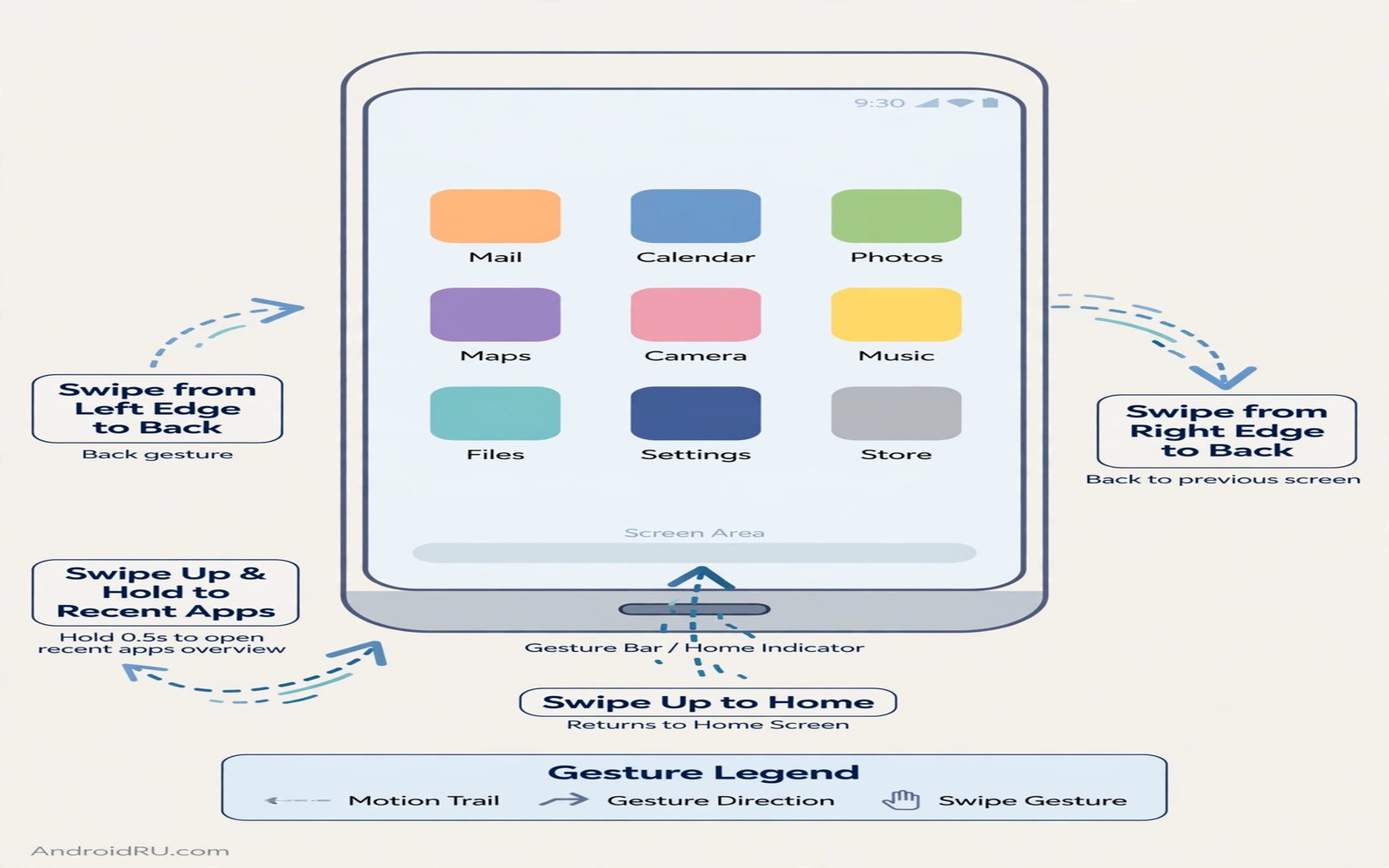
The navigation bar is the strip you touch hundreds of times a day. It holds the back button and the home pill and the recent apps control. Most phones animate it in one plain way. A custom animation turns that strip into a responsive surface that ripples and glides and confirms each gesture. The effect is subtle when done well. You notice it as smoothness rather than as decoration.
Custom navigation animations come from three places. A launcher or gesture app can draw its own pill and animate it. A theme engine can change the shape and colour of the bar. A system setting can change the speed of transitions that the bar triggers. The best results combine a modest pill animation with a sensible transition speed. A wild animation that delays the home action by half a second feels broken no matter how pretty it looks in a video.
Before you change anything record how navigation feels now. Open an app and return home five times. Switch between two apps five times. Notice the speed and the direction of each motion. This baseline helps you judge whether a new animation is actually better or merely different. A new animation should feel faster or equally fast while looking more polished. If it feels slower then it is a downgrade even if it looks impressive. You can coordinate the bar style with independent SystemUI colours so the bar and the status area share one visual language.
Understand gesture pills and button bars first
Gesture navigation uses a thin pill at the bottom centre. Swipe up to go home and swipe sideways to switch apps. The pill can stretch and glow and slide as you move your finger. Button navigation uses three separate buttons for back and home and recents. Each button can flash or ripple when tapped. Gesture pills offer more animation freedom because the pill is a single shape that can morph. Button bars offer clearer targets because each button has a fixed place.
Choose the mode that matches your hand size and your apps. Gesture pills suit large phones because they remove three buttons and give more screen space. Button bars suit people who need precise back taps in games and forms. You can switch modes in system settings under navigation or gestures. Test each mode for a full day before you add custom animations. A custom animation on the wrong base mode will never feel right.
Animation layers sit on top of the base mode. A trail effect leaves a fading line behind the pill as it moves. A ripple effect spreads a circle from the tap point. A morph effect changes the pill into a wider bar when an app opens. These layers can combine but they should not compete. Pick one primary effect and one subtle secondary effect. Two strong effects at once create visual noise at the exact moment you need clarity about where you are going.
Check full screen behaviour before you fall in love with an effect. Games and video players hide the navigation bar or show it only on swipe. A custom pill that stays visible over a game can block a control. A pill that appears late can confuse a swipe. Set a rule that hides custom effects in full screen apps or reduces them to a thin line. Test in a game and in a video app. Navigation must serve the app and not fight it.
Set up a custom pill animation step by step
Start with a gesture customisation tool that supports pill themes. Open its navigation section and choose a pill shape. A rounded pill suits most themes. A sharp bar suits a technical theme. A dot suits a minimal theme. Set the pill width to a comfortable size that your thumb can find without looking. A pill that is too thin is hard to grab. A pill that is too wide eats screen space and looks like a banner.
Next choose the home animation. A slide up effect moves the app window toward the pill as it closes. A fade effect dims the app as it shrinks. A scale effect shrinks the app toward the centre of the pill. Scale feels most natural because it matches the physical idea of putting an app back into its home place. Test each effect five times in a row. The right effect should feel boring by the fifth repeat because it blends into the action. An effect that still demands attention after five repeats is too strong.
Then set the app switch animation. Swiping sideways on the pill should glide between apps with a smooth slide. The outgoing app should move out in the swipe direction and the incoming app should follow it. If apps jump or flash then reduce the animation speed or turn off a secondary effect. App switching happens dozens of times a day so even a small glitch becomes annoying fast. Smooth switching is the core payoff of custom navigation.
Finally tune the tap feedback for back and home actions. A short ripple on tap confirms the press without delaying the action. A long glow after tap looks nice in a demo but it lingers over the next screen. Set ripple duration to a short value and test it in a messaging app where back taps are frequent. The feedback should register in your peripheral vision and then vanish. If you find yourself waiting for the glow to finish then it is too long.
Match speed colour and haptics to the animation
Animation speed is controlled in developer settings on many phones. Window animation scale and transition animation scale change how fast screens move. A value below one makes transitions faster. A value above one makes them slower and more visible. For navigation work keep these values at or below one. Faster transitions make custom pill effects feel responsive. Slower transitions make even a beautiful pill feel sluggish.
Colour should follow your system theme but with enough contrast to find the pill in bright light. A white pill on a white app background disappears. A dark pill on a dark app background also disappears. Use an adaptive colour if your tool supports it. Adaptive colour flips between light and dark based on the app behind it. If adaptive colour is not available then choose a neutral grey with a subtle outline. Outline helps the pill stay visible on any background without shouting.
Haptics add a physical layer to the animation. A light tap when the pill stretches confirms the gesture without sound. A stronger buzz when you switch apps can feel satisfying but it can also become tiring. Set haptics to light for home and back actions. Turn off haptics for rapid app switching if the buzz repeats too often. The hand should feel a confirmation and not a vibration show.
Test the full combination while walking and while sitting. Walking tests whether you can navigate without looking closely. Sitting tests whether the animation pleases you when you have time to notice it. A setup that passes both tests is ready for daily use. A setup that passes only while sitting may fail during real life. Real life is the only test that matters for navigation and it deserves priority over screenshots.
Fix lag stutter and conflicts with system gestures
Lag appears when a custom pill and the system pill both try to animate. Disable the system pill animation if your tool draws its own pill. Do not run two gesture apps at once. Two apps competing for the same swipe create missed gestures and double animations. Pick one tool and disable gesture features in the other. A single clear owner for navigation prevents most conflicts.
Stutter often comes from battery optimisation killing the animation tool in the background. Exclude the tool from battery optimisation so it stays ready. Check this setting after a system update because updates can reapply optimisation silently. If stutter returns after an update then recheck the exclusion first. This one setting solves many reports of animations that work in the morning and fail by evening.
Edge conflicts happen when a navigation gesture overlaps with an app drawer gesture or a back swipe from an app. If swiping from the bottom edge opens a drawer instead of going home then adjust the edge width. A narrower active edge reduces accidental triggers. A wider edge makes gestures easier but increases conflicts. Find the middle value where home works reliably and app drawers still open when you intend them.
When an animation freezes then clear the tool cache and restart the phone. Do not reinstall immediately. A restart clears a stuck animation service in most cases. If the freeze repeats in one app only then add that app to the exclusion list. A single problem app should not force you to abandon a setup that works everywhere else. Exclusions are a normal part of custom navigation and not a sign of failure.
adb shell settings put global window_animation_scale 0.8
adb shell settings put global transition_animation_scale 0.8
adb shell settings put global animator_duration_scale 0.8
The code above is an original example created for this article to show how animation speed values could be recorded for reference. It is an optional advanced note and normal settings are enough for most readers.
A matching wallpaper can also make the pill easier to spot at a glance and you can explore live wallpapers that stay light on battery for options that keep motion calm.
Common mistakes
The most common mistake is choosing the flashiest animation in a demo video. Demo videos show slow motion and perfect lighting. Daily use shows the same animation hundreds of times at full speed. Choose an animation that stays pleasant on the hundredth repeat. Boring and smooth beats flashy and tiring for navigation.
Another mistake is running two gesture tools together. Each tool assumes it owns the bottom edge. The result is missed swipes and double pills. Audit your apps and keep only one gesture customisation tool active. Disable gesture features in launchers and themes that you do not use for navigation. One owner keeps the bottom edge predictable.
People also ignore battery optimisation until animations start stuttering. Set the exclusion when you first install the tool. Check it after every major update. A five second check prevents weeks of frustration. Navigation tools need to stay awake to feel instant and optimisation settings are the usual culprit when they do not.
Frequently asked questions
Do custom navigation animations need root?
No most pill themes and gesture effects work without root through overlay and launcher tools. Root opens deeper system changes but it is not needed for a good result. Start without root and judge the effect. Only consider deeper methods if a specific animation you want is unavailable through normal tools.
Will custom animations slow down my phone?
A light pill animation adds almost no load because it animates a small shape. Heavy effects with trails and blur on every frame can add load on older phones. Keep effects simple on low end devices. Test app switching speed before and after the change. If switching feels slower then simplify the effect.
Can I keep button navigation with custom animations?
Yes button bars support ripple and colour and shape changes even without gesture pills. Choose a theme that styles the three buttons consistently. Keep tap targets large and keep ripple short. Button users benefit most from clear feedback and consistent colour. You can also explore custom quick settings tiles for fast controls that reduce how often you need the navigation bar at all.
Conclusion
Custom navigation animations work when one effect stays smooth and fast across every app. Pick a pill shape and a scale transition and tune speed and haptics together. Your concrete next step is to set transition scales to a fast value tonight and test home and app switching twenty times. If those twenty moves feel instant and calm then add one pill effect tomorrow.

