

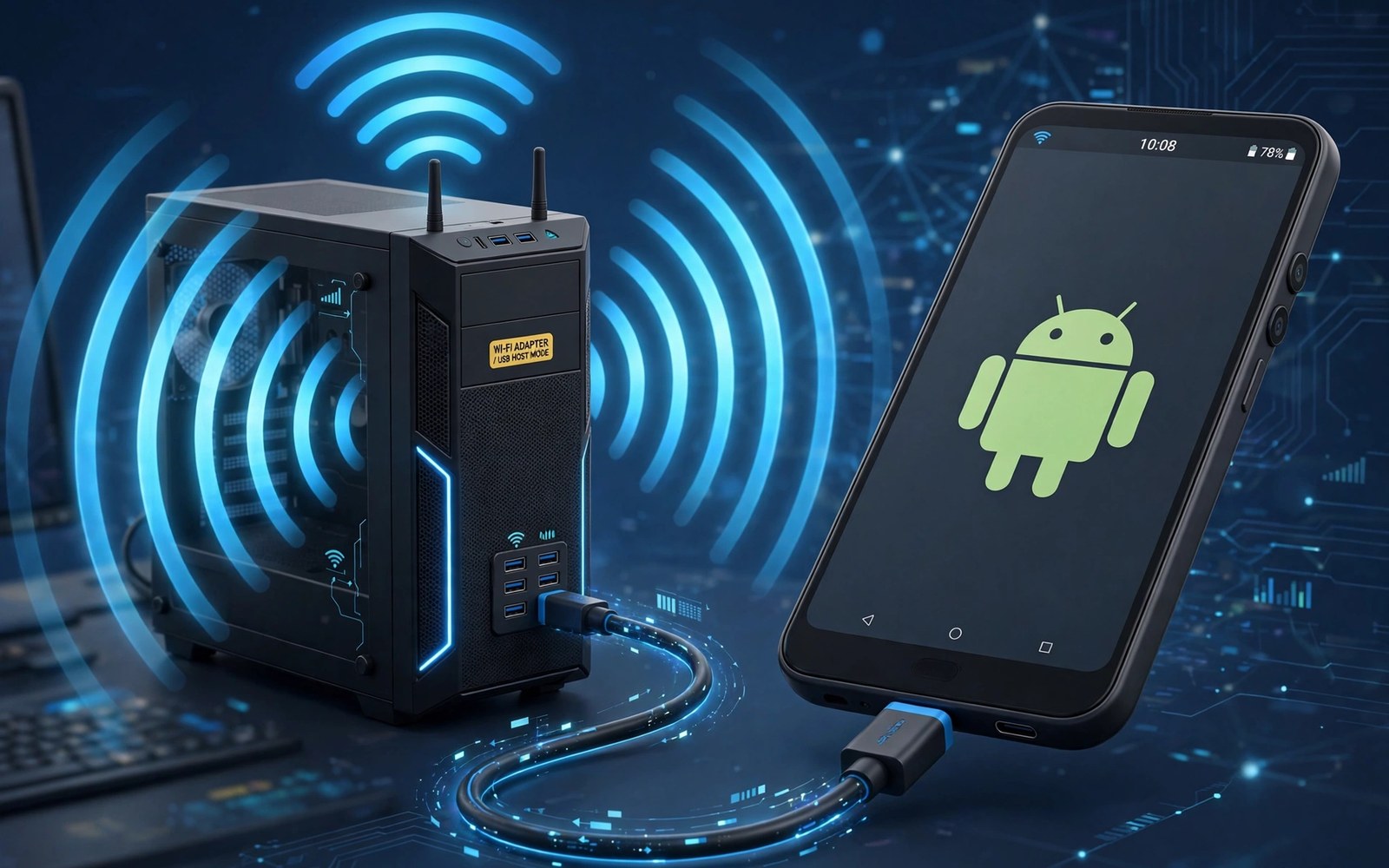
A desktop without Wi-Fi can still get online through an Android phone. A phone can act as a USB Wi-Fi adapter by sharing its Wi-Fi connection over USB. This method suits a desktop with no wireless card. It also suits a desktop whose Wi-Fi card failed. USB sharing is stable because it avoids wireless interference between phone and desktop.
USB tethering usually shares mobile data. A Wi-Fi adapter role shares a Wi-Fi connection instead. Some Android phones support sharing Wi-Fi over USB directly. Other phones need a workaround through hotspot and USB settings. Check your phone model capabilities before you rely on this method for work.
Set up the phone as a USB Wi-Fi adapter
Connect the phone to the desktop with a good USB cable. Use a data cable and not a charge only cable. A charge only cable cannot carry network data. Connect the phone to a rear USB port on a desktop for a stable link. A front port with a loose connector can drop the link.
Connect the phone to Wi-Fi first. Open Wi-Fi settings and join the home or office network. Confirm internet works on the phone. A phone without internet cannot share internet over USB. Test a web page on the phone before you enable sharing.
Open hotspot and tethering settings on the phone. Enable USB tethering. The desktop should detect a new network adapter. Wait for the desktop to install drivers if needed. Test a web page on the desktop after detection.
Fix a desktop that does not see the adapter
Try a different USB port and a different cable first. A faulty cable is a common cause of adapter failure. A charge only cable looks identical to a data cable. Swap the cable before you change settings. A known good data cable rules out the simplest fault.
Check device manager on a Windows desktop for a new network device. A device with a warning icon may need a driver update. Update drivers through Windows Update or the phone maker tool. Restart the desktop after a driver update. A restart lets the new adapter initialise cleanly.
Toggle USB tethering off and on again after a driver change. A fresh tether session can trigger adapter detection. Reconnect the cable after toggling. Test a simple web page on the desktop. A simple page test proves basic connectivity.
Improve speed through the USB link
Place the phone where its Wi-Fi signal is strongest. A phone near the router gives the desktop a better link. A phone in a drawer weakens Wi-Fi for the desktop too. Keep the phone on a desk in an open spot. A good phone position lifts desktop speed directly.
Use the 5 GHz Wi-Fi band on the phone when the router is near. A fast band gives the desktop more speed. Use the 2.4 GHz band when the router is far. A stable band beats a fast band that drops. Test both bands for desktop use.
Close large downloads on the phone during desktop work. A phone update can compete with desktop traffic. Pause cloud backups on the phone during a desktop video call. A paused backup leaves more bandwidth for the desktop. Resume backups after desktop work ends.
Hotspot band choices affect USB sharing too. The guide to turning your phone into a dual-band hotspot covers band selection for sharing. A correct band choice for the phone Wi-Fi link helps the desktop link as well. Pair band choice with good phone placement.
Use the adapter for work and troubleshooting
A USB adapter role can rescue a desktop during a Wi-Fi card failure. It lets you work while waiting for a replacement card. It also lets you test whether a desktop fault is in the card or in the network. A phone adapter that works proves the network is fine. A phone adapter that fails points to the network or the desktop USB port.
Use the adapter for a temporary desk setup. A guest desk without Wi-Fi can use a phone adapter for a day. A temporary setup avoids running a long cable. It also avoids opening the desktop to install a card. A phone adapter is a practical short term solution.
Keep the phone charging during long adapter sessions. USB tethering usually charges the phone from the desktop. A desktop USB port may supply limited power. A low power port can drain the phone slowly during heavy use. Use a powered USB hub if the phone battery drops during use.
adb shell dumpsys wifi | grep -i -m 5 "tether"
adb shell settings get global tether_dun_required
The snippet here uses standard Android Wi-Fi diagnostics and is shared as a learning example for USB sharing checks. Tethering hints can confirm whether the USB link is active. A tethering setting read varies by carrier.
Handle security for a shared desktop link
Lock the phone during adapter use. An unlocked phone can be unplugged and used by someone else. A lock protects the Wi-Fi credentials stored on the phone. Enable a strong lock method for a work phone. A lock is a simple protection for a shared link.
Disconnect the USB cable when desktop work ends. A connected phone can share internet without your notice. A disconnected cable ends sharing at once. Forget the desktop network profile if you no longer need it. A clean disconnect protects data allowance and security.
Check desktop firewall settings for a new network. A new network may be marked as public by default. A public profile can block file sharing that you need. Change the network profile to private only on a trusted home network. Keep it public on an untrusted network.
Compare USB adapter use with other options
A dedicated USB Wi-Fi adapter is cheaper than a new Wi-Fi card for many desktops. A phone adapter is free when you already own a phone. A dedicated adapter may offer better antennas than a phone. A phone adapter wins for a temporary need. A dedicated adapter wins for permanent desktop use.
A long Ethernet cable beats both options for stability when possible. A cable avoids wireless interference entirely. A phone adapter suits a desk where a cable cannot reach. Choose a cable for a permanent desk. Choose a phone adapter for a temporary or guest desk.
Mobile tethering offers another path when no Wi-Fi exists. The guide to speeding up cellular tethering covers mobile data sharing. Wi-Fi adapter sharing suits a desktop near a Wi-Fi network. Mobile tethering suits a desktop far from any Wi-Fi.
Set up a phone adapter for a guest desktop
A guest desktop in an office may lack Wi-Fi by policy. A phone adapter can give that desktop internet for a day. Ask IT whether a phone adapter is allowed on that network. A policy check prevents a security problem. A guest adapter that follows policy is a useful tool.
Use a short USB cable for a guest setup. A short cable reduces clutter and trip risk. A short cable also gives a more stable USB link. Place the phone near the desktop monitor for easy monitoring. A visible phone lets you see connection status at a glance.
Remove the phone adapter profile from the desktop after guest use. A leftover profile can auto share later. A clean removal protects the next guest. A removal also protects your phone data allowance. End guest sharing with a deliberate disconnect.
Troubleshoot a phone adapter that drops
A dropping USB link often comes from a loose cable or a power saving USB port. Try a different USB port first. Disable USB selective suspend on a Windows desktop for a test. A suspended USB port can drop the adapter link. A stable port setting keeps the link alive.
Check phone battery saver settings for USB tethering. A saver can pause tethering to save power. Add tethering to the unrestricted list when possible. Test with saver off for a day. A steady day with the saver disabled suggests power saving was behind the drops.
Plan a phone adapter session for a presentation
A presentation over a phone adapter needs a stability test before the audience arrives. Test the desktop link for thirty minutes before the presentation. A thirty minute test reveals drops that a quick test hides. Keep a backup mobile hotspot ready in case the adapter link fails. A backup plan protects a live presentation.
Close unnecessary desktop apps before a presentation over a phone adapter. A background update can steal bandwidth during a slide show. A closed app list keeps the link focused on the presentation. A focused link gives smoother video and faster slide loads.
Test the phone adapter link with the exact presentation file before the audience arrives. A file test proves the link can handle the real load. A generic speed test alone can hide a file specific problem. A real file test is the final check before a presentation.
Keep a spare data cable in the desktop drawer for adapter use. A spare cable avoids a failed session when the main cable breaks. A spare cable also lets a colleague use the adapter method without delay.
Common mistakes
One mistake is using a charge only USB cable. A charge only cable cannot share data. Another mistake is enabling USB tethering before the phone joins Wi-Fi. A phone without Wi-Fi cannot share Wi-Fi.
Another mistake is placing the phone in a drawer during adapter use. A drawer weakens Wi-Fi for the desktop. People also forget to disconnect after work. A connected phone keeps sharing until unplugged.
Frequently asked questions
Does USB adapter sharing use mobile data?
It should not when the phone is connected to Wi-Fi and sharing that link. Check the phone data usage after a session to confirm. A phone that falls back to mobile data can use allowance silently. Keep Wi-Fi connected during the session.
Will any Android phone work as a USB Wi-Fi adapter?
Not every phone supports sharing Wi-Fi over USB. Many phones share mobile data over USB but not Wi-Fi. Check your model support before you rely on it. A phone that lacks the feature can still share mobile data over USB.
Is USB adapter speed as fast as a real Wi-Fi card?
It can be close when the phone Wi-Fi link is strong. A phone antenna is smaller than a desktop card antenna. A strong router signal narrows the gap. A weak router signal widens it.
Conclusion
Connect the phone to Wi-Fi and then enable USB tethering with a data cable. Place the phone in a strong Wi-Fi spot and test a desktop web page. Disconnect when work ends. Your concrete next step is to connect your phone to Wi-Fi today and test USB sharing with a desktop. For direct file sharing read using Wi-Fi Direct for large files next.

