

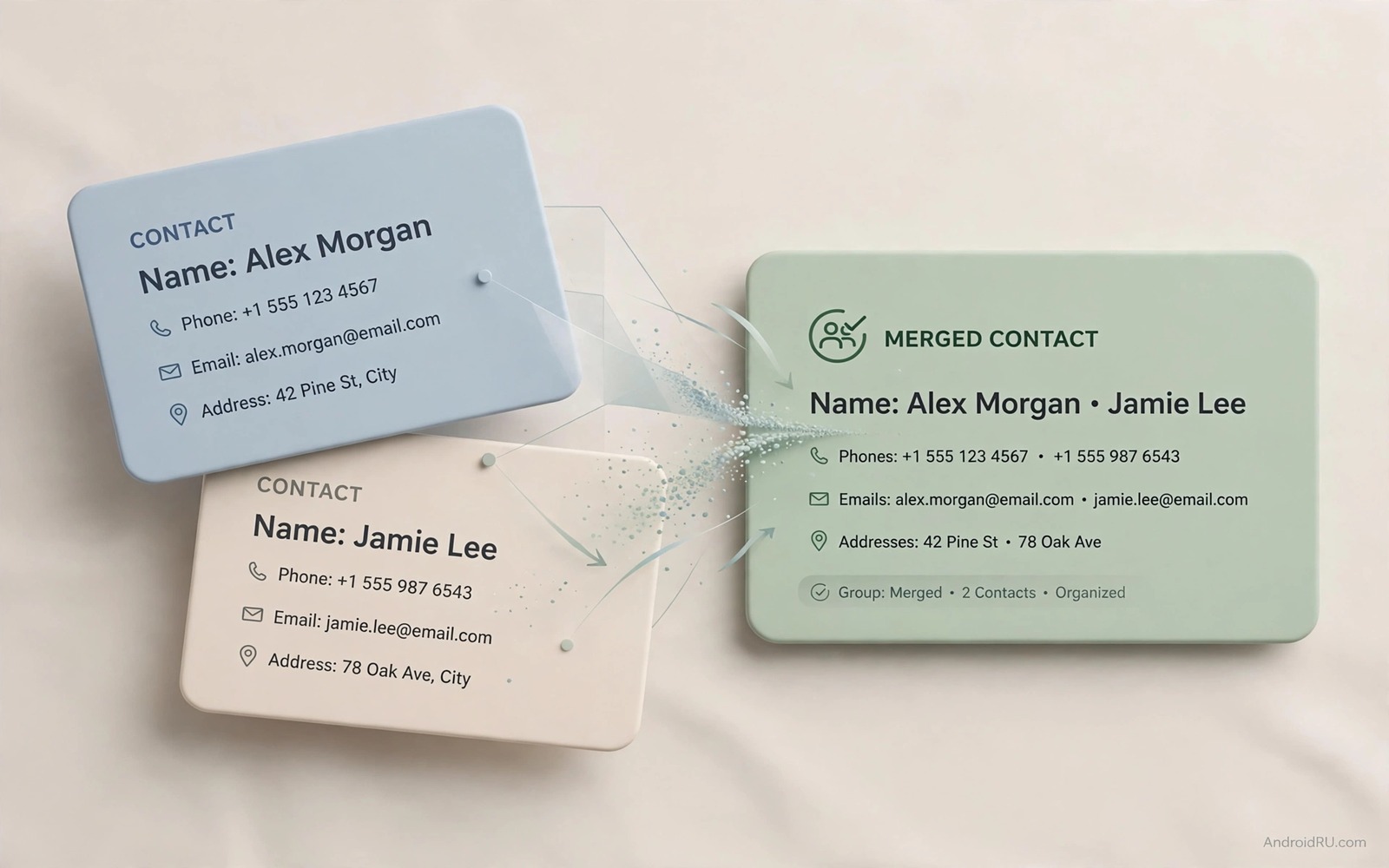
Stop Storing Duplicate Contacts: How to Merge Directory Entries
Duplicate contacts turn a simple call into a guessing game. One entry holds the mobile number, another holds the email, and a third holds an old work number. The phone dialler shows three similar names and you must guess which one is current. Merging those entries into one clean contact restores confidence and speeds up every call you make.
Duplicates appear for ordinary reasons, and none of them reflect carelessness. A new phone imports contacts from a SIM card, from a cloud account, and from a messaging app at the same time, and each source adds its own copy with slightly different details. A contact who changes jobs gains a second entry instead of an updated first entry. The result is an address book that grows messier the more sources feed it.
This guide walks through the full cleanup: finding duplicates with the built-in tool, choosing which details survive, stopping new duplicates at the source, and backing up before a large merge so a mistake stays reversible. Set aside thirty minutes, work in small batches, and your address book will be clean by the end of it.
Why duplicate contacts appear in the first place
Most duplicates come from having several sources that all think they own your address book. Your Google account holds one copy, your SIM card holds another, your phone manufacturer’s cloud holds a third, and each messaging app adds entries of its own when you chat with someone new. None of these sources talks to the others, so the same person enters your phone through three doors and becomes three contacts.
Changes make the problem worse. When a friend gets a new number, you often save it as a new contact instead of editing the old one, because saving is faster than searching. When you switch phones, the import brings the old entries back alongside the new ones. Over a few years, a few dozen such moments add up to hundreds of duplicates, and the dialler becomes a list of near-identical names.
Find duplicates with the built-in merge tool
Open the contacts app and open its organise or manage section. Look for a merge and fix option that lists contacts with matching names or numbers. On Pixel phones this lives under Fix and manage, then Merge and fix. On Samsung phones it sits under the menu in the Contacts app. On other brands the name varies, but the idea is the same: the app suggests pairs that look like the same person, and you approve each one.
Review each suggestion before you accept it, because two different people can share a similar name. The tool usually shows the fields that will combine, so you can spot a wrong match early. A father and son with the same name, or two colleagues with similar names, will look like duplicates to the tool and must be left alone. Trust your eyes more than the suggestion.
Reviewing each suggestion before you accept it
Open the suggested pair and read every field. Check the numbers, the emails, and the company name. If everything lines up, accept the merge. If one field looks wrong, such as a work number that belongs to a different person, skip that pair and merge the entries by hand instead. A wrong merge is harder to undo than a skipped suggestion, so err on the side of caution.
Merging in small batches
Merge in small batches rather than accepting every suggestion at once. Ten merges at a time let you check the result and undo a mistake quickly. After each batch, open a few merged contacts and confirm that numbers and emails look complete. A careful pace beats a fast cleanup that mixes two people into one entry.
Choose the surviving details carefully
A merged contact should keep the newest mobile number, the current email, and the correct company name. Delete old numbers only after you confirm that a newer number works. Keep a note field for an old number that might still reach the person through a family member, because that note preserves history without cluttering the main fields. Readers who tidy other phone data can explore organising thousands of phone files in ten minutes for a similar sorting habit that keeps the rest of the phone as clean as the address book.
Check photos and labels during the merge. A wrong photo causes confusion in the dialler and in messaging apps, and a wrong label can send a work call to a personal number. Assign one clear photo and one clear label to each merged contact. A tidy contact list reads well at a glance and dials well under pressure, which is the whole point of the exercise.
Which number and email to keep
Keep the number you called most recently, and keep the email that replied most recently. Those are the live channels. Move older numbers into the notes field with a date, such as old mobile until March 2025, so you can still find them if the new number stops working. Delete numbers that bounced or belonged to a previous employer, because dead data only creates future confusion.
Photos and labels after a merge
When two entries have different photos, the merge tool usually keeps one and drops the other. Pick the most recent photo, and check that the label matches the relationship: a contact labelled as work should not carry a family photo. Small details like this are what make a merged address book feel clean rather than merely smaller.
What to do with old numbers
Do not delete an old number the same day you merge. Keep it in the notes field for a month. Some merge errors appear only when you try to call a person weeks later, and a note lets you recover the number without restoring a whole backup. After a month of successful calls, delete the note if you want a fully clean entry.
Stop new duplicates at the source
Cleaning up once is not enough if the same sources keep creating duplicates. Choose one primary account for new contacts and turn off automatic contact saving in other apps. A single source prevents the same person from entering the address book through three doors. Check the default account in contacts settings and set it to the account you actually use, so future contacts land in one place.
Turn off SIM contact import after the first successful import. A SIM card that keeps reimporting creates a fresh duplicate set after each reset, and that is one of the most common causes of duplicates returning after a cleanup. Export SIM contacts once, then disable the import option. That single change stops a common duplicate cycle at its root.
Pick one primary account for new contacts
Most phones let you choose where a new contact is saved: Google, Samsung, the SIM, or the phone itself. Pick the account you already use for email and calendar, because that account syncs across devices and survives a phone change. Avoid saving to the phone itself, since phone-only contacts vanish when the device is lost or reset.
Turn off SIM contact import after the first import
Open the contacts app settings, find the SIM import option, and switch it off once your SIM contacts are safely in your primary account. Some phones reimport SIM contacts automatically after a system update, so check this setting again after a major update. A thirty-second check prevents a fresh round of duplicates.
Back up before a large merge
Export before you merge when the cleanup is large. Export the full contact list to a file before you start, and store that file on a computer or in a cloud folder you control. A backup turns a bad merge into a reversible mistake rather than a permanent loss. Test the backup by opening it and checking that a few known contacts appear with numbers intact, because a backup you never tested is only a hope.
Keep the backup for a month after the cleanup. Some merge errors appear only when you try to call a person weeks later, and a month gives enough time to spot those errors and restore a single contact from the backup. Delete the backup after that period if privacy rules require it. A full export also helps when you are freeing up twenty gigabytes of storage quickly, since you can archive the file off the phone and delete the local copy once the cleanup is done.
Exporting the full contact list
On most Android phones, open the contacts app, go to Settings, then Export, and save the file as a vCard. The export includes every contact and every field, so it is a complete snapshot of the address book before the cleanup. Store the file with a date in its name, such as contacts-backup-2026-11-06.vcf, so you can tell it apart from older exports.
Testing the backup file
Open the exported file on a computer and search for three people you know well. If their numbers and emails are correct, the backup is good. If the file is empty or garbled, export again before you merge anything. Five minutes of checking now saves hours of reconstruction later.
Handle contacts from messaging apps carefully
Messaging apps create contacts automatically when you chat with someone new, and that is a quiet source of duplicates. WhatsApp, Telegram, and Signal each add entries with the name from the chat, which may be a nickname or a first name only. Those entries then sit beside the full contact you already had, and the dialler shows both. Set messaging apps to save contacts only once, and consider cleaning up the downloads folder automatically every week so exported contact files and shared vCards do not pile up alongside the duplicates.
Check sync settings for each messaging app. Some apps offer a setting to sync contacts with the phone address book, and that sync can re-add entries you just deleted. If duplicates keep returning after a cleanup, the sync setting of one app is usually the cause. Turn off contact sync for the app, clean up once more, and watch for a week to confirm the duplicates stay gone.
WhatsApp and Telegram contact creation
WhatsApp reads the phone address book rather than creating its own contacts, but it displays names from the chat when no contact exists, which can look like a duplicate in the dialler. Telegram can create contacts from usernames when you allow it. In both cases, the fix is the same: keep one full contact per person in the phone address book, and let the apps display that contact instead of inventing their own.
Sync settings that create duplicates
Open Settings, then Accounts, and review which accounts sync contacts. Each account that syncs adds its own copy of every contact it knows. Two accounts that both know the same person will create two entries, and the merge tool will keep suggesting the same pair. Turn off contact sync for the account you do not use as your primary, and the duplicates will stop reappearing.
Frequently asked questions
Will merging contacts delete any phone numbers?
No, a merge combines the fields from both entries into one contact. Numbers, emails, and addresses from both entries are kept, unless you choose to delete one during the review. That is why reviewing each suggestion matters: the merge keeps what you approve, so a wrong approval can mix two people’s details into one entry.
Why do duplicates keep coming back after I merge them?
Duplicates return when a source keeps re-adding them. The usual causes are SIM import left switched on, a second account syncing contacts, or a messaging app recreating entries. Fix the source first, then merge again. Merging without fixing the source is like bailing water without plugging the leak.
Can I undo a merge if I merged the wrong people?
Some contacts apps offer an undo option right after a merge, but that window is short. The reliable undo is your backup: export the contact list before a large cleanup, and restore a single contact from the file if a merge goes wrong. That is the reason the backup step comes before the merge, not after.
Should I merge contacts on the phone or on the computer?
Either works, and the computer is often easier for a large cleanup because the screen is bigger and the keyboard is faster. Google Contacts on the web has a merge tool that works the same way as the phone tool, and changes sync back to the phone. Use whichever screen lets you review suggestions most carefully.
A clean address book in thirty minutes
Start with the backup, then work through the merge suggestions in batches of ten, then fix the source settings so duplicates stop returning. Check the result by calling three people you merged, and confirm the right numbers dial. That whole routine takes about thirty minutes for a typical address book, and the payoff lasts for years.
If your phone is tight on space as well, storage hacks for owners of a 64 gigabyte smartphone cover the other half of the cleanup, from clearing caches to moving photos off the device. A clean address book and a clean storage screen make the same phone feel new again, and both jobs are easier than most people expect.

