

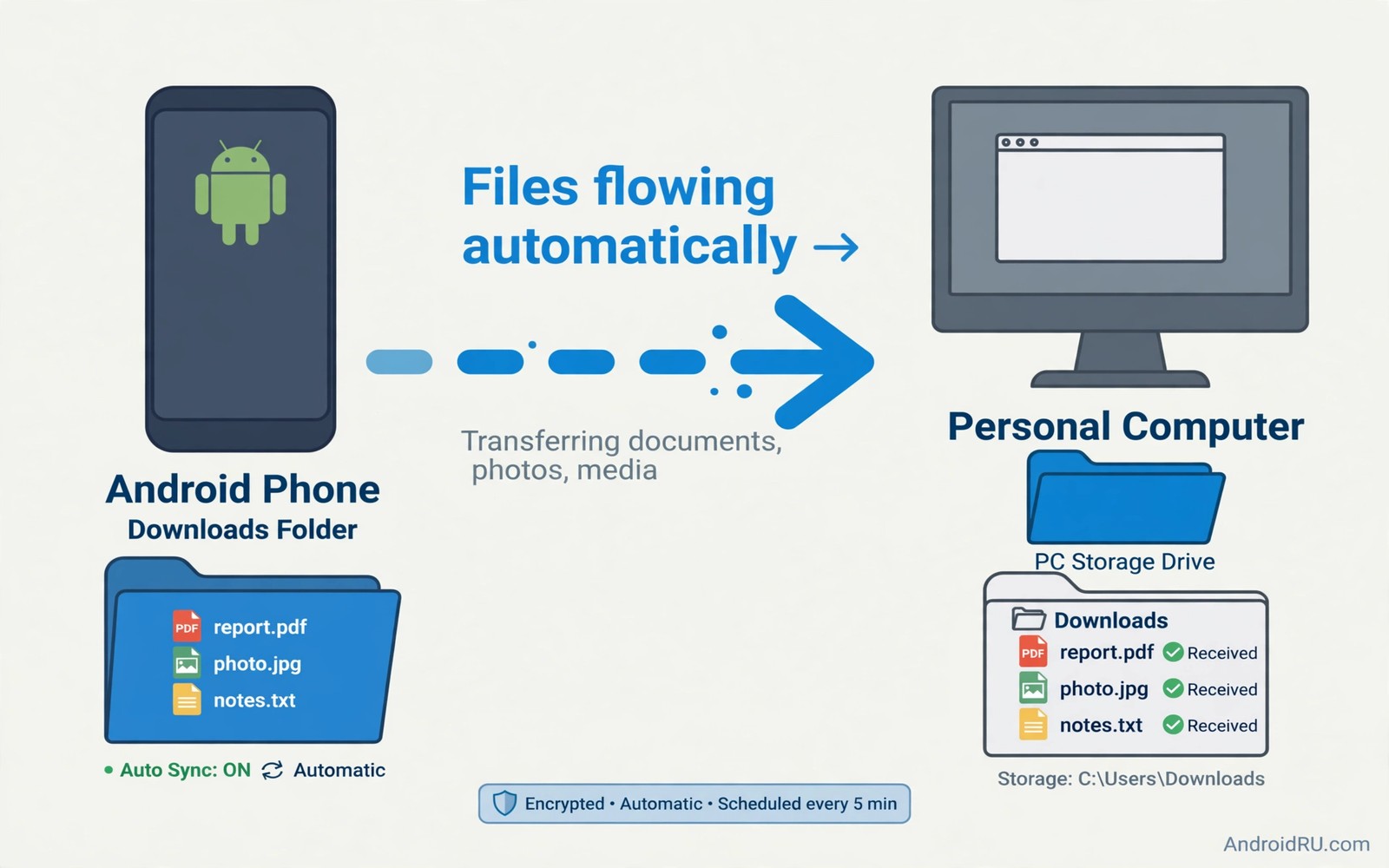
Downloads pile up on a phone faster than anyone notices. Receipts and work files and installers and shared documents all land in the same folder. Manual copying feels easy once yet it becomes a chore when it must happen every day. An automatic sync moves new downloads to a computer drive without a cable and without a daily reminder.
Automatic sync works best when it follows a clear rule. New files move to a dated folder on the computer. Old files stay on the phone only until the computer confirms the copy. The phone then frees space without risking the only copy of a file. This guide sets up that rule with tools that run quietly in the background.
Choose a sync method that fits your home network
A local network sync suits a home computer that stays on the same Wi-Fi network. It moves files directly between devices without sending them through a distant server. That direct path keeps large files fast and keeps private files inside the home. A cloud folder sync suits users who need files on a computer that sits elsewhere.
Pick one method and stick with it for the downloads folder. Mixing two sync tools on the same folder creates conflicts and duplicates. Test the chosen method with a small file first and confirm that it appears on the computer. A successful small test proves the connection before real documents depend on it.
Set up folder sync on the phone
Install a trusted folder sync app and grant it access only to the downloads folder at first. Create a sync pair that links the phone downloads folder to a matching folder on the computer. Set the direction to phone to computer for the first run so the computer receives files without sending anything back. This one-way start prevents accidental deletion from the computer side.
Enable sync only on Wi-Fi and only while charging if battery life matters. Large downloads can wait for a charger without harming the workflow. Check the sync log after the first run and confirm that each file shows a success mark. A clean log gives confidence that the rule works as intended. Readers who manage many files can also explore cleaning up the downloads folder automatically every week to keep the source folder tidy.
Organise the computer side with dated folders
Create a downloads archive on the computer with folders for each year and month. Configure the sync tool to preserve the phone folder structure or to sort by date where that option exists. A dated structure makes later searches fast even when the total file count grows large. It also makes backups simpler because each month forms a clear unit.
Rename important files on the computer after sync rather than on the phone before sync. Renaming on the computer avoids sync confusion during the transfer. Keep original names for receipts and tickets until you archive them. A consistent naming habit on the computer side saves time during tax season and during work audits.
Verify copies before you free phone space
Never delete a phone download until the computer copy opens correctly. Open a sample of synced files on the computer and check that documents load and images show at full size. Compare file sizes for large files when the sync app does not show a checksum. A verified copy is the only copy that counts as safe.
Set a waiting period of seven days between sync and deletion for important files. That delay gives time to notice a corrupt copy or a missing page. After seven days delete the phone copy and enjoy the freed space. The delay costs little storage and it protects against rare sync errors.
A small check for the downloads folder
List the downloads folder by size to see which files dominate the sync queue. Large installers and videos often sit at the top and they may deserve manual handling. Small documents can sync automatically without a second thought. Sorting by size helps you set sensible rules for each file type.
du -sh /sdcard/Download/* 2>/dev/null | sort -rh | head -20
The snippet above was written for this article to show one safe way to list large files in the downloads folder by size. It reads file sizes and it changes nothing on the phone. Use the output to decide which files should sync automatically and which files need manual review.
Handle conflicts when files change on both sides
Sync conflicts happen when the same file changes on the phone and on the computer before the next sync run. A good sync tool detects the conflict and keeps both versions or asks which version should win. A poor sync tool silently overwrites one version and the loss appears only later. Test conflict handling with a small text file that you edit on both devices. Learning the behaviour early prevents a painful loss for a real document later.
Adopt a simple rule for files that change often. Edit such files on only one device between sync runs whenever possible. That rule eliminates most conflicts without any tool configuration. When both devices must edit the same file use a clear naming convention for versions. A version suffix with a date keeps each edit visible until you merge them deliberately.
Sync selectively by file type and size
Not every download deserves automatic sync to a computer. Small documents and receipts benefit most from instant sync because they matter for records. Large videos and installers can wait for manual transfer because they consume bandwidth and computer space. Configure the sync tool to include documents and images automatically while excluding very large files. A selective rule keeps the computer archive lean and the sync queue fast.
Review the exclusion list each season because download habits change over time. A user who starts recording video for work may need video sync enabled later. A user who stops downloading installers may tighten the exclusion list further. Seasonal review keeps the sync rule aligned with real use rather than with an old assumption.
Secure the sync connection on shared networks
Local sync on a shared Wi-Fi network needs protection because other devices on the same network could potentially see traffic. Use a sync tool that encrypts transfers even on a local network. Check the tool settings for encryption and authentication options before the first sync run. A tool that offers password protection for its sync service deserves preference on shared networks like offices and dormitories.
Avoid syncing sensitive downloads over public Wi-Fi even when the tool encrypts transfers. Public networks carry additional risks that encryption alone cannot fully remove. Wait for a trusted home network before syncing financial documents or identity files. That patience costs little time and it removes a whole category of risk from the workflow.
Maintain the computer archive over time
A computer archive needs its own maintenance routine because it grows with every sync run. Review the archive monthly and delete installers that you no longer need. Archive old years to an external drive when the computer drive fills. A maintained archive stays searchable while an unmanaged archive becomes a dumping ground that no one trusts.
Back up the computer archive itself to a second location for important files. A single computer copy still represents a single point of failure. An external drive or a second cloud copy protects against computer failure. The phone to computer sync becomes truly safe only when the computer copy itself has a backup.
Test sync after network changes
Network changes can break a sync setup that worked perfectly on a previous router or Wi-Fi network. A new router may use a different address range or may block the ports that a sync tool uses. Test sync immediately after changing routers or after moving to a new home. A quick test with a small file reveals a network problem before important downloads accumulate unsynced on the phone. Network testing should become part of any home network change routine.
Document the sync tool network requirements in a note that you can consult during router setup. Note the ports and protocols that the tool uses and note any firewall exceptions that it needs. A documented requirement list speeds up router configuration and it prevents a trial-and-error session that wastes an evening. Documentation turns a fragile setup into a repeatable setup.
Common mistakes
One common mistake is syncing the whole phone storage instead of just downloads. A full sync copies caches and app data that have no value on a computer. Limit the sync pair to downloads at first and expand only with a clear reason. Another mistake is deleting phone files before verification. A failed sync looks successful in a busy log until you open the file.
People also forget to pause sync on metered connections. A large sync over mobile data can exhaust a data plan in one afternoon. Restrict sync to Wi-Fi and check the setting after app updates. Readers who move files between phone and computer can explore streaming storage files directly from a PC to a phone for a different transfer approach.
Frequently asked questions
Do I need a cable for automatic sync?
No. Wi-Fi sync and cloud folder sync both work without a cable. A cable still helps for a very large first transfer. After that first transfer automatic sync handles daily files on its own.
Will sync delete files from my computer?
It depends on the sync direction. A one-way phone to computer sync will not delete computer files. A two-way sync can delete files when one side removes them so choose the direction carefully before the first run.
What happens when the computer is off?
The phone queues new downloads and syncs them when the computer returns online. No files are lost during the offline period. Check the sync log after the computer returns to confirm that the queue cleared.
Conclusion
Automatic downloads sync turns a daily chore into a quiet background habit. A one-way Wi-Fi sync to a dated computer folder keeps files safe and keeps the phone lean. Verification before deletion protects the only copy of important documents.
Your concrete next step is to create a downloads sync pair today and test it with one small file. Confirm the file on the computer and then enable Wi-Fi only sync for the folder. Readers who want a broader file plan can next explore organising thousands of phone files in ten minutes and keeping files organised with the scoped storage framework as follow-ups.

