

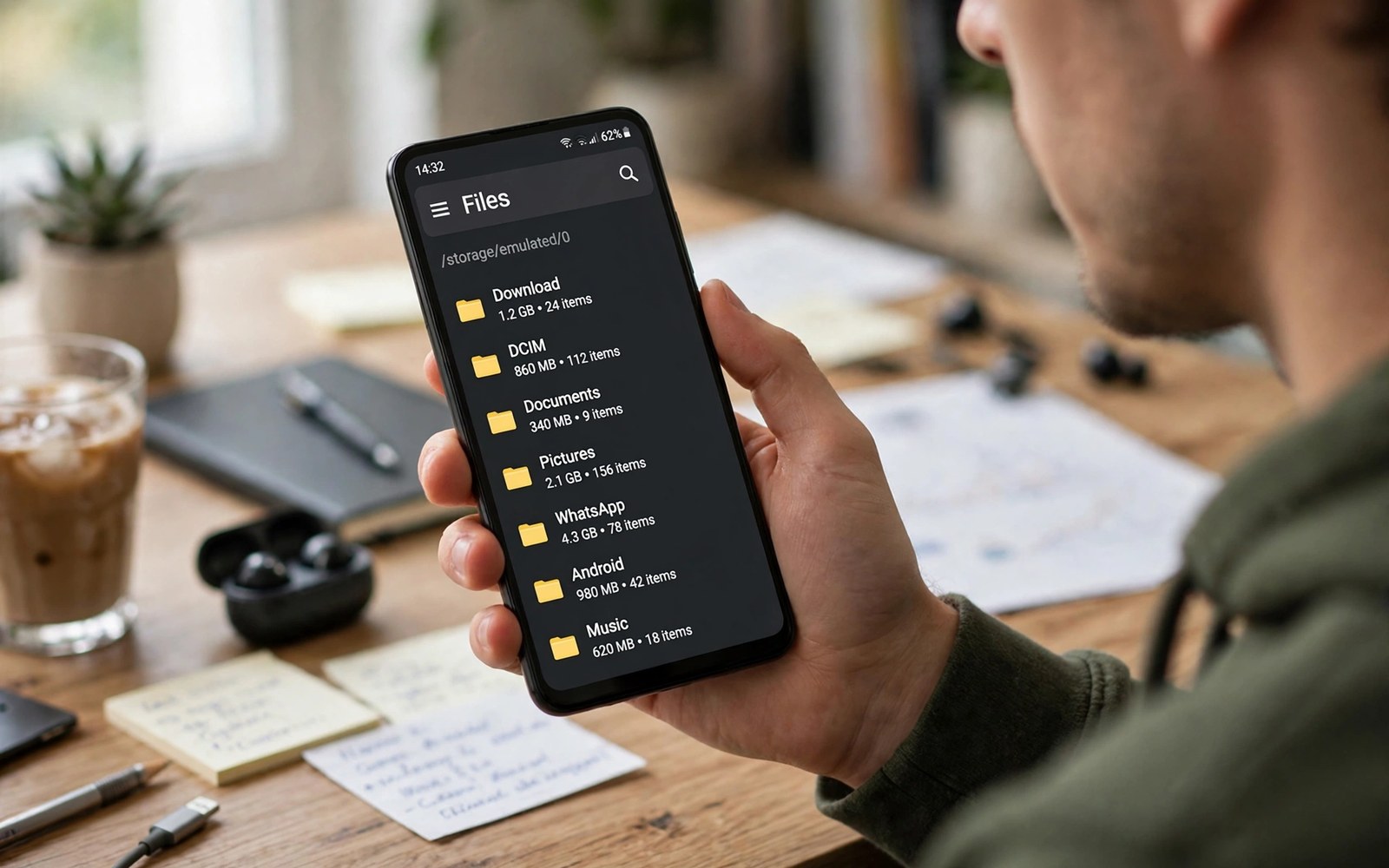
Every Android app keeps working files inside a data folder. Those files include settings and caches and downloaded content and offline media. The system hides much of that area because a wrong deletion can break an app in seconds. Curiosity is useful here only when it is paired with restraint. You can learn a great deal by viewing folder names and sizes without changing anything inside them.
Non rooted phones show a limited view of app data by design. The file manager may show an Android folder with subfolders for data and media and obb files. Some app folders open freely and others stay closed even when you own the phone. That closed view protects account tokens and private messages and paid content. It also stops a careless tap from wiping a game save or a chat database. Owners who want general storage relief should first try ways to free a large amount of phone storage quickly instead of forcing entry into protected folders.
A safe exploration routine starts with observation rather than action. Note the size of each visible folder and note which app owns it. Compare that size with the storage screen for the same app. A large gap between the two numbers often points to media files that live outside the data folder. Those media files are usually safer to review than the data folder itself. Observation gives you a map without risking a broken app.
Understand what lives in each folder
The data subfolder holds private app files that the app manages on its own. Databases and preference files and temporary work files live there. The media subfolder holds shared media that an app has created for other apps to use. The obb subfolder holds large expansion files for games and for heavy apps. Expansion files can be huge and they often look like easy targets for deletion. Deleting an obb file usually forces a large download when the game next opens.
Cache files inside a data folder are temporary by nature. The system can remove them when storage runs low. User files inside a data folder are different because they may hold the only copy of a project or a download. A file manager cannot always tell those two types apart from a name alone. That uncertainty is why bulk deletion inside data folders causes so much trouble. The same care matters when you read the warning about clearing app cache too eagerly before you tap clear on any app.
Use safe tools to view sizes without root
Open Settings and then open Storage and then open Apps to see a per app size breakdown. That screen separates app size and user data and cache with clear numbers. It gives you a safer picture than a raw folder listing. Use that picture to decide whether an app needs a cache clear or a proper data export. A cache clear is reversible in the sense that the app rebuilds the cache. A data clear is not reversible in the same way.
Use a storage analyser that works through the normal permission system. A good analyser shows large folders and large files without demanding broad system access. It should explain each result in plain language. Avoid tools that promise to unlock every system folder on a non rooted phone. Those promises usually hide aggressive ads or misleading scans. A trustworthy tool respects the system boundary and still finds real waste.
List visible folders with a short script
import os
base = "/sdcard/Android/data"
for name in sorted(os.listdir(base)):
    path = os.path.join(base, name)
    print(name, os.path.isdir(path))
The snippet above follows a standard pattern for listing folder names inside a visible data area. It only prints names and a folder flag and it deletes nothing. You can adapt the base path for a media folder that your own device allows you to view.
Run such a listing on a computer copy of an exported folder when possible. The list helps you learn app package names and folder habits. It also helps you spot folders from apps that you deleted long ago. Those leftover folders are often safe to review because no live app owns them anymore. Check the app name carefully before you remove any leftover folder.
Use the storage screen as your main map
The storage screen in Settings gives a safer map than a raw folder browser. It groups size by app and it separates cache from user data. That grouping helps you decide whether a large folder belongs to an app that you use or to an app that you forgot. A folder browser alone cannot tell you which app owns a package name. The storage screen connects a size to a recognisable app icon and name.
Open the storage screen and sort apps by size from largest to smallest. Tap the top app and read the breakdown carefully. A large user data figure may mean offline media that you can delete inside the app. A large cache figure may mean temporary previews that a cache clear can remove. A large app size figure may mean a game with expansion files that live elsewhere. Each breakdown points to a different safe action.
Take a screenshot of the storage screen before a major cleanup. A screenshot gives you a baseline for comparison after the cleanup. It also helps you remember which apps were large before you changed anything. Compare the screenshot with a new storage screen after a week. A stable screen shows that your cleanup worked. A rebounding screen shows that one app keeps growing and needs a setting change.
Work with leftover folders from removed apps
Removed apps sometimes leave folders behind in shared storage. Those folders may hold media that you created with the app. They may also hold empty subfolders that serve no purpose. Open a leftover folder and look at file types before you delete it. Media files deserve a backup check. Empty folders can be deleted without a second thought.
Check the folder name against the app that you removed. A package name often contains the developer name and the app name in a readable form. A folder with a recognisable name is easier to judge than a folder with a random string. When the name is unclear you can search your memory for apps that you removed recently. A folder that matches a removed photo editor may hold exported images that you still want.
Move valuable leftover media into a current folder before you delete the leftover folder itself. A move preserves the file while removing the clutter of the old structure. Rename the file with a clear name during the move when the original name is cryptic. A clear name helps future searches. Delete the empty leftover folder only after the move verifies.
Advanced checks for app data growth
App data growth follows patterns that a single storage snapshot cannot reveal. An app that grows steadily each week may be caching feed content. An app that jumps suddenly may have downloaded a large update or a media pack. A steady growth pattern calls for a setting change. A sudden jump calls for a check of recent downloads inside the app. Pattern awareness turns a storage number into a diagnosis.
Track the top five apps by data size over a month with a simple note. Write the date and the app name and the data size for each app. A month of notes reveals which apps grow fastest. A fast growing app deserves a settings review before it dominates storage. A stable app can be left alone even when its total size is large. Growth rate matters more than absolute size for long term planning.
Check offline content settings inside media apps that grow quickly. A streaming app may download episodes automatically for offline viewing. A news app may cache articles and images for offline reading. An offline cache that you never use is pure waste. Turn off automatic offline downloads for content that you only view online. Manual downloads for a specific trip are more efficient than automatic downloads for every day.
Distinguish between app data that you created and app data that the app created on its own. Your notes and your projects deserve protection. App created caches and previews deserve routine clearing. A file manager cannot always tell those two types apart. The app itself usually can tell them apart through its own storage screen. Trust the app storage screen over a raw folder listing for that distinction.
Plan a quarterly data export for apps that hold creative work. A drawing app may hold projects that exist only inside app private storage. A music app may hold recordings that exist only inside its own folder. Export those projects to shared storage before a phone change or an app reinstall. An export habit protects creative work from a data clear that you might need for troubleshooting later.
A practical data folder checklist
A data folder checklist begins with a backup verification step that many owners skip. Copy a visible folder to a computer and open three random files from the copy. A copy that opens correctly is a real backup. A copy that fails to open is a warning that your backup method needs fixing. Verification takes minutes and it prevents a false sense of security that a format or a deletion could expose.
List the apps that you have removed in the last six months and check for their leftover folders. A removed app folder may hold media that you still value. A removed app folder may also hold only empty subfolders. A six month look back is long enough to catch leftovers without becoming a research project. A leftover check twice a year keeps shared storage clean.
Check the size of the Android folder itself once a month. A sudden jump in that folder size often points to a single app that started caching heavily. A steady size shows that your app habits are stable. A monthly size note turns a vague storage feeling into a concrete trend. A trend helps you act before a storage warning appears.
Never delete a folder based solely on its name when the name is unfamiliar. Search the package name online in your mind against apps that you recognise. A familiar developer name in a package name can identify the owner app. An unfamiliar name deserves a contents check before any deletion. A contents check that reveals personal files should stop the deletion immediately.
Common mistakes
One common mistake is deleting a whole data folder to free space quickly. That action can erase login state and offline content and game progress in one tap. A second mistake is renaming a data folder to test a fix and then forgetting the original name. A third mistake is copying a data folder from one phone to another and expecting the app to accept it. System protections and account checks often reject such a transplant.
Another mistake is trusting a video that shows a hidden folder trick without explaining the risk. Some tricks work only on one brand or one Android version. Others require a computer connection and a developer setting that changes security behaviour. Follow only steps that you can reverse and that keep a backup of anything valuable.
Frequently asked questions
Why can I not open some app data folders?
Android protects private app data from other apps and from casual browsing. That protection keeps tokens and messages safe when a harmful app is installed. You can still manage the app through its own settings and through the storage screen. The restriction is a security feature rather than a fault in your file manager.
Is it safe to delete leftover folders from deleted apps?
Leftover folders are usually safer than live app folders because no app uses them. Check the package name and check the contents before you delete the folder. Keep a backup of any file that you do not recognise. Delete only folders that clearly belong to an app that you removed.
Can a computer show more data folders than the phone?
A computer file browser shows a similar limited view on a modern phone. Developer tools can show more detail but they also carry more risk. Use developer tools only for learning on a test device. Keep your main phone on normal file access for daily use.
Conclusion
Android data folders reward observation and restraint rather than bold deletion. Folder roles explain why some areas stay closed and why some files must stay put. Storage settings and a permission based analyser give you enough information for safe decisions. Leftover folders offer the best low risk cleanup target.
Your concrete next step is to open Storage in Settings today and list the five largest apps by user data. Export anything valuable from the top app before you clear only its cache. Readers who need more space can then explore steps to remove hidden files that eat system storage as a safer next move.

