

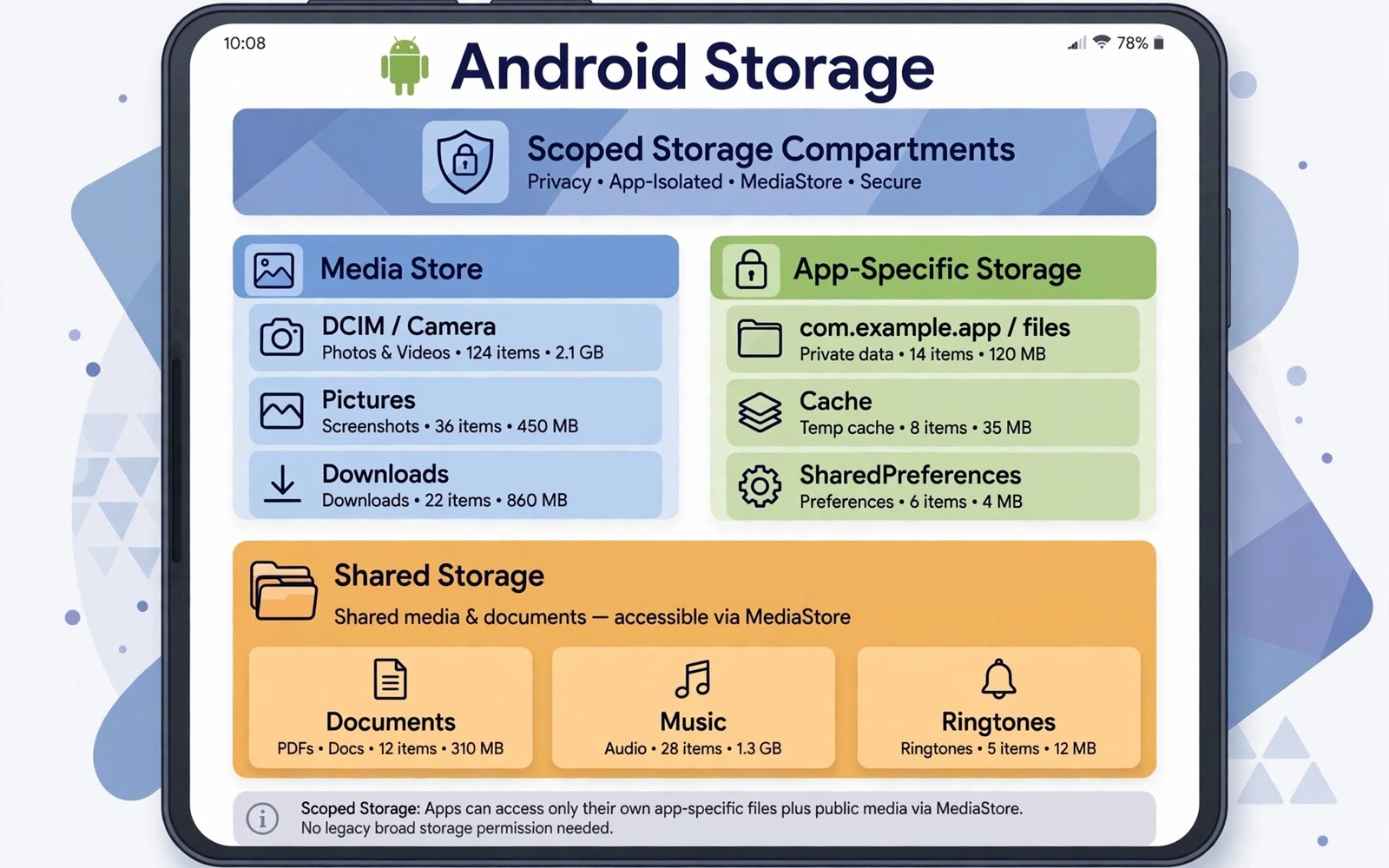
Scoped storage changed the way Android apps reach files on your phone. An app no longer wanders through every folder on shared storage. It works inside its own area and it asks for clear permission when it needs a shared file. That change protects private data and it reduces clutter from apps that once scattered files everywhere. It also changes how you move and organise files by hand.
Think of shared storage as a set of public rooms with clear labels. Photos live in one room and videos live in another room and documents live in a third room. An app can use its own private room without asking you. It needs your approval to read or change files in the public rooms. That approval can cover a single file or a whole folder depending on the request. Owners who understand those rooms can find files faster and can spot strange behaviour sooner. A related cleanup habit is covered in ways to shrink large photos and videos without losing quality for phones that stay full.
Organisation starts with using the public folders for their intended purpose. Save camera pictures in the pictures folder and save downloads in the downloads folder and save documents in the documents folder. Other apps can then find those files through the normal pickers. Files that sit in random folders become harder to back up and harder to share. A tidy folder habit also makes a future phone move far simpler.
Learn the three storage areas
App private storage holds data that belongs to one app alone. Other apps cannot open that area and a file manager cannot browse it freely. Deleting the app usually removes that private data as well. That rule matters when you clear data to fix a problem. You should export anything valuable before you clear an app completely.
Shared media storage holds pictures and videos and audio files that many apps may use. The system media store tracks those files and shows them in gallery apps. Shared document storage holds files that are not media such as PDFs and text files and spreadsheets. A file picker gives an app access to a document that you choose. That choice based access keeps the rest of your documents private. A similar control mindset helps when you set limits on apps that cache gigabytes of data in the background.
Move files with the system picker
Use the built in file picker when an app asks you to open or save a file. The picker shows only the folders that fit the file type. That focus prevents accidental saves into a hidden app folder. It also creates a clear permission record for the file that you selected. You can revoke that access later from the app permission screen.
Avoid moving system managed files with a root style file tool unless you understand the risk. A file that looks unused may belong to a media index or to a download record. Moving it can break a gallery thumbnail or a download resume link. Rename a copy for testing before you move an original file. Restore the original name when the test shows a problem. The same caution applies when you hunt hidden thumbnail files that take gigabytes on a crowded phone.
Check what an app can reach with a short script
import os
base = "/sdcard/Pictures"
for root, dirs, files in os.walk(base):
    print(root, len(files))
    if root.count(os.sep) > 4:
        dirs[:] = []
The snippet above follows a standard pattern for walking a pictures folder and counting files at each level. It only prints folder names and counts and it changes no file. You can adapt the base folder for a documents folder on your own test device.
A folder count map helps you see where pictures actually live. Deep folders with tiny counts often hold app created copies. Shallow folders with large counts often hold your real camera work. Use that map to plan moves and to decide which folders need a backup first. A clear map also stops you from deleting a folder that holds the only copy of a trip album.
Organise shared media by year and event
A shared media library grows in a way that a single folder cannot describe. Photos from many years sit beside videos from last week. A year folder system gives that library a simple backbone. Create a folder for each year inside the pictures folder. Move photos into the year that matches their capture date. A year system is easy to remember and it survives a phone change because dates travel with files.
Inside a year folder you can add event folders only for major trips and major celebrations. A trip folder with a clear name such as Beach Trip June helps you find photos without a search. A folder for every small outing creates clutter that defeats the purpose. Keep event folders for occasions that you actually revisit. Let ordinary daily photos stay in the year folder itself.
Check the media store after a large move to confirm that the gallery still shows the photos. A gallery that uses the media store should update after a short scan. Restart the gallery app when a moved photo does not appear at once. A missing photo after a move usually means a scan delay rather than a lost file. Search by file name to confirm that the file still exists before you worry.
Handle documents that apps create for you
Many apps create documents without asking you to choose a folder. A scanner app may save PDFs to its own folder. A notes app may export text files to a downloads folder. Those app created files hide in places that a tidy system misses. Open the export settings in each app that you use for documents. Set the export folder to the shared documents folder when the app allows that choice.
Review app created documents once a month and move them into topic folders. A tax document belongs in a finance folder. A travel itinerary belongs in a travel folder. A work contract belongs in a work folder. Topic folders work for documents because you usually remember the purpose of a document even when you forget its date. A topic system complements a year system for media.
Delete duplicate exports when an app creates the same PDF twice. An export that fails halfway can leave a partial file beside a complete file. Open both files and compare page counts before you delete one. A partial export often shows fewer pages or a broken final page. Keep the complete export and delete the partial one only after that check.
Advanced organisation for mixed media libraries
Mixed media libraries contain photos and videos and audio files and documents that all need different handling. A single folder rule cannot serve every type well. Photos benefit from year folders because dates anchor memories. Documents benefit from topic folders because purposes anchor work. Audio files benefit from artist or project folders because creators anchor listening. A mixed library therefore needs a type first system with a different second level for each type.
Videos need special attention because a single video can be larger than hundreds of photos. A video folder sorted by year can still hide a huge file that dominates storage. Sort videos by size within each year folder to spot the largest files quickly. A large video that you rarely watch can move to a card or to a cloud archive. A large video that you watch often deserves to stay local for smooth playback.
Audio files from voice notes need a different rule from music files. A voice note usually serves a short term purpose such as a reminder or a draft idea. A music file usually serves a long term purpose such as a favourite song. Move voice notes to a notes folder with a date name. Move music files to a music folder with an artist name. A purpose difference justifies a folder difference.
Documents that arrive as attachments need a triage step before they enter a topic system. An attachment may be a receipt or a contract or a newsletter. A receipt belongs in finance. A contract belongs in work. A newsletter belongs in reading or in trash depending on its value. Triage by purpose at download time prevents a downloads pile from forming. A triage habit takes seconds per file and it saves hours later.
Review the whole library structure once a quarter and prune folders that no longer serve a purpose. A folder for a finished project can move to an archive drive. A folder for a cancelled trip can be merged into a general year folder. A structure review keeps the system lean and relevant. A lean structure is easier to search and easier to back up.
A practical scoped storage checklist
A scoped storage checklist starts with a permission audit that you can finish in ten minutes. Open app settings for the five apps that you use most for files. Check whether each app holds photo permission or all files permission or selected photos only. Downgrade any broad permission that an app does not need for its core job. A downgraded permission reduces risk without breaking the app when the app only needs selected files.
Check folder locations for files that you created this month. Open the file manager and sort recent files by date. Confirm that recent documents sit in the documents folder and recent photos sit in the pictures folder. Move any recent file that landed in a random folder to its proper home. A monthly location check prevents a slow drift into disorder that becomes hard to reverse later.
Test sharing from each major folder to confirm that other apps can reach the files. Share a recent photo with a messaging app and share a recent document with an email app. A successful share proves that the file lives in a reachable shared location. A failed share signals a private folder problem that needs a move. Sharing tests are quick and they reveal problems that a folder listing hides.
Record any app that requests all files access in a note with the date and the reason given. A note helps you revisit the decision later when the app changes. An app that once needed broad access may no longer need it after an update. A dated note turns a permission decision into a reviewable choice rather than a forgotten grant.
Common mistakes
One common mistake is saving every file into the downloads folder. The downloads folder then becomes a mixed pile that is hard to search. A second mistake is granting all files access to an app that only needs one photo. A third mistake is deleting app private data to free space without exporting chats or drafts first. Each mistake comes from rushing a permission prompt or a cleanup tap.
Another mistake is expecting an old file manager to see every folder as it once did. Scoped rules limit that broad view on modern Android. Use the system picker and the media folders instead of fighting the framework. The framework works in your favour when you store files where the system expects them.
Frequently asked questions
Can an app still read all my photos?
An app can read photos only after you grant photo permission or after you pick specific photos. A full photo permission covers the media library rather than every private file. You can change that permission at any time from app settings. Pick specific photos when an app needs only one image.
Where should I save a downloaded document?
Save documents in the documents folder so other apps can find them through the picker. Avoid saving documents inside an app private folder. A private folder hides the file from other tools and it may vanish when the app is removed.
Why does a file vanish after I delete an app?
Files in app private storage belong to that app and the system removes them with the app. Files in shared folders usually remain after an app is removed. Export private files before you uninstall an app that holds notes or drafts or projects.
Conclusion
Scoped storage rewards a simple habit of using the right public folder for each file type. Private app data stays private and shared media stays findable through the system picker. Permission choices become clearer when you know which room a file lives in. Organisation improves because every file has a predictable home.
Your concrete next step is to open your file manager today and move ten stray documents into the documents folder. Then check photo permission for three apps and switch any broad access down to selected photos. Readers who manage a full phone can also read methods to clear the vague Other storage category quickly after this folder tidy.

