

Internal storage fills fast when apps grow with updates and caches. A microSD card offers relief but many apps refuse to move. The move button may be greyed out or missing entirely. That refusal frustrates owners who bought a card specifically to expand app space. There are still legitimate ways to free internal space even when an app claims it cannot move.
App movement depends on how the app was built. Developers can allow or block movement to external storage. Apps with widgets and background services often block movement because a removed card could break them. Apps that store large media internally may still offer a way to move their data even when the app code itself stays internal. Understanding that distinction opens practical workarounds.
This guide explains the official move method first and then safe alternatives for unsupported apps. You will learn how to move app data and media and how to use a card for large files that apps generate. You will also learn which workarounds to avoid because they risk app breakage or data loss.
Try the official move method first
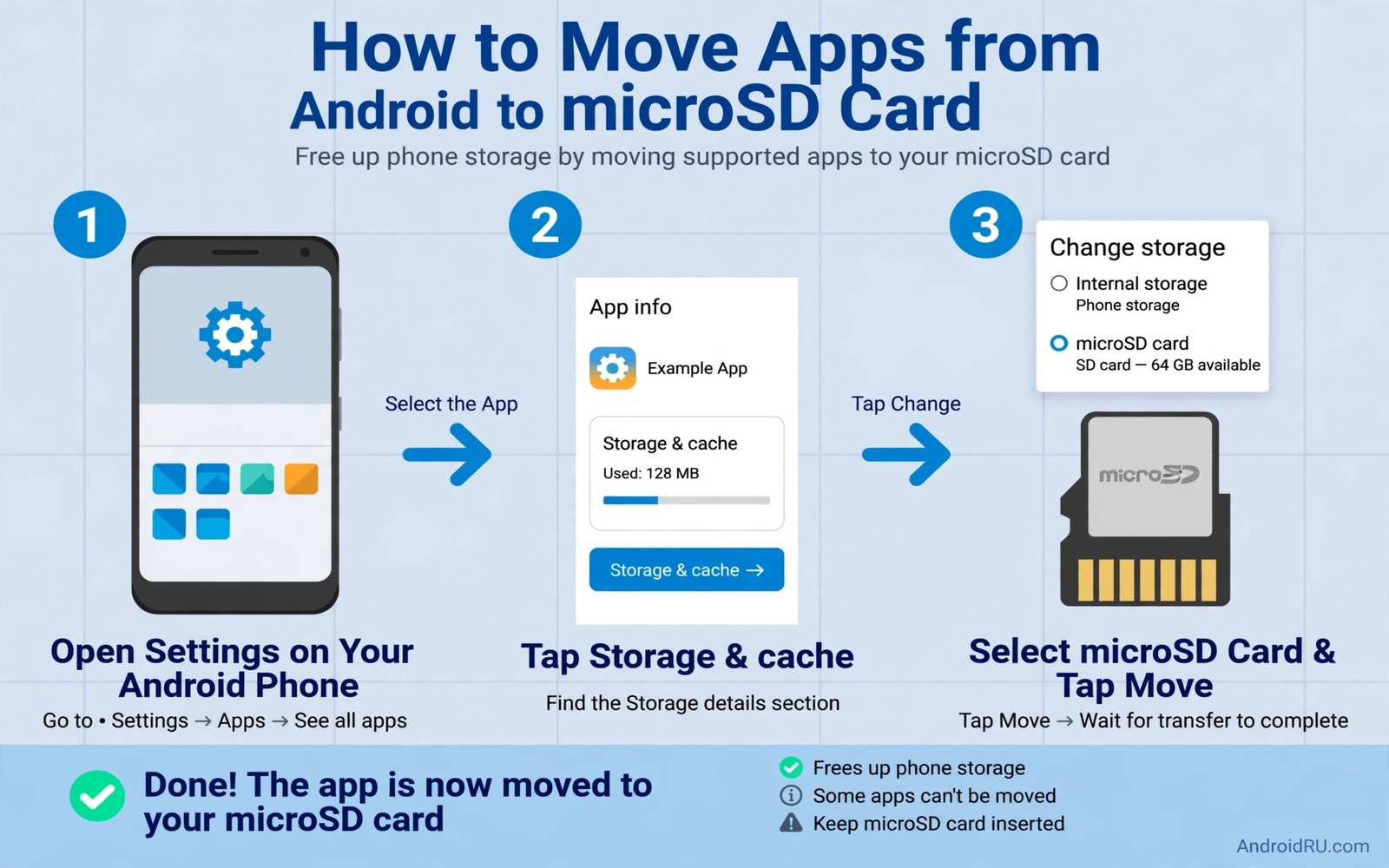
Open Settings and then open Apps and select the app you want to move. Tap Storage and look for a Change button beside the storage location. If the button exists then choose the SD card and wait for the move to complete. Keep the phone awake and the card inserted during the move. Interrupting a move can corrupt app data.
Test the app thoroughly after a move. Open it and check its main features and any widgets it provides. A moved app should work normally when the card is present. If a widget disappears or the app crashes after a move then move it back to internal storage. A stable internal app beats a moved app that misbehaves.
Note that moving an app does not always move all its data. Some data may remain internal by design. Check free space before and after the move to see the real gain. A move that frees only a few megabytes may not be worth the risk for an app you use daily. Reserve moves for large apps where the gain is clear.
Move app media and data instead of the app
Many apps let you change where they store media inside their own settings. A camera app can save to the card. A podcast app can download episodes to the card. A map app can store offline maps on the card. Changing the media location inside the app often frees more internal space than moving the app code itself.
Check each large app for a storage or download location setting. Move its downloads folder to the card and then delete the old internal copies after confirming the move. A media move is safer than an app move because the app code stays on fast internal storage. Performance stays high while bulky media lives on the card.
For apps without a media location setting you can still move exported files manually. Export a project or a document to the card and delete the internal copy after backup. A manual export takes more effort but it gives you control over what moves. Readers who want broader card strategies will benefit from free storage expansion with a microSD card because media movement is part of that system.
Use adoptable storage with caution
Adoptable storage formats the card as an extension of internal storage. The system then treats the card as part of internal memory and it can move apps more freely. This option can help on phones with very small internal storage. It also ties the card to that phone and encrypts it so it cannot be read elsewhere.
Adoptable storage works best with a fast card. A slow card can slow app launches and system updates. A card failure under adoptable storage can also cause wider problems because the system treats the card as internal memory. Use a high quality fast card and keep backups of important data before adopting a card.
Some phones hide adoptable storage behind advanced formatting options. Research your model before attempting it because the process formats the card and erases its contents. Back up the card first and confirm you understand that the card will no longer work as portable storage. Adoptable storage is a commitment rather than a casual setting.
Alternatives when an app truly cannot move
When an app cannot move and its media cannot move then focus on its cache and data growth. Clear cache regularly for a large social or shopping app. Limit offline downloads inside the app to a smaller set. A smaller offline library frees internal space without moving the app at all.
Consider a lighter version of the app when available. A lite app uses less internal storage and fewer background resources. A web version accessed through a browser uses almost no app storage for some services. A lite or web alternative may sacrifice features but it can rescue a phone with very limited internal space.
Uninstall apps you rarely use and reinstall them when needed. A rarely used app that occupies gigabytes is a poor use of internal storage. A quick reinstall from the store restores it when a trip or a project requires it. Keep a note of rarely used apps so reinstalling them later is easy.
A small script to compare app sizes
The script below compares app folder sizes in a local backup list. It helps you decide which apps deserve a move attempt first. Enter folder sizes from your storage screen and the script ranks them.
apps = {"Maps": 1200, "Photos": 850, "Music": 640, "Games": 2100}
for name, size in sorted(apps.items(), key=lambda item: item[1], reverse=True):
    print(f"{name}: {size} MB")
The code above was written for this guide as an original app size ranking example. It uses example sizes in megabytes and it prints apps from largest to smallest. Replace the example values with sizes from your own storage screen. The script never accesses your phone and it never moves any app.
Check card speed before moving anything
Card speed decides whether a move helps or hurts. A slow card can make a moved app feel sluggish and it can delay photo saving. Test card speed with a simple file copy before moving apps. Copy a large video to the card and time it. A fast copy suggests the card can handle app use. A slow copy suggests the card suits only simple media storage.
Look for the speed class printed on the card and compare it with your phone needs. A card rated for video recording handles large files better than a card rated only for documents. A card that was fine for an old phone may struggle with a new phone that records higher resolution video. Speed needs grow with camera resolution.
If a card proves slow then use it for photos and documents only and keep apps internal. A slow card still expands media space usefully. A slow card forced into app duty creates frustration that outweighs its space gain. Matching card speed to the job is a simple test that prevents a poor move.
After moving an app test it with the card removed and reinserted in a safe way through system eject settings. A moved app should recover gracefully when the card returns. If the app loses data after a safe eject cycle then move it back to internal storage. A move that survives an eject cycle is a move you can trust.
Keep a note of which apps you moved and when. A note helps you troubleshoot if an app misbehaves weeks later. A moved app that crashes may simply need to return internal. A note turns guesswork into a quick reversal.
Test a moved game separately from a moved productivity app because games use storage differently. A game may stream textures from the card during play and a slow card will show stutter. A productivity app may load mostly at launch and tolerate a slower card. Test each type on its own terms.
Common mistakes
The biggest mistake is removing the card while a moved app is running. A removed card can crash the app and corrupt its data. Eject the card safely through system settings before physical removal. Never pull a card during an app move or a media transfer.
Another mistake is buying a slow card for app storage. A slow card makes moved apps lag and it can cause timeouts during updates. Use a fast card from a reputable brand for any app related use. A slow card is acceptable only for simple media storage such as photos viewed occasionally.
People also force move apps with risky tools that modify system settings. Forced moves can break widgets and background services and updates. Avoid tools that promise to move every app regardless of developer restrictions. Official moves and media moves cover most needs without system risk.
Finally avoid filling a card to one hundred percent. A nearly full card slows writes and increases corruption risk. Keep at least ten percent free on the card. A card with breathing room performs better and lasts longer.
Frequently asked questions
Why is the move to SD card button missing?
The developer may have blocked movement for that app. Apps with widgets and always on services often block movement to avoid breakage when the card is removed. A missing button means the app is designed to stay internal. Use media movement or cache control for that app instead.
Will moving an app to SD card slow it down?
A fast card keeps most apps close to internal speed. A slow card can delay launches and media loading noticeably. Test a moved app for a day before moving several apps. If performance drops then move that app back to internal storage and use the card for media only.
Can I move system apps to SD card?
System apps generally cannot move and should stay internal. Moving a system app can break updates and core features. Focus on user installed apps and their media for storage gains. System apps are usually not the main cause of a full phone for most owners.
Conclusion
Moving apps to microSD works best when you combine official moves with media moves. An app that cannot move may still store its large media on the card. Adoptable storage can help small storage phones but it needs a fast card and a backup mindset. Cache control and lite alternatives cover apps that truly cannot move.
Your concrete next step is to open Settings and Apps today and sort by size. Try the official move for the largest movable app and test it for a day. If the button is missing then change that app media location to the card instead. Readers who want to compress media for card storage will also like compressing photos and videos without losing quality and auto moving camera photos to SD card as follow-ups.

