

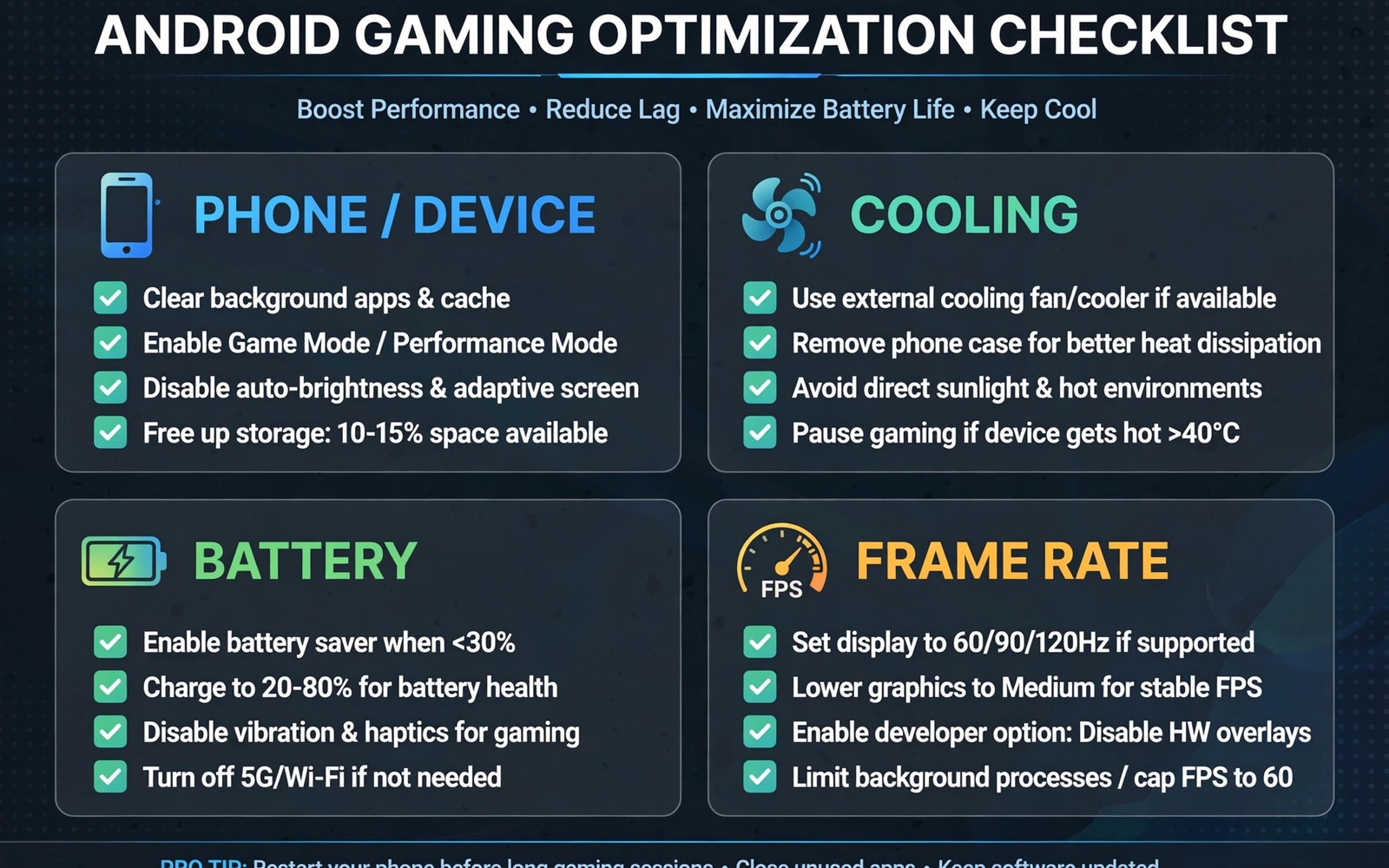
Mobile gaming optimisation is not a single setting. It is a routine that covers display and graphics and memory and heat and audio and controls together. A phone that is fast in one area but weak in another will still stutter. This bible brings all areas into one checklist. It is written for Android players who want a complete routine rather than a random tip. Follow it in order and save the result per game.
Start with a baseline test before you change anything. Play a busy scene in a game you know well. Note frame rate and heat and battery use. A baseline gives you a number to beat. Without a baseline you cannot tell if a change helped or hurt. A baseline also reveals the weakest area. A game that stutters from heat needs cooling before graphics changes. A game that stutters from memory needs background control before resolution changes. Diagnose first and optimise second.
Work through the routine one area at a time. Change display settings first. Then change graphics settings. Then manage memory. Then manage heat. Then tune audio. Then tune controls. Test the same busy scene after each area. A stepwise routine shows which area gave the biggest gain. A batch change of everything at once hides the true cause. Slow optimisation beats fast guessing. Five performance fixes to stop lagging is a shorter version of this routine for a quick fix. This bible is the full version.
Display And Refresh Rate First
Set the screen refresh rate to match the game. A 120Hz screen helps fast games. A variable rate saves battery in slow games. Test both modes in the same scene. Choose the mode that feels smooth and saves battery. A fixed high rate suits shooters. A variable rate suits strategy games. Per app settings let you use both modes across your library. Save the choice per game.
Set brightness to a comfortable level for your room. Maximum brightness adds heat and drains battery. A moderate brightness keeps the phone cooler and lasts longer. A cooler phone holds frame rate better. Brightness is an optimisation setting as much as a comfort setting. Test a busy scene at moderate brightness. If frames hold steady then brightness was part of the problem. A small brightness change can improve sustained performance.
Turn off auto brightness during a test. Auto brightness can change mid match and distract. It can also look like a frame drop when the screen dims. Test with a fixed brightness first. Once performance is stable you can return to auto brightness if you prefer it. A test needs stable conditions. A match can use comfort settings after the test passes.
Graphics Settings That Matter Most
Lower shadows first when a game stutters. Shadows cost a lot of graphics power for a modest visual gain. Lower reflections second. Keep textures at a moderate level if memory allows. Textures affect the look of the world more than shadows. A game with medium shadows and good textures looks better in motion than a game with high shadows and stutter. Judge graphics in motion rather than in screenshots.
Use resolution scaling carefully. A higher internal resolution sharpens edges but costs a lot of power. A lower resolution with good filtering can look nearly as good for far less cost. Test resolution steps one at a time. Keep the highest step that holds the target frame rate for a full level. A stable resolution is better than a maximum resolution that throttles after ten minutes. Save resolution per game.
Disable motion blur if it hides detail during fast turns. Motion blur can look cinematic but it can blur enemies during a flick. A clear image helps aim. Test a fast camera turn with blur on and off. If aim improves with blur off then keep it off. If the game looks too sharp without blur then turn it on for single player games only. Competitive games usually benefit from blur off.
Memory Heat Battery And Audio Together
refresh_rate = 120
shadows = medium
textures = medium
background_apps = closed
cooling = case_off
music_volume = low
The snippet above is an original example written for this guide. It shows generic settings that you can adapt to your own device. It does not copy code from any outside source.
Use the profile above as a complete starting point. It sets a high refresh rate and medium shadows and textures. It closes background apps. It removes a thick case for cooling. It lowers music volume for clearer audio cues. Test this profile in a busy scene for fifteen minutes. Adjust one value at a time from here. A complete profile that you tune slowly becomes a personal bible for your phone.
Controls And Input Optimisation
Choose the input that fits each game. Touch suits many games. A controller suits fighting and racing games. A mouse and keyboard suits shooters and strategy games on supported titles. Test each input in a practice match. The best input is the one that gives precise control without fatigue. A comfortable input lets you play longer and react faster. Do not force one input on every game.
Calibrate controllers and check touch sensitivity before ranked play. A drifting stick or a weak touch response can ruin a match. Run a quick calibration test before important sessions. A five minute test can prevent a lost match. Save input profiles per game. A shooter profile and a strategy profile should not share the same keys or dead zone. Separate profiles keep each game feeling right.
Reduce input lag by closing wireless interference sources. Move closer to the phone for Bluetooth gear. Charge controllers fully. Use wired gear for the lowest lag when possible. A stable link matters as much as a fast screen. A fast screen with a laggy controller still feels slow. Test input in a practice range with a simple aim drill. A drill reveals lag that a menu test hides.
A Daily And Weekly Optimisation Routine
Use a short daily routine before play. Close background apps and check battery and check game mode. That routine takes one minute. It prevents most common stutter causes. Use a longer weekly routine for deeper checks. Check for system updates and game updates. Check controller calibration. Check audio profiles. Check storage space. A weekly routine catches problems before they ruin a session.
Keep a notebook of settings per game. Write display rate and graphics preset and memory plan and control profile. A notebook survives resets and updates. A notebook also helps friends with the same phone. Share settings with hardware notes attached. A setting without a phone model can mislead. A complete notebook entry is a useful share. An incomplete entry wastes time.
Review the notebook after a major update. Updates can reset settings and change performance. A post update test with the notebook lets you restore a working setup quickly. If an update improves performance then try one higher setting. If it worsens performance then return to the notebook setup. A notebook turns updates from a disruption into a short check. Optimising RAM allocation for heavy mobile games is the memory chapter of this bible in detail.
Troubleshoot With A Calm Order
When a game stutters use a calm order. Check heat first. Check battery second. Check background apps third. Check graphics fourth. Check network fifth for online games. A calm order prevents random changes. Random changes waste time and can create new problems. A game that stutters when hot needs cooling. A game that stutters when cold needs a settings change. The order separates heat from settings quickly.
Test one change at a time and record the result. A recorded result is evidence. An unrecorded change is a guess. A player who records results will optimise faster over time. A player who guesses will repeat the same mistakes. Keep records short. A line per change is enough. Date and game and setting and result. That line is the core of a personal optimisation bible.
Ask for help with clear details when stuck. State phone model and game version and settings and the exact scene that stutters. Clear details let others help quickly. Vague complaints about lag help no one. A community that receives clear reports can offer clear fixes. Clear reporting is a skill that improves with practice. It also helps you diagnose your own problem as you write it down.
Use this bible as a template for a new phone setup. When you buy a new phone work through the same areas in the same order. A template saves hours of random testing. It also gives a fair comparison between old and new phones. A new phone that beats the old phone in every area is a clear upgrade. A new phone that wins in only one area may not be worth the cost. A template makes upgrade decisions rational.
Teach the routine to a friend who is new to mobile gaming. A new player who follows a routine will avoid common mistakes. A new player who guesses will waste time on random tips. Teaching also reinforces your own knowledge. A teacher must understand a routine well enough to explain it. Explaining the bible to a friend can reveal gaps in your own understanding. Fill those gaps together.
Common Mistakes
One mistake is to max every setting at once. Max settings cause heat and stutter. Another mistake is to optimise only graphics and ignore heat and memory. A balanced routine beats a single area tweak. A third mistake is to copy settings from a flagship to a midrange phone. Hardware differences change the stable ceiling. A fourth mistake is to skip a baseline test. Without a baseline you cannot prove a gain.
Do not chase a single number like frame rate while ignoring battery and heat. A phone that peaks high and throttles low feels worse than a phone that holds steady. Sustained performance is the goal. Why thermal throttling kills gaming FPS explains sustained performance in depth. A bible that covers all areas will serve you longer than a tip that covers one area.
Frequently Asked Questions
What is the best order for mobile gaming optimisation?
Start with a baseline test. Then optimise display and graphics. Then manage memory and heat. Then tune audio and controls. Test the same busy scene after each area. A stepwise order shows which area gave the biggest gain.
Do I need to optimise every game separately?
Yes different games stress hardware differently. Save settings per game. A shooter profile differs from a strategy profile. Per game profiles prevent a fix for one game from breaking another. A notebook of per game settings makes this easy.
How often should I redo optimisation?
Run a short daily routine before play. Run a longer weekly check for updates and calibration. Redo full optimisation after a major system or game update. Updates can reset settings and change performance. A quick post update test keeps your setup stable.
Conclusion
Run a baseline test in your favourite game today and work through this bible one area at a time. Save the winning settings per game in a notebook. That notebook will become your personal mobile gaming optimisation bible for every future phone and game.

