

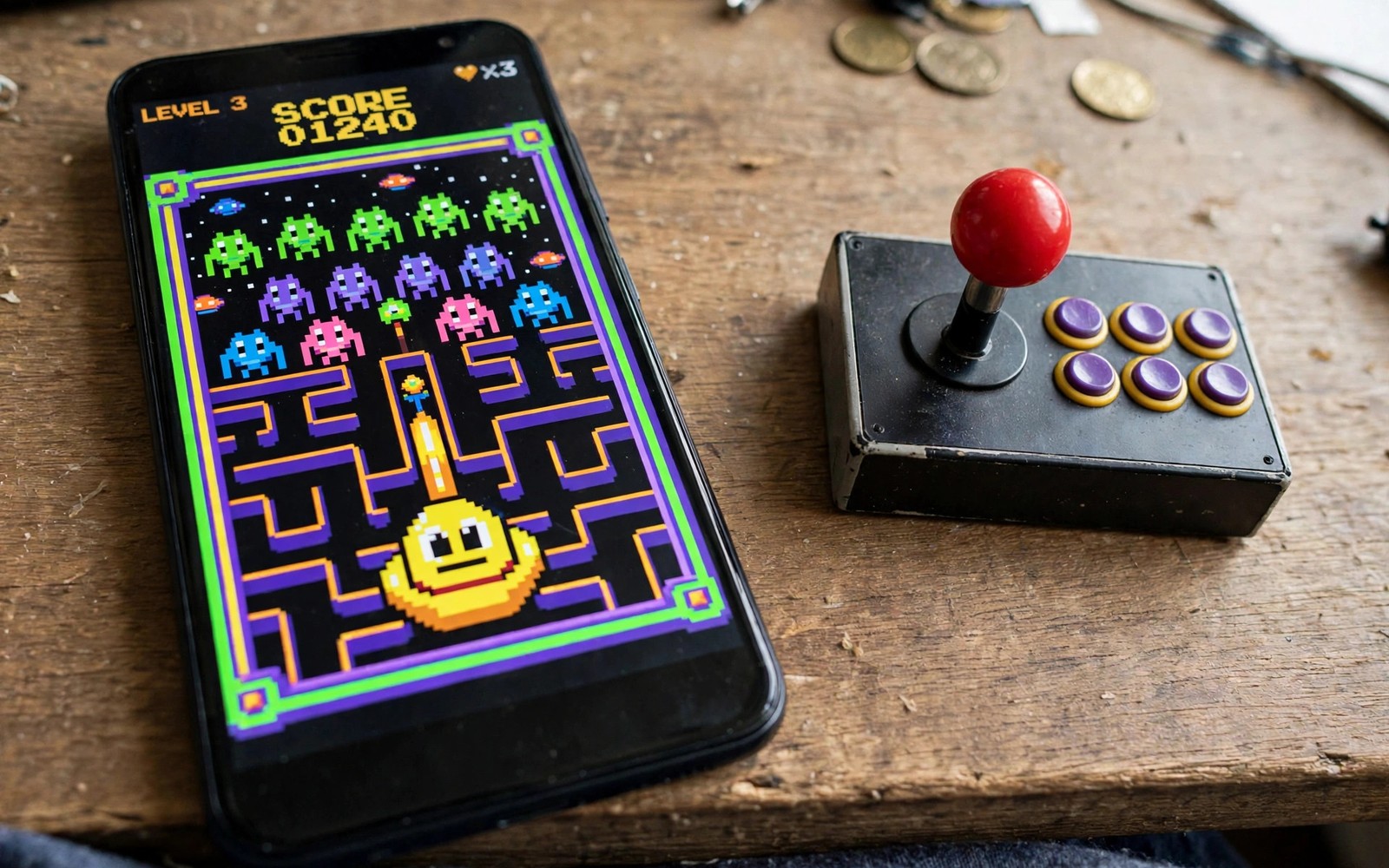
5 Retro Arcade Emulators That Bring Back 90s Gaming Nostalgia
Retro arcade games from the 90s still play brilliantly on a phone. The games were built for short bursts and high scores, with simple controls and clear goals. An arcade emulator brings that style to Android without a bulky cabinet, and a phone in your pocket becomes a pocket arcade with hundreds of classics.
This guide picks five emulator types that cover the arcade era well, plus two extra options worth trying, and it shows you how to set up controls and saves so a classic game feels right on a touch screen. Start with the arcade system you remember most. Some players love side-scrolling beat them up games. Others love shooting games with waves of enemies. Others love puzzle games with fast falling blocks. Each style needs a different emulator core, and choosing the right core matters more than choosing a fancy emulator shell.
Use only game files from your own collection. Arcade games are still owned by their creators, and this guide covers setup and controls only. It does not provide game files. A legal collection also avoids fake files that crash or carry harmful code. A clean collection loads faster and is easier to organise, so keep each game in its own folder under its system name.
How arcade emulation works on Android
An emulator is a program that pretends to be old hardware. It recreates the processor, the graphics chip, and the sound chip of an arcade board in software, and then runs the original game code on that virtual hardware. The accuracy of that recreation decides how the game looks and sounds, which is why two emulators for the same system can play the same game very differently.
A core is the engine inside an emulator that runs a specific system. RetroArch is a frontend that loads cores: one core runs MAME arcade boards, another runs Neo Geo hardware, another runs Dreamcast-era boards. Setting up RetroArch for Android explains cores and folders in depth, and it is a good companion to this guide, because understanding cores is the fastest way to fix a game that glitches.
What a core is and why it matters
A core is a self-contained emulator for one system, packaged so a frontend can load it. When you open a game in RetroArch, you choose a core, and that core does the actual emulation. A good core runs a game smoothly with correct sound, while a wrong core can cause glitches even on a strong phone. The core matters more than the frontend, because the frontend only provides menus and controls while the core does the work.
Why the right core matters more than the app
Two cores for the same arcade board can differ in accuracy, speed, and compatibility. One core may run Street Fighter II perfectly and struggle with Metal Slug, while another does the opposite. Test each core with a game you know well. A familiar game makes glitches easy to spot, because you know how a level should look and how the music should sound. Play the first level fully, watch for missing sprites or wrong colours, and listen for crackling audio or missing sound effects. A core that passes a familiar first level is a strong candidate.
Legal game files from your own collection
Dump your own arcade boards or use game files you legally own. Do not download game files from random sites, because they often carry malware or broken data that crashes the emulator. A clean, legal collection is smaller, but every game in it works, and you never have to wonder where a crash came from.
The 5 retro arcade emulator types to try
These five types cover the arcade era from the late 80s to the late 90s. Each one suits a different style of game, and together they cover nearly every classic worth replaying.
1. Classic coin-op arcade boards with MAME
The first type covers classic coin-op arcade boards, and it runs many 90s titles with accurate graphics and sound. The MAME core is the reference emulator for this hardware, and it supports thousands of boards, from Pac-Man era hardware to mid-90s Capcom and Konami boards. MAME prioritises accuracy over speed, so it needs a reasonably strong phone for the later boards, but the reward is a game that looks and sounds the way it did in the arcade. Start with a game you know, such as Metal Slug or Street Fighter II, and test the first level fully before you trust the core.
2. Neo Geo arcade hardware for fighting games
The second type focuses on Neo Geo style arcade hardware, and it suits fighting games with large character sprites. The Neo Geo was a home console and an arcade board at the same time, and its games, from King of Fighters to Samurai Shodown, defined 90s fighting games. The FinalBurn Neo core runs Neo Geo hardware well on Android, with accurate sprites and sound, and it needs less power than MAME for the same games. If fighting games are your era, start here.
3. Early 3D arcade boards with Flycast
The third type covers early 3D arcade boards, and it suits racing and shooting games with polygonal graphics. Games such as Daytona USA, Virtua Fighter, and Crazy Taxi ran on Sega’s Model 2, Model 3, and Naomi boards, and the Flycast core brings that hardware to Android. Early 3D needs more power than 2D boards, so test on your phone before you commit to a long session. A game that runs smoothly in the first race will run smoothly for hours, while a game that stutters in the first race will only get worse.
4. Handheld arcade style games
The fourth type covers handheld arcade style games that later moved to consoles, and it suits puzzle and platform titles. Think of the Game Boy era arcade ports, the puzzle games that filled handhelds, and the platform games that started in arcades and shrank to fit a small screen. These games need the least power, and they suit short sessions on the bus or in a queue. Their simplicity is the point: clear goals, quick restarts, and high scores that fit in a pocket.
5. Multi-system emulators that bundle many cores
The fifth type is a multi-system emulator that bundles many cores in one app, and it suits players who want one app for many systems. RetroArch is the best known example: one install, many cores, one control layout, and one save system. The trade-off is complexity, because you must choose the right core for each game, and the menus take time to learn. The payoff is a single app that covers the whole arcade era, from coin-op to early 3D, without juggling five separate emulators.
Two more emulators worth trying
The five types above cover the era, but two more options deserve a mention, because they solve specific problems that the main five do not.
6. FinalBurn Neo for Capcom CPS games
FinalBurn Neo deserves its own mention because it runs Capcom’s CPS1, CPS2, and CPS3 boards with excellent accuracy and low power use. Games such as Street Fighter II, Final Fight, and Marvel vs Capcom run beautifully on it, and it handles the CPS hardware better than the general MAME core on weaker phones. If Capcom fighting games are your nostalgia, install FinalBurn Neo first and MAME second.
7. MAME4droid as a dedicated MAME app
MAME4droid is a dedicated MAME app for Android, and it suits players who want MAME without the complexity of RetroArch. It loads MAME game files directly, offers a simple interface, and runs well on mid-range phones. The trade-off is fewer options and fewer cores, but for a player who only wants coin-op classics, that simplicity is a feature. Retro game emulators that work on low end devices include several options in this style, and they are worth checking if your phone struggles with the heavier cores.
Set up controls for arcade play
Place the virtual joystick where your left thumb rests naturally, and do not force your thumb to stretch to a far corner. A natural rest position reduces fatigue during long sessions. Place attack buttons in an arc that your right thumb can reach easily, with the most used button closest to the thumb rest and less used buttons further away. Save the layout per game if the emulator allows it, because a fighting game needs a different button arc than a shooting game.
Check control layout for each type. Arcade games used joysticks and buttons, and a phone screen must map those controls to touch zones. A good layout places the joystick on the left and buttons on the right, and buttons should be large enough to hit without looking. A layout with tiny buttons will cause missed inputs in a fast game, so adjust button size in the emulator settings and test the layout in a busy level where you must move and attack at once.
Touch layout that feels natural
Start with the default layout, play one level, and then move anything that felt wrong. The joystick usually needs to sit lower than the default, and the buttons usually need to be larger. Save the layout after each change, so a bad experiment does not lose a good setup. A layout that feels natural within a few minutes is a good layout, and a layout that still feels wrong after an hour needs a controller instead.
Physical controllers for precise movement
Use a physical controller when a game demands precise movement. Touch controls work well for many arcade titles, but a controller gives a real stick and real buttons, and it frees the screen from finger cover. Test a controller in a practice match before a high score run, because a controller that lags will hurt more than touch. A stable controller can transform a hard game into a fair game, especially for fighting games where timing matters.
Adjusting input latency
Adjust input latency if movement feels delayed. Some emulators offer a frame delay setting, and a lower delay can make controls feel tighter. A delay that is too low can cause audio problems on a slow phone, so change the setting one step at a time and test the same jump or dash after each change. The right setting feels immediate without audio crackle.
Saves, states, and high scores
Save states let you freeze a game at any moment and resume exactly there, which changes how arcade games feel. A game that once demanded a perfect run now lets you practise a hard boss as many times as you like. Saving emulator game progress anywhere instantly is the habit that makes this work: save before a hard section, reload after a failure, and keep the original high score chase for when you are ready.
Keep each game in its own folder under its system name, and keep save states in the same folder. That habit saves time later, because a scattered collection is hard to back up and hard to move to a new phone. Copy the whole folder to a computer once a month, so a lost phone does not mean lost progress.
Save states anywhere, instantly
Most emulators offer several save state slots per game. Use slot one for your main progress, and slot two for experiments, such as trying a risky route through a level. That separation means a failed experiment never costs your main run, and you can always return to the safe state.
Organising game files and high scores
High scores in arcade games were the whole point, and most emulators preserve them in a separate file. Back up that file with your saves, since a lost high score file erases years of progress. Some emulators sync scores to the cloud, but a local backup is still worth keeping, because cloud sync fails exactly when you need it most.
Frequently asked questions
Are arcade emulators legal on Android?
Emulators themselves are legal, because they recreate hardware in software. Game files are a separate question: you need to own the game or dump it from hardware you own. Downloading game files you do not own is piracy, even for games that are thirty years old. Keep your collection legal and the emulator stays on the right side of the line.
Why does my favourite game glitch on one core?
Different cores emulate the same hardware with different accuracy, and a game that uses an unusual feature of the board can glitch on one core while running perfectly on another. Try a different core for that game, and check the core’s compatibility list. A glitch in the first level is a core problem, not a phone problem, and switching cores usually fixes it.
Do I need a powerful phone for 90s arcade games?
For 2D games, no. Most phones from the last five years run MAME and FinalBurn Neo well, and handheld games run on almost anything. Early 3D boards need more power, so test Daytona USA or Virtua Fighter before you commit. If your phone struggles, the low-end emulator options cover the 2D era comfortably.
Can I play arcade games with a Bluetooth controller?
Yes, and most emulators support Bluetooth controllers directly. Pair the controller in Android settings, open the emulator, and map the buttons in the input settings. Test the mapping in a practice match, because a mis-mapped button in a fighting game is worse than no controller at all.
Pick your era and start playing
Start with the arcade system you remember most, pick one game you know well, and test one core with it. If the first level looks right and sounds right, you have found your core, and the rest of the collection will follow. If it glitches, switch cores and try again. The search takes an evening, and the payoff is a pocket arcade that plays the games you grew up with.
Your next step is simple: install one emulator, load one game from your own collection, and play the first level. The sound of the attract mode, the feel of the joystick, and the chase for a high score are all still there, thirty years later, waiting on a phone in your pocket.

