

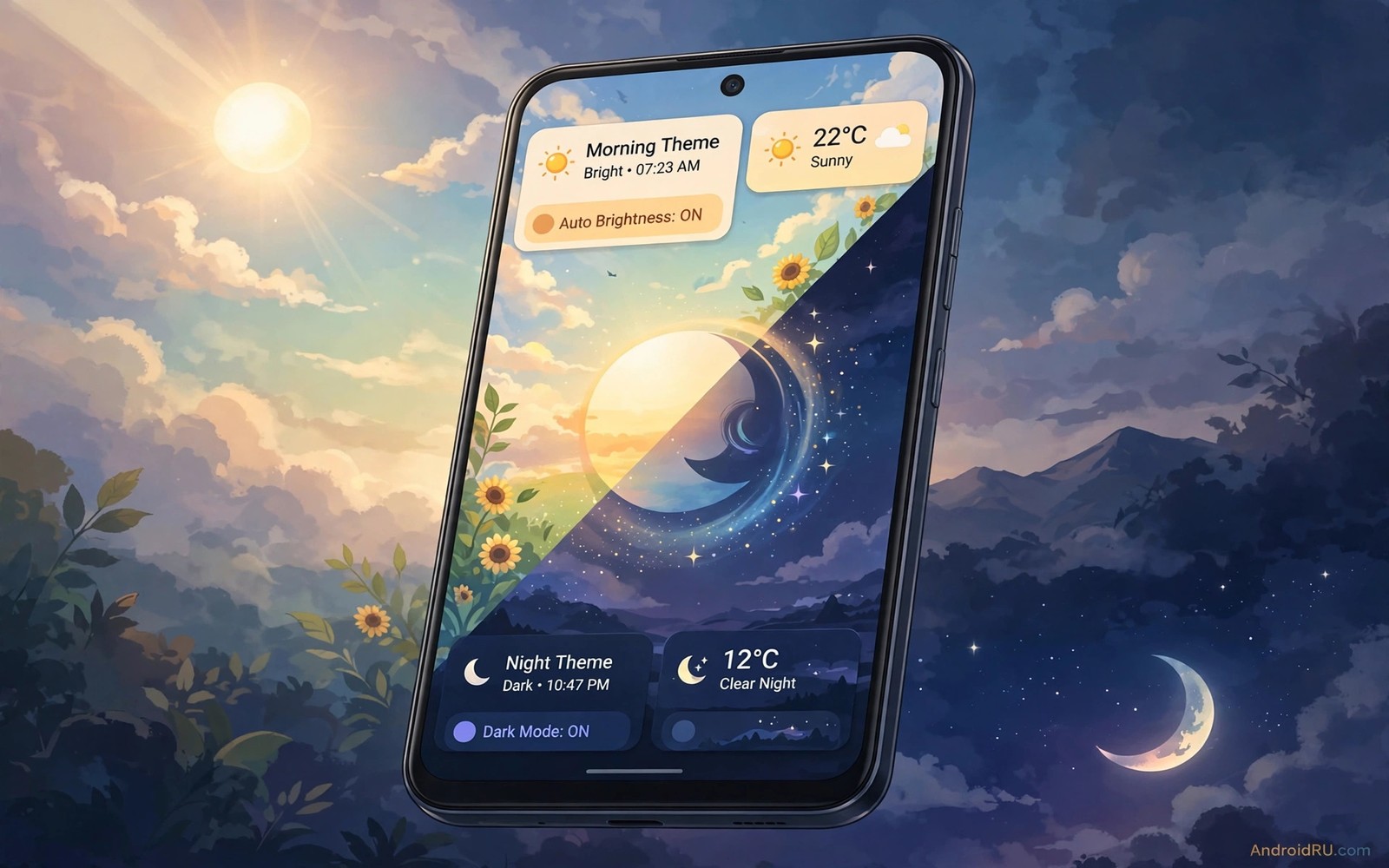
How to Sync Desktop Material Themes with Time of Day Automatically
Light themes suit bright mornings. Dark themes suit quiet nights. Switching manually twice a day is tedious and easy to forget, and most of us forget it at exactly the wrong moment: a white screen flashing on in a dark bedroom, or a dim grey interface squinting back at us in sunlight.
This is more than a cosmetic trick. A theme that follows the clock supports your eyes through the day. Light themes improve readability in sunlight. Dark themes reduce glare in dark rooms, and on OLED screens they can save a measurable amount of battery at night, because black pixels draw almost no power. A phone that adapts to time is a phone that respects your body clock instead of fighting it.
Android offers three layers of automatic theming, and this guide covers all three in order. First comes system dark mode on a schedule, the simplest layer and the one most people should start with. Then comes Material You colour syncing, where the wallpaper drives the accent colours through the day.
Sunset-to-sunrise dark mode vs custom schedules on Android
Open display settings and find the dark theme or dark mode entry. On most current Android phones, tapping into it reveals a schedule option with two choices: sunset to sunrise, or a custom time range. Sunset to sunrise uses your location to work out when the sun sets and rises, so the switch drifts a few minutes each day as the seasons change.
Choose sunset to sunrise if your days follow daylight. The gradual drift feels natural, and you never have to adjust it as winter turns to summer. Choose custom times if your routine differs from daylight. A night-shift worker may want a dark theme during daytime sleep and a light theme during night work, and no sunset table will guess that.
| Schedule type | How it decides | Best for | Watch out for |
|---|---|---|---|
| Sunset to sunrise | Location-based sun times, drifting a few minutes daily | Daytime workers, people who live by daylight | Needs location access; wrong when travelling across time zones |
| Custom start and end times | Fixed clock times you set yourself | Night shifts, strict routines, parents with fixed bedtimes | Needs manual adjustment when seasons or routines change |
| Sunset plus bedtime mode | Dark theme at sunset, extra dimming and silencing at bedtime | People who want evenings calm and nights fully quiet | Two systems can overlap; keep one owner for the theme switch |
| Routine-driven switching | Automation app or system routine at set times or locations | Full presets with wallpaper and widgets, not just dark mode | Needs battery optimisation exemptions to fire on time |
Test the schedule for two days after enabling it. Note whether the theme switches at the expected time, and check the switch on both days, because a single successful switch proves little. Pick the mode that matches how you live rather than the one that sounds more technical.
Where to find the dark theme schedule on Pixel, Samsung, and other phones
On Pixel phones, the path is Settings, then Display, then Dark theme, then Schedule. Samsung phones put it under Settings, Display, Dark mode settings, with a choice between sunset to sunrise and a custom schedule. Other makers hide it in slightly different places, but the words to search for in Settings are always dark theme, dark mode, or schedule.
App behaviour after a theme switch: which apps ignore the system
Messaging apps, browsers, and social apps usually follow the system cleanly. Banking apps, older games, and apps with heavy custom branding sometimes ignore it. For apps with their own schedule, set them to follow the system and delete the separate schedule. One owner per switch keeps transitions clean.
Material You colour from wallpaper: how Monet picks your palette
Material You, Google’s design system from Android 12 onward, generates accent colours from your wallpaper. The colour engine, known as Monet, samples the dominant and supporting hues in the wallpaper image and builds a palette: a primary accent, a secondary accent, a tertiary accent, and matching surface colours.
That behaviour is the key to time-of-day colour syncing. A morning wallpaper with warm tones generates warm accent colours. An evening wallpaper with cool tones generates cool accents. Sync the wallpaper with the time of day and the colours follow automatically, because the colour engine is doing the work for you.
Choosing morning, afternoon, and night wallpapers from one colour family
Keep wallpaper colours harmonious across the day. A neon morning wallpaper and a pastel night wallpaper create a jarring transition, even if each image is beautiful on its own. Choose wallpapers from the same colour family with different brightness levels. A blue family can run from sky blue in the morning to navy at night.
For daytime readability, align accents through Material You colour tweaks so morning and evening palettes stay harmonious instead of clashing. Small adjustments to the style setting, such as picking a tonal spot palette over a vibrant one, can calm a bright morning wallpaper and keep a dark night wallpaper readable.
Wallpaper scheduling through the day: morning, afternoon, and night
Wallpaper scheduling tools change the wallpaper automatically at set times. Some launchers include this natively. Others need a dedicated wallpaper changer app or an automation tool. The setup is the same either way: pick two or three wallpapers that represent morning, afternoon, and night, assign each a time window, and let the tool rotate them.
Two wallpapers are enough to start. A bright morning image and a dark night image give you the full light-to-dark arc, and the colour engine handles the rest. Add a third afternoon wallpaper only after the two-wallpaper rotation has run cleanly for a week.
Full preset automation with routines: widgets, icons, and notifications
Full presets go beyond light and dark. A morning preset can include a bright wallpaper, a productivity widget layout, and normal notification sounds. An evening preset can include a calm wallpaper, a minimal widget layout, and silenced work apps. Automation tools and system routines can switch these presets at scheduled times.
Build presets one at a time. Start with a day preset you already like. Save it as a named preset if your launcher supports it. Build a night preset by copying the day preset and changing the wallpaper and widget opacity. Save it separately. Test switching between presets manually first. Manual switching reveals problems like missing widgets or a wrong icon pack before automation hides them.
Morning, evening, and night presets that actually differ
A preset earns its place only if it changes something you notice. Morning presets should surface the day ahead: calendar, weather, tasks. Evening presets should surface winding down: music, reading, messages from family. Night presets should surface almost nothing: a clock, an alarm shortcut, and silence.
Scheduling preset switches and testing them for a week
Schedule preset switches with your routine tool: morning preset at wake time, evening preset at sunset, night preset at bedtime. Test the routine for a week. Note any preset that fails to apply fully. Adjust the routine to include the widget steps, or simplify the preset to elements that automate reliably. A simple preset that always works beats a complex preset that works half the time.
Travel, night shifts, and exceptions that break a fixed schedule
A routine based on home times switches at the wrong local time when you travel. Pause routines during travel, or set them to follow location-based sunset instead of fixed times. A routine that adapts to location stays useful across time zones. A fixed routine becomes a nuisance when you cross zones, flipping to a night theme at noon in the new city.
Night shifts need the opposite treatment. Use custom times instead of sunset to sunrise, set a light theme for work hours at night and a dark theme for sleep hours during the day, and keep the routine tied to the clock rather than the sun.
Fixing theme switches that fail or flicker
Failed switches often trace back to battery optimisation. Automation tools need to run at scheduled times even when the phone sleeps, and Android’s battery optimisation is designed to stop exactly that kind of background work. Exclude the automation tool from battery optimisation, in Settings, Apps, the app name, Battery, Unrestricted or Unoptimised, depending on the maker.
Theme timing also pairs well with a calm lock screen, and custom lock screen ideas can keep night colours consistent before the phone is even opened, so the first thing you see at 2 a.m. is not a white flash.
Battery optimisation exemptions for automation apps
Every automation app needs the same three things: permission to run in the background, permission to change the wallpaper, and an exemption from battery optimisation. Grant all three during setup, then verify them a week later, because a system update or a battery saver mode can quietly revoke one.
Granting the exemption on Samsung and Pixel
On Pixel phones the path is Settings, Apps, the app name, Battery, then Unrestricted. Samsung phones put the same choice under Settings, Apps, the app name, Battery, with an option to allow background activity without limits. The label changes, the effect is the same: the routine fires on time.
Checking permissions after a system update
After any system update, open the automation app and confirm the routine still lists its triggers and actions. Then check the battery exemption and the wallpaper permission. Then wait for the next scheduled switch and confirm it fires. That five-minute check after every update saves a week of wondering why the theme stopped changing.
Frequently asked questions
Does automatic theming drain the battery?
Automatic theme switching itself uses negligible battery because it changes colours at scheduled times, a few times a day. Dark themes can save battery on OLED screens at night, since black pixels draw almost no power. Wallpaper changes use little power when they happen a few times a day.
Can I sync themes across my phone and tablet?
Some theme systems sync across devices signed into the same account, but most require a separate schedule per device. Set schedules per device based on how you use each one. A tablet used mainly in the evening may need a different schedule from a phone used all day.
What if I work night shifts?
Use custom times instead of sunset to sunrise. Set a light theme for your work hours at night and a dark theme for your sleep hours during the day. You can coordinate night themes with always on display customisation for a calm night setup, so the screen that stays on beside your bed matches the dark theme instead of glowing white at 3 a.m.
Why did my wallpaper change but the colours stay the same?
Colour caching is the usual cause. The Monet engine samples the wallpaper when it changes, but a cached palette can survive a wallpaper swap, especially after a system update. Reapply the wallpaper manually once, and check quick settings a few seconds later.
Start tonight: enable sunset dark mode and check five apps tomorrow
Time-based Material themes work when dark mode scheduling and wallpaper colour syncing share one owner and one colour family. Material You colour syncing comes next, once the dark mode schedule has run cleanly for a few days, and full preset routines come last, once you know which wallpapers and widgets you actually want at each hour.
Your concrete next step is to enable the sunset schedule tonight and check your top five apps tomorrow morning. If all five follow the theme, add a morning and night wallpaper pair next week for colour syncing. Sunset-to-sunrise scheduling is the foundation, and a foundation that works is worth more than three layers that flicker.

