

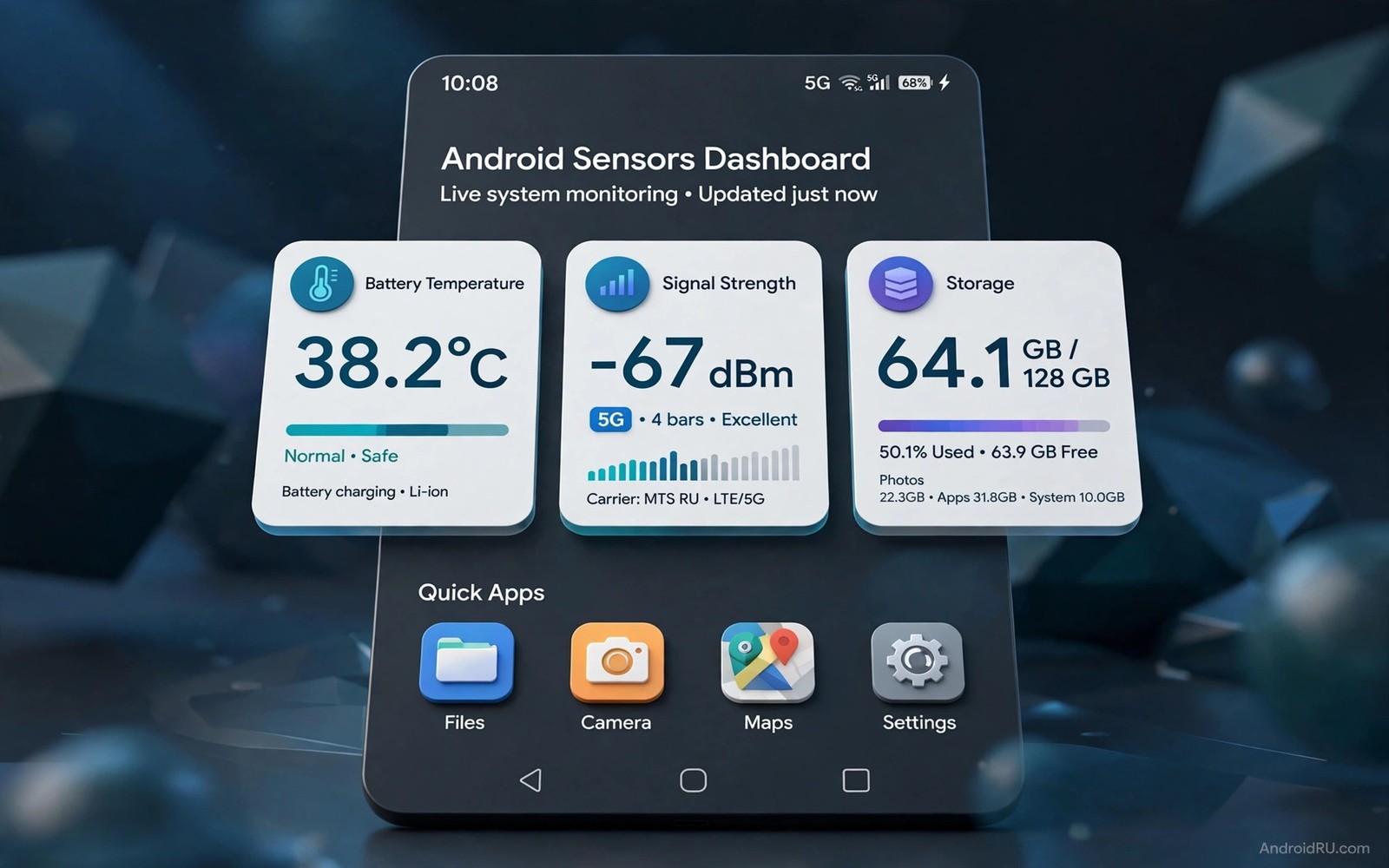
A live system sensor widget turns your home screen into a dashboard. Battery percentage becomes a gauge you can read at a glance. Temperature becomes a warning before heat slows your phone. Signal strength becomes a clue when a call drops. Storage becomes a bar that tells you when cleanup is due. These sensors are more useful on the home screen than buried in settings because you see them every time you unlock.
Interactive means the widget does more than display a number. Tap the battery gauge and it should open battery settings. Tap the storage bar and it should open storage cleanup. Tap the signal widget and it should open network settings. A widget that only shows data is a poster. A widget that opens the right setting is a tool. Choose widgets with tap actions for the sensors you check most.
Sensor widgets need permission to read system state. A legitimate widget needs access to battery and network and storage statistics. It does not need your contacts or your messages. Read permissions before you install a widget pack. Deny anything unrelated to system monitoring. A sensor tool that asks for personal data is collecting more than it needs to show a gauge.
Choose sensors that change your decisions
Battery sensor is the most useful for most people. It shows percentage and charging state and estimated time remaining. A battery widget that also shows temperature helps you spot heat during charging. If temperature climbs above a comfortable level then remove the case or move the phone to a cooler surface. That early warning protects long term battery health better than any optimisation setting.
Signal sensor helps when calls and data behave strangely. It shows mobile signal strength and Wi-Fi signal strength as separate values. A weak mobile signal explains why a call drops in a certain room. A weak Wi-Fi signal explains why video buffers near a wall. Knowing which signal is weak tells you whether to move closer to a router or to step near a window. Without the sensor you might blame the app when the network is at fault.
Storage sensor prevents the sudden full storage warning. It shows used and free space as a bar with a breakdown by category. When free space drops below a comfortable level the widget can turn amber. That colour change prompts a cleanup before the phone forces one. Clean screenshots and old downloads first because they are easy to delete. Keep photos and documents until you have a backup.
Memory and processor sensors suit power users but they can cause anxiety for others. A processor gauge that spikes during normal use is not a problem. Phones spike constantly to finish tasks fast and then idle. Do not add a processor widget unless you understand normal spikes. A memory widget is similar. High memory use is normal on Android because the system keeps apps ready. Add these sensors only if you troubleshoot performance regularly.
Build a dashboard layout that stays readable
Place sensor widgets on a dedicated home screen rather than crowding the main screen. A dashboard screen can hold four widgets in a two by two grid. Battery sits top left where eyes land first. Signal sits top right. Storage sits bottom left. Temperature sits bottom right. This consistent grid becomes a map you can read in two seconds. A dashboard that needs scrolling is not a dashboard.
Size widgets for glanceability. A tiny battery widget with small text fails outdoors. A large widget with a clear number and a simple gauge works in sunlight. Use at least a two by one size for battery and storage. Use a one by one size only for simple indicators like signal bars. Larger widgets cost screen space but they earn it by being readable. A dashboard you cannot read quickly is decoration.
Colour coding helps but it must stay consistent. Green means healthy and amber means watch and red means act. Apply the same code across all sensor widgets. A battery bar that turns red at low charge and a storage bar that turns red when full share one language. Inconsistent colours force you to relearn each widget. Consistency turns four widgets into one system.
Keep the dashboard wallpaper calm. A busy photo behind translucent widgets makes numbers hard to read. Use a dark solid colour or a soft gradient behind sensor widgets. If your widget pack supports opaque backgrounds then use them. Opaque backgrounds sacrifice wallpaper beauty for readability. On a dashboard readability must win because the screen exists to inform you fast.
Make widgets interactive with tap actions
Configure tap actions for each widget after placement. Tap battery to open battery usage. Tap storage to open storage settings. Tap signal to open network settings. Tap temperature to open a detailed sensor view if available. Test each tap three times. A tap that opens the wrong screen is worse than no tap because it wastes time and breaks trust in the dashboard.
Some widget tools support multiple tap zones. Tap the left half of a storage widget to open files. Tap the right half to open cleanup. Multiple zones are powerful but they need clear visual hints. Use labels or icons inside the widget to show zones. Without hints you will forget which half does what. A widget with hidden zones becomes a guessing game.
Long press actions can add a second layer. Long press battery to toggle battery saver. Long press signal to toggle airplane mode. These actions are useful but they need confirmation for risky toggles. Airplane mode should ask or vibrate before activating because an accidental toggle drops calls. Set confirmation for any action that changes connectivity. Safe actions like opening settings need no confirmation.
Update frequency balances freshness and battery. A battery widget that updates every second wastes power for no benefit. Battery percentage changes slowly. An update every minute is plenty. Signal strength changes faster when you move. An update every few seconds suits signal widgets while travelling. Storage changes rarely so an update on unlock is enough. Set per widget refresh rates if your tool allows it. A dashboard that sips battery stays on the phone longer. You can also link sensor widgets to always on display customisation for glanceable data without unlocking.
Use sensor alerts without creating anxiety
Alerts turn passive sensors into active helpers. A battery alert at twenty percent reminds you to charge before a trip. A storage alert at ninety percent full prompts cleanup before a photo fails to save. A temperature alert during gaming prompts a break before throttling. Set alerts only for thresholds that require action. An alert that fires too often becomes noise that you ignore.
Choose alert channels carefully. A silent widget colour change suits storage warnings. A vibration suits battery warnings when you are away from a charger. A sound suits temperature warnings during gaming when you may not look at the screen. Match channel to urgency and to context. A loud sound for a storage warning is overkill. A silent colour change for overheating is too subtle.
Review alert history monthly. If an alert fired ten times and you acted once then the threshold is too sensitive. Raise the threshold or turn the alert off. If an alert never fired then it may be set too high to help. Lower it to a useful level. Alerts should earn their place by prompting real action. An alert log that shows mostly ignored alerts is a sign to simplify.
Do not let sensor monitoring become a habit of constant checking. A dashboard is for glances and not for surveillance. Check sensors when you unlock for another reason. Avoid opening the dashboard every few minutes to watch numbers change. Constant checking creates anxiety without improving decisions. The dashboard should serve your day and not become your day.
sensor_widgets = {
  "battery": "tap opens battery settings",
  "storage": "tap opens storage settings",
  "signal": "tap opens network settings"
}
print(sensor_widgets["battery"])
The code above is an original example created for this article to show how sensor tap actions could be written down as a simple map. It is a planning aid and not a file you must run on your phone.
Sensor widgets also benefit from a clean top area and live status bar controls can show signal and battery state without opening the dashboard.
Common mistakes
The biggest mistake is adding every sensor available. A dashboard with twelve gauges is unreadable and it drains battery with constant updates. Start with battery and storage and signal only. Add temperature if you game or charge heavily. Add processor and memory only if you troubleshoot performance. Fewer sensors read faster.
Another mistake is setting refresh rates too high. A widget that updates every second for battery is wasteful. Battery changes slowly and storage changes rarely. Match refresh rate to how fast the sensor actually changes. A thoughtful rate keeps the dashboard fresh without costing battery. Speed is not always better for sensors.
People also ignore tap actions and treat widgets as posters. A sensor widget without a useful tap wastes its potential. Configure taps on day one. Test them until they feel natural. An interactive widget saves taps every day. A static widget merely repeats information you could find in settings.
Frequently asked questions
Do sensor widgets drain battery significantly?
Well configured sensor widgets use little battery because they update at sensible intervals. Battery and storage widgets update slowly. Signal widgets update more often but still use little power. Problems arise when refresh rates are set to every second for all sensors. Set sensible rates and check usage after a week. Usage should stay low.
Are sensor readings accurate?
Battery and storage readings come from system sources and they are accurate. Temperature readings vary by sensor location and by case. Signal readings vary by location and by network load. Treat readings as guides rather than laboratory measurements. A temperature reading that trends upward matters more than its exact value. Trends guide action better than single numbers.
Can I use sensor widgets on the lock screen?
Some widget tools support lock screen widgets but support varies by phone. Test lock screen placement if you want glanceable data without unlocking. Keep lock screen sensors limited to battery and time to protect privacy. Detailed signal and storage data can stay on the home dashboard. You can refine lock screen information through custom lock screen ideas that balance visibility and privacy.
Conclusion
Live sensor widgets earn their home screen place when they show battery and storage and signal clearly and open the right setting on tap. Build a small dashboard and set sensible refresh rates. Your concrete next step is to add a battery widget with a tap to battery settings tonight. Use it for three days. If you open battery settings from the widget at least twice then add storage and signal widgets next.

