

Smooth animations make a phone feel fast even when its processor has not changed. A window that glides open feels premium. A window that stutters feels old. The difference often comes from settings and not from hardware. Animation scale and refresh rate and launcher behaviour all shape how motion feels. Five focused hacks can transform a jerky interface into a calm and fluid one without buying a new phone.
Animation smoothness has two parts. Frame rate decides how many images appear per second. Frame pacing decides whether those images arrive evenly. A phone can run at a high frame rate yet still feel jerky if frames arrive unevenly. Background work and thermal throttling and heavy widgets can all disrupt pacing. The hacks below address both rate and pacing. They are ordered from safest to most involved so you can stop when the phone feels good enough.
Measure smoothness before you change anything. Open and close your five most used apps ten times each. Note any app that stutters on open or on return home. Note whether stutter happens when the phone is hot or only when it is cool. This baseline tells you whether a hack helped or merely changed the look. A hack that makes animations faster but more uneven is not an improvement. Smooth and even is the target.
Hack one tune animation scales for instant response
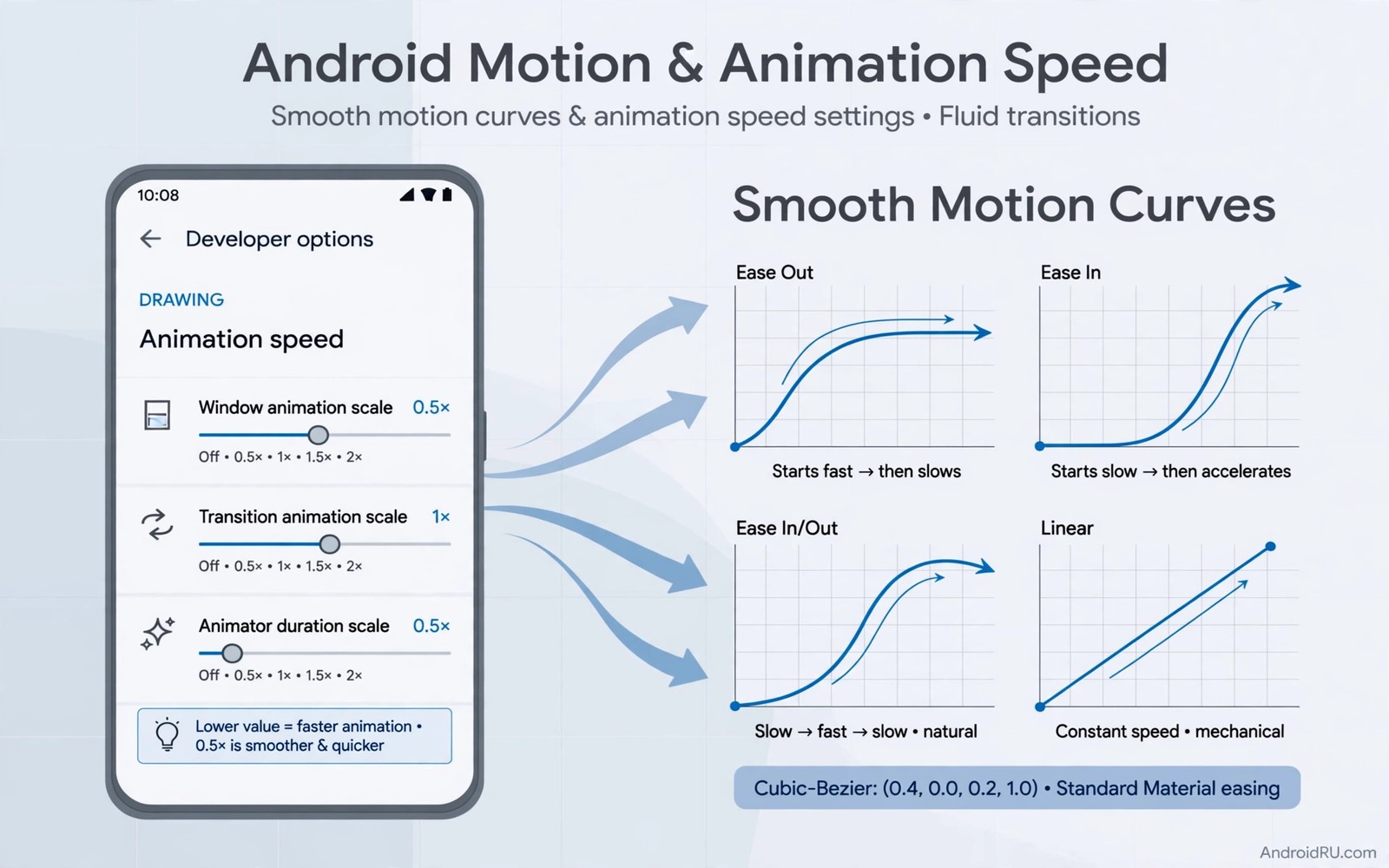
Developer options contain three animation scales. Window animation scale controls how windows open and close. Transition animation scale controls movement between screens. Animator duration scale controls built in animations inside apps. Lowering these values makes animations finish faster. A value of one is the default. A value of one half makes animations twice as fast. A value of zero turns animations off completely.
Turning animations off feels fast at first but it can feel abrupt. Windows appear and disappear without a sense of place. You lose the spatial cue that tells you where you came from. A value of one half keeps the cue while cutting the wait. Test one half for a full day. Open apps and switch screens and return home. If motion still feels slow then try a slightly lower value. If motion feels abrupt then return to one half. The sweet spot is fast but still visible.
Record your original values before you change them. Write them in a note on the phone. Developer settings can reset after a major update. A note lets you restore your preferred values in seconds. Do not change other developer settings while you are there. Many developer options affect debugging and connectivity. Changing them without a reason can create problems that are hard to trace. Touch only the three animation scales for this hack.
Test animation scales in different apps because apps use animations differently. A messaging app may feel perfect at one half. A game may ignore the scales for its internal animations. A launcher may use its own animation engine that overrides system scales. Note which apps improve and which stay the same. This knowledge prevents you from chasing a system setting for an app that controls its own motion.
Hack two lock a high refresh rate where it matters
High refresh rate screens show more frames per second and motion looks smoother. Many phones switch refresh rate automatically to save battery. Automatic switching can cause a visible hitch when the rate changes mid animation. Locking a high rate for the launcher and for frequently used apps can remove that hitch. Check display settings for refresh rate options. Choose a fixed high rate if your phone offers it and test battery impact for a day.
Not every app benefits from a high rate. Reading apps and messaging apps benefit greatly because scrolling becomes silky. Games benefit only if they support high frame rates internally. A game locked at a low internal rate will not improve with a high screen rate. Video apps benefit little because video frames are fixed. Focus high rate locking on the launcher and on scrolling heavy apps. Let other apps use automatic switching to save battery.
Battery trade off is real but often smaller than feared. A high rate on the launcher for a day may cost a few percent of battery. That cost is worth it if the phone feels premium all day. Monitor battery usage after enabling a fixed rate. If battery drops sharply then limit the fixed rate to the launcher only. A launcher only fix still improves the feeling of the whole phone because every app open starts and ends there.
Thermal throttling can undo refresh rate gains. A hot phone may drop its refresh rate to cool down. If smoothness worsens after gaming or charging then heat is the cause. Let the phone cool and test again. Avoid heavy animations while the phone is hot. A cool phone with a moderate rate feels smoother than a hot phone struggling to hold a high rate. Heat management is part of animation smoothness.
Hack three simplify the launcher and home screen
The launcher renders every home screen animation. A heavy launcher with many widgets and live feeds will stutter on return home. Simplify the home screen to improve the most frequent animation on the phone. Keep two widgets at most on the main screen. Remove live feeds that refresh constantly. Use a static wallpaper instead of a live wallpaper. Each simplification reduces work during the home animation.
Launcher animation settings also matter. Many launchers offer their own transition speed and app open effects. Set launcher transitions to fast and simple. A fade or a scale effect is cheaper than a complex 3D effect. Complex effects look impressive in demos but they stutter on older phones. A simple fast effect feels premium because it never drops frames. Choose reliability over spectacle for daily animations.
Icon pack size affects launcher speed too. A large icon pack with high resolution icons can slow icon rendering on return home. Choose a lightweight pack or use system icons if stutter persists. Test return home speed with the pack on and off. If removing the pack fixes stutter then the pack was the bottleneck. A beautiful pack that stutters is not worth keeping on a phone you use all day.
Clear launcher cache monthly if home animations degrade over time. Cached thumbnails and widget data can grow and slow rendering. Clearing cache does not delete your layout in most launchers but check backup first. Export your layout before clearing cache as a safety step. A clean cache often restores the snap that a launcher had when it was first installed. You can pair a light launcher with launcher alternatives worth trying that are known for fast transitions.
Hack four reduce background load during animations
Background apps compete for processor time during animations. A sync task that starts as you open an app can steal frames. Review background activity for apps that sync constantly. Restrict background activity for social and shopping apps that do not need instant sync. Keep background activity for messaging and email where timeliness matters. This selective restriction frees frames for the foreground animation.
Storage fullness also affects smoothness. A phone with almost no free storage struggles to cache animation data and app data. Keep at least ten percent of storage free. Delete old screenshots and unused apps monthly. A phone with breathing room animates more consistently than a phone packed to the edge. Storage cleanup is boring but it directly improves frame pacing.
Restart the phone weekly if animations degrade over days. A restart clears stuck background tasks and frees memory. Many smoothness complaints disappear after a restart and return slowly over a week. A weekly restart is a simple habit that prevents gradual degradation. Schedule it for a quiet time like Sunday night. A fresh start on Monday makes the whole week feel smoother.
Update apps and system software promptly when updates mention performance. Developers often fix animation stutter in updates. A single app update can fix the worst stutter on your phone. Check update notes for performance mentions. Prioritise updates for your launcher and for apps that stutter most. Staying current is an easy hack that requires no settings changes.
Hack five use gestures and transitions that hide stutter
Gesture navigation can feel smoother than button navigation because it uses continuous motion. A swipe home animation follows your finger and hides small frame drops. A button tap animation starts abruptly and exposes every dropped frame. Try gesture navigation for a week if you currently use buttons. Many users report that gestures feel smoother even on the same hardware. The continuous motion masks imperfections.
Transition style choice also hides stutter. A fade transition is forgiving because it blends screens without moving many pixels. A slide transition exposes stutter because moving pixels reveal uneven pacing. Choose fade for app opens if your launcher offers it. Fade feels calm and it rarely stutters visibly. Save slide effects for situations where direction matters like moving between home screens.
Reduce motion in accessibility settings if animations still feel uncomfortable. Reduced motion replaces large animations with fades or removes them. This setting helps people sensitive to motion and it can make a struggling phone feel faster. It is not a defeat. It is a legitimate preference that prioritises clarity over spectacle. Try it for a day and judge by comfort rather than by how animations look in a video.
Finally accept hardware limits honestly. An old phone with a low end processor will never animate like a flagship no matter how many hacks you apply. The hacks above can make it feel much better but they cannot add hardware power. Focus on the hacks that give the largest gain for your phone and stop when returns diminish. A smooth modest phone is a good phone. Chasing flagship motion on old hardware wastes time.
animation_settings = {
  "window_scale": 0.5,
  "transition_scale": 0.5,
  "animator_scale": 0.5
}
print(animation_settings["window_scale"])
The code above is an original example created for this article to show how animation scale choices could be written down as a simple preset. It is a planning aid and not a file you must run on your phone.
A light home screen also helps animations stay smooth and icon only home screen ideas can reduce visual work during every return home.
Smooth motion also depends on a clear top area and live status bar controls can reduce clutter that competes with transitions.
Common mistakes
The biggest mistake is turning all animations off and calling it smooth. Off animations feel fast but they remove spatial cues and they can feel jarring. A fast visible animation at one half scale feels smoother than no animation at all. Keep a hint of motion so your brain can follow where windows go. Speed without orientation is not smoothness.
Another mistake is applying every hack at once and not knowing which one helped. Change one hack at a time and test for a day. If smoothness improves then keep it. If it worsens then revert it. Scientific patience beats shotgun tweaking. A single well chosen hack often delivers most of the gain.
People also ignore heat and storage as causes of stutter. A hot phone or a full phone will stutter no matter how perfect the settings are. Cool the phone and free storage before you blame animation settings. Hardware conditions are part of the smoothness equation and they deserve checking first.
Frequently asked questions
Is 0.5 animation scale safe?
Yes animation scale values are safe and reversible. They only change how long animations play. They do not affect app data or system stability. Record original values and restore them if you dislike the result. A value of one half is a popular choice because it keeps motion visible while cutting wait time.
Will high refresh rate always make animations smoother?
High refresh rate helps when the app and the phone can sustain it. It helps scrolling and launcher motion most. It helps less for games locked at low internal rates and for video with fixed frames. Heat and battery can force a drop in rate. Use a fixed high rate for the launcher and automatic switching elsewhere for the best balance.
Do I need a new launcher for smoother animations?
Not always. Simplifying your current launcher often fixes home stutter. Switch launchers only if your current launcher lacks fast transitions or if it stutters even after simplification. A lightweight launcher can help older phones significantly. Compare options through launcher alternatives worth trying and test one for a week before committing.
Conclusion
Smoother animations come from faster scales and stable refresh rates and a light launcher and less background load. Apply one hack at a time and judge by even motion. Your concrete next step is to set all three animation scales to one half tonight. Use the phone normally tomorrow. If opens and returns feel faster without feeling abrupt then keep the setting and try a high refresh lock next.

