

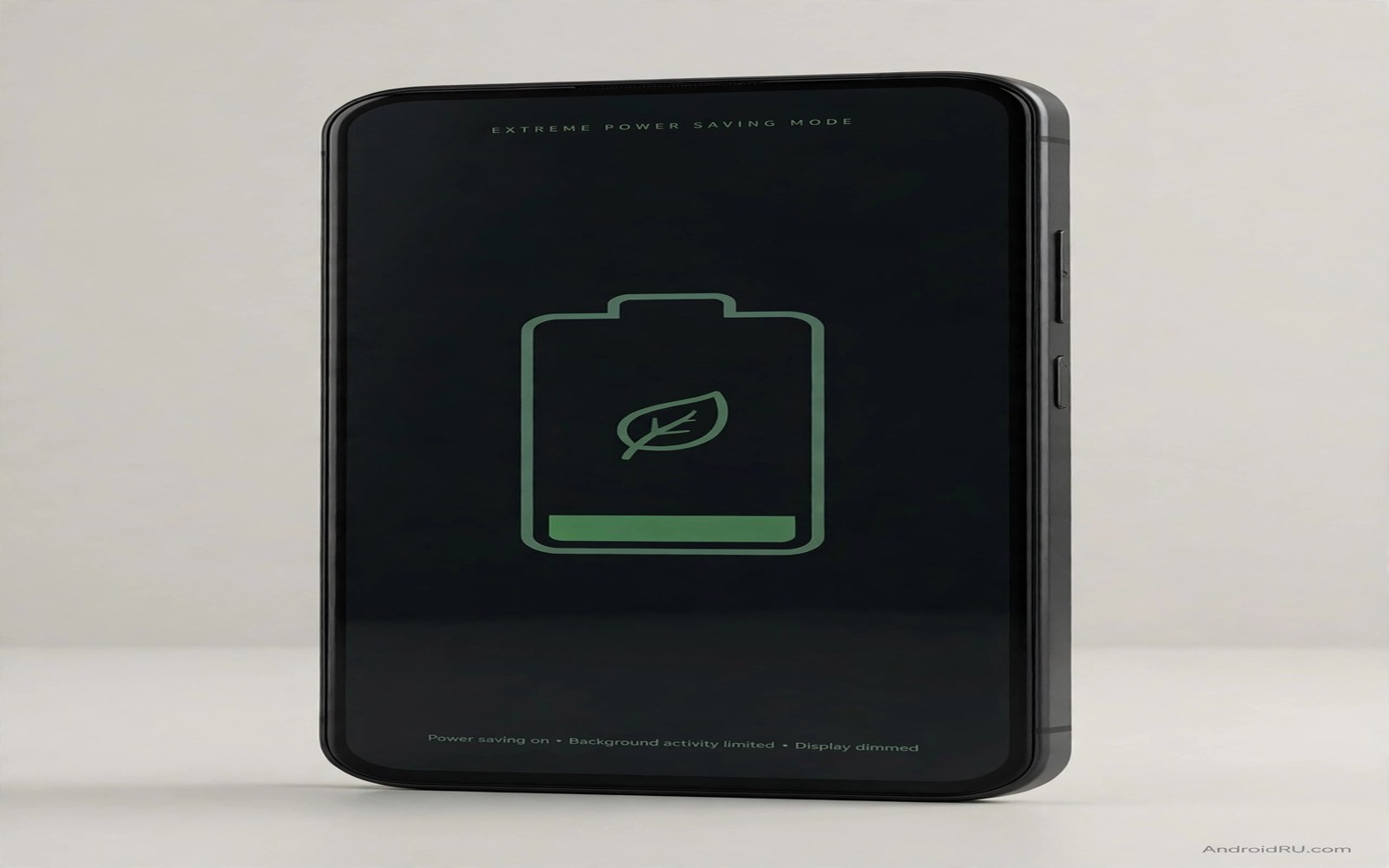
Your battery hits 10 percent and no charger is in sight. Normal battery saver helps a little. It dims the screen and limits background work. It does not go far enough for a long wait. Extreme power saving mode goes much further. It limits the phone to essential apps only. It turns the screen dark and simple. It stops almost all background work. A phone that would die in an hour can last for several more hours. That rescue can matter on a long trip or a long event.
Extreme mode hides in different places on different phones. Some makers call it ultra power saving mode. Some call it extreme battery saver. Some hide it inside battery saver options. Some phones lack a named extreme mode entirely. Those phones still offer a combination of settings that mimics extreme mode closely. This article shows how to find the mode on your phone. It also shows how to build a manual extreme mode when no named mode exists. Both paths give the same rescue effect.
Extreme mode is a trade. It saves power by limiting what the phone can do. Calls and messages usually still work. Most other apps pause or disappear from the home screen. Alerts from non essential apps stop. The screen becomes simple and dim. That trade is worth it when the alternative is a dead phone. It is not worth it as a daily mode. Use extreme mode as a rescue tool for critical hours only.
What Extreme Mode Actually Limits
Extreme mode limits apps to a small allowed set. Phone and messages and clock usually stay allowed. A few user chosen apps may stay allowed too. All other apps stop running in the background. They may also vanish from the home screen until the mode ends. That app limit removes most background drain at once. The processor rests far more than in normal saver mode. The radio syncs far less often.
Extreme mode also limits display power heavily. It may turn the screen greyscale. It may cap brightness at a low level. It may shorten timeout to a few seconds. Greyscale saves power on some screen types. Low brightness saves power on all screen types. Short timeout stops idle screen waste. Together those display limits cut the largest single drain source sharply. A dim simple screen sips power compared with a bright colourful one.
Extreme mode limits connectivity as well. It may turn off mobile data for non essential apps. It may limit location services. It may stop automatic sync entirely. Calls and texts usually stay available because they need little data. That connectivity limit is why extreme mode lasts so long. A phone that only handles calls and texts can idle for many hours on a small charge. A phone syncing dozens of apps cannot.
How To Find Extreme Mode On Your Phone
Open Settings and tap Battery. Then tap Battery saver and look for an extreme or ultra option inside that menu. Some phones show a toggle for extreme mode right there. Others show it only after you turn on standard saver first. Tap through the saver options carefully. The extreme option may sit under a second level menu named more settings or advanced. Do not stop at the first saver screen if no extreme option appears.
Search Settings for power saving terms. Type extreme in the Settings search bar. Type ultra in the same bar. Type power saving as a third search. Different makers use different names for the same mode. Search finds the mode even when the menu path differs. If search finds nothing then your phone may lack a named extreme mode. Move to the manual method below. A manual extreme setup works on any Android phone.
Check device care menus on some makers. A maker power manager may offer an ultra mode separate from Android battery saver. Open device care or battery settings from the maker app if your phone has one. Look for a maximum power saving option there. That maker mode may be stronger than standard Android saver. It may also have its own allowed apps list. Configure that list before you need the mode in an emergency.
Build A Manual Extreme Mode On Any Phone
Turn on standard battery saver first. That step caps performance and limits background work globally. Then turn on Data Saver in Network settings. Data Saver stops background mobile data for most apps. Then turn off Wi-Fi and Bluetooth if you do not need them for calls. Each radio off removes a drain source. Then lower brightness to the lowest comfortable level. Then shorten screen timeout to fifteen seconds. Those steps together mimic much of extreme mode.
Restrict background apps manually for the rescue period. Open Battery usage and restrict the heaviest background apps. Shopping and social and game apps can wait until you charge again. Keep phone and messages unrestricted so calls still arrive promptly. That selective restriction preserves essential contact while stopping waste. It is the manual version of the allowed apps list in a named extreme mode.
Switch the wallpaper to a plain dark image. Turn off live wallpaper if you use one. Turn off always-on display if your phone has it. Turn on Do Not Disturb with calls allowed from favourites if you need quiet plus contact. Each display and alert choice saves a little more. Together they add up to a large saving. A manual extreme setup takes about five minutes to build. Build it once as a mental checklist and reuse it whenever rescue is needed.
Choose Allowed Apps Before An Emergency
Extreme mode works best when allowed apps are chosen in advance. In an emergency you should not waste battery browsing settings. Decide now which apps must stay alive. Phone and messages are essential for most users. Maps may be essential on a trip. A ride app may be essential in a city. A banking app may be essential for a payment. Keep that list to three or four apps at most. Every extra allowed app costs power during rescue.
Test your allowed list once before you rely on it. Turn on extreme mode for ten minutes at home. Check that calls arrive. Check that messages arrive. Check that your chosen apps open. Check that other apps pause as expected. A ten minute test reveals problems while a charger is nearby. An untested rescue mode can fail at the worst moment. Testing turns a hope into a reliable plan.
Warn contacts when you enter extreme mode for hours. Tell them replies may be slow for non essential apps. A short message before you switch modes prevents worry. People accept a slow reply when they know the reason. A silent phone for hours causes concern. Communication about the mode is part of using it well. It costs one message and saves many worries.
When Extreme Mode Is Worth It And When It Is Not
Extreme mode is worth it when the phone must last until a known charger time. A long flight delay is a perfect case. A long outdoor event without power is another. A rural trip with no charger for hours is a third. In each case the phone needs to stay alive for calls and basic tasks. Extreme mode trades app richness for survival time. Survival wins in those cases clearly.
Extreme mode is not worth it as a daily habit. Daily extreme use blocks alerts and app function constantly. It turns a smart phone into a basic phone every day. That loss outweighs the battery gain for normal life. Daily life needs timely alerts and full apps. Use standard saver and background tuning for daily life. Reserve extreme mode for true rescue days. A rescue tool used daily stops feeling like a rescue and starts feeling like a limitation.
Extreme mode also interacts with notifications strongly. Non essential alerts stop during extreme mode. That stop is intentional. It is also the most common complaint after first use. Users enter extreme mode and then miss a social update they wanted. That miss is the price of rescue. Accept it before you switch modes. If an alert truly matters then add its app to the allowed list before you start. For the general alert trade see the battery saver setting that breaks notifications because extreme mode is the strongest version of that trade.
Exit Extreme Mode Cleanly
Turn off extreme mode as soon as you reach a charger. The phone restores normal app access at once. Alerts held during rescue may arrive in a burst. Check messages and missed calls promptly after exit. A burst after exit is normal. It does not mean the mode failed. It means held work released when normal operation returned.
Check settings after exit on some phones. Extreme mode may leave brightness low or Data Saver on. Restore your normal brightness and timeout. Turn Data Saver off if you normally leave it off. Check background restrictions you set manually during rescue. Restore apps you restricted only for the rescue period. A clean exit returns the phone to full daily function without leftover limits.
Manual extreme mode checklist
1. Battery saver on
2. Data Saver on
3. Wi-Fi and Bluetooth off if unneeded
4. Brightness lowest comfortable level
5. Screen timeout 15 seconds
6. Always-on display off
7. Restrict heavy background apps
8. Keep phone and messages unrestricted
9. Plain dark wallpaper on
The checklist above was written for this article as a plain summary of the manual extreme setup. It uses only built-in settings and it needs no named extreme mode. Keep it as a note on the phone or memorise the order. Five minutes of setup can add hours of rescue life when it matters most.
Airplane mode can stack with extreme mode for maximum rescue. Airplane mode removes radio drain entirely while extreme mode limits apps and display. For the charging side of that stack see why airplane mode helps emergency charging and use both tools together only when contact can wait. Stacked saving suits the most critical hours best.
Common mistakes
Many users turn on extreme mode without choosing allowed apps first. Essential apps then pause unexpectedly. Choose allowed apps in advance and test them. A tested list prevents a rescue that blocks the very app you need.
Another mistake is using extreme mode daily to save battery. Daily extreme use blocks alerts and app function constantly. Use standard tuning for daily life. Reserve extreme mode for true rescue days when survival matters more than richness.
Some users forget to exit extreme mode after charging. Alerts stay blocked for hours after the emergency ends. Turn off the mode at the charger at once. Check settings after exit for leftover limits. A clean exit restores full function promptly.
A final mistake is entering extreme mode with a bright screen and live wallpaper still on. Display settings matter as much as app limits. Lower brightness and use a plain dark wallpaper. Display savings stack with app savings for maximum rescue life.
FAQ
Will extreme mode stop my calls?
Extreme mode usually keeps phone and messages working. Calls and texts stay available on most phones. Other apps pause. Check your allowed apps list before you rely on it. Test calls during a short trial at home to confirm your model behaviour.
Can any phone use extreme power saving?
Most phones offer a named extreme or ultra mode. Phones without one can mimic it with manual settings. Battery saver plus Data Saver plus low brightness plus app restriction gives a similar rescue effect. The manual method works on any Android phone.
Does extreme mode damage the battery?
Extreme mode does not damage a battery. It reduces load and heat during use. Both effects help battery health. The mode limits apps and display only. It does not change charging behaviour itself. Use it freely for rescue periods.
Conclusion
Extreme power saving mode stretches a low battery by limiting apps and display and connectivity to essentials. Named modes hide in battery menus under different names on different phones. Manual settings can mimic the mode on any phone. Allowed apps chosen in advance make rescue reliable. Daily use is not the right place for extreme limits. Rescue days are.
Your concrete next step is to find or build your extreme setup today while a charger is nearby. Add extreme mode as a rescue item in your daily battery optimization checklist for power users. Turn it on for ten minutes and test calls and messages. Save the allowed list and the checklist. You will then have a reliable rescue ready for the next low battery emergency.

