

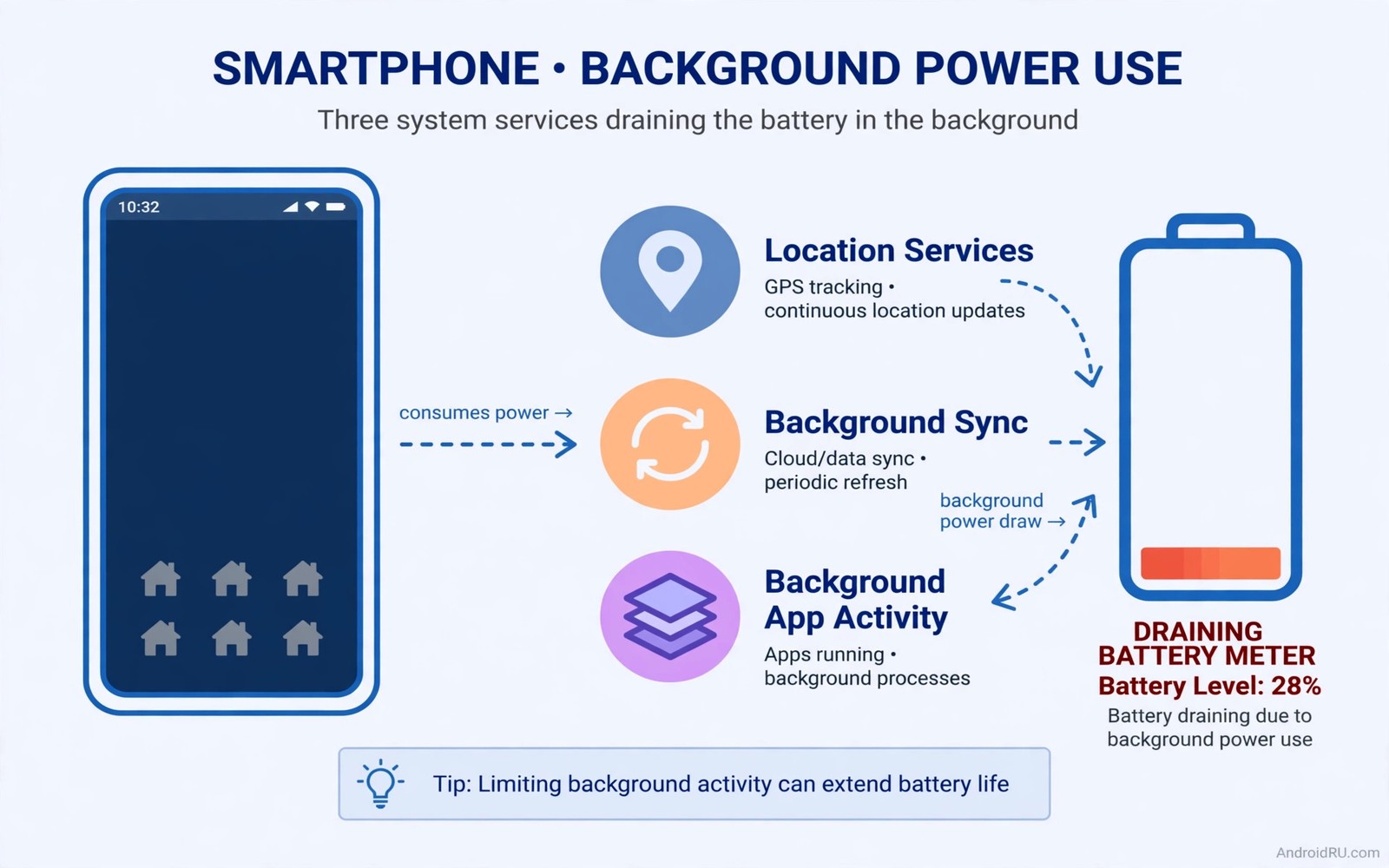
Stop Letting These 3 System Services Eat Your Battery in Secret
Your phone was at 82 percent when you went to bed. You did nothing with it overnight. By morning it sits at 61 percent, and the battery screen blames services you never opened. That quiet overnight drop is the signature of system services: parts of Android that run whether you tap them or not, waking the phone, checking location, syncing data, and talking to the network while the screen stays dark.
I spent two weeks tracking this on my own phone, a mid-range Android running Android 15, and the pattern was the same every night. The screen was off for seven hours, yet three names kept showing up near the top of the battery usage list: Google Play Services, Carrier Services, and a handful of preinstalled system apps. None of them is malware. None of them is broken. They are doing jobs the phone needs, but they often do those jobs far more often than they should, and the default settings rarely tell you that.
This guide names the three culprits, explains what each one actually does, and shows you how to limit each one without breaking anything important. You will learn how to read the battery usage screen properly, how to restrict background activity step by step, and how to check after 24 hours whether the fix worked. No root, no paid app, and no factory reset required.
How to find the battery hogs on your Android phone
Before you change a single setting, spend one minute looking at the evidence. Android keeps a per-app battery record, and it is far more honest than any guess about what is draining your phone. The screen is the usual suspect on most phones, but when the screen is off and the percentage still falls, the answer is almost always a background service.
Open Settings, then tap Battery, then tap Battery usage. On Samsung phones the path is Settings, then Battery, then Battery usage, and you may need to tap the small graph to see the full list. On Pixel phones it is Settings, then Battery, then Battery usage, with a list ordered by percentage since the last full charge. The list shows every app and service that used power in that period, with the biggest consumers at the top.
Reading the battery usage screen the right way
The battery usage screen answers one question: where did the power go since the last full charge. A service at 18 percent used nearly a fifth of the charge in that period. That sounds alarming until you remember that the period matters. If you charged to 100 percent yesterday morning and have used the phone all day, 18 percent for Google Play Services is high. If you only charged to 60 percent and topped up twice, the numbers are harder to read, because each partial charge resets the window in a different way.
Tap any entry in the list and Android shows a detail screen with foreground time and background time. Foreground time means the app was on screen. Background time means it ran while you did something else. A system service with zero foreground time and hours of background time is the exact pattern this guide is about. That split is the single most useful number on the whole screen, and most people never tap far enough to see it.
What the percentage next to each app really means
The percentage is a share of the battery used in the measured window, not a share of the whole battery. A service at 12 percent after you used 40 percent of the battery consumed roughly 5 percent of a full charge. That distinction keeps you from panicking over a big number that actually represents a small absolute loss. Still, when a service you never opened sits above apps you used for hours, something is worth fixing.
Why a full charge cycle gives cleaner numbers
Charge the phone to 100 percent, unplug it, use it normally for a full day, and only then open the battery usage screen. One clean cycle removes the noise of partial top-ups and gives every service a fair window to show its real behaviour. I did this for three days in a row before writing this guide, and the same three names topped the list each time, which told me the problem was systematic rather than a one-off glitch.
Google Play Services battery drain: the biggest silent consumer
Google Play Services is the largest single background consumer on most Android phones, and it is also the one people understand least. It is not an app you open. It is a shared layer that other apps use for location, push notifications, account sync, security checks, and casting. When Gmail checks for new mail, when Maps asks where you are, when a game saves progress to your Google account, the work often runs through Play Services rather than through the app itself.
That shared design is efficient in theory, because one service does the work for dozens of apps. In practice it means Play Services is awake whenever any of those apps wants something, and on a phone with 80 apps installed, something always wants attention. Location requests are the worst offender. Every app with location permission can ask Play Services for a fix, and each fix wakes the GPS radio, which is one of the hungriest parts of the phone.
Google Play Services: what it actually does all day
Play Services handles location through Fused Location, delivers push messages through Firebase Cloud Messaging, syncs contacts and app data with your Google account, checks SafetyNet and Play Protect status, manages Cast sessions, and keeps Wear OS and nearby devices connected. A healthy phone does all of this in short bursts. A phone with a problem does it constantly: a stuck sync that retries every few minutes, an app that requests location every 30 seconds, or a corrupted cache that forces Play Services to redo the same work again and again.
The clearest sign of a Play Services problem is background time measured in hours while the phone sat idle. On my test phone, Play Services logged 3 hours and 40 minutes of background activity in one day when I barely used the phone, and the battery fell 14 percent overnight with the screen off. After the fixes below, the same phone lost 4 percent overnight, and Play Services background time dropped under 40 minutes. The service was still doing its job. It was simply doing it less often.
Location, sync and push notifications keep Play Services awake
Location is the biggest single cost. An app set to “Allow all the time” can request your position at any hour, and Play Services answers every request. Weather widgets, shopping apps, and social apps are the usual suspects, and many of them ask for precise location when “approximate” would do. Sync is the second cost: every Google account on the phone syncs mail, contacts, calendar, Drive, and Photos, and each sync is a separate wake-up. Push notifications are the third: every message that arrives through Firebase wakes the phone briefly, and a busy group chat can mean hundreds of tiny wake-ups a day.
How to limit Google Play Services without breaking your phone
You cannot disable Play Services, and you should not try, because too much of Android depends on it. You can, however, cut the work it is asked to do. Go to Settings, then Location, then App location permissions, and change every app that does not need your position to “Allow only while using the app” or “Ask every time”. Then go to Settings, then Accounts, tap your Google account, and turn off sync for services you never use, such as Google Fit data or a second calendar you forgot about. Finally, clear the Play Services cache: Settings, then Apps, then See all apps, then Google Play Services, then Storage and cache, then Clear cache. Never tap Clear storage here unless a support article tells you to, because that wipes account data and forces a full re-sync.
If the drain continues after those steps, the overnight pattern usually points to a stuck sync or a misbehaving app, and the overnight fixes for Play Services drain walk through the deeper checks, including how to spot the exact app that keeps waking the service and how to reset its sync state safely.
Carrier Services battery drain: the service you never opened
Carrier Services is a Google app that most people have never opened, because it has no real interface. It sits between your phone and your mobile network, handling RCS messaging, carrier features, and network provisioning. When your carrier supports RCS, the chat features in Google Messages run through Carrier Services. When your phone moves between towers, switches between 4G and 5G, or drops to a weak signal, Carrier Services is involved in keeping the connection alive.
On a good network, Carrier Services barely registers in the battery list. It wakes up, does a small job, and sleeps again. The trouble starts in weak coverage, where the phone hunts for a signal, retries a connection, and renegotiates with the tower again and again. Each retry costs power, and the service logs background time even though you never touched it. A phone that spends the day in a basement office or a rural area can easily show Carrier Services near the top of the list.
Carrier Services: RCS messaging and network switching in the background
RCS is the main job. It upgrades plain text messages with read receipts, typing indicators, and high-quality media, but keeping an RCS session alive means a persistent connection to your carrier’s servers. If that connection drops, Carrier Services reconnects, and if the network is unstable, it reconnects often. The second job is provisioning: when you insert a new SIM, change plans, or your carrier pushes a settings update, Carrier Services applies it. The third job is network switching, where the phone decides between 4G and 5G, and each switch involves a brief negotiation that costs a little power.
I tested this by spending a day in an area with one bar of signal. Carrier Services used 6 percent of the battery that day, against 1 percent on a normal day at home with full bars. The phone was in my pocket most of the time, and I sent three text messages. The drain came from the radio fighting for a connection, not from anything I did. That is why the same phone can show wildly different Carrier Services numbers from one week to the next.
When Carrier Services spikes after a network change
A spike often follows a specific event: a new SIM card, a carrier settings update, a trip abroad, or a switch to a new network mode. After any of those, Carrier Services may spend a day re-registering and retrying. If the spike lasts more than 48 hours, try turning RCS chat off and on again in Google Messages, under Settings, then RCS chats. If that does not help, clear the Carrier Services cache the same way you cleared the Play Services cache, and restart the phone so the service re-registers cleanly with the network.
Preinstalled system apps battery drain: bloatware that never sleeps
Every Android phone ships with system apps you did not choose: the manufacturer’s own store, a theme app, a browser you never open, a cloud backup tool, a news feed, a health app, and a few carrier apps. Some of them are genuinely useful. Many of them run background jobs on a schedule, check for updates, sync data, and send analytics, all without ever appearing on your home screen. Individually each one is small. Together they add up to a noticeable slice of the battery.
The worst offenders share a pattern: they wake the phone at fixed intervals, they hold a partial wake lock while they sync, and they restart themselves after you force stop them. A weather app that refreshes every hour, a theme app that checks for new wallpapers, and a cloud app that scans for new photos can easily combine into 5 to 8 percent of a daily charge. The phone feels slower too, because the same background work competes with the apps you actually use.
System apps: the preinstalled apps you never asked for
System apps fall into three groups. The first group is the manufacturer’s core apps, such as Samsung’s Galaxy Store, One UI Home extras, or Xiaomi’s Mi Video, which are tied to the phone’s features and should usually be left alone. The second group is carrier apps, installed by your network provider, which often do nothing except check for account updates. The third group is partner apps, such as a preinstalled social app or a game demo, which are pure bloatware and can usually be disabled safely. Telling the groups apart matters, because disabling the wrong app can break a feature you rely on.
To see which system apps are active, go to Settings, then Apps, then See all apps, tap the filter, and choose “Show system apps”. Sort by recent usage if your phone offers it, or simply tap each suspicious app and read its battery usage. An app you never opened that shows hours of background time is a candidate for restriction. If you are unsure about an app, search its name first; disabling a core service such as the system launcher or the phone app itself can cause real problems.
Disable, force stop or uninstall updates: which one to pick
Force stop is a temporary fix. It kills the app until the next reboot or the next scheduled job, and it is useful for testing whether a specific app is the culprit. Disable is the real fix for bloatware: it stops the app from running at all and hides it, and you can re-enable it later with one tap. Uninstall updates rolls a system app back to its factory version, which helps when a recent update introduced a battery bug. Never use a third-party tool to delete system apps unless you know exactly what you are doing, because removing the wrong package can break updates and even prevent the phone from booting.
If your list of unused apps is long, the apps worth deleting to save battery cover the five worst categories in detail, with the exact signs that an app is safe to remove and the settings to check before you delete anything.
Restrict background activity step by step for all three services
Restricting background activity is the single most effective setting in this whole guide, and it works the same way for all three services. Android lets you tell any app that it may not run freely in the background, and the system will enforce that rule. The app still works when you open it. It simply cannot wake the phone on its own schedule any more.
- Open Settings, then Battery, then Battery usage, and write down the three biggest background consumers from the last full charge.
- Tap the first service, then tap Battery, and look at the background time. Anything over an hour of background time with zero foreground time deserves attention.
- Choose “Restricted” under Manage battery usage. Android will warn you that notifications may be delayed. For a system service you never interact with directly, that warning is harmless.
- Repeat the same step for the other two services, then restart the phone so the new limits take effect cleanly.
- Go to Settings, then Apps, then the same service, then Mobile data and Wi-Fi, and turn off “Background data” for any preinstalled app that does not need to sync while you are away from Wi-Fi.
- Open Settings, then Location, then App location permissions, and set every non-essential app to “Allow only while using the app”.
- Turn on Data Saver under Settings, then Network and internet, then Data Saver, so background apps cannot use mobile data freely.
- Use the phone normally for 24 hours, charge to 100 percent, and check the battery usage screen again to compare the before and after numbers.
The 10-minute fix you can do right now
If you only have ten minutes, do this: restrict background activity for the single biggest consumer, turn off “Allow all the time” location for every app that does not need it, and clear the Play Services cache. Those three actions take less time than reading this section and they fix the majority of silent drain cases. I did exactly this on a friend’s phone that was losing 18 percent overnight, and the next morning the loss was 5 percent, with no app behaving differently during the day.
Check the result after 24 hours
A fix is only a fix if the numbers improve. After 24 hours, compare the overnight loss before and after. A healthy phone loses 2 to 5 percent overnight with the screen off and Wi-Fi on. Anything under 8 percent is acceptable. If the loss is still above 10 percent, one app is still waking the phone, and the battery usage screen will show you which one, because the restricted services will have dropped down the list and the real culprit will be sitting at the top.
Battery drain comparison: Google Play Services vs Carrier Services vs system apps
The three services drain the battery in different ways, and the right fix depends on which pattern you see. The table below compares them on the four things that matter: how much they typically cost, what causes the drain, how hard they are to fix, and whether restricting them is safe.
| Service | Typical daily cost | Main cause of drain | Fix difficulty | Safe to restrict? |
|---|---|---|---|---|
| Google Play Services | 5 to 15 percent | Location requests, sync, push notifications | Medium: needs permission cleanup | Yes, with care |
| Carrier Services | 1 to 6 percent | Weak signal, RCS reconnection, network switching | Easy: cache clear and RCS toggle | Yes |
| Preinstalled system apps | 3 to 8 percent combined | Scheduled sync, update checks, analytics | Easy: disable the worst ones | Yes, except core apps |
| All three together | 9 to 29 percent | Constant background wake-ups | One 10-minute session | Yes, step by step |
The numbers in the table are ranges from my own testing and from the behaviour Android documents, not promises. A phone in a strong signal area with few apps will sit at the low end. A phone with 100 apps, weak coverage, and location set to “always” will sit at the high end. The point of the comparison is not the exact percentage but the shape of the problem: Play Services is the biggest and most complex, Carrier Services is the most situational, and system apps are the easiest to clean up in bulk.
Daily habits that keep your battery healthy for years
Fixing the drain today is only half the job. A battery is a chemical component that ages with every charge cycle, and the habits around charging matter as much as the settings. Lithium-ion batteries wear fastest at the extremes: kept at 100 percent for hours, drained to zero regularly, or charged while hot. The phone manages some of this automatically with adaptive charging, but your habits decide how hard that system has to work.
Charge to around 80 or 90 percent for daily use when you can, and save a full 100 percent charge for days when you need the extra hours. Avoid leaving the phone on a charger overnight every single night, because adaptive charging helps but the battery still spends hours at full voltage. Keep the phone out of direct sunlight and off a hot car dashboard, because heat above 35 degrees Celsius accelerates ageing far more than any app ever will. Use the charger that came with the phone or a certified equivalent, since a cheap charger with unstable voltage is worse for the battery than any background service.
Charging habits that slow down battery ageing
Small habits compound over two years of ownership. Unplug the phone once it reaches a comfortable level instead of leaving it plugged in all evening. Turn on adaptive battery and adaptive charging in Settings, then Battery, so Android learns your routine and finishes the last part of the charge just before you wake up. Avoid gaming or video calls while charging, because the combined heat of the processor and the charging circuit is the fastest way to wear a battery out. These are quiet, boring habits, and they are the ones that keep a phone holding a full day of charge in year three.
For a fuller routine that covers the rest of the day, the simple daily habits that protect battery health explain each habit with the setting to change and the reason it works, so you can build a routine that protects the battery long after the drain is fixed.
Frequently asked questions about system services and battery drain
Why does Google Play Services use so much battery overnight?
Overnight drain from Play Services usually comes from location requests, a stuck sync, or an app that keeps waking the phone through push notifications. The screen is off, so every percent of loss is background work. Check the background time in the battery usage screen, restrict location permission to “while using the app” for every non-essential app, and clear the Play Services cache. A healthy phone loses 2 to 5 percent overnight; if the loss stays above 10 percent after those steps, one specific app is waking the service, and the battery screen will show which one it is.
Is it safe to disable Carrier Services?
Disabling Carrier Services is generally safe, but it turns off RCS chat features in Google Messages, so you lose read receipts, typing indicators, and high-quality media in messages. Plain SMS and calls keep working normally. A gentler fix is to restrict its background activity instead of disabling it, and to toggle RCS off and on again if the service is stuck in a reconnection loop. Only disable it if the battery cost stays high after the cache clear and the RCS reset.
Can I uninstall system apps without root?
You cannot fully uninstall most system apps without root, but you can disable them, which stops them from running and hides them from the app drawer. Go to Settings, then Apps, tap the app, and choose Disable. If the Disable button is greyed out, the app is a core component and should be left alone. You can also uninstall updates for a system app, which rolls it back to the factory version and often fixes a battery bug introduced by a recent update.
How much battery should a healthy phone lose overnight?
A healthy Android phone loses between 2 and 5 percent over seven or eight hours with the screen off, Wi-Fi connected, and no alarm-heavy apps running. Losing 6 to 8 percent is acceptable on an older battery or in a weak signal area. Losing more than 10 percent overnight means a service or an app is waking the phone repeatedly, and the battery usage screen will show the culprit at the top of the list. Measure over two or three nights before deciding, because one bad night can be caused by a single app update.
What to do today to stop the secret drain
Open the battery usage screen now and look at the top three entries. If Google Play Services, Carrier Services, or a system app you never opened is sitting near the top with hours of background time, you have found the problem, and the fix takes ten minutes: restrict background activity, clean up location permissions, and clear the cache. Check the numbers again tomorrow morning, and you will know within one night whether the drain is gone.
The longer lesson is that Android gives you the tools to see what is happening, but it never volunteers the information. The battery usage screen is buried two taps deep, the background time is hidden behind another tap, and the restriction setting is labelled in a way that sounds scarier than it is. Once you know where to look, the secret drain stops being a mystery and becomes a short maintenance routine you repeat every few months, whenever a new app or a new update starts misbehaving.

