

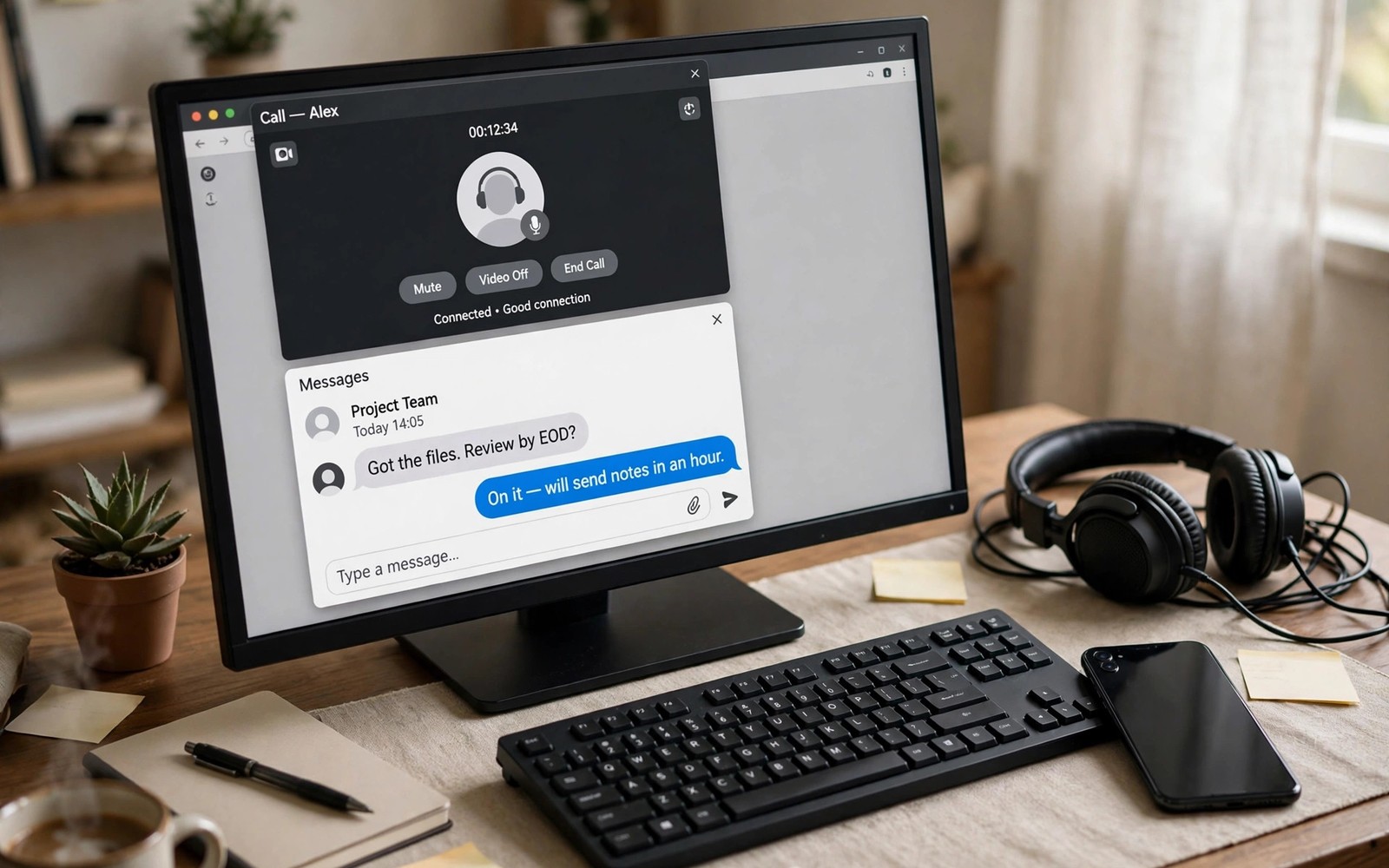
Managing Android Phone Calls and Text Messages directly on PC Screen
Phone calls interrupt deep work at the worst times. You reach for the phone, lose your train of thought, and spend ten minutes finding your place again. Handling calls on your PC keeps you in flow: your hands stay on the keyboard and your eyes stay on task. Text replies work the same way from a desktop. A full keyboard makes long answers easy, and you can search old threads faster than on a phone screen. This guide shows a setup that stays reliable, built on Microsoft Phone Link for Windows, with alternatives for other desktops and the troubleshooting steps that fix the failures most people hit.
Readers who want a wider view can also explore Phone Link setup for a related setup, and the companion guide on Android apps on Windows rounds out the plan once calls and texts work. Start with one small change today and build from there — a steady setup beats a rushed overhaul every time.
Why Handling Calls on Your PC Changes Your Workday
The cost of a phone interruption is not the thirty seconds of the call. It is the minutes of refocusing afterwards, repeated ten times a day. When calls arrive on the PC, you see the caller, accept or decline with a click, and keep working in the same window. Declined calls still show in your recent list, so you can return them later from the same screen. Texting from the desktop has the same benefit: long replies take seconds on a real keyboard, and searching a year of threads takes one search box instead of endless scrolling.
The setup also helps during meetings. A call popup on the PC is easier to manage than a phone buzzing on the desk, and you can mute popups during shared work so a client call does not flash a contact name across a shared screen. The phone stays in your pocket or on a charger, and the PC becomes the single place where communication happens.
Linking Your Android Phone to Your PC: The Setup
Start with the link feature on your phone and PC. On Windows 10 and 11, open the Phone Link app, choose Android, and sign in with the same Microsoft account on both devices. Install Link to Windows from the Play Store on your phone, open it, and allow phone permission when asked. Phone Link pairs over Bluetooth for call audio and over Wi-Fi for messages and notifications, so both radios need to be on.
Pair Bluetooth if the setup asks for it, and keep the phone near the PC for stable audio. A distant phone can cause choppy call sound, so a desk drawer is fine but another room is not. Test with a short call to a friend first, before you rely on the setup for an important meeting. If you use a Mac or Linux, KDE Connect offers similar call notifications and texting, and Google Messages for web handles texts from any browser without any app at all.
Permissions the Link Needs to Work
The link needs several permissions, and a missing one is the most common cause of a half-working setup. Allow notifications access so texts and call alerts reach the PC. Allow background activity for the Link to Windows app, because power saving can pause it and silently stop syncing. Allow Bluetooth pairing for call audio. Grant each permission when asked, and check them again after a major phone update, because updates sometimes reset permissions without warning.
Checking the Link State From the Phone
If calls or texts stop working, a quick diagnostic on the phone can show whether the link itself is alive. The command below lists the current call state on Android, and you should use it only for your own device checks. Stop and review the output before sharing it anywhere, because call state can include phone numbers.
adb shell dumpsys telecom

# list current call state on Android

# use only for your own device checks

# stop and review output before sharing
Making and Receiving Calls From Your PC
Open the Calls section in the Phone Link app. Search a contact or dial a number directly, and your PC microphone and speakers carry the call. A headset gives the clearest sound in noisy rooms, while laptop speakers work fine in a quiet office. Incoming calls show a popup on your PC screen, and you can accept or decline without touching the phone. Declined calls still show in your recent list, and you can return them later from the same screen.
Missed calls appear in the PC recent list too, and you can return them with one click. Voicemail access still happens on the phone usually: check voicemail from the phone app directly, because the PC view shows that a voicemail arrived but rarely plays voicemail audio itself. Set voicemail greetings from the phone before travel, and check voicemail daily during busy weeks, because missed voicemail can hide urgent requests. Treat voicemail as part of the PC workflow, with a quick phone check closing the loop.
Dual SIM Phones: Pick the Right Line
Dual SIM phones show both lines in link apps sometimes, so pick the correct line before dialling out. A wrong line can confuse business contacts, so label lines clearly as work and personal, and check the dialling line on every business call. One tap prevents awkward callbacks. Texts from the second line appear in the same list, and thread headers may not show which line received them, so read the thread start to confirm the line, and use the phone directly for line-sensitive replies when the link app lacks per-line reply control.
Texting From the Desktop
The Messages view lists recent conversations. Click a thread to read the full history, type your reply, and press send. New replies arrive in the same window, and the whole thread stays in sync with the phone. Group messages work, but they need care with replies: check the recipient list before you send, because a wrong group reply can embarrass you fast. Long texts benefit from a quick read before sending, since desktop typing tempts overly long replies that look like walls of text on a phone screen.
Keep texts short and readable on phone screens. Break long updates into two messages, because recipients read short texts faster and long walls of text get skimmed or ignored. Respect the medium even from a keyboard. Group chats sync to the PC view like single chats, media from groups appears in the thread view, and you can save group photos to the PC or send files from PC folders — though you should check file size limits before sending large videos, because large files may fail silently on some carriers.
Texting Etiquette From a Keyboard
Avoid texting sensitive news from a shared PC, because message previews may linger on screen. Lock the PC after sending private texts, since a locked screen protects the thread history. Private topics deserve the phone alone, and shared desks demand extra discretion always. Reactions and emoji work from the PC keyboard, but keep reactions simple for clarity: overuse of emoji looks unprofessional at work, so match the tone of the existing thread, and keep professional threads restrained.
Call Audio: Headsets, Routing, and Echo
Use a headset with a boom microphone for calls. Built-in laptop microphones pick up keyboard noise, and a quiet room helps more than any software filter. Close noisy apps during important calls. If callers hear echo, lower speaker volume, move the microphone farther from speakers, or switch to a wired headset, which removes most echo problems. Test echo with a colleague before a big call, not during it.
Call audio routing confuses many first-time users. The PC may default to laptop speakers unexpectedly, so open sound settings, pick your headset, and set it as the default for communication apps. Test with a short call before meetings, because correct defaults prevent mid-call scrambling. Bluetooth audio needs a separate note: Bluetooth headsets pair to phone and PC separately, and the PC link uses its own Bluetooth path. Pair the headset to the PC for PC calls, pair it to the phone for phone-only calls, and learn your headset’s switching method early, because dual-paired headsets switch with a button press.
Call Quality on Different Networks
Wi-Fi calling quality depends on router load heavily, and a busy home network can crackle calls. A wired PC connection stabilises call audio somewhat, though the phone link itself still uses local wireless. Reduce network load during important calls and pause cloud backups for the call duration. Mobile signal strength affects the phone side of calls: a phone in a weak signal area sounds poor everywhere, so move the phone near a window for better signal. The PC cannot fix a weak mobile signal — it only carries audio it receives, and good placement helps both sides hear clearly.
Privacy on a Shared Desk
Call popups can reveal contact names on screen, so mute popups during meetings or shared work. Lock your PC whenever you leave it, because a locked screen hides message previews too. Turn off message previews if your desk faces others: you can still see that a message arrived, while the content stays hidden until you open it. This small setting protects private chats, and it is the single most important privacy change in this whole guide.
A related workflow is covered in notification sync for readers who want more depth on controlling which notifications reach the PC at all. The principle is the same: the PC should show you what you need, and nothing you would not want a colleague to read over your shoulder.
Hands-Free Calling While Working
Hands-free headsets keep hands on keyboards. Voice commands can dial contacts in some setups, so speak contact names clearly for recognition, though noisy offices reduce recognition accuracy badly and quiet rooms suit voice dialing best. Test voice dialing before important calls. Speakerphone on PC suits group listening needs, and conference calls with colleagues nearby benefit, but privacy suffers with speakerphone use always. Use speakerphone only in private rooms, because headsets protect confidentiality in open offices, and you should match audio mode to room privacy levels.
Fixing Call and Text Failures
If calls fail, re-pair Bluetooth on the PC. Remove the phone from Bluetooth settings and pair again, then restart both devices after pairing. Fresh pairing fixes most audio faults, and it is the first step support will ask you to try, so try it before anything else. If texts stop syncing, check background permission: power saving can pause the phone companion app, so allow background activity for that app, then send a test message to confirm sync.
If the link app shows the phone as disconnected, check three things in order: Bluetooth is on, the phone is within a few metres of the PC, and the Link to Windows app is not battery-optimised into sleep. If all three are fine, sign out of the link app on both sides and set it up again — a fresh link takes five minutes and fixes most stubborn sync problems that re-pairing alone does not.
Advanced Workflows: Dual SIM, Voicemail, Spam, and Records
Call history on PC aids business record keeping. Log important calls with dates and outcomes, export histories periodically for project files, and document calls that involve commitments always. Histories support billing disputes effectively, and accurate records protect professional relationships. Personal call histories hold sentimental value too, so preserve histories through phone backups regularly, because lost histories cannot be reconstructed easily.
Spam calls appear on PC screens like normal calls. Decline spam quickly without engaging callers, block numbers from the PC recent list, and report spam numbers through carrier tools. Blocking usually syncs back to the phone, and reporting helps carriers block wider campaigns. Unknown numbers deserve cautious handling always: let unknown calls go to voicemail first, because legitimate callers leave clear messages and scammers rarely leave detailed voicemails. Voicemail screening saves time and stress, and patience beats curiosity with unknown callers.
Call Recording Rules and Tools
Call recording laws vary by location significantly. Some places require all-party consent, others require only one-party consent, so check local law before recording any call, and inform participants when recording starts always. Transparency protects you legally and ethically, and you should never record secretly across jurisdictions. PC call apps rarely offer built-in recording, while phone apps may offer recording separately. Recorded calls need secure storage afterwards: encrypt recordings containing sensitive details, and delete recordings when no longer needed, because retention discipline prevents future leaks.
Text Message Backup From PC
PC message views do not replace phone backups. Back up messages through phone backup tools regularly, because cloud backups preserve threads across phone replacements, and you should test restore on a spare device occasionally. Untested backups fail at worst moments, so verify backups before phone upgrades always. Export important threads as files for records: business agreements in texts need preservation, screenshots preserve context but lack searchability, and text exports preserve searchable content better. Store exports in project folders securely.
International Calling and Driving Safety
PC dialling uses the phone plan for calls, and international rates apply exactly as phone calls, so check carrier rates before long international calls. Internet calling apps may cost less internationally, so compare rates for frequent destination countries, because small rate differences compound over months. Time zones complicate international call scheduling, so confirm local time before dialling abroad, and schedule through shared calendars for clarity.
PC texting reduces phone handling while working, but it does not make driving texting safe. Never text while driving under any circumstances, and park safely before replying to messages. Voice replies also distract drivers dangerously, and driving demands full attention always without exception. Enable driving modes automatically through car Bluetooth: driving modes silence non-urgent alerts, urgent callers can break through repeatedly, and auto-replies inform senders of driving status. Driving safety is non-negotiable for everyone, and safety rules override convenience every time.
Frequently Asked Questions
Does Phone Link work with any Android phone?
Phone Link works with most Android phones running Android 7 or later, but the full feature set — including screen mirroring and app streaming — works best on Samsung Galaxy phones and recent Surface Duo devices. Calls, texts, notifications, and photos work on almost any Android phone, so check the feature list for your model before you assume a feature is missing.
Why do my texts stop syncing to the PC?
The most common cause is battery optimisation pausing the Link to Windows app. Open Settings on the phone, go to Apps, then Link to Windows, then Battery, and set it to Unrestricted. Then check that notification access is still granted, and send a test message to confirm sync. If it still fails, remove the link on both sides and set it up again.
Can I make calls from my PC without Bluetooth?
No, not with Phone Link: Bluetooth carries the call audio between phone and PC, while Wi-Fi carries the messages and notifications. Without Bluetooth, you can still read and send texts, but calls need the Bluetooth audio path. Keep Bluetooth on whenever you sit down to work, and the link will be ready when a call arrives.
Is it safe to handle work calls and texts on a shared PC?
Yes, if you lock the PC whenever you leave it, turn off message previews on a shared desk, and mute call popups during meetings. A locked screen hides message content, and preview settings control what anyone walking past can read. Never send sensitive news from a shared PC, and use the phone alone for private topics.
What to Do Today
Open Phone Link on your PC, install Link to Windows on your phone, and link the two with the same Microsoft account. Allow notifications access and background activity, pair Bluetooth, and test with a short call to a friend. Then turn off message previews, set your headset as the default communication device, and send one test text from the PC. That setup takes about fifteen minutes, and from tomorrow your phone can stay in your pocket while your work stays on your screen.

