

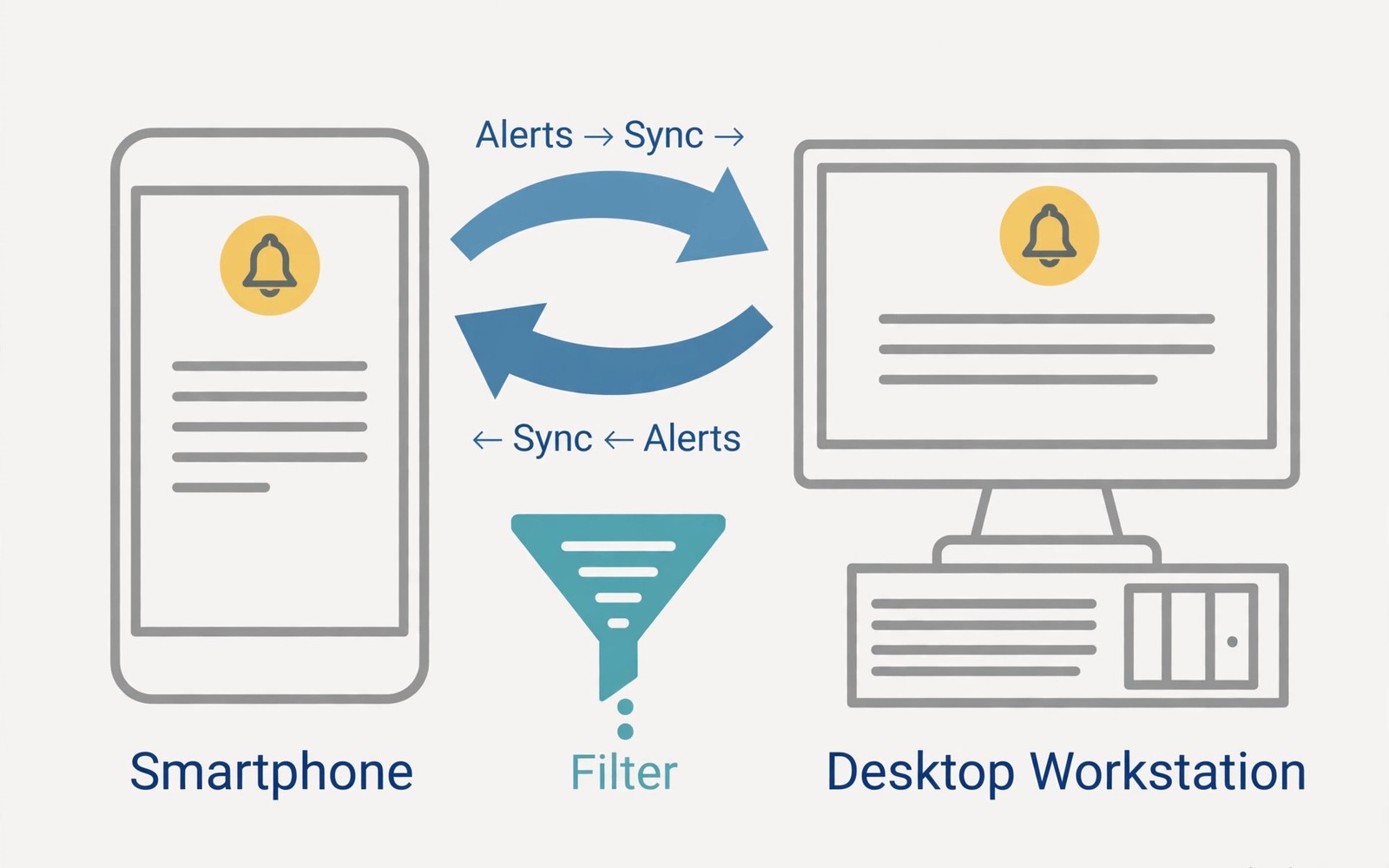
Notifications pull your eyes to your phone all day. Each glance breaks focus for longer than you think. Syncing alerts to your desktop can actually help. You see what matters without lifting the phone.
The trick is filtering before syncing everything. A smart setup shows urgent alerts only. Low value alerts stay on the phone. This guide builds that balance step by step. Readers who want a wider view can also explore calls and texts on PC for a related setup.
Why Sync Can Improve Focus
A desktop alert is easy to dismiss with one click. You do not unlock a phone and fall into apps. You triage fast and return to work. Over a day this saves many lost minutes.
Desktop sync also helps when your phone charges elsewhere. You still catch delivery and meeting alerts. You avoid missing a time sensitive message. Your phone can rest while you work.
Setting Up Notification Sync
Enable notification access for the link app on your phone. This permission lets alerts travel to your PC. Grant it only to the app you trust. Review the permission after setup for peace of mind.
Turn on sync in the PC app settings. Pick which phone apps may send alerts. Start with messages and calendar only. Add more apps slowly as you learn what helps.
Filtering Noise from Signal
Social apps send the most noise by far. Mute their alerts on the desktop first. Keep only direct messages if you must. Games and shopping alerts rarely need desktop space.
Work apps deserve priority during work hours. Email from key senders can stay on. News alerts can wait until a break. A short allow list beats a long block list.
adb shell dumpsys notification
# list active notifications for testing
# send yourself a test message first
# check that it appears on desktop
The snippet above follows standard operating system documentation and widely shared setup guides. It shows a typical pattern rather than a vendor specific promise. Results can vary by device model and system version. Always test a small change before you rely on it daily.
Quiet Hours and Focus Modes
Set quiet hours for evenings and deep work blocks. Only calls from favorites break through. Other alerts wait silently until later. This protects rest and concentration alike. A related workflow is covered in Phone Link setup for readers who want more depth.
Match phone focus mode with PC focus settings. A mismatch lets alerts leak through one side. Test the pair with a message from a friend. Adjust until both sides behave the same.
Acting on Alerts from Desktop
Many alerts allow quick replies from the PC. You can answer a message without opening the app. You can also dismiss an alert for good. Dismissing on PC often clears it on the phone too.
Do not act on every alert the second it appears. Batch low priority alerts for set times. Urgent alerts get instant action. This habit turns sync into a tool and not a leash.
Fixing Missing or Duplicate Alerts
If alerts stop then check notification access again. System updates sometimes reset that permission. Re-enable it and test with a message. Also check battery optimization for the link app.
If alerts duplicate then check for two sync apps. Two tools can forward the same alert twice. Remove one tool and keep the stronger one. A single path keeps alerts clean.
A Notification Setup That Lasts
Review your allow list once a month. Apps change and new noise creeps in. Remove apps that no longer help. A lean setup stays useful for years.
Notification Channels on Android Explained
Android groups alerts into channels per app. Each channel has its own sound and priority. You can silence one channel and keep others. This granularity beats all or nothing muting. Explore channel settings for noisy apps. Fine tuning channels transforms notification sanity.
Desktop sync respects channel settings in most link apps. A silenced channel stays silent on PC too. Check channel behavior after major phone updates. Updates sometimes reset channel preferences. A quick review after updates prevents noise return. Treat updates as a cue to recheck settings.
Priority Senders and VIP Alerts
Some contacts deserve to break through quiet hours. Mark family and key colleagues as priority. Their calls and messages alert even in focus mode. Other alerts wait until the focus block ends. Priority lists need regular pruning. Remove people who no longer need instant access.
VIP alerts work best with a tiny list. Ten priority contacts defeat the purpose of focus. Keep the list under five people. Everyone else can wait an hour. Urgent matters find you through calls anyway. A small VIP list protects deep work effectively.
Notification Sync and Battery Life
Sync apps run in the background all day. They use modest battery in normal use. Aggressive battery savers may kill them anyway. Allow background activity for the sync app. Also exempt it from adaptive battery limits. Stable sync needs stable background permission.
Duplicate sync tools drain battery faster together. Run only one sync tool at a time. Remove the weaker tool completely. A single clean path uses less power. It also produces fewer duplicate alerts. Battery and sanity both improve with one tool.
Desktop Banners Versus Phone Banners
Desktop banners appear at the screen corner briefly. They vanish faster than phone banners do. Open the notification center to review missed banners. Phone banners linger on the lock screen longer. Each style suits different attention patterns. Learn where missed alerts live on each device.
Banner duration settings exist on most desktop systems. Extend duration if you miss alerts often. Shorten duration if banners distract you. A middle setting suits most workers. Test duration for a week before changing again. Small tweaks compound into calmer days.
Syncing Calendar and Reminder Alerts
Calendar alerts deserve desktop sync priority. Meeting reminders prevent late joins. Set reminders ten minutes before meetings. A second reminder at start time helps too. Phone only reminders fail when the phone charges away. Desktop reminders catch you at the desk.
Reminder apps vary in sync reliability greatly. Test your reminder app with a fake event. Confirm the alert appears on the desktop. If it fails then switch reminder apps. Reliable reminders matter more than fancy features. Trust is the core feature for reminders.
Weekly Notification Audits
Audit notification sources every Sunday evening. List apps that interrupted you most. Silence the top three noise makers. Keep only alerts that changed your actions. This audit takes five minutes weekly. It pays back hours of focus monthly.
Track which alerts you actually acted on. Many alerts only trigger a glance. Glance only alerts deserve silencing. Actionable alerts deserve keeping. This simple test clarifies every decision. Apply it ruthlessly for a month and notice the calm.
Notification Sync for Remote Teams
Remote teams depend on timely message alerts heavily. Desktop sync ensures chat alerts reach workers. Workers see alerts even while phones charge. Response times improve measurably with sync. Managers notice faster replies during work hours. Faster replies improve team coordination overall. Sync is infrastructure for remote work success.
Over alerting harms remote team morale quickly. Teams should agree on alert norms together. Urgent channels deserve instant alerts always. Social channels can wait for breaks. Written norms prevent alert fatigue resentment. Review norms quarterly as teams grow. Healthy norms scale with team size.
Do Not Disturb Schedules That Work
Do not disturb schedules need realistic time windows. An eight hour nightly block protects sleep. A two hour morning block protects deep work. Shorter blocks feel easier to maintain. Overly long blocks get disabled in frustration. Sustainable schedules beat ambitious ones always.
Exceptions to do not disturb need careful design. Family emergencies must break through reliably. Repeated calls from one number can break through. Configure repeated call exceptions thoughtfully. Test exceptions with family members beforehand. Untested exceptions fail during real emergencies.
Notification Sounds and Vibration Choices
Distinct sounds help identify alert types instantly. Assign unique sounds to message categories. Work messages can use a subtle tone. Personal messages can use a warmer tone. Distinct sounds reduce need to check screens. Audio cues triage alerts without visual attention. Sound design is a productivity tool.
Silent vibration suits shared offices better. Audible tones disturb nearby colleagues unnecessarily. Use vibration on PC through connected devices. Visual banners alone suffice in quiet offices. Match alert style to workspace norms. Considerate alert settings improve office harmony.
Syncing Alerts from Wearables Too
Wearables add a third alert surface to manage. Watches buzz for alerts phones already show. Desktop sync adds yet another surface. Too many surfaces create alert overload. Choose two primary alert surfaces maximum. Disable alerts on redundant devices promptly. Fewer surfaces mean calmer attention overall.
Wearable alerts suit movement away from desks. Desk workers need desktop alerts primarily. Travelers need wearable alerts primarily. Context determines the best alert surface. Switch primary surfaces by daily context. Adaptive alert habits beat fixed setups.
Measuring Notification Load Weekly
Count daily notifications for one week honestly. Most people underestimate their notification load. Hundreds of daily alerts are common today. Awareness motivates filtering action strongly. Set a target reduction each week. A twenty percent weekly cut compounds fast. Measurement turns vague annoyance into action.
Track which apps dominate notification counts. Social and shopping apps usually lead counts. Silence the top offender each week. Replace scrolling time with focused work. Reclaimed minutes add up to hours monthly. Small weekly wins transform attention quality.
Notification Sync for Parents
Parents need school alerts promptly during work. Desktop sync delivers school messages reliably. Emergency school alerts break through focus modes. Routine newsletters can wait for breaks. Priority rules separate emergencies from routine. Configure school contacts as priority senders. Priority configuration protects children effectively.
Family group chats generate constant low value alerts. Mute family groups during work hours. Check them during scheduled breaks instead. Family members understand work boundaries usually. Communicate boundaries kindly and clearly. Clear boundaries prevent resentment over delays. Work focus and family responsiveness can coexist.
Notification Overload and Mental Health
Constant notifications increase stress measurably over time. Each alert triggers a small attention switch. Switches accumulate into mental fatigue daily. Reducing alerts improves mood noticeably. Users report calmer days after filtering. Mental health benefits from notification discipline. Attention is a finite daily resource.
Digital wellbeing tools track notification counts helpfully. Review weekly counts for awareness building. Set reduction goals based on real data. Celebrate weeks with lower counts genuinely. Positive reinforcement sustains filtering habits. Guilt based approaches fail faster usually. Kind self tracking works better long term.
Start with one small change today and build from there. A steady setup beats a rushed overhaul every time. You can also read clipboard sharing to round out your plan. Once the basics feel natural you can add more advanced options at your own pace.

