

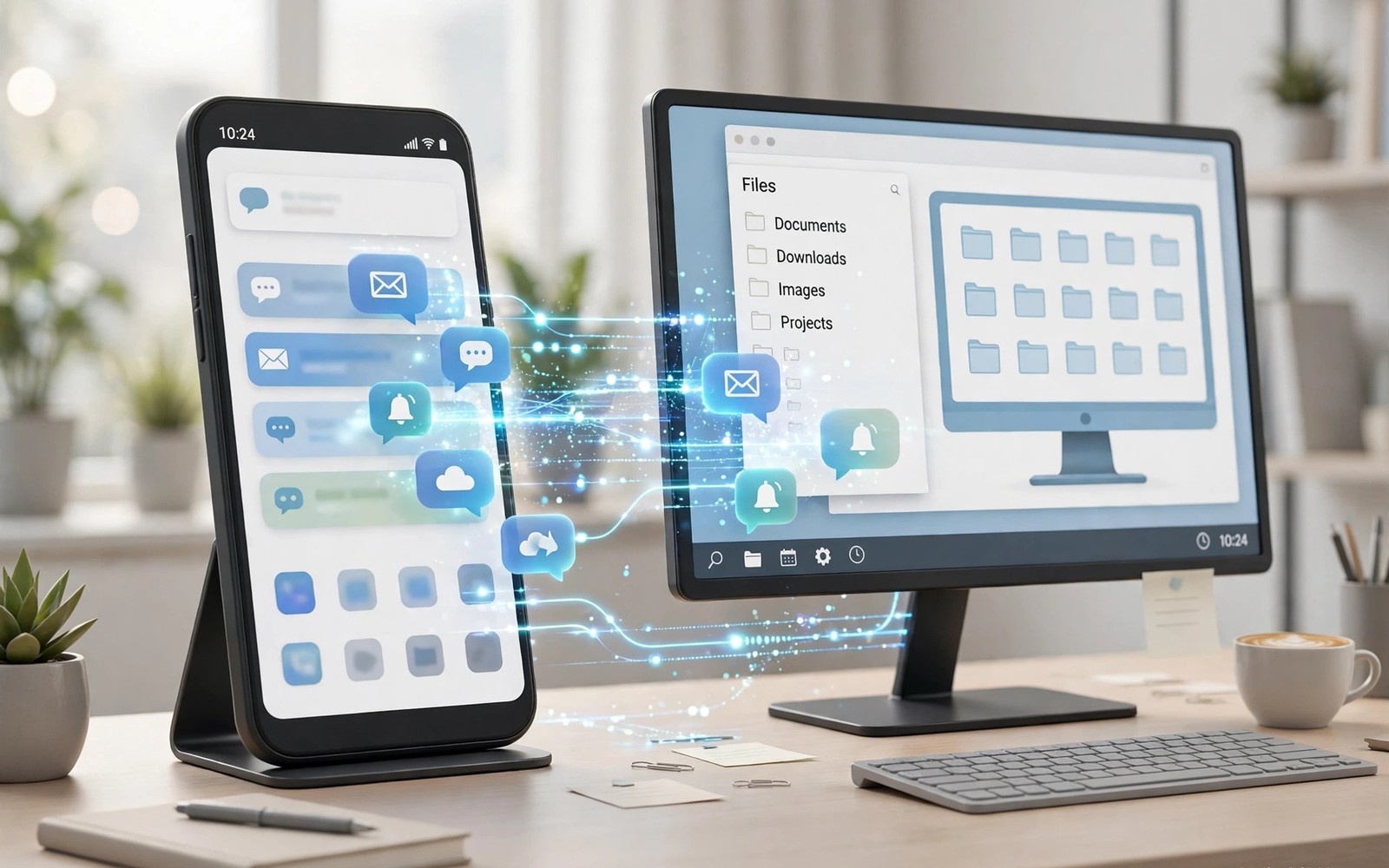
A phone in your pocket and a PC on your desk should work as one team. Too often they feel like separate islands with separate files and separate alerts. Phone Link closes that gap for many Android users on Windows. It mirrors key phone features right on your computer screen.
Setup takes only a few minutes when both devices are ready. You need a signed in Microsoft account and a stable Wi-Fi network. Your phone also needs the companion app installed and updated. Once linked you can read texts and view photos without picking up your phone. Readers who want a wider view can also explore Android apps on Windows for a related setup.
What Phone Link Does for Daily Work
Phone Link shows notifications from your phone on your PC. You can read a message and reply from your keyboard. This keeps your focus on the large screen in front of you. It also cuts the habit of checking your phone every few minutes.
Photos taken on your phone appear in the PC app quickly. You can drag a photo into a document or an email. You can also save it to a local folder for later editing. This simple flow saves time for students and office workers alike.
Getting Both Devices Ready
Start by updating Windows and your Android phone fully. Old system versions can block pairing or cause random drops. Make sure Bluetooth is on if your PC supports it. A strong Wi-Fi signal also helps the first sync finish cleanly.
Open Phone Link on Windows and sign in with your account. Then open the companion app on your phone and scan the code. Grant only the permissions you truly need for your workflow. You can add more permissions later if a feature asks for them.
Calls Texts and Photos in Practice
Calls work through Bluetooth on most supported PCs. You answer from your PC and speak through its microphone and speakers. Call quality depends on your headset and your room noise. A wired headset often beats built in laptop speakers for clarity.
Texting from a full keyboard feels faster than thumb typing. Long replies become easier and error rates drop. Photo access helps when you need a quick screenshot for a report. Keep sensitive photos out of shared folders to protect your privacy.
adb devices
# confirm the phone is visible
# then pair through the on-screen code
# keep Wi-Fi and Bluetooth enabled
The snippet above follows standard operating system documentation and widely shared setup guides. It shows a typical pattern rather than a vendor specific promise. Results can vary by device model and system version. Always test a small change before you rely on it daily.
App Mirroring and Screen Sharing
Some phones support full app mirroring on Windows. You open an Android app in a window on your PC. You control it with a mouse and keyboard. This is handy for messaging apps that lack a desktop version. A related workflow is covered in clipboard sharing for readers who want more depth.
Screen mirroring uses more bandwidth than simple notifications. A weak network can make taps feel slow or laggy. Use a 5 GHz Wi-Fi network when you can. Close heavy downloads during a mirroring session for a smoother result.
Privacy and Security Checks
Linking devices means your PC can read phone alerts. Think about which apps should send alerts to your desktop. Banking alerts may be better kept on the phone alone. You can mute specific apps inside Phone Link settings.
Remove old PCs from your account when you sell or retire them. A forgotten link can expose messages to a stranger. Check your linked devices list every few months. This small habit keeps your setup safe over time.
Fixing Common Connection Problems
If pairing fails then restart both devices and try again. A fresh restart clears stuck Bluetooth and network states. Also confirm both devices use the same account. A mismatch here is a common and silent cause of failure.
If notifications stop then check battery optimization on your phone. Aggressive power saving can kill the companion app in the background. Allow background activity for the companion app only. Then test with a message from a friend.
Is Phone Link Right for You
Phone Link suits people who sit at a PC for hours. It reduces context switching and keeps work in one place. It may not suit people who rarely use a desktop. In that case a simple cloud folder may be enough for file sharing.
Which Phones Work Best with Phone Link
Support varies across Android brands and models in real use. Newer phones usually unlock the full feature set first. Older phones may support notifications and photos only. App mirroring often needs a recent flagship model. Check the official feature list for your exact phone before you buy accessories. A quick model check saves disappointment after setup.
Carrier variants can also change which features appear. Some carriers delay updates that enable new link features. An unlocked phone often receives link updates sooner. If a feature is missing then check for a system update first. Then check the companion app version in the store. Both pieces must be current for the newest features to work.
Windows Versions and Feature Differences
Windows 11 offers the deepest Phone Link integration today. Windows 10 supports the core features but lacks some newer options. Feature names may differ slightly between Windows builds. Update Windows through settings before you judge a missing feature. A pending update can hide an option you expect to see. Restart after major updates so new components load cleanly.
A work PC may restrict link features through policy. IT rules can block Bluetooth or notification access. If setup stalls on a work machine then ask your IT team. Personal PCs rarely face these blocks. Knowing the difference saves hours of fruitless troubleshooting. Home users should still keep Windows updated for security fixes.
Moving Photos into Documents and Email
Recent photos appear in the Phone Link photo view quickly. You can drag one into an open document window. You can also copy it and paste into an image editor. This flow beats emailing photos to yourself every time. It also preserves full resolution for print work. Keep original files on the phone until the project is done.
Screenshots deserve a clear naming habit on the PC side. Rename files as you save them into project folders. A name like receipt March keeps files findable later. Default camera names blur together after a few weeks. Spend ten seconds renaming and save ten minutes searching. Good names compound across many projects over time.
Replying to Messages Without Losing Context
Desktop replies can feel abrupt when context is thin. Read the full thread before you answer a long message. The PC view sometimes shows only recent messages at first. Scroll up to catch earlier details before you reply. A thoughtful reply beats a fast but confused one. Your contacts will notice the difference in tone.
Voice dictation on the PC can speed very long replies. Speak clearly and check the text before sending. Dictation errors slip into messages more often than typing errors. A quick proofread catches most mistakes. For sensitive topics always type the reply yourself. Precision matters more than speed in those cases.
Using Phone Link in a Shared Office
Shared desks demand extra care with linked phones. Sign out of Phone Link on any PC you do not own. A colleague could read your messages on a signed in machine. Lock the screen even for short breaks away from the desk. These habits protect both work and personal messages. Treat a linked PC like an unlocked phone at all times.
Hot desking users should unlink before they leave for the day. Remove the PC from the phone companion app as well. Double removal ensures no stale session remains. The next user then starts from a clean state. Your own phone stays safe even if the PC changes hands. Make unlinking part of your end of day routine.
Keeping the Link Fast Over Time
Link speed fades when apps pile up in the background. Restart the PC weekly to clear stale sessions. Update the companion app whenever a new version appears. Clear the PC app cache if photos load slowly. Small maintenance keeps the link feeling fresh for years. Neglect turns a fast tool into a sluggish chore.
Network changes also affect link performance over time. A new router may block device discovery by default. Check that both devices still share one network after moves. Guest networks and isolated bands break discovery often. A stable home network is the foundation of a fast link. Fix the network before you blame the app itself.
Phone Link and Your Daily Routine
Morning routines improve when phone alerts land on the PC immediately. You read overnight messages while coffee brews and the PC boots. You reply to urgent ones before the workday officially starts. Less urgent messages wait until your first planned break. This triage habit protects deep morning focus very well. It also prevents the phone from pulling you into social feeds. A calm start sets the tone for the entire day.
Evening routines benefit from unlinking or muting the link app. Work messages should stop arriving on the family PC at night. Set quiet hours inside the PC app before dinner time. Your phone still receives messages silently for later review. This boundary keeps work stress out of evening hours. Healthy boundaries need technical support to survive. Use quiet hours as that support every single day.
Photos Editing After Transfer to PC
Phone photos often need cropping before they enter reports. PC editors offer precise crop and straighten tools. Open the transferred photo in your favorite editor directly. Adjust brightness for indoor shots taken under warm lights. Save edited copies in project folders with clear names. Keep originals untouched in a separate archive folder. This workflow preserves quality while improving presentation.
Batch editing helps when dozens of photos need the same fix. Select all photos from one event in the editor. Apply white balance correction to the whole batch. Review a few samples before applying changes everywhere. Batch tools save hours on large photo sets. They also keep a consistent look across the set. Consistency matters for professional reports and portfolios.
Notification Reply Shortcuts on PC
Quick replies from PC banners save opening full threads. A short acknowledgment often suffices for simple messages. Use canned replies for common confirmations like received and thanks. Canned replies must still sound human and warm. Customize them with the sender name when possible. A personal touch prevents robotic sounding communication. Short replies respect both your time and theirs.
Long replies deserve the full message window instead. Banners truncate long text and hide context badly. Open the thread to read earlier messages first. Draft the reply in the full window with care. Check names and dates before pressing send. Full window replies reduce misunderstandings greatly. Use banners for triage and windows for substance.
Multiple PCs with One Phone
One phone can link to a laptop and a desktop. Switch between them as you move rooms. Only the active PC receives new notifications usually. The other PC stays idle until you return. This flexibility suits people with two workstations. It also helps when a laptop travels between home and office. Keep both PCs updated for consistent behavior.
Remove PCs you no longer use from the phone app. Stale links accumulate silently over years of upgrades. Each stale link is a small privacy exposure. Audit linked devices during every PC replacement. A two minute audit prevents long term risk. Treat linked devices like keys to your digital home.
Phone Link for Students
Students juggle lecture notes and group chats constantly. Phone Link keeps chats visible beside lecture slides. You reply to group questions without losing slide focus. Photos of whiteboards transfer to study folders quickly. This setup reduces phone distraction during lectures. It channels phone use into productive paths instead. Focused students learn more in less time overall.
Exam periods demand stricter notification control than usual. Mute social apps completely during revision weeks. Keep only tutor and study group alerts active. A quiet PC supports longer revision sessions. Breaks can include a quick phone check instead. Planned breaks beat constant interruptions every time. Discipline plus good tools beats willpower alone.
Start with one small change today and build from there. A steady setup beats a rushed overhaul every time. You can also read notification sync to round out your plan. Once the basics feel natural you can add more advanced options at your own pace.

