

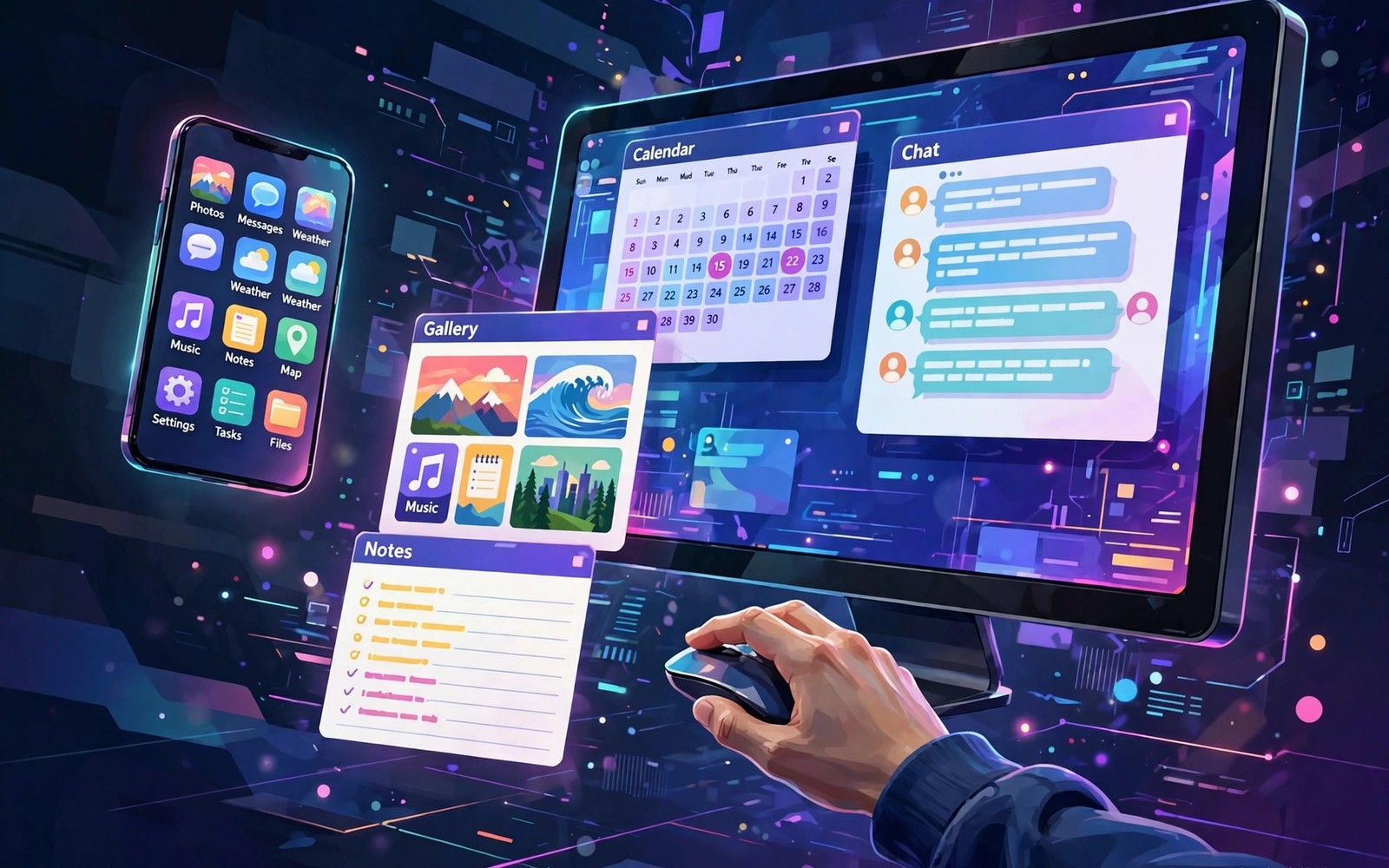
Running a phone app on a big Windows display feels like magic at first. Your chats and tools appear in a window beside your documents. You no longer need to juggle two screens for simple tasks. This guide explains the main ways to do it well.
Some methods mirror your whole phone screen to the PC. Others stream single apps as separate windows. Each method has trade offs in speed and ease. Pick the method that fits your phone and your daily routine. Readers who want a wider view can also explore Phone Link setup for a related setup.
How App Streaming Works
App streaming sends the app view from your phone to your PC. Your phone still runs the app in the background. The PC shows the picture and forwards your clicks. This keeps your data on the phone while you work on a larger screen.
Streaming needs a solid local network for smooth motion. Video heavy apps may show slight delay on weak Wi-Fi. Simple apps like messaging feel instant in most homes. Test with a chat app before you try a fast game.
Setting Up Your Phone and PC
Update both devices and sign in with the same account where required. Enable the link feature in your phone settings. Some phones hide this option under connected devices. Search settings for link or companion if you cannot find it.
Grant screen permission when the phone asks for it. Without that permission the PC cannot show app windows. You can revoke the permission at any time later. Review granted permissions after setup to stay in control.
Using Apps in Windows Day to Day
Pin your most used phone apps to the Windows taskbar. This gives one click access during work hours. You can copy text from a PC document into a phone app. You can also drag files into some supported apps with ease.
Keep phone apps in separate windows for clear multitasking. A chat window beside a spreadsheet works well for many people. Avoid opening too many streamed apps at once. Each stream adds load to your network and your phone battery.
scrcpy --max-size 1920 --video-bit-rate 8M
# mirror over USB for low latency
# add --turn-screen-off to save battery
# stop with Ctrl+C when finished
The snippet above follows standard operating system documentation and widely shared setup guides. It shows a typical pattern rather than a vendor specific promise. Results can vary by device model and system version. Always test a small change before you rely on it daily.
Performance Tips for Smooth Streaming
Use a 5 GHz Wi-Fi network or a wired PC connection. Keep your phone charged or plugged in during long sessions. Heat can throttle performance on older phones. Give the phone airflow instead of burying it under papers. A related workflow is covered in second display options for readers who want more depth.
Close unused apps on the phone before a long session. Background apps compete for memory and network. Lower motion heavy effects if the stream stutters. A stable stream matters more than fancy animations.
Privacy When Apps Appear on PC
A mirrored app can show private messages on a shared screen. Lock your PC when you step away from your desk. Turn off mirroring before a presentation or a call. A quick toggle can prevent an awkward moment.
Some apps block streaming for security reasons. Banking apps may refuse to run in a mirrored window. This is a safety feature and not a bug. Use the phone directly for those sensitive tasks.
When Mirroring Is Not Enough
If streaming lags then try a dedicated desktop version of the app. Many chat and note apps offer web versions. Web versions run natively and feel faster. They also use less phone battery than full mirroring.
If your phone lacks streaming support then try a USB based mirror tool. Wired tools often feel more stable than wireless ones. They also charge the phone while you work. Compare a few tools before you settle on one.
Choosing the Right Method
Casual users should start with the built in link feature. It needs no extra install on most modern PCs. Power users may want deeper control tools. Test each method for a week before you commit to one.
Supported Phones and App Streaming Limits
App streaming works best on newer phones with strong Wi-Fi radios. Older phones may stream only one app at a time. Some brands restrict streaming to their own PC software. Check streaming support for your exact model early. A model check prevents wasted setup time later. It also guides whether a PC upgrade or a phone upgrade helps more.
Not every Android app allows streaming to a PC window. Banking and video apps may block capture for security. This block protects your data from screen recording abuse. Accept the block and use the phone directly for those apps. Most chat and productivity apps stream without trouble. Test your five most used apps in the first week.
Windows App Windows Versus Full Mirroring
Single app windows feel more like native PC software. You can resize them and snap them beside documents. Full mirroring shows the whole phone home screen instead. It suits quick checks but feels less like a desktop. Choose single app windows for long work sessions. Choose full mirroring for short tasks and demos.
Single app streaming uses less bandwidth than full screen mirroring. Lower bandwidth means smoother motion on weaker networks. It also keeps phone notifications out of the PC view. Full mirroring shows every popup from the phone. For focused work the cleaner single app view wins clearly.
Typing and Clipboard Between Phone Apps and PC
A PC keyboard transforms long form writing inside phone apps. You can draft social posts with proper editing tools nearby. Copy text from a PC document into the streamed app. Paste works in most supported apps without extra steps. Check paste behavior in each app during your first session. Some apps sanitize pasted text in odd ways.
Clipboard sync between PC and phone app needs the link active. If paste fails then recheck the link connection state. Restart the streamed app and try the paste again. A fresh stream fixes most clipboard glitches. Avoid pasting passwords through streamed apps entirely. Use the password manager on the correct device instead.
Gaming and Video Inside Streamed Apps
Casual games stream well enough for relaxed play. Fast action games suffer from input delay on Wi-Fi. A wired USB mirror feels better for timing sensitive games. Video playback may show slight audio drift over wireless links. Use native PC apps for movies when quality matters most. Streamed apps shine for chat and tools rather than media.
Touch heavy games map poorly to mouse control. Swipes and multi touch gestures lose precision on a PC. Some tools offer key mapping for common gestures. Key mapping helps but never fully replaces touch. Play touch games on the phone screen itself. Use streaming for games designed around taps and menus.
Battery Drain During Long Streaming Sessions
Streaming keeps the phone screen and radio active for hours. Battery drain accelerates compared with normal phone use. Plug the phone into a charger during long sessions. A slow charger may not keep up with heavy streaming. Use a charger rated for your phone model. Heat buildup also rises during long streams.
Turn off the phone screen when the tool allows it. Some tools stream while the phone screen stays dark. Dark screen streaming saves significant battery power. It also prevents burn in on OLED displays. Check your tool settings for this option. Enable it whenever you stream for more than an hour.
When to Use a Native PC App Instead
Many phone apps offer web or desktop versions today. Native versions run faster and use less battery. They also support PC shortcuts and larger layouts. Check for a web version before you stream daily. A web version may cover ninety percent of your needs. Streaming then becomes a backup for missing features.
Security sensitive work also favors native PC apps. A native app keeps data inside one audited program. Streaming adds a second hop through the phone. For banking and health data prefer native options. Convenience should never override data safety rules. Keep streamed apps for low risk daily tasks.
App Streaming for Social Media Management
Social media managers run several accounts from one PC. Streamed phone apps keep each account separate cleanly. You post stories from the phone app window. You reply to comments with a full keyboard quickly. Scheduling tools on PC complement streamed apps well. Together they cover posting and engagement efficiently. This workflow suits small business owners especially well.
Video uploads through streamed apps can be slow. Large files travel through the phone network path. Upload directly from PC folders when possible instead. Streamed apps suit engagement more than uploads. Match the task to the faster path always. Efficiency comes from choosing the right tool per task.
Accessibility Benefits of Large Screen Apps
Large PC screens help users with low vision greatly. Streamed apps scale text larger than phone screens. Mouse control helps users with limited dexterity. Keyboard shortcuts replace precise touch gestures. These benefits make streamed apps an accessibility win. Test scaling options in your link app settings. Small adjustments can transform usability for many people.
Screen readers on PC interact with streamed apps unevenly. Some streamed content lacks proper accessibility labels. Native PC apps usually offer better screen reader support. Check accessibility before relying on streaming daily. Where streaming fails use native alternatives. Accessibility needs testing with real assistive tools.
Streaming Apps During Travel
Hotel desks rarely offer good phone stands for work. Streaming lets you use the laptop as the main screen. The phone charges beside the laptop quietly. You work from one keyboard across both systems. This setup lightens the travel bag considerably. One laptop plus one phone replaces many gadgets. Travel light and work comfortably anywhere.
Hotel Wi-Fi quality varies wildly between properties. Weak hotel networks make streaming lag badly. Carry a USB cable for wired mirroring backup. Wired mode bypasses hotel network problems entirely. It also charges the phone during long sessions. A cable is the cheapest travel insurance available.
Security of Streamed Banking and Health Apps
Banking apps often block streaming for good reasons. Screen capture could expose account balances. Use the phone directly for banking tasks always. Health apps may block streaming similarly. Sensitive data deserves the smallest exposure path. Convenience never justifies risking financial data. Accept blocks as protection rather than annoyance.
Work email through streamed apps needs care too. Confidential emails appear on the PC screen. Lock the PC before leaving any shared desk. Clear streamed app windows after sensitive reading. A locked screen is the simplest protection. Make locking a reflex rather than a chore.
Future of Phone Apps on Desktop
Desktop operating systems increasingly embrace mobile apps. Native Android app support grows on Windows steadily. Future versions may run phone apps without phones. Until then streaming bridges the gap well. Expect smoother streaming with each system update. Hardware improvements also reduce delay yearly. The gap between phone and PC keeps shrinking.
Developers increasingly design apps for larger screens. Responsive layouts adapt from phone to window sizes. This trend improves streamed app usability greatly. Apps that adapt feel native on PC screens. Apps stuck in portrait feel cramped instead. Prefer apps with responsive layouts for streaming. Responsive design is the future of cross device apps.
Start with one small change today and build from there. A steady setup beats a rushed overhaul every time. You can also read remote phone control to round out your plan. Once the basics feel natural you can add more advanced options at your own pace.

