

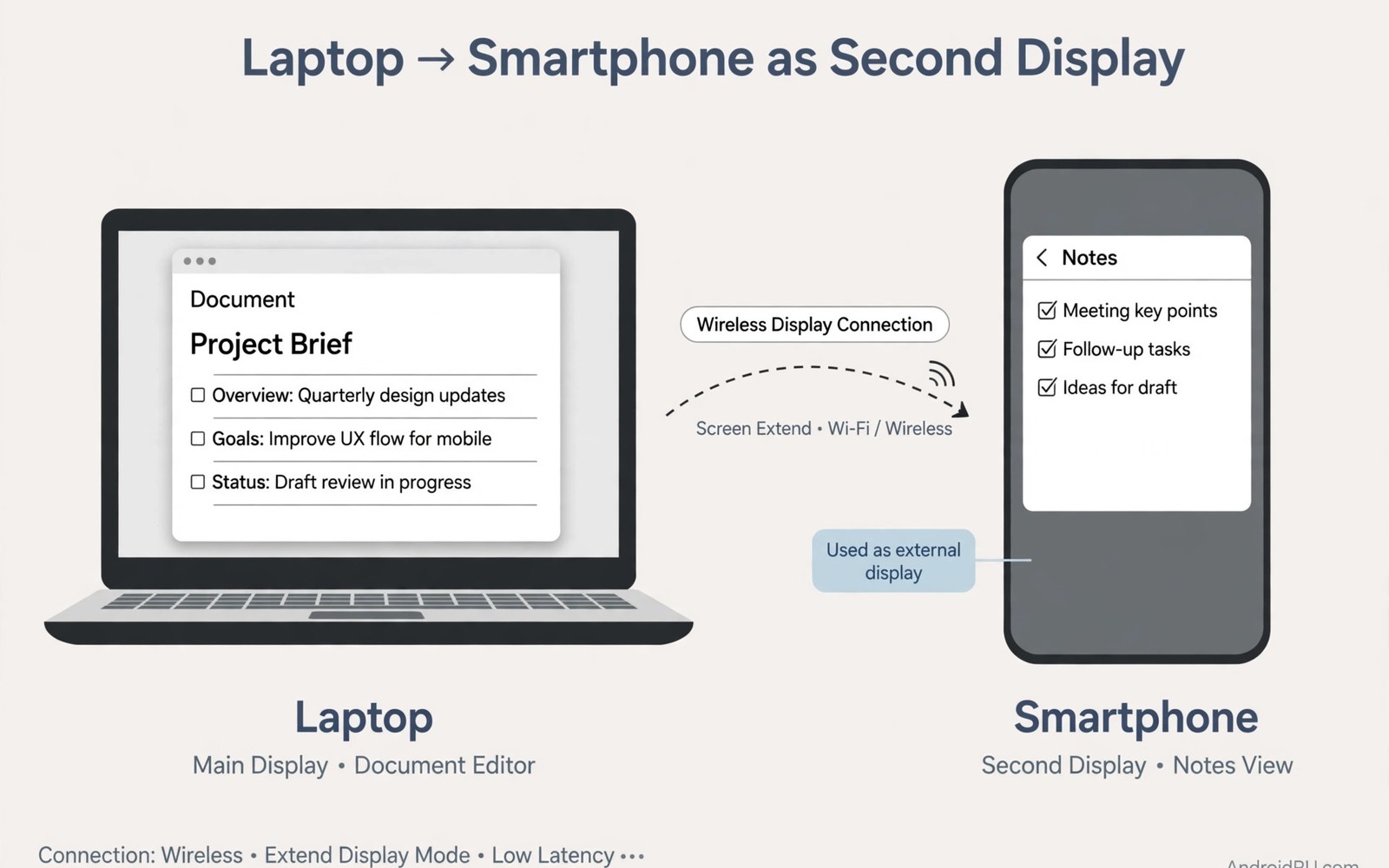
A second screen can change how you work on a laptop. You can keep notes open while you write. You can watch a call while you edit a document. An Android phone or tablet can serve as that extra screen.
Wireless display apps make setup quick and cable free. Wired options give lower delay for video work. Each path suits a different kind of task. This guide helps you pick the right one. Readers who want a wider view can also explore Android apps on Windows for a related setup.
Why a Small Second Screen Helps
Even a small extra screen reduces window switching. You park chat or music controls on the side screen. Your main screen stays clear for real work. Focus improves when tools stop fighting for space.
A phone screen suits timers and checklists well. A tablet suits document review and reading. Match the side task to the screen size. Do not force a full spreadsheet onto a tiny phone display.
Wireless Second Display Setup
Install a display app on both laptop and Android device. Connect both to the same Wi-Fi network. Open the app on the Android device first. Then extend your laptop display to the new screen.
Place the virtual screen beside your main screen in settings. Drag windows across to test the layout. Adjust resolution if text looks blurry. A lower resolution can feel smoother on weak networks.
Wired Options for Lower Delay
USB display tools often beat wireless for video and drawing. They use a cable for a stable video feed. Delay drops and motion looks sharper. This matters for design work and live demos.
Check cable and port support before you buy an app. Some phones need a specific USB mode enabled. Others work with a simple plug and play tool. Read the tool requirements for your exact model.
xrandr --output VIRTUAL1 --auto --right-of eDP1
# example layout for a virtual display
# adjust output names for your system
# test placement before saving settings
The snippet above follows standard operating system documentation and widely shared setup guides. It shows a typical pattern rather than a vendor specific promise. Results can vary by device model and system version. Always test a small change before you rely on it daily.
Arranging Windows for Real Work
Put reference material on the Android screen. Keep your active document on the laptop screen. This split keeps your eyes moving less. It also keeps your main task front and center. A related workflow is covered in trackpad remote control for readers who want more depth.
Use the side screen for chat during meetings. Mute alerts there if they distract you. A calm side screen helps more than a busy one. Hide apps you do not need for the current task.
Battery and Heat Management
A phone acting as a display drains battery fast. Plug it in during long work sessions. Use a stand to keep airflow around the device. Heat can dim the screen on some models.
Lower brightness on the side screen to save power. You do not need full brightness for notes. A dim side screen still reads well indoors. This small tweak extends session time a lot.
Fixing Lag and Display Errors
If the side screen lags then move closer to the router. Switch to a 5 GHz network if possible. Close video streams on the main laptop. Bandwidth freed here helps the side display.
If the laptop cannot find the device then restart the app on both sides. Check that both devices share one network. Guest networks often block device discovery. A main home network works best.
Is a Phone Screen Worth It
A phone screen works for light side tasks. A tablet works better for longer sessions. If you need a large second monitor then buy a real one. But for travel a phone screen is a clever free bonus.
Tablet Versus Phone as a Side Screen
Tablets offer far more usable space than phones. A ten inch tablet fits a document pane comfortably. A phone screen fits only a chat column well. Choose the tablet when you work for hours. Choose the phone when you travel light. Both beat no second screen at all.
Tablet stands matter more than people expect. A wobbly tablet distracts during typing. A folding case stand works for most desks. A dedicated stand holds angle better for long sessions. Test the viewing angle before a meeting. Neck strain grows quickly with a low screen.
Display Apps Compared by Connection Type
Some display apps use Wi-Fi for a cable free desk. Others use USB for sharper video and lower delay. Wi-Fi apps suit notes and chat best. USB apps suit design and video best. Read latency claims with healthy skepticism. Real world delay depends on your network and hardware.
Free display apps often cap resolution or add watermarks. Paid versions remove caps and unlock touch input. Touch input lets you tap the side screen directly. Without touch you must control it from the laptop. Decide if touch matters before paying. Many users never tap the side screen at all.
Resolution and Scaling Choices
High resolution side screens look crisp but lag more. Lower resolution feels smoother on weak networks. Start at a middle resolution and adjust from there. Text must stay readable at your viewing distance. Tiny text causes eye strain over hours. Readability beats pixel count for work screens.
Scaling settings on the laptop affect the side screen too. A mismatched scale makes windows jump sizes. Set the side display scale to match its size. Test dragging a window across both screens. Smooth crossing signals a good scale match. Fix scaling before long work sessions.
Using the Side Screen for Meetings
Meetings benefit hugely from a side screen layout. Keep the video call on the main laptop screen. Park the agenda and notes on the side screen. You glance at notes without hiding faces. This layout feels professional and calm. It also prevents accidental screen sharing of notes.
Mute side screen notifications during live meetings. A popup on the side screen still distracts. Enable focus mode on the Android device first. Test the setup before an important call. A rehearsal prevents live embarrassment. Good meeting habits start before the call begins.
Power and Cable Management on the Desk
A side screen phone needs charging during work. Route one cable neatly to the phone stand. A tangled cable pulls the phone off the stand. Use a short cable for a tidy desk. Wireless charging pads also work for phones. Pads keep the desk clean but charge slower.
Laptop USB ports may not power a tablet display well. Use the tablet charger for steady power. A powered hub can feed both devices cleanly. Check hub power ratings before buying. Underpowered hubs cause flicker and disconnects. Stable power is the hidden key to stable displays.
Travel Setups with a Phone Side Screen
Travel desks rarely fit a real second monitor. A phone side screen fits in a jacket pocket. It sets up in under a minute in cafes. Use it for boarding passes and notes. Keep expectations modest on tiny screens. Even a small notes pane beats constant app switching.
Hotel Wi-Fi may block device discovery features. Carry a USB cable as a fallback option. Wired display tools bypass hotel network limits. A cable also charges the phone during use. Pack the cable in your laptop sleeve always. Preparation turns hotel desks into workable offices.
Using a Phone as a Teleprompter Side Screen
Presenters can use a phone screen as a teleprompter. Notes scroll on the phone beside the laptop. The audience sees only the main presentation screen. This setup costs nothing beyond a display app. It beats printed notes for long talks. Scrolling notes keep eye contact more natural. Practice scrolling speed before live talks.
Teleprompter text needs large font sizes for readability. Set font size to at least twenty points. Keep lines short for easy glancing. Mark pause points with blank lines clearly. Rehearse with the exact setup twice minimum. Familiarity prevents fumbling during real talks.
Side Screens for Coding and Debugging
Developers park documentation on side screens constantly. API references stay visible beside code editors. Log outputs also fit side screens well. Main screens stay focused on code writing. This layout reduces window switching dramatically. Less switching means fewer lost thoughts daily. Side screens are a developer productivity staple.
Small phone screens suit logs better than documentation. Logs scroll continuously and need little width. Documentation needs wider text columns instead. Match side content to screen width wisely. Logs on phones and docs on tablets works. Thoughtful matching maximizes small screen value.
Side Screens for Language Learning
Language learners keep vocabulary lists on side screens. Flashcards appear beside reading material easily. Quick glances reinforce new words naturally. Main screens show articles or videos. This dual view supports active learning well. Passive reading alone teaches less effectively. Active recall with side lists improves retention.
Audio lessons pair well with side screen transcripts. Transcripts help when spoken words blur together. Learners pause and reread difficult passages. Side screens make pausing less disruptive. Main video stays visible throughout review. Combined audio and text accelerates learning noticeably.
Ergonomics of Small Side Screens
Small screens placed too low strain necks quickly. Raise phone stands to eye level whenever possible. A stack of books works as a cheap riser. Proper height prevents headaches during long sessions. Take breaks every thirty minutes regardless. Ergonomics matter more than screen size often. Comfort sustains productivity longer than hardware.
Viewing distance affects eye strain significantly too. Hold side screens at arm length ideally. Tiny text at close range tires eyes fast. Increase font size instead of leaning closer. Leaning closer ruins posture over time. Good posture starts with readable text sizes.
Side Screen Apps for Specific Tasks
Some apps specialize in turning phones into monitors. Others focus on specific tasks like chat. General monitor apps suit varied daily work. Specialized apps suit single tasks better. Chat side apps use less battery than full monitors. Battery savings matter for all day use. Choose specialization when one task dominates.
Free monitor apps may show ads on the side screen. Ads distract during focused work sessions. Paid versions remove ads and unlock features. Evaluate free versions for stability first. Pay after confirming daily reliability. A stable paid app beats a flaky free one.
Side Screen Brightness and Eye Comfort
Side screen brightness should match main screen brightness. Mismatched brightness strains eyes during shifts. Bright side screens glare in dark rooms. Dim side screens vanish in bright rooms. Adjust brightness for ambient light conditions. Auto brightness helps when supported properly. Manual tweaks fine tune auto settings further.
Blue light filters reduce evening eye strain somewhat. Enable night modes on side screens after sunset. Warmer tones support better sleep preparation. Daytime filters may distort color work though. Disable filters for color critical tasks. Context determines filter usefulness clearly. Evening comfort beats daytime color accuracy rarely.
Side Screens for Video Calls
Video calls benefit from side screen participant views. Main screens show shared presentations clearly. Side screens show participant video grids. Seeing faces while presenting improves engagement. Presenters read audience reactions in real time. Reaction awareness improves presentation pacing naturally. Dual screen calls feel more human overall.
Side screen cameras can add second angles to calls. A phone camera shows documents or demos. Switch camera views through call software settings. Second angles enrich remote demonstrations greatly. Audiences appreciate varied visual perspectives. Variety sustains attention during long calls. Plan camera angles before important calls.
Start with one small change today and build from there. A steady setup beats a rushed overhaul every time. You can also read remote phone control to round out your plan. Once the basics feel natural you can add more advanced options at your own pace.

