

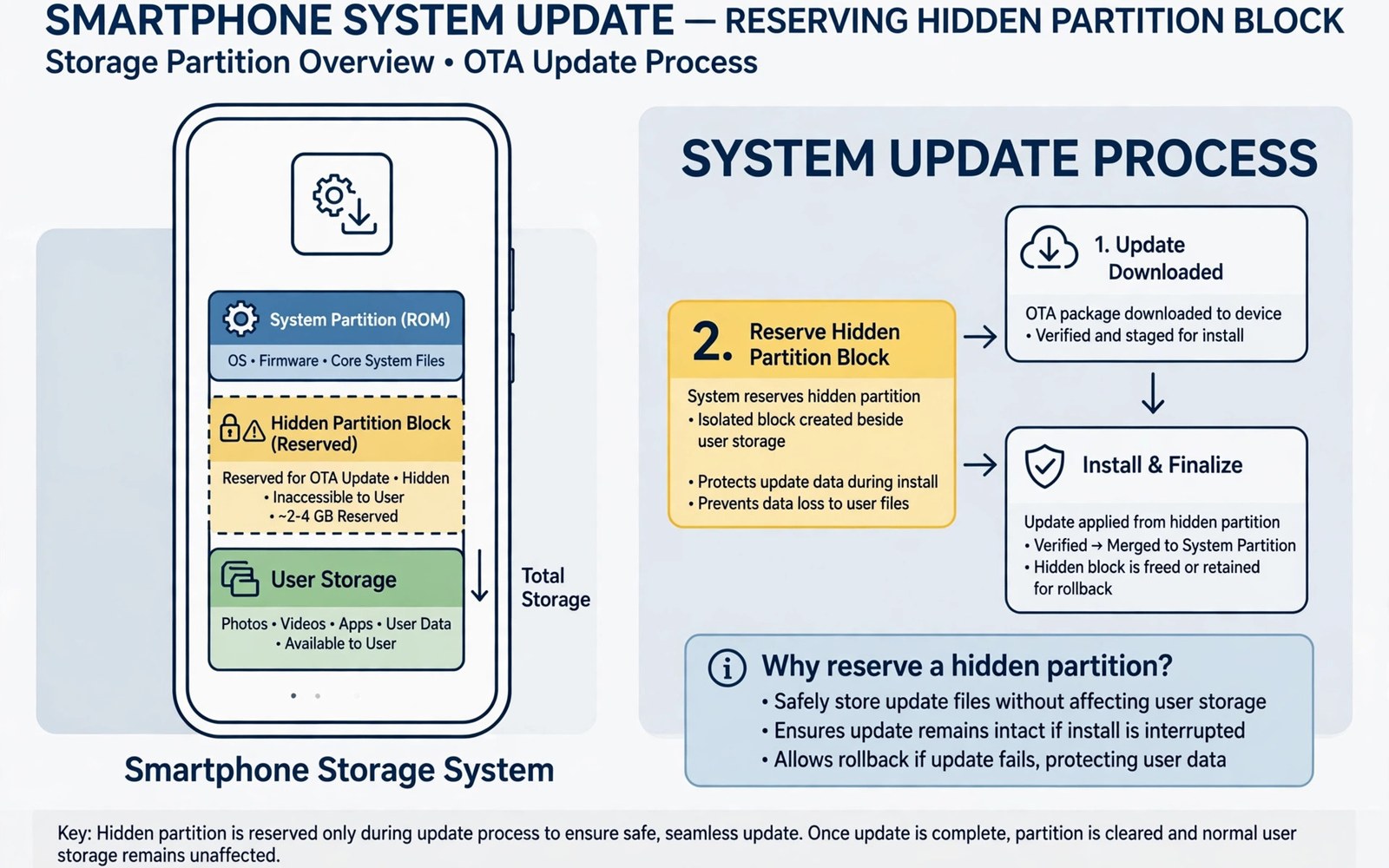
How System Updates Reserve Permanent Hidden Storage Space
Buy a phone advertised with 128 GB of storage, open Settings, and you will see something closer to 105 GB actually available. The missing chunk is not a rounding trick and it is not a fault in your phone. A large part of it is space Android sets aside on purpose, space that stays reserved whether you install an update today or three months from now. I first noticed this on a Pixel 7a that showed 15 GB swallowed by “System” before I had installed a single extra app, and the number barely moved after a full factory reset.
That reserved block is the price of updates that cannot brick your phone. Android keeps a spare copy of the operating system, room for the next update package, and a safety net so a failed install can roll back instead of leaving you with a dead device. This article explains where that space lives, how much each phone maker holds back, why the number never drops to zero, and what you can actually do when an update refuses to install because storage looks full.
If your phone feels squeezed, this guide is for you: owners of 128 GB phones who watch every gigabyte, people who see “System” growing after every monthly patch, and anyone who has ever deleted photos just to make room for an update that should have fit.
Why Android Reserves Storage for System Updates Before You Ever Tap Install
An update is not a small patch file that overwrites the old system in place. Android treats an update as a full replacement of the system software, and it refuses to start that replacement unless a complete spare copy has somewhere to go. That rule is the reason reserved space exists before you ever press “Download and install”.
Think of it like changing the tires on a moving car. The system cannot rip out the system it is currently running from, so it builds the new version in a separate area, checks that the new version actually boots, and only then flips a switch so the next restart uses the new copy. If the new copy fails to boot, the phone flips back to the old one and you never notice. That safety net only works when the spare area is always there, waiting, even when you are not updating.
Google made this design standard with Android 7.0 Nougat, when A/B updates became the recommended layout for new phones. Before that, phones used a single system partition and a separate recovery partition, and a failed update could leave the phone stuck on a recovery screen. The A/B layout removed that risk, and the cost was a permanent second system slot. On a 128 GB phone, the two slots together can account for 8 to 16 GB that you will never see as free space.
The update safety net that never gets switched off
The standby slot is not a temporary download folder. It is a fixed partition on the flash chip, created at the factory, and it cannot be resized from Settings. When an update arrives, the package is written into the inactive slot while you keep using the phone. The download itself is usually 1 to 2.5 GB for a monthly security patch for a Pixel, and 3 to 6 GB for a full Android version jump, but the partition holding it is sized for the whole operating system, which is far larger than the download.
Here is the part that surprises most owners: after the update finishes and your phone restarts on the new slot, the old one does not get freed. It becomes the new standby. The roles swap, the reserved space stays exactly where it was, and the next update will use the slot you just left. Nothing about this cycle ever returns space to you, which is why the “System” figure in Settings looks permanent. It is permanent by design.
What happens when an update package arrives on a nearly full phone
Android checks free space before it even starts downloading. A monthly patch typically needs 1 to 2 GB of free user space on top of the reserved slot, because the package is downloaded, verified, and staged before it is written into the standby slot. A major version update can demand 3 to 5 GB of free space. If that headroom is missing, the update fails with a storage warning even though the standby slot itself is untouched.
I have seen this on a 128 GB phone with only 800 MB free: the update button showed “not enough storage” while 14 GB sat reserved in the system area. The phone was not being greedy. The reserved space belongs to the operating system and cannot be borrowed for the download, because borrowing it would mean overwriting the very safety net the update needs. That is why clearing cache or deleting a few photos sometimes fixes an update failure, while the big reserved number never changes.
A/B Update Slots: How Android Keeps a Spare System Partition Ready
Most modern Android phones carry two complete system slots, labelled A and B. One slot is active and runs your phone right now. The other slot is inactive and holds the previous version of the system as a fallback. When you install an update, Android writes the new version into the inactive slot, verifies it, and marks it active for the next boot.
The two slots share a single data partition, which is where your apps, photos, and accounts live, so an update does not duplicate your personal data. What gets duplicated is the system itself: the kernel, the system apps, the framework, and the vendor code. On a Pixel 8, each slot holds roughly 5 to 7 GB of system image. On a Samsung Galaxy with a heavier skin, each slot can hold 8 to 12 GB. Add both slots together and the scale of the reservation becomes obvious.
How the phone decides which slot to boot
The bootloader keeps a small record of which slot is active and whether the last boot from that slot succeeded. After an update, the phone boots the new slot once as a trial. If the new system reaches the lock screen and stays stable, the slot is marked good and the update is complete. If it crashes or fails to start, the bootloader returns to the old slot automatically, and your phone works exactly as before the update.
That trial boot is the reason a failed update rarely costs you your data. In the old single-slot days, a bad flash could corrupt the only copy of the system, and recovery meant a factory reset or a service visit. With two slots, the worst case is usually a phone that quietly stays on the old version and tells you the update failed. The space for that insurance policy is the permanent reservation you see in Settings.
Virtual A/B and the compressed snapshot trick on newer phones
Google introduced Virtual A/B with Android 11 to shrink the cost of the second slot. Instead of a full duplicate partition, Virtual A/B keeps a compressed snapshot of the old system, using dm-snapshot to merge changes on the fly. The snapshot still reserves space, but it is smaller than a full second slot, often 2 to 4 GB instead of 6 to 8 GB. Android 13 made Virtual A/B with compression the default for new devices, which is why recent Pixel phones show a smaller “System” figure than older models with the same storage size.
Samsung, Xiaomi, and other makers adopted the same approach at different speeds, so the reserved amount varies by brand and by launch year. A Galaxy S24 reserves less for its spare slot than a Galaxy S20 did, even though the newer phone runs a larger operating system. Compression and snapshot tricks narrowed the gap, but they did not remove the reservation. No current Android phone ships with zero reserved update space.
How Much Storage Do System Updates Reserve on Pixel, Samsung, and Other Phones
The honest answer is that it depends on the phone, the Android version, and how much the maker adds on top of stock Android. I have measured the “System” category across several phones, and the spread is wide. A Pixel 8a with 128 GB typically shows 13 to 16 GB under System. A Galaxy S24 with 256 GB often shows 28 to 35 GB. A Xiaomi Redmi Note with 128 GB can show 18 to 24 GB. Those numbers include the operating system itself, the standby slot, and the vendor partitions, so they are not the reservation alone, but they show why two phones with the same advertised storage can feel very different.
To see the reservation on your own phone, open Settings, then Storage, and look at the System entry. That number is the closest thing Android shows you to the reserved block, but it mixes together the active system, the spare slot, the recovery image, and the bootloader partitions. It also changes slightly after updates, because a new version can be a few hundred megabytes larger or smaller than the old one.
Pixel phones and the stock Android baseline
Pixel phones run the cleanest version of Android, so they give the clearest view of the baseline cost. A Pixel 8 Pro with 128 GB ships with about 15 GB consumed by System after the first setup, and roughly half of that is the spare slot and the update staging area. Monthly security patches add about 100 to 300 MB of growth to the system image over a year, because each new version carries new code that the old version did not have. Google’s seven years of updates for the Pixel 8 series means that growth continues for a long time, which is one reason the System figure creeps upward over the life of the phone.
What a Pixel system partition actually contains
Inside the system area on a Pixel you will find the core Android framework, the Google apps that ship with the phone, the kernel, and the vendor image with drivers for the Tensor chip. That standby slot holds a second copy of most of that. The dynamic super partition, introduced with Android 10, groups the system, vendor, and product partitions into one flexible block, so the sizes can shift between updates instead of being fixed at the factory. That flexibility helps Google ship larger updates without resizing partitions, and it is one reason newer Pixels waste less space than older ones.
Samsung Galaxy phones and the One UI extra layer
Samsung phones reserve more space than Pixels because One UI adds a large layer on top of Android: Samsung apps, the Knox security framework, the Galaxy AI features on newer models, and carrier customizations. A Galaxy S24 Ultra with 256 GB commonly shows 30 GB or more under System, and owners of the 128 GB Galaxy A54 often see 20 to 25 GB consumed before installing anything. Samsung also keeps a larger update staging area because its updates bundle the Android version, the One UI version, and the security patch into one large package, often 2 to 4 GB per monthly release.
That said, Samsung’s reservation buys the same safety as Google’s. Galaxy phones use the same A/B layout, so a failed One UI update rolls back to the previous version instead of bricking the phone. The trade-off is real: you get more features and a longer support window, and you pay for them with more reserved space. If you are choosing between a 128 GB and a 256 GB Galaxy, the reserved block is the strongest argument for the larger model, because the system takes its share first and you live on what is left.
Xiaomi, OnePlus, and other makers compared
Xiaomi phones with HyperOS typically reserve 18 to 24 GB on a 128 GB model, sitting between Pixel and Samsung. OnePlus phones with OxygenOS land in a similar range, around 16 to 22 GB. Budget phones are the most painful case: a 64 GB phone can lose 18 to 20 GB to the system and its spare slot, leaving barely 40 GB for the owner. That is why a cheap phone with 64 GB feels cramped within months, while the same apps fit comfortably on a 128 GB model.
The pattern is consistent across brands. More features, more preinstalled apps, and a longer update promise all push the reserved number upward. No maker has found a way to offer rollback-safe updates without holding back space, so the difference between brands is a matter of degree, not of kind.
The Hidden System Partition: Where Reserved Space Actually Lives
Open a file manager and you will not find the reserved space. It does not live in a folder you can browse, because it lives below the file system, in partitions that Android mounts as read-only system areas. Your apps and photos live on the userdata partition, which is the part Settings reports as your free space. The operating system lives on the system, vendor, product, and system_ext partitions, and the spare slot is a second set of the same partitions.
These partitions sit inside one physical flash chip, but Android draws a hard line between them. The system partitions are mounted read-only during normal use, which protects them from accidental deletion and from malware that tries to modify the operating system. That protection is another reason the reserved space feels hidden: even a file manager with full storage access cannot show you the contents of the inactive slot, because the operating system never mounts it as a browsable folder.
Why Settings shows one System number instead of a partition map
Android deliberately simplifies the storage screen. Most owners do not need a partition map, and showing one would invite dangerous tinkering. Settings groups everything the user cannot touch into a single “System” entry, which covers the active system image, the spare slot, the bootloader, the recovery image, and the modem firmware. The number is honest in total but vague in detail, which is why it frustrates owners who want to know exactly what they can reclaim. The short answer is that almost none of it can be reclaimed safely, and Android hides the breakdown so nobody tries.
On Samsung phones, the System entry can also include the Knox vault and the secure folder infrastructure, which are encrypted areas that never appear in a file manager. On Pixel phones it includes the Titan security chip firmware and the update staging area. Each maker adds its own pieces, but the core idea is the same: the System number is the sum of everything the phone needs to run and to update itself, and it is fenced off from the user on purpose.
Dynamic partitions and the super partition explained simply
Since Android 10, most phones group the system partitions into one large block called the super partition. Inside that block, the system, vendor, and product partitions can grow or shrink between updates, which gives makers room to ship bigger features without repartitioning the phone. The super partition on a Pixel 8 is around 7 to 9 GB, and it holds both the active system and the compressed snapshot for Virtual A/B updates.
The super partition is fixed in size at the factory, so it never gives space back to your photos or apps. When Google ships a larger Android version, the system partitions inside the super block grow, and the snapshot area shrinks to fit. When a version is smaller, the reverse happens. From the outside, all you see is a System number that drifts up or down by a few hundred megabytes after each update. That drift is the super partition rebalancing itself, and it is completely normal.
How to see partition sizes without root access
You can inspect the layout without changing anything. Enable Developer options by tapping the build number seven times, turn on USB debugging, connect the phone to a computer, and run adb shell df -h to list mounted partitions with their sizes. The /system, /vendor, and /product entries show the active system, while /data shows your usable space. A second useful command is adb shell dumpsys diskstats, which breaks down how Android itself counts storage. Neither command changes anything, and both are safe to run on any phone. What you will not see is the inactive slot listed as free space, because Android counts it as system space, not as yours.
What Happens to Reserved Space After an Update Finishes
After a successful update, the reserved space does not shrink, and that surprises people who expected the download to be deleted and the space returned. The download is deleted, and you do get that 1 to 3 GB back in your free space. The slot is a different story. The new system now lives in the slot that was spare, and the old system stays in the slot you just left, waiting to serve as the fallback for the next update. The reservation simply changes hands.
Over months, the total reserved amount creeps upward by small steps. Each Android version is usually a little larger than the last, because new features add code. A phone that showed 14 GB of System on launch day can show 16 or 17 GB after two years of monthly patches and one major version upgrade. That growth is slow, roughly 1 to 2 GB per year on Google phones, and faster on phones with heavy skins, but it never reverses. There is no update that makes the system permanently smaller, and no maintenance routine that returns reserved space to the user.
Does the old system copy ever get deleted?
The old copy is overwritten by the next update, not deleted. When the following monthly patch arrives, Android writes it into the slot holding the old version, erasing that old version in the process. At any moment, your phone holds exactly two versions: the one you are running and the one before it. That two-version rule is the heart of the design, and it is why the reservation is permanent. Deleting the old copy would remove the rollback path, and Android refuses to do that.
There is one exception worth knowing. If an update fails verification before installation, Android discards the staged package and keeps the old slot untouched. In that case you may see a temporary dip in free space while the package sits in the staging area, followed by a recovery of that space when the failed package is cleaned up. The slot itself is never at risk in that scenario, because nothing was written into it yet.
Why a factory reset does not free reserved storage
A factory reset wipes the userdata partition: your apps, accounts, photos, and settings. It does not touch the system partitions or the spare slot, because those are the phone’s operating system, and wiping them would leave the phone with nothing to boot. After a reset, the System number looks almost the same as before, sometimes slightly smaller because cached update data is gone, but the reserved block is still there. Owners who reset a phone hoping to recover 15 GB are always disappointed, and the disappointment comes from a reasonable misunderstanding of what a reset actually erases.
If your phone still shows a huge System figure after a reset, that is proof the space is structural, not junk. The fix is not another reset. The fix is to accept the reserved block as the cost of the phone and to manage the space you actually control: apps, media, downloads, and cached data.
Why Reserved Storage Never Shows Up as Free Space in Settings
Settings reports free space as the room left on the userdata partition, minus a small safety margin Android keeps so the system can always write logs and temporary files. The reserved partitions are not part of that calculation at all. They were subtracted before the number was ever computed, at the factory, when the flash chip was divided into partitions. From Android’s point of view, that space was never yours to spend, so it never appears in the free-space math.
This is different from a cache or a download folder, where the space is technically yours and can be reclaimed by deleting files. Reserved space is allocated, not occupied. The distinction matters: occupied space can be freed, allocated space cannot, because the allocation is the design. When a storage analyzer shows a different total than Settings, the gap is usually the reserved partitions plus a few hidden areas that the analyzer counts and Settings excludes, or the reverse.
The safety margin Android keeps on top of the reservation
Beyond the fixed reservation, Android also keeps a small dynamic cushion of free space on the userdata partition, usually 500 MB to 1 GB, so the system never runs completely dry. When free space drops below that cushion, Android starts warning you, throttles background work, and may stop syncing photos. This cushion is separate from the reserved update space, but the two combine to make a nearly full phone feel even fuller than the numbers suggest.
That cushion is also why an update can fail when Settings shows 1.2 GB free. The update needs its staging space plus the cushion, and 1.2 GB is not enough for both. Clearing 2 to 3 GB is the practical target before a major update, not just barely enough to pass the check.
How Android counts storage differently from the box label
Part of the confusion comes from the way storage is advertised. Phone makers advertise gigabytes in decimal, where 1 GB means 1,000,000,000 bytes, while Android counts in binary, where 1 GB means 1,073,741,824 bytes. A 128 GB phone therefore holds about 119 GiB in Android’s counting before anything is installed. Subtract the system, the standby slot, and the vendor partitions, and the usable figure lands near 100 to 105 GB on a Pixel and lower on heavier skins. The label is not lying, but the two counting methods quietly eat about 7 percent before the reserved block even enters the picture.
How to Check Reserved System Storage With ADB and Storage Settings
You do not need special tools to get a clear picture, but the built-in screen only shows the total. Pair it with a couple of read-only checks and you can separate the real reservation from ordinary junk that you can actually delete. Start with the easy check, then use the deeper one only if you want numbers.
Open Settings, then Storage, and write down the System number and the free space number. Then open Settings, then Apps, sort by size, and add up the five largest apps. If the System number is larger than your five biggest apps combined, that is normal on most phones. The system really is the biggest tenant on the device, and no amount of app cleanup will change that ranking.
Reading the storage screen the right way
The storage screen groups files into Apps, Photos and videos, Audio, Documents, and System. Tap each group to see its breakdown, and pay attention to the “Other” or cached figures if your phone shows them. A System number between 12 and 20 GB on a 128 GB Pixel is normal. The same range on a Samsung is 20 to 35 GB. Numbers far outside those ranges deserve a second look: a System figure of 40 GB would suggest a failed update left a large staging file behind, and that is worth investigating.
Step by step: measuring system storage with ADB
For owners who want exact numbers, the ADB route is safe and read-only. Install the platform tools on a computer, enable USB debugging, connect the phone, and run adb shell df -h /system /vendor /product /data to see each partition. Then run adb shell dumpsys diskstats and look for the system and cache lines. Compare the two outputs and you will see the same story twice: the system partitions are large and fixed, while the userdata partition is where your free space lives. Write the numbers down once, and repeat the check after the next monthly update to watch the reservation drift by a few hundred megabytes.
What to do when the System number keeps growing
Slow growth is expected, but fast growth is a signal. If the System figure jumps by 3 GB or more after a single update, the most common cause is a staged package that was not cleaned up, or a large log file left by a failed install. Restart the phone first, because Android runs cleanup jobs at boot. If the number stays high, check for a pending update and install it, because completing the update often triggers the cleanup of the old staging files. As a last resort before a reset, clear the cache of the system update service itself in Settings, then Apps, then Show system apps, then the updater entry for your brand. That cache is safe to clear, and it can release gigabytes of stale staging data.
Reclaiming Space Safely When an Update Fails for Low Storage
When an update fails for low storage, the target is not the reserved block. The target is the space you control, and the fastest wins are almost always the same: old videos, offline maps, and app caches. Start with the largest files, because deleting one 2 GB video beats clearing cache in twenty apps. A quick scan for duplicate files often finds repeated downloads and forwarded videos that are safe to remove, and that alone can free enough room for a monthly patch.
Move photos and videos to a cloud backup or a computer before deleting them from the phone, and confirm the backup actually contains the files before you remove the local copies. Check offline content inside streaming and map apps, because those downloads hide inside app data and do not appear in the Downloads folder. A single offline map of a large city can take 1 to 2 GB, and a few downloaded playlists can take another gigabyte without ever showing up as files you recognize.
Clearing cache the smart way instead of the frantic way
Cache is the fastest space to reclaim, and also the easiest to waste effort on. Clearing the cache of one misbehaving app is useful. Clearing the cache of every app on the phone is not, because Android rebuilds most of that cache within days and the phone works harder while it does. Sort apps by size in Settings, open the top five, and clear cache only for the ones holding more than 300 MB. Social media and browser apps are the usual suspects, and a single one can hold 1 to 2 GB of cached images and videos.
Resist the urge to install three cleaner apps at once. Each cleaner adds its own background service, and none of them can touch the reserved system space anyway. One careful pass through your own downloads and offline files beats any automated cleaner, and it carries no risk of deleting something you needed. If you want a deeper clean, force closing apps is not the way to free storage either, and understanding how Android manages memory helps here: the Android Low Memory Killer already closes background apps when memory gets tight, so manually closing everything only forces the phone to reload apps and burn more battery.
When a deeper problem is hiding behind the storage warning
Sometimes the warning is not about your files at all. A corrupted update package can loop through failed downloads and fill the staging area with partial files. A failing flash chip can report less usable space than the phone shipped with. A system bug can misreport free space after an update, a problem that usually disappears after a restart or the next monthly patch. If you have freed 5 GB and the update still claims there is not enough space, restart the phone, check for a second pending update, and look at the System number again. If the number is far above the normal range for your model, that is the moment to contact the maker’s support with the exact figures, because the cause is inside the system area and no app on the phone can reach it.
Rules that keep a cleanup from breaking the phone
Never delete folders inside the Android folder by hand, and never delete anything with system, vendor, or product in its name. Those folders hold app data and system files that cannot be rebuilt by reinstalling an app. Never clear data for an app that holds the only copy of your chats or work unless you have a backup you have actually tested. And never use a tool that promises to reclaim system space by deleting the spare slot, because that slot is the rollback path that keeps a bad update from becoming a dead phone. The space you can safely reclaim is always in your own files, never in the reserved block.
Frequently Asked Questions About Reserved System Update Storage
Why does my phone show less storage than the box advertises?
Three things shrink the number before you install anything: the decimal versus binary counting difference takes about 7 percent, the OS itself takes 6 to 12 GB, and the spare update slot plus vendor partitions take another 4 to 10 GB. On a 128 GB Pixel that leaves roughly 100 to 105 GB usable, and on a 128 GB Samsung it can leave 90 to 95 GB. None of those deductions is a defect, and none of them can be recovered from Settings. The practical lesson is to buy the next storage size up if you keep a large photo library or many games.
Can I delete the reserved update space to free storage?
No, and you should not try. The reserved space is a set of partitions, not a folder, so there is no delete button for it and no file manager can reach it. Tools that claim to free system space are either deleting your cache, which you could do yourself, or asking for deep system access that can break updates and void support. Removing removing that standby slot would also remove the rollback path, so a single bad update could leave the phone unable to start. The space you can free is always in your own apps, media, and downloads.
Does the reserved space grow every time I install an update?
It grows slowly, not with every update. Monthly security patches usually change the System figure by less than 300 MB, because they replace code rather than adding much new code. Major Android version upgrades can add 500 MB to 1.5 GB, because new features add new system code. Over two years, expect 1 to 3 GB of total growth on a Pixel and a little more on phones with heavy skins. A sudden jump of several gigabytes after one update usually means a staging file was left behind, and a restart or the next update normally clears it.
Why does an update fail when Settings shows free space available?
An update needs staging room plus a safety cushion on top of the reserved slot, and the check counts both. A monthly patch needs roughly 1 to 2 GB of genuinely free space, and a major version needs 3 to 5 GB. If Settings shows 1 GB free, the patch may fail because the cushion would drop below the level Android requires to keep the system stable. Freeing 2 to 3 GB by removing large videos or offline downloads is the reliable fix, and the update will usually succeed on the next attempt without any other change.
Will a factory reset give me my reserved storage back?
A factory reset wipes your apps, accounts, and personal files, but it leaves the system partitions and the spare slot untouched, because those partitions are the operating system itself. After a reset, the System number looks almost the same as before, sometimes a few hundred megabytes smaller because cached update data is gone. If your goal is to recover reserved space, a reset will disappoint you. Reset only when an app or a setting is broken, not as a storage strategy.
What to Do Next With Your Reserved Storage
Reserved update space is not wasted space. It is the reason a failed update is an annoyance instead of a dead phone, and it is the reason Android can install patches while you keep using the device. The reservation is permanent, the amount varies by brand, and the number creeps upward slowly over the life of the phone. None of that is under your control, and accepting it is the first step to managing the space that is.
Your concrete next step takes five minutes. Open Settings, then Storage, and write down the System number and your free space. If free space is below 3 GB, open the Apps screen, sort by size, and clear the cache of the two largest apps, then check your Downloads folder and your offline maps for anything over 500 MB. Do that once a month, before the monthly patch arrives, and updates will stop failing for storage reasons. The reserved block will stay exactly where it is, doing its quiet job in the background, while the space you actually own stays under your control.

