

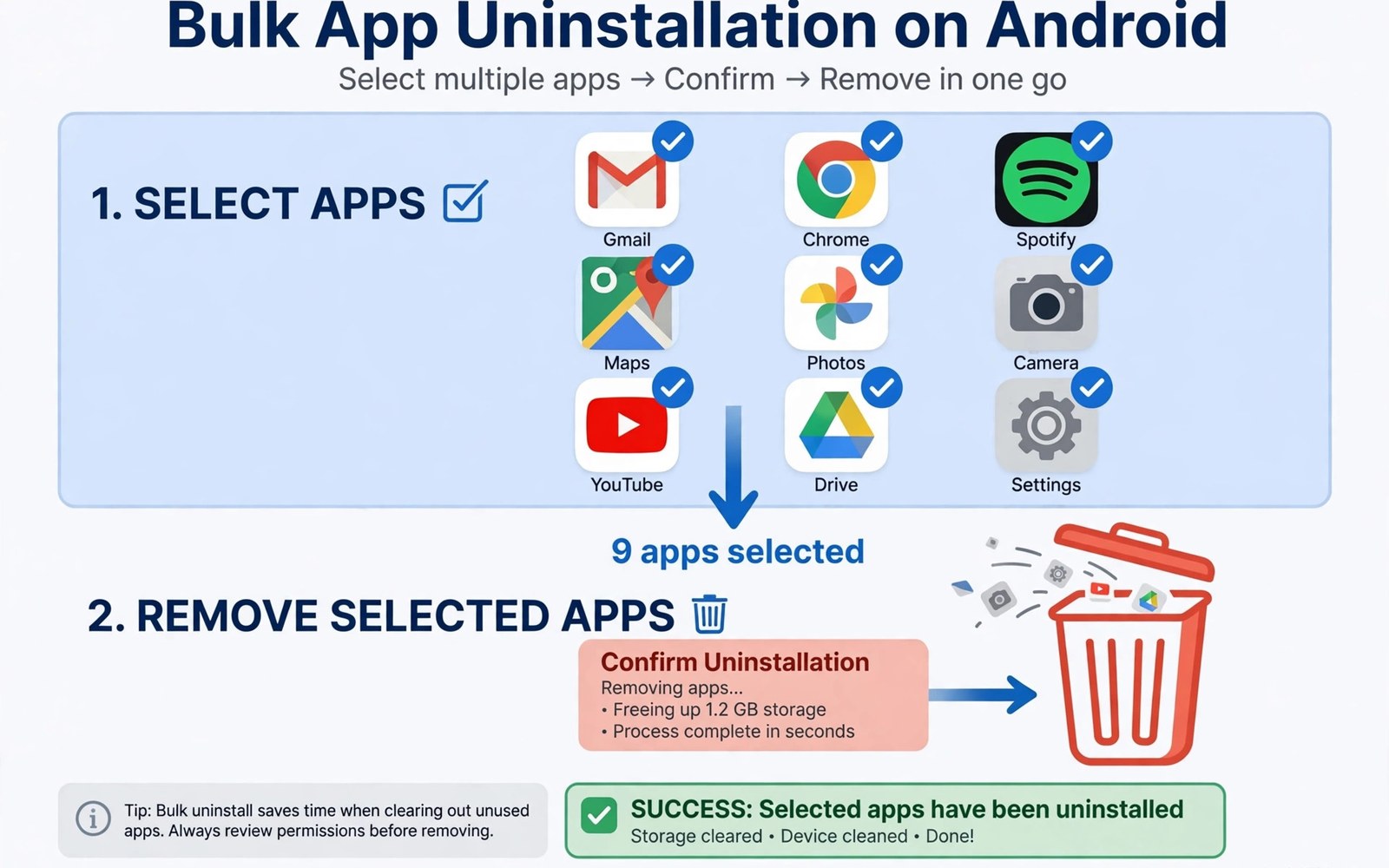
Application uninstaller tools remove many apps at once instead of one by one. Bulk removal saves time when you clean a new phone or clear years of installs. This guide explains how bulk uninstallers work and how to remove bloatware safely without breaking the system. This article covers application uninstaller tools in plain language for everyday Android users.
Android normally uninstalls one app per confirmation. A bulk tool queues many apps and walks through confirmations fast. Some tools also find leftover folders after removal. If you already know which folders hold leftovers then pair uninstalling with a folder check so storage truly frees up after each batch.
How bulk uninstall actually works
Bulk tools use the standard uninstall flow for each app. Android still asks for confirmation per app on most phones. The tool just organizes the queue and reduces taps. No tool can silently remove normal apps without your approval.
System apps behave differently. Many cannot be uninstalled at all. Some can only be disabled. A good tool labels system apps clearly and warns before you touch them. That warning is the line between a cleaner phone and a broken feature.
Bloatware versus useful preinstalled apps
Bloatware means preinstalled apps you never use and cannot remove easily. Carrier apps and duplicate galleries and trial games often qualify. Useful preinstalled apps include the dialer and messages and system services. Removing those breaks core functions.
Judge each preinstalled app by use and not by brand. Open it once and check what it does. If it duplicates an app you already use then disable it first. Live with the disabled state for a week. Uninstall only when nothing breaks in that week.
Disabling as a safe middle step
Disabling stops an app and hides it without deleting its files. Disabled apps use no battery and show no notifications. They can be re-enabled in seconds. That reversibility makes disabling the smart first step for any doubtful app.
Disable carrier apps and duplicate tools first. Watch for a week. If no feature complains then the app was truly unused. If something breaks then re-enable and move on. This patient method avoids the regret of deleting an app that a system feature quietly needed.
Cleaning leftovers after uninstall
Uninstall removes the app but may leave folders behind. Chat media folders and config folders often survive. A storage scan after a bulk uninstall finds these leftovers fast. Delete folders you recognize and back up anything doubtful.
Check the Download folder too since installers and exports linger there. Empty folders are harmless but they clutter scans. A monthly leftover check keeps storage honest after every cleanup round.
Root uninstall and its risks
Root tools can remove true system apps completely. That power is dangerous. Removing a system service can break updates or boot. Even removing a harmless looking system app can break a feature that depends on it silently.
Use root removal only for apps you researched by package name. Read what the package does before you delete it. Keep a full backup and a way to restore the system image. Without a restore path root removal is a gamble with your daily phone.
System apps that should never be removed
Some system apps look useless but carry vital roles. Package installers and permission controllers and system UI services must stay. Removing them can break installs or lock screens or boot. Research every system package name before any removal action.
Carrier services and account managers also hide dependencies. A carrier app may handle emergency alerts. An account manager may sync contacts silently. Disabling is reversible and safe for testing. Removal is permanent without a system restore. Prefer disabling for every doubtful package.
Preinstalled app audits on new phones
Audit a new phone on day one before you personalize it. List all preinstalled apps and mark each as keep or disable. Disable the clear junk immediately. Keep a note of disabled packages in case a feature later complains. Day one audits are fastest since no personal data mixes in yet.
Repeat the audit after major updates. Updates sometimes restore disabled apps or add new ones. A quick post update check catches restored bloat early. Five minutes after each update keeps the phone clean for its whole life.
Storage gains from uninstall versus disable
Uninstall frees storage fully for user apps. Disable frees almost nothing since files remain. That difference matters on small storage phones. Uninstall confirmed junk for real space. Disable doubtful apps for safety even though space stays used.
Measure gains after each batch with a storage scan. Real numbers beat claimed savings. If a batch frees little then the apps were small. Focus next on large games and media instead of tiny system tools. Size aware cleanup beats package count chasing.
Reinstalling removed apps safely
User apps reinstall easily from the store. Data may not return unless it synced to the cloud. Check cloud sync before you uninstall any app with local data. Export notes and saves manually when sync is unclear.
System apps removed by root need a system restore to return. Some can return through a factory image flash. That process wipes data and takes time. Keep a full backup before any root removal. Without backup the removal is a one way door.
Family phone cleanup with uninstallers
Bulk tools help clean family phones fast. Parents can remove game clutter from a child phone in minutes. Explain each removal to the child to avoid surprise. Keep educational apps and communication apps untouched during family cleanup.
Use disable first on shared family phones. A disabled app returns instantly if a family member needs it. Removal on a shared phone creates arguments when someone misses an app. Reversible steps suit shared devices far better than permanent ones.
Uninstaller apps versus system settings
System settings uninstall one app at a time with full safety. Uninstaller apps add batch queues and leftover scans on top. The underlying removal mechanism stays the same Android flow. No third party tool removes apps more deeply than settings does for normal apps. The value lies in organization and speed rather than deeper power.
Settings also show storage per app during uninstall decisions. That context helps you target large apps first. Uninstaller apps show similar data in list form. Use whichever view you read faster. The decision quality matters more than the tool brand. Both paths end at the same confirmation dialog.
Leftover data after account sync apps
Synced apps leave little local loss risk since data lives in the cloud. Uninstall a synced notes app and your notes return on reinstall. Unsynced apps risk total local loss on uninstall. Check sync status inside each app before bulk removal. Export local data manually for unsynced apps you might miss later.
Some apps sync only part of their data. Photos may sync while settings do not. Chats may sync while drafts do not. Read sync scope carefully for important apps. Partial sync surprises users who assume everything returns. When in doubt export before you uninstall.
Scheduled cleanup reminders
Scheduled reminders keep uninstall habits alive. A quarterly reminder to review unused apps prevents years of accumulation. Set the reminder for a calm weekend moment. Review the app drawer slowly and flag unused apps without rushing. Rushed reviews delete useful apps by mistake.
Pair the reminder with a storage scan for a complete cleanup session. Scan first to see size impact. Uninstall second with size knowledge guiding choices. A combined session monthly or quarterly keeps phones lean with minimal effort. Consistency beats intensity for storage health.
Uninstalling games and save data
Games often store saves in the cloud through play services. Some store saves only locally on the device. Local saves vanish on uninstall without warning in many games. Check save location inside game settings before removing a game you may replay. Cloud save indicators usually appear in game profiles.
Back up local saves manually when a game offers export. Copy save folders to cloud storage before uninstall when you know the path. Losing a hundred hour save to a cleanup spree hurts far more than the storage gained. Save aware uninstalling protects progress that storage numbers never show.
Uninstall queues and confirmation fatigue
Long uninstall queues cause confirmation fatigue. Tapping confirm twenty times in a row invites a careless yes on the wrong app. Break large queues into batches of five with a review pause between batches. Pauses restore attention and catch mistakes before they finalize.
Review the batch list aloud or on paper before each batch runs. A second look at package names catches lookalike system apps. Fatigue free batches keep bulk uninstalling safe. Speed matters less than accuracy when removals are hard to reverse.
adb shell pm uninstall --user 0 com.example.bloatThe command above follows the standard syntax for the Android developer bridge and removes a package for the current user so you can test removal without deleting system files permanently.
Common mistakes
The biggest mistake is bulk deleting everything unfamiliar. Unfamiliar does not mean useless. System services have cryptic names and vital jobs. Research each package before you remove it from a batch.
Another mistake is removing apps without a backup. A deleted app may hold local notes or game saves. Back up data first or export what matters. Storage freed today is not worth data lost forever.
People also chase every leftover folder aggressively. Some leftovers belong to apps still installed. Delete only folders tied to apps you removed. A clear view of cleaner logic helps you judge which leftovers are safe and which flags are just noise.
Frequently asked questions
Can I uninstall system apps without root?
Most system apps cannot be uninstalled without root. You can disable many of them instead. Disabling hides the app and stops it fully. ADB removal per user is another option for advanced users.
Will bulk uninstall speed up my phone?
It frees storage and stops background work from removed apps. Speed gains are modest unless storage was critically full. The real win is a cleaner app drawer and fewer notifications.
What if I uninstall the wrong app?
Reinstall it from the app store if it was a normal app. If it was a system app then re-enable it or restore from backup. ADB removed packages can be restored with a matching install command for the user profile.
Conclusion
Bulk uninstaller tools turn a long cleanup into a quick queue. Disable doubtful apps first and uninstall confirmed junk second. Check leftovers after each batch so storage gains stay real.
Your next step is concrete. List every app you have not opened in three months. Disable five of them today. Then run a storage scan next week to confirm the cleanup freed real space.

