

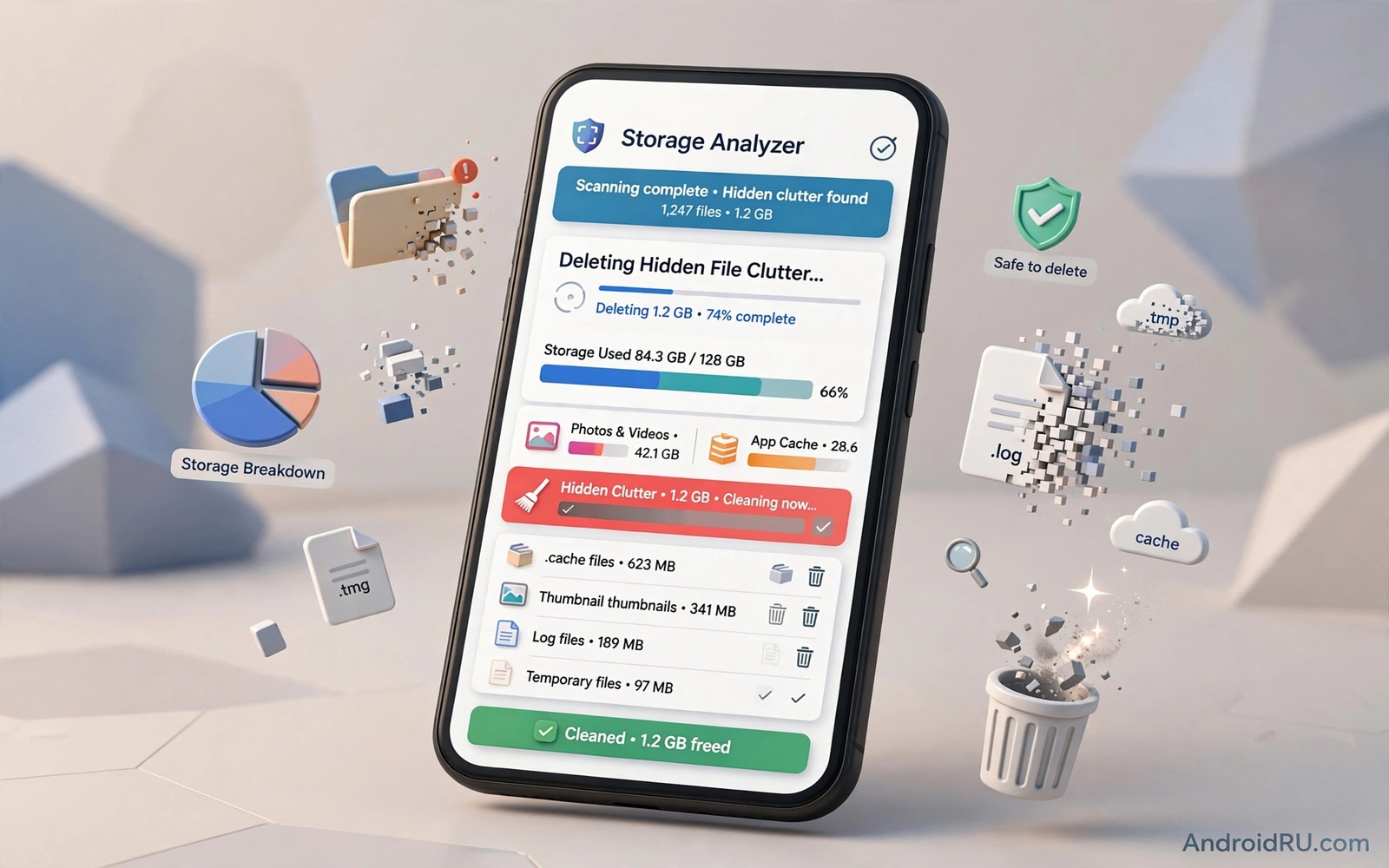
Storage analyzer apps show where every gigabyte on your phone actually went. A phone can feel full while its biggest folders stay invisible. A good analyzer maps folders by size and reveals the clutter hiding behind innocent names. This guide explains how to use these tools and delete safely. This article covers storage analyzer apps in plain language for everyday Android users.
Start with the biggest folders and not the smallest files. Ten tiny caches will never match one forgotten video folder. A size map makes that choice obvious in seconds. If you need advanced folder browsing after the scan then open the big folders in a file manager and inspect them before you delete anything.
How a size map reveals hidden clutter
A size map sorts folders from largest to smallest. That order matters because storage problems always come from a few big folders. Old chat backups and offline maps and downloaded videos often top the list. Seeing them ranked stops you from deleting useful small files while the real hogs stay untouched.
Treemap views show folders as blocks sized by their contents. A huge block means a huge folder. Tap the block to drill into its subfolders. That drill down path leads you from a vague full phone to the exact folder that eats space. It is the fastest way to understand any storage problem.
Common hiding spots for large files
Chat apps store media in their own folders and keep every photo and video you ever received. Offline maps store whole regions for trips you finished months ago. Podcast apps download episodes you never played. Each of these folders grows quietly in the background.
Camera apps also hide burst shots and slow motion clips that multiply storage fast. Screen recordings pile up in a media folder you rarely open. Check each of these spots once a month. Delete what you already backed up and keep only what you still need on the device.
Safe deletion rules for analyzer results
Delete your own media first. Photos and videos and downloads belong to you and you can judge them. Delete app caches only when an app misbehaves. Never delete a folder with a package name you do not recognize. That folder may hold data for an app you use daily.
Back up before bulk deletion. Copy the folder to a computer or cloud drive first. Then delete from the phone and test the app for a day. If nothing breaks then the backup can go too. This two step habit turns risky deletion into safe cleanup.
System storage versus user storage
System storage holds the OS and preinstalled apps. You cannot shrink it much without root and you should not try. User storage holds your apps and media and downloads. Analyzers sometimes mix the two and make the phone look fuller than it is.
Focus on user storage when you clean. That is the part you control. If user storage is small then uninstall large games you finished. If system storage dominates then no cleaner will help. In that case a phone with larger storage is the honest long term fix.
Automating storage awareness
Set a monthly reminder to run a storage scan. Five minutes a month prevents the sudden full storage warning. Turn on storage alerts if your analyzer offers them. An alert at eighty percent gives you time to clean calmly instead of in a panic.
Turn on auto backup for photos and videos. Once media is backed up you can free local copies without fear. Some phones offer a smart storage toggle that removes backed up copies automatically. Enable it only after you confirm the backup actually completed.
Treemap versus list views for storage
Treemap views show size as area. A huge block instantly signals a huge folder. List views show exact numbers in ranked order. Lists suit precise decisions. Treemaps suit fast discovery. Use the treemap first to find the hogs and the list second to decide exact deletions.
Some analyzers offer both views in one tap. Switch views per task. Discovery favors treemaps. Deletion favors lists with checkboxes. A tool that forces one view for every task slows you down. The best tools let the view match the job at hand.
App data versus media in analyzer totals
Analyzer totals mix app data and media unless you filter. App data includes databases and settings that apps need. Media includes photos and videos you can judge yourself. Separating the two prevents deleting app data while hunting media clutter.
Filter by category before any bulk action. Delete media first since you own it and understand it. Handle app data one app at a time. An app that stores gigabytes of offline data may need its own in app cleanup instead of a file deletion. In app cleanup respects the app structure.
Cloud backed media and local copies
Cloud backup changes what local deletion means. A photo backed up to the cloud can leave the phone safely. A photo never backed up cannot. Analyzers rarely know backup state. Check backup status before you delete media flagged as large.
Some phones mark backed up media with a cloud icon. Use that marker as your deletion guide. Delete local copies only where the marker confirms backup. Verify one restored photo from the cloud before a bulk delete. That single check protects years of memories.
Scheduled scans and storage alerts
Scheduled scans catch growth early. A weekly scan on a busy media phone prevents sudden full warnings. Set alerts at eighty percent full and at ninety percent full. The first alert prompts calm cleanup. The second alert demands immediate action.
Review scan history over months. Growth trends reveal which app expands fastest. A chat app that grows one gigabyte monthly needs media auto delete settings. A game that grows with updates needs periodic cache review. Trends guide settings changes that stop growth at the source.
Storage health on older phones
Older phones show storage strain sooner. Smaller drives fill faster and slower flash wears with age. Analyzers help older phones most since every megabyte matters there. Clean aggressively on old phones but keep the same safety rules for app data.
Consider external storage or cloud offload for aging phones. A microSD card suits media overflow when the phone supports it. Cloud offload suits photos and videos best. Either option extends an old phone life by a year or more when paired with monthly scans.
Duplicate files and how analyzers find them
Duplicate files waste storage silently. Downloaded twice photos and copied video folders multiply space use. Analyzers find duplicates by comparing file hashes. Hash comparison is exact and avoids false matches on similar names. A duplicate report lists each group with sizes so you can delete all but one copy safely.
Review duplicates before bulk deletion. One copy may live in a backup folder you want to keep. Another copy may be the original in a camera folder. Keep the copy in the most sensible location and delete the rest. Mark backup folders as protected in the analyzer when the tool allows exclusions. That protection prevents deleting the safety copy by mistake.
Media folders that grow without notice
Messaging apps create the fastest growing media folders. Every received photo and video lands in a chat media folder. Groups multiply that growth since many people share media daily. Set messaging apps to avoid auto downloading large media on mobile data. Review chat media monthly and delete what you already saved elsewhere.
Streaming apps also cache media for offline play. Downloaded episodes and songs pile up after you finish them. Check download sections inside streaming apps regularly. Delete finished downloads promptly. Analyzer totals often trace back to forgotten offline downloads more than to any other source.
System updates and storage pressure
System updates need free space to download and install. A phone with almost no free space may fail updates repeatedly. Analyzers help by freeing room before update day. Keep at least several gigabytes free when an update approaches. That margin lets the update stage files and install without pressure.
Failed updates sometimes leave large staged files behind. Check storage after a failed update for leftover packages. Delete staged update files only through system settings when offered. Manual deletion of update files can confuse the updater. Prefer the system cleanup path for update related clutter.
Storage analyzers on tablets and shared devices
Shared devices mix many users media in one storage pool. Analyzers on shared tablets should respect user profiles. A scan in one profile should not expose another profile files. Check profile behavior before scanning a family tablet. Privacy across profiles matters as much as space savings.
Kids profiles generate game and video clutter fast. Review child profile storage separately when the system allows. Teach older children to review their own downloads monthly. Shared device storage stays healthy when every user owns a small cleanup habit.
adb shell du -sh /sdcard/* 2>/dev/null | sort -rh | head -n 20The command above follows the standard syntax for the Android developer bridge and lists top level storage folders by size so you can confirm analyzer results with a direct disk usage check.
Common mistakes
The biggest mistake is deleting folders by name alone. A folder named data or cache may belong to an app you love. Open the folder first and check its contents and its owner app. Deleting blind is how people lose chat history and game saves.
Another mistake is chasing small files while ignoring big ones. Clearing a hundred tiny caches frees less than one old video. Sort by size and work from the top down. That order gives the best return for your time.
People also delete everything a cleaner flags without reading the list. A flagged folder may hold offline maps for a trip tomorrow. Read each entry before you confirm. A clear view of how cleaners choose targets helps you spot flags that are marketing and not real junk.
Frequently asked questions
Why does my phone show less free space than my analyzer totals?
System reserved space and hidden partitions explain the gap. Analyzers measure user visible storage only. The OS reserves room for updates and system work that never appears in a folder scan.
Is it safe to delete the Android folder?
No. The Android folder holds app data and media for installed apps. Delete single subfolders you recognize and back them up first. Never wipe the whole Android folder in one action.
How often should I run a storage scan?
Once a month is enough for most users. Heavy media users can scan every two weeks. A scan takes minutes and it catches growth before storage fills without warning.
Conclusion
A storage analyzer turns a full phone into a clear ranked list. Work from the largest folders down and back up before bulk deletion. That method frees real space without breaking apps.
Your next step is concrete. Run a scan today and list your five largest folders. Delete one backed up folder from that list. Then check bulk uninstaller tools for large apps you finished so storage stays free for months.

