

Mobile data can vanish while calls still work fine. That odd symptom usually points to APN settings. APN stands for Access Point Name. It tells your phone how to reach carrier data networks. A wrong APN blocks data completely. A missing APN does the same. This article shows how to fix APN settings safely. It covers finding correct values and resetting them.
APN problems follow SIM swaps and carrier switches. They also follow system updates sometimes. New phones may ship with wrong defaults. The fix takes only a few minutes. You need correct values from your carrier. You also need care with typing. One wrong character breaks the whole connection. Follow the steps below in order.
What an APN Does for Mobile Data
An APN is a gateway address for data traffic. Your phone sends data requests through that gateway. The carrier network recognizes the gateway name. It then routes your traffic to the internet. Voice calls use separate network paths. That separation explains calls working without data. An APN fault blocks data only. Voice service stays normal throughout.
APN settings include several fields beyond the name. They include proxy and port fields. They include username and password fields. They include authentication type and protocol fields. Most carriers need only a few fields filled. Extra fields stay blank on many plans. Filling a field that should stay blank breaks data. Copy carrier values exactly as published.
Symptoms That Point to APN Problems
Data failure with full signal bars suggests APN trouble. Calls working while data fails strengthens the clue. A new SIM with no data fits the pattern. Data failing after a carrier switch fits too. MMS failures also point to APN faults. MMS uses a separate APN entry often. A wrong MMS APN blocks picture messages. Browsing may work while MMS fails in that case.
Rule out simpler causes before editing APN. Check that mobile data is turned on. Check that data roaming settings fit your location. Check for unpaid bills or plan expiry. Check airplane mode is fully off. Restart the phone once before editing. A restart fixes temporary modem faults. If signal itself seems weak then start with testing signal strength accurately before changing APN values.
Finding Correct APN Values
Carrier support pages publish official APN values. Search your carrier name plus APN settings. Use the official page rather than forum copies. Forum values may be outdated or wrong. Note every field exactly as shown. Pay attention to capitalization in names. APN names are case sensitive often. A lowercase letter where uppercase belongs breaks the link.
Carrier apps may configure APN automatically. Inserting a carrier SIM can trigger auto setup. Auto setup sends a configuration message. Accept that message when it arrives. It fills APN fields correctly at once. If auto setup fails then manual entry follows. Keep the carrier page open during manual entry. Double-check each field before saving anything.
Editing APN Settings Step by Step
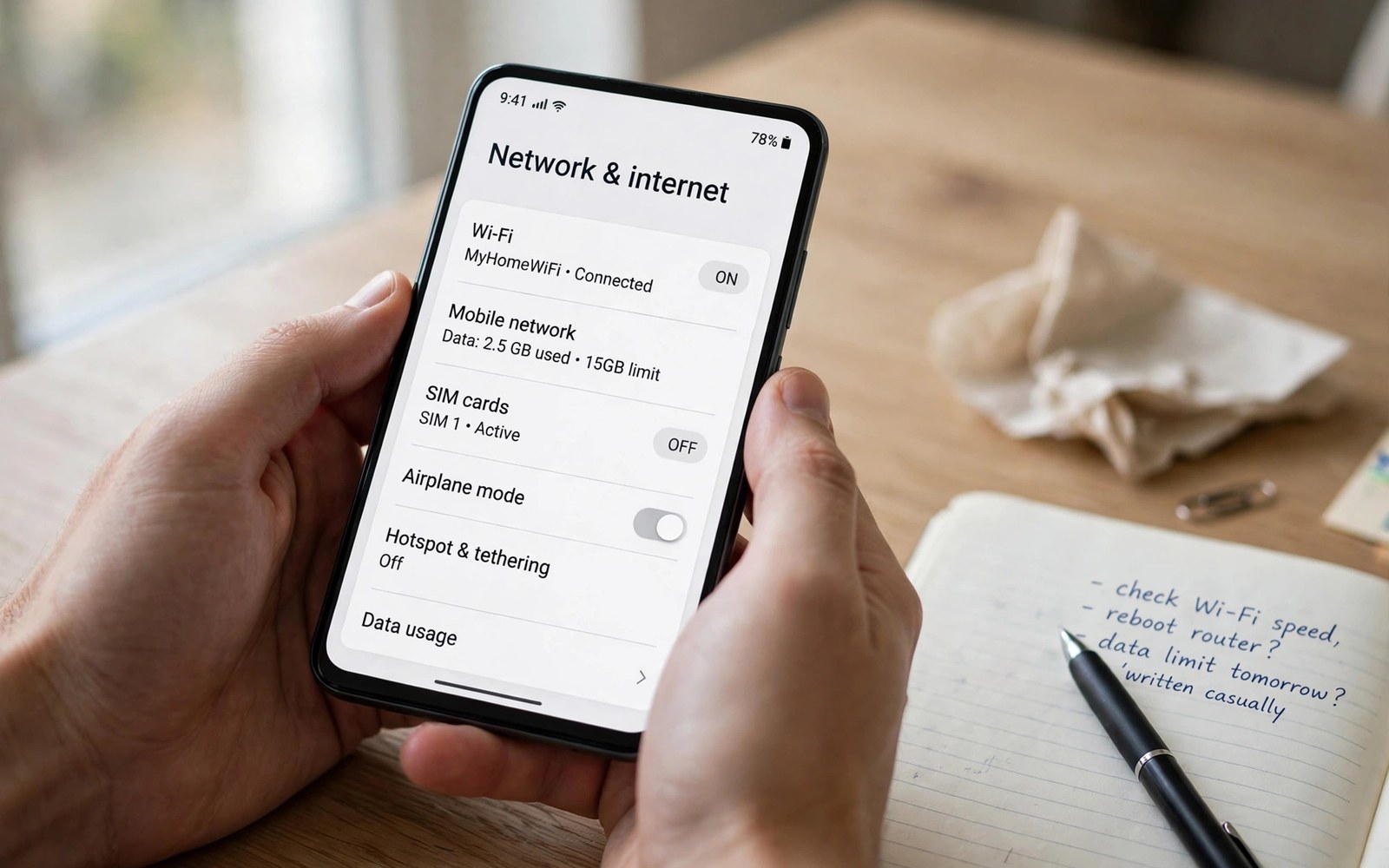
Open Settings and then Network and internet. Tap SIMs and then Access Point Names. You will see a list of APN profiles. Tap the add button for a new profile. Enter the name field first exactly. Enter the APN field second exactly. Fill other fields only as the carrier page shows. Leave unlisted fields blank or default.
Save the new profile after entry completes. Tap the radio button beside the new profile. The phone switches data to the new gateway. Wait a minute for registration to complete. Toggle mobile data off and on once. Test browsing with a simple search. If data works then keep the new profile. If data fails then recheck every field for typos.
Resetting APN to Defaults Safely
The APN menu offers a reset to default option. That reset restores carrier-provided profiles. It deletes custom profiles you added. Use reset when manual edits made things worse. Reset also helps after a bad carrier switch. The phone reloads default profiles for the SIM. Wait for reload before testing data again. Restart the phone if data stays off after reset.
Reset does not erase personal data or apps. It touches only network profiles. Saved Wi-Fi passwords stay intact. That safety makes reset a low-risk step. Try reset before deeper troubleshooting. Many users fix data with reset alone. If reset fails then manual entry follows. Manual entry with official values is the next step.
APN Problems After Switching Carriers
Old carrier APN profiles linger after switching. The phone may keep using the old profile. Old profiles point to the wrong gateway. Data fails despite a valid new SIM. Delete old carrier profiles after switching. Or create a fresh profile for the new carrier. Select the new profile explicitly after saving. The phone may not auto-select the right one.
Dual SIM phones need per-line APN care. Each line holds its own APN profiles. Editing one line never affects the other. Select the data line before editing APN. The data line setting sits in SIM settings. Confirm the data line matches your intent. A wrong data line edits the wrong profile. Two-line owners should also review managing two lines on one phone to avoid line mix-ups.
MMS APN and Picture Messages
MMS uses dedicated fields inside APN profiles. Those fields include MMS proxy and port. They include MMS center addresses too. A browsing APN may work while MMS fails. That split confuses many users. Check MMS fields separately from data fields. Carrier pages list MMS values distinctly. Copy MMS values with the same care as data values.
Test MMS after any APN change. Send a picture to your own number. Confirm delivery within a minute. If MMS fails then recheck MMS fields only. Do not change working data fields blindly. MMS failures rarely need a full reset. A targeted MMS field fix suffices usually. Note working MMS values for future reference.
APN and Hotspot Data Issues
Hotspot data may use a separate APN type. APN types include default and dun values. Dun stands for dial-up networking for tethering. Some carriers require dun for hotspot use. A missing dun type blocks hotspot data. Phone data may work while hotspot fails. Check the APN type field for dun. Add dun to the type list if the carrier page shows it.
Hotspot failures after APN edits need type checks first. Confirm the type field matches carrier guidance. Some carriers use default plus supl plus dun. Others use default only for all data. Copy the type string exactly as published. Commas separate type values without spaces usually. A space inside the type string can break parsing. Exact copying matters most in this field.
When APN Fixes Do Not Work
Persistent data failure after APN fixes needs deeper checks. Check the SIM card in another phone. A faulty SIM blocks data regardless of APN. Check account status with carrier support. A suspended account blocks data silently. Check network outages in your area. Outages affect whole neighborhoods at once. Neighbor reports confirm outage suspicions fast.
Contact support with APN values you tried. Support can verify values from their side. They can reprovision your line remotely. Reprovisioning refreshes network profiles. They can also replace a faulty SIM free. A new SIM often fixes stubborn data faults. Keep notes of every step tried. Notes prevent support from repeating failed steps.
Preventing Future APN Problems
Save working APN values in a note after fixing. A saved note speeds future phone setups. Screenshot the working profile screen too. Screenshots capture every field exactly. Store screenshots in cloud backup safely. Future SIM swaps then take minutes. A saved profile prevents repeated troubleshooting. Good notes turn a one-time fix into lasting knowledge.
Avoid APN editor apps from unknown sources. Those apps may set wrong values silently. They may also harvest device data. Use system settings for APN edits only. System settings are safer and fully reversible. Teach family members the same caution. Shared knowledge protects household phones. APN skills pay off at every carrier switch.
APN Profiles on Refurbished Phones
Refurbished phones may carry old carrier profiles. A previous owner carrier profile can linger. That profile may override new SIM defaults. Delete profiles from previous carriers first. Create a fresh profile for your carrier. Select it explicitly after saving. Test data before leaving the shop. A shop test prevents a dead phone at home.
Factory resets clear custom APN profiles usually. Carrier default profiles may return after reset. Those defaults match the original carrier only. A phone from another carrier needs new values. Enter your carrier values after any reset. Keep the carrier page bookmarked for resets. Bookmarking saves search time during setup. A prepared buyer resets with confidence.
APN and VPN Interactions
VPN apps route data through private tunnels. A wrong APN breaks the tunnel start. Data fails even with a working VPN. Disable the VPN during APN testing. Test data without VPN first. Re-enable VPN after data works. If data fails again then check VPN settings. VPN server choice affects speed after APN fixes.
Some VPN apps override APN-related routing. They may force traffic through dead gateways. Update VPN apps before troubleshooting APN. Outdated VPN apps cause odd data faults. Test with a different VPN server location. A nearer server reduces latency after fixes. VPN use remains safe on correct APN profiles. Correct APN plus VPN gives private and working data.
APN Settings for Tablets and Hotspots
Tablets with SIM slots use APN profiles too. Their menus mirror phone APN menus. Enter carrier values the same way. Test data after selecting the profile. Hotspot devices use APN profiles as well. Their web interfaces hide APN menus deeply. Check advanced settings for APN fields. Carrier pages list tablet APN values separately sometimes.
Shared family tablets need APN care per SIM. Swapping SIMs between tablets changes profiles. Each tablet may hold old profiles. Delete old profiles after each swap. Select the current carrier profile explicitly. Test data on each tablet after swaps. Family tablets with wrong APN frustrate kids. A quick profile check restores homework data fast.
APN Fix Checklist
- Confirm mobile data is on and the bill is current.
- Copy official APN values from the carrier support page.
- Create a new profile and enter fields exactly as shown.
- Select the new profile and toggle mobile data once.
- Test browsing and MMS separately after the change.
- Save working values in a note for future setups.
Settings > Network & internet > SIMs > Access Point Names
Add new APN: Name + APN exactly as carrier page shows
Leave unlisted fields blank or default
Save > Select new profile > Toggle mobile data off/on
Test: browse one page, send one MMS picture
The steps above reflect standard Android APN settings on recent versions. Menu names and required fields vary by carrier and phone maker. Always use official values from your own carrier support page.
Data Restored with One Correct Profile
APN faults look scary but fix quickly with correct values. Calls working while data fails is the classic clue. Copy official values exactly and select the new profile. Test browsing and MMS separately after changes. Reset to defaults when manual edits worsen things. Save working values for future switches. Data should return within minutes of a correct profile. Travelers with data trouble should also review international roaming on dual SIM phones for roaming-specific causes.
Keep APN notes for every carrier you use. Notes save time at each future switch. Avoid unknown APN editor apps entirely. System settings handle APN safely and reversibly. A correct profile keeps mobile data reliable for years.

