

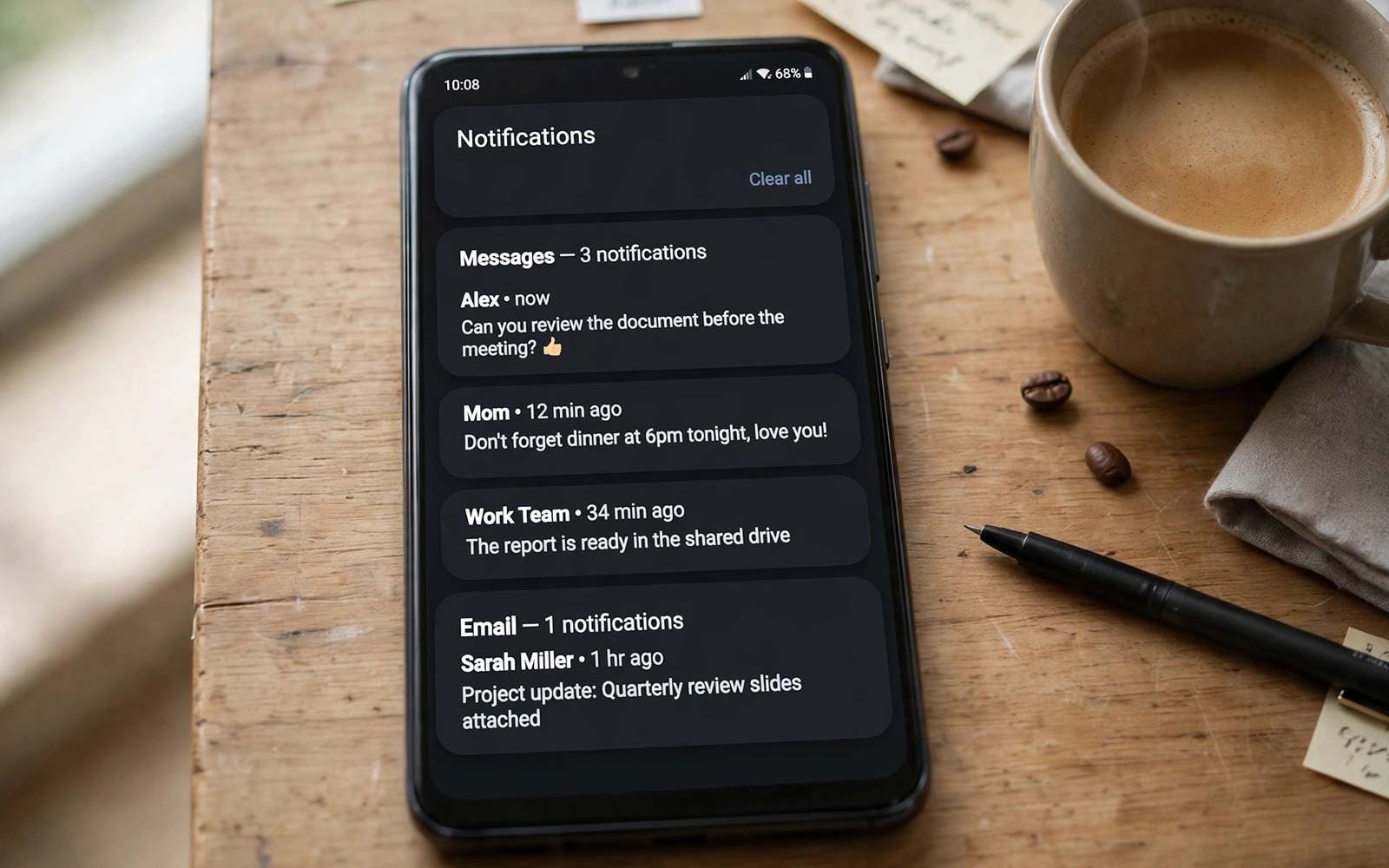
Notifications Handling: Why Android Notification System Rules
Your phone interrupts you dozens of times a day. A message from a friend, a delivery update, a sale from a shop you bought from once, a reminder you set yourself — they all arrive through the same small channel, and the system that manages them decides whether your day feels calm or chopped into pieces. The hardware in your pocket matters less here than the rules behind the alerts. A phone with a fast chip and a noisy alert system still steals your attention every few minutes.
Android and iOS answer this problem in opposite ways. Android hands you a toolbox: split one app into many alert types, snooze a single alert, recover one you swiped away by mistake, and let one important channel break through silence while the rest stays quiet. iOS hands you a calmer room: batch the unimportant alerts into a scheduled summary, tie a Focus mode to a lock screen, and keep the whole experience simple enough that most people never open a setting. Both approaches work, and both have improved a lot in the last few years. The gap is not about which system shows alerts. It is about how much control you get when the defaults stop fitting your life.
This guide walks through the real features behind that gap — notification channels, notification history, snoozing, bubbles, lock screen controls, quiet hours and Focus modes — and compares them head to head. You will see where Android pulls ahead, where iOS answers back with something genuinely better, and which system fits which kind of day. No root, no extra app, no paid upgrade is needed for any of it. Everything here lives in the settings your phone already has.
Android Notification Channels: One App, Many Alert Types
The single biggest reason Android keeps winning this comparison is a feature most owners never hear named: notification channels. A channel splits one app into separate alert types, and each type gets its own sound, vibration, lock screen behaviour and importance level. A chat app can run one channel for direct messages, a second for group chatter and a third for promotions. You silence the promo channel, keep direct messages loud, and let group chatter vibrate quietly. The app stays installed, the noise goes away, and nothing important is lost.
iOS cannot split an app this way in most cases. It groups alerts by app and by thread, so you can mute a thread or mute the whole app, but the middle ground — silence the promos, keep the people — is missing. Focus modes add a layer on top by filtering people and apps, and that layer is genuinely good, yet it still works at the level of whole apps and whole contacts rather than alert types inside one app. When a single app sends both the messages you need and the noise you do not, Android gives you a scalpel and iOS gives you a switch.
How to Set Up Notification Channels for One App
Channels live inside each app, and the fastest way to reach them is a long press on the app icon, then App info, then Notifications. The screen lists every channel that app has created, each with a plain name such as Messages, Group messages or Promotions. Tap one channel and you get its own controls: sound, vibration, whether it appears while the phone is locked, and whether it can pop over other apps. Change one channel and the others stay exactly as they were. Ten minutes of this, spread across your five noisiest apps, usually cuts daily interruptions by more than half.
Channel Settings Worth Changing First
Start with sound and importance, because those two decide whether an alert grabs you or waits quietly. A promo channel set to silent with no vibration still shows in the shade when you look, which is the right home for it. A direct message channel set to urgent with a short sound still breaks through when it matters. Lock screen visibility comes next: hide previews for banking and health channels, show them for family chats. These three changes per channel are the whole trick, and they take about a minute per app once you know where they live.
Why Granular Channels Beat a Single App Toggle
A single on-off toggle forces a false choice. Leave alerts on and you get everything, including the 11 pm sale. Turn them off and you miss the message from your kid’s school. Channels end that trade-off because the choice moves from the app to the alert type. In practice this is the difference between a phone you manage once and a phone you fight daily. I tested this on my own phone with a shopping app that sent three promos a day and one genuine delivery update a week: silencing its promo channel kept the delivery updates and removed fifteen interruptions a week. That is the whole argument for Android in one number.
What iOS Does Instead of Channels
Apple answers with Focus modes and per-thread muting rather than channels. You can mute a loud group thread inside Messages, and you can build a Work focus that only allows messages from colleagues. Time Sensitive notifications can break through a Focus mode when an app marks them that way. These tools are well designed and, for many people, easier to understand than channels. The trade-off is precision: when one app mixes useful and useless alerts, iOS asks you to filter by person or by time instead of by alert type, and some noise always slips through that wider net.
iOS Focus Modes and Notification Summary: The Calm Counterweight
It would be unfair to call iOS weak here, because Apple spent the last few years building a different answer to the same problem. A Focus mode is a whole-phone state: pick Work, Sleep, Driving or a custom mode, choose which people and apps may reach you, and tie it to a lock screen and a home screen layout so the phone itself changes with your day. A Work focus can show a work lock screen with a calendar widget and silence everything except colleagues. A Sleep focus can dim the display and hide the whole alert pile until morning. Setup takes a few minutes, and after that the phone changes modes for you on a schedule or when you arrive at a place.
The Scheduled Summary is the second half of the iOS answer. Non-urgent alerts from chosen apps are held back and delivered in one or two daily batches, morning and evening, instead of trickling in all day. News, social updates and shopping promos arrive as a tidy digest you read once, instead of twenty separate buzzes. Android has no built-in equivalent that works across all apps, which is a real gap: you can silence promo channels one app at a time, but you cannot ask Android to hold everything unimportant and hand it over at 6 pm. For people who want calm without fiddling, the summary is the single best feature iOS offers.
Focus Modes: Choosing Which People and Apps Break Through
A Focus mode works from an allow list, not a block list. You name the people who may call or message, name the apps that may alert, and everything else waits. Time Sensitive alerts — a delivery driver at the door, a security code — can still break through, which keeps the system from becoming a wall. You can also let repeat callers through: a second call from the same number within a few minutes rings even in silence, a rule that quietly saves families from missed emergencies. The weak spot is setup depth. A mode that is too strict silences something you needed, and you only discover it after the fact.
Notification Summary: Batching the Alerts That Can Wait
The summary works best when you are honest about which apps are never urgent. Put news, games, shopping and social apps in the summary, keep messages, calls, banking and delivery apps out of it, and the phone goes quiet for most of the day without hiding anything that matters. Pick two delivery times that match your routine — one mid-morning, one early evening — and the digest becomes a habit instead of a pile. The summary also ranks alerts inside the batch, so the most relevant ones sit at the top. Here is the catch: an app that Apple or the developer marks as Time Sensitive can still jump the queue, so a chatty app can label its promos urgent and escape the batch. Check which apps claim that privilege and remove the abusers.
Android owners who want the same effect have to build it by hand with channels and Do Not Disturb schedules, which takes longer and never batches quite as neatly. That is the honest score: iOS wins batching, Android wins precision. Which one matters more depends on whether your problem is too many apps or one app doing too much.
Android vs iOS Notification System Comparison Table
The table below puts the two systems side by side on the same criteria. Read it as a map, not a scoreboard: each row names a real feature, what Android does with it, and what iOS does with it, so you can see exactly where the two systems differ instead of guessing from marketing.
| Feature | Android | iOS |
|---|---|---|
| Notification channels | Per-alert-type controls inside every app: sound, vibration, lock screen and importance set separately for messages, groups and promos | No channels; alerts controlled per app and per thread, with Focus modes filtering by people and apps |
| Snoozing | Swipe any alert, tap the clock, pick 15 minutes to 2 hours; the alert returns at the chosen time | No built-in snooze; Remind Me in Messages covers chats only, and most alerts cannot be deferred |
| Notification history | Built-in history keeps dismissed alerts for 24 hours; turn it on once in Settings | No true history; Notification Center keeps unread alerts, but a dismissed alert is gone for good |
| Chat bubbles | Floating bubbles keep a conversation over other apps, movable and dismissible per app | No bubbles; chats live in the app or in a stacked alert you expand with a long press |
| Lock screen controls | Per-app and per-channel lock screen visibility, sensitive content rules, smart replies and quick actions from the shade | Clean stacked lock screen, notification previews per app, Focus-linked lock screens, long-press to expand and reply |
| Grouping and stacks | Alerts grouped by app in the shade, expandable per group, with inline reply and actions | Alerts stacked by app on the locked display and in Notification Center, expandable with a long press |
| Quiet hours and focus | Do Not Disturb schedules with starred contacts, repeat callers and per-channel exceptions | Focus modes tied to lock screens, schedules and locations, plus Scheduled Summary batches twice daily |
| Wearable triage | Choose exactly which apps and channels mirror to the watch; dismiss, reply by voice or defer from the wrist | Mirror iPhone alerts to Apple Watch per app, with Focus modes shared between phone and watch |
Two rows decide the comparison for most people. Channels decide it for anyone whose noisiest app is also their most important app, because only Android can silence half of one app. The Scheduled Summary decides it for anyone who wants the phone to go quiet without touching a setting per app. Everything else — snooze, history, bubbles — widens the Android lead, while Focus modes and the clean lock screen keep iOS close for people who value simplicity over control.
Snoozing Alerts and Recovering Dismissed Notifications with History
Snooze is a small feature with an outsized payoff. Swipe an alert slightly to the side, tap the clock icon, and pick when it should come back: fifteen minutes, thirty minutes, one hour or two hours. The alert vanishes and returns at the chosen time, which turns the shade into a to-do list instead of a graveyard. A bill reminder at 9 am becomes a 6 pm nudge. A message you cannot answer in a meeting returns when the meeting ends. It beats dismissing and forgetting, and it beats leaving the alert sitting there as a nagging red badge.
Use snooze for anything that needs a later you. A parcel that arrives tomorrow, a reply that needs a file from your laptop, a call you should return after lunch — all of these are snooze jobs, not dismiss jobs. The habit takes a week to form and then it sticks, because the phone starts doing the remembering for you. The one limit is that snoozing works per alert, not per app, so a chatty group still needs its channel silenced rather than its alerts snoozed one by one.
How to Snooze a Notification on Android
Pull down the shade, find the alert, and swipe it slowly to either side until the gear and clock icons appear. Tap the clock, choose a time, and you are done. The alert disappears from the shade and a small snoozed indicator keeps count in the background. When the time arrives, the alert returns exactly as before, with the same actions attached. If you change your mind, open the shade and the snoozed alert is listed where you can bring it back early or dismiss it for good.
How to Turn On Notification History
Notification history is the safety net under every swipe. Open Settings, then Notifications, then Notification history, and switch it on. From that moment every alert that arrives is listed for a day, including the ones you dismiss. Swiped away a delivery code by accident? Open history, find it, tap it, and the app opens to the right place. The feature is off by default on most phones, which is a shame, because it only helps if it was on before the mistake. Turn it on today, before you need it. For daily phone habits, the ecosystem breakdown puts alerts in wider context.
What Notification History Keeps for 24 Hours
History keeps the alert itself — app, title, text and time — for one day, then drops it. It does not keep alerts from before you switched it on, and it does not keep anything you never received. A few sensitive alerts, such as one-time codes shown on a secure screen, may appear with their text hidden, which is the right call. Think of it as a recycle bin for alerts: not a permanent archive, just a day of second chances. That day is usually enough, because a lost alert is almost always noticed within hours.
Does iOS Have a Notification History?
Not in the Android sense. Notification Center on iOS keeps alerts you have not dismissed, and you can scroll back through them, but once you clear an alert it is gone. There is no setting to recover it, no 24-hour list, no recycle bin. The workaround is to stop clearing alerts you have not dealt with and let the stack hold them, which works until the stack grows long enough to hide the important ones. For anyone who has ever swiped away a two-factor code or an address by mistake, this is one of the clearest practical gaps between the two systems.
Bubbles, Smart Replies and the Android Notification Shade
The notification shade on Android behaves like a workbench, not a bulletin board. Alerts arrive grouped by app, each group expands with a tap, and most of them carry actions: reply to a message, archive an email, mark a task done, all without opening the app. Smart replies suggest short answers based on the message text, and on many phones they are good enough for a yes, a time or a thanks. The point is speed. Triage should take seconds, and the shade is built for that.
iOS offers inline reply too, and its stacked alerts expand with a long press into a clean card with actions. The design looks calmer and the cards are consistent, which many people prefer at a glance. The gap is depth: Android packs more actions into each alert and lets apps add custom ones, so a delivery alert can offer tracking, a music alert offers playback controls, and a message offers a full reply box. For multitasking while you triage, see the split-screen multitasking tools.
Chat Bubbles: Floating Conversations Over Other Apps
Bubbles keep a conversation floating over whatever else you are doing. A small round avatar sits at the edge of the screen; tap it and the chat opens in a small window, tap again and it collapses back to the bubble. You can drag it out of the way, dismiss it with a flick, or turn bubbles off for one app while keeping them for another. They suit fast back-and-forth chats — coordinating a pickup, answering a quick question — and they suit them well. They do not suit long conversations, and they do not suit people who find floating things distracting. The good news is the choice is per app, so a bubble for your partner and none for the group chat is a normal setup.
Smart Replies and Quick Actions from the Shade
Quick actions are the quiet productivity win in the shade. A message alert offers a reply field right there. An email alert offers archive and reply. A calendar alert offers snooze and join. A music alert offers play, pause and skip. These actions save one app-open each, and across a day that adds up to dozens of avoided context switches. iOS matches some of this with rich alerts, yet Android apps can add more custom actions, and the actions sit one tap away instead of behind a long press. Small difference per alert, large difference per week.
When Bubbles Get in the Way
Bubbles annoy exactly two kinds of people: those who play full-screen games and those who watch video. A bubble over a game blocks a corner, and a bubble over a video is a distraction. The fix is quick: drag the bubble to the bottom of the screen to dismiss it, or open the chat settings for that app and turn bubbles off while keeping normal alerts on. Some phones also hide bubbles automatically during full-screen apps. If bubbles ever feel like clutter, they are one toggle away from gone, which is the right way to treat an optional feature.
Lock Screen Notification Controls and Privacy
The locked display is the first alert surface and the most public one. Anyone near your phone can read what it shows, so the rules here are about privacy as much as convenience. Android lets you set lock screen visibility per app and per channel: show sender and preview for close contacts, hide the text for banking and health apps, hide everything for one channel while another from the same app still previews. That per-channel choice matters, because a banking app can show a fraud alert in full while hiding the balance in the same breath.
Keep the lock screen short on purpose. Five alerts are enough at a glance, and older ones can wait in the shade. If the list grows long, the rules are too loose, not the screen too small. Tighten one app each day and calm returns fast. iOS takes a similar approach with per-app preview settings and a stacked design that hides older alerts behind a count, and its Focus-linked lock screens are genuinely elegant. The Android edge is again precision: the same app can be loud in the shade and silent on the lock screen, which is the combination most people actually want.
Hiding Sensitive Content on the Lock Screen
Sensitive content rules decide what a stranger sees. Open Settings, then Notifications, then the lock options, and choose whether previews show at all. Then go per app: a messaging app can hide message text while still showing who wrote, a banking app can hide amounts, a health app can hide everything. On Android 12 and later, the system also separates sensitive alerts from the rest, so a quick glance tells you whether action is needed without leaking private text. Check this after every new install, because new apps often default to showing everything.
Lock Screen Quick Actions Compared
Both systems let you act without opening the phone, and the difference is breadth versus polish. Android shows reply, archive, snooze and app-specific actions directly under each alert, and lets you expand a group to see several alerts at once. iOS shows a clean expanded card per alert with reply and clear, and groups the rest behind a stack you tap to open. Android wins when you want to clear five alerts in ten seconds. iOS wins when you want the display to look calm while it does it. Neither is wrong; they are built for different mornings.
Do Not Disturb, Quiet Hours and Focus Compared
Quiet hours protect sleep and deep work, and both systems offer them well. Set a schedule for the night, allow calls from starred contacts only, block app alerts until morning, and the phone stops being a slot machine after 10 pm. Android adds per-channel exceptions to that silence: one channel from one app — a security camera, a baby monitor, a work on-call channel — can break through while everything else waits. That single exception is the kind of control that only channels make possible, and it is the reason night-shift workers and parents tend to prefer Android here.
iOS answers with Focus modes that link to a schedule, a location and a lock screen, so Sleep focus can start at bedtime, dim the display and hide the alert pile until the morning alarm. The schedule is easy to set and the tie-in with the lock display makes the mode visible, which helps you remember it is on. Android matches the scheduling and adds the exceptions; iOS matches the calm and adds the presentation. A week of testing each will tell you which trade-off fits your nights.
Android Do Not Disturb Rules and Per-Channel Exceptions
Open Settings, then Sound, then Do Not Disturb, and build the rules once. Pick who may call: starred contacts, all contacts, or nobody. Turn on repeat callers so a second call within fifteen minutes rings through. Then pick the apps and channels that may break the silence, one by one, and leave the rest blocked. Add a schedule for weeknights and a different one for weekends. The result is a phone that sleeps when you sleep and still lets a real emergency through, which is the whole point of the feature.
iOS Focus Modes Linked to Lock Screens
On iOS, a Focus mode is more than a silence rule because it changes the phone around you. Pick a mode, choose the allowed people and apps, then link it to a lock screen and a home screen page. Work focus shows the work screen and hides the social apps. Personal focus shows the family screen. Sleep focus dims everything and hides alerts until morning. You can trigger a mode by time, by location, or when you open a particular app. The setup takes longer than a Do Not Disturb schedule, and the payoff is a phone that visibly shifts with your day instead of just going quiet.
A Notification Tune-Up Plan You Can Finish Today
Reading about controls is not the same as setting them, so here is a plan that takes about twenty minutes and pays off every day after. Do it once, then repeat the review monthly, because new apps creep noise back in with every install.
- Open Settings, then Notifications, and look at the alert counts per app to find your five noisiest apps.
- Open each noisy app, silence its promo and marketing channels, and keep only human messages loud.
- Turn on notification history so a swiped alert can be recovered for a day.
- Set a snooze habit: anything that needs a later you gets snoozed, not dismissed.
- Set quiet hours for the night, with starred contacts and repeat callers allowed through.
- Pick the five apps that may mirror to your watch, and silence the rest there.
After a week, check the counts again. A falling count means the rules work. A rising count means a new app misbehaves, and you now know exactly where to look. Share the habit with family, because kids benefit from calmer phones too, and a monthly ten-minute review turns alerts from masters into servants.
Android vs iOS Notifications FAQ
What makes Android notification channels better than iOS app-level controls?
Channels split one app into separate alert types, so you can silence promos while keeping direct messages loud. iOS controls alerts per app or per thread, which forces a choice between all of an app or none of it. That gap matters most with apps that mix useful messages and marketing in one place, such as shopping, banking and social apps. Focus modes narrow the gap by filtering people and apps, but they still work at the app level rather than the alert type level.
Can I get notification history on iOS?
There is no built-in history on iOS that recovers a dismissed alert. Notification Center keeps alerts you have not cleared, so the practical habit is to leave alerts uncleared until you have dealt with them. On Android, turn on notification history in Settings, then Notifications, and every dismissed alert stays listed for 24 hours. If you switch between the two systems, this is one of the first differences you will feel.
How do I stop promo notifications without muting important messages?
On Android, open the app info, tap Notifications, and silence only the promo or marketing channel while leaving the message and delivery channels on. On iOS, open the app settings, turn off the categories the app offers, or add the app to a Scheduled Summary so its promos arrive in a daily batch. If an app offers no categories and keeps pushing sales, removing its alert permission entirely is a fair response — a useful app respects your time.
Why do some apps still buzz during Do Not Disturb?
Three causes cover most cases. First, the app or channel was added to the Do Not Disturb exceptions, so check the allow list. Second, the alert is marked Time Sensitive or urgent, which both systems let through by design. Third, repeat callers are allowed, so a second call within a few minutes rings on purpose. Check the exceptions first, then the per-channel settings, and the culprit usually shows itself in under a minute.
Final Verdict: Which Notification System Fits Your Day
The honest verdict depends on the reader, not the spec sheet. Power users who live in their inbox, juggle group chats and want one app to behave like three should pick Android, because notification channels, snooze, history and bubbles give them the levers to shape every alert. People who want the phone to go quiet with the least setup should pick iOS, because Focus modes and the Scheduled Summary deliver calm in a few taps. Parents and night-shift workers who need one channel to break through silence will find Android more flexible, while anyone who values a clean lock screen and a phone that changes modes by itself will find iOS more pleasant.
Either way, the next step is the same and it takes ten minutes: open your settings today, silence one promo channel or build one Focus mode, turn on history if you use Android, and set quiet hours for tonight. Then live with the change for a week before judging it. The default app choices also shape which apps can alert you first, so check those while you are there. A phone that interrupts less is not a smaller phone. It is a phone that finally works for you.

