

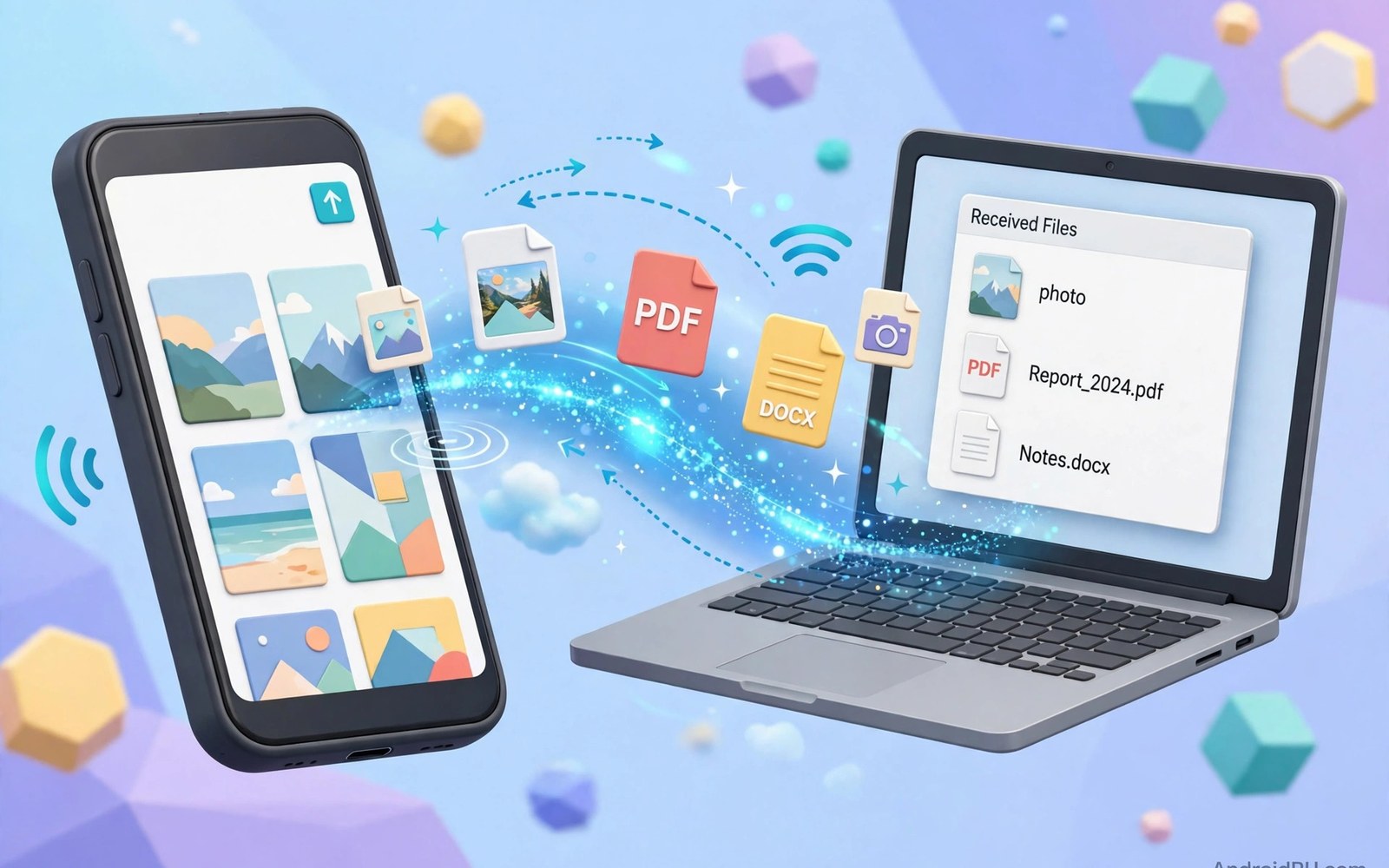
Wireless transfer frees you from hunting for a cable every time you move a photo. Your phone and your computer can share files over the same Wi-Fi network. Many methods need no extra app at all. Others use a simple browser page or a cloud folder. This guide compares the main options and shows each one step by step.
Speed depends on your Wi-Fi network and the file size. A strong local network moves a video in seconds. A weak signal or a busy router slows everything down. Large files benefit from a direct local method rather than a cloud upload. Small files work well with almost any method in this guide.
Privacy matters when you send personal photos and documents. Local methods keep files inside your home network. Cloud methods store a copy on a remote server for syncing. Choose a local method for sensitive files when possible. Always check who can access a shared link before you send it.
Use Built-In Nearby Sharing
Nearby sharing on Android sends files to a nearby Windows computer or another Android device. Open the file you want to send and tap Share. Choose the nearby share option and wait for the computer to appear. The receiving device must accept the transfer. Both devices need Bluetooth and Wi-Fi turned on for discovery.
This method works best for a handful of photos or a short video. It needs no cable and no account sign-in. Keep both devices close together during the transfer. Distance and walls weaken the direct connection. If the computer never appears then check that discovery is turned on on both sides.
Share Through Your Browser
Several file apps offer a browser based transfer page. Open the app on your phone and start its wireless sharing feature. The app shows a web address and sometimes a code. Type that address into the browser on your computer. The computer then sees your phone files in a simple web page.
You can download files from that page without installing software on the computer. The connection stays local when both devices share the same network. Close the sharing session when you finish. Leaving it open lets anyone on the network see the page if they guess the address. A code adds a useful extra layer.
python3 -m http.server 8000
# open the shown address on the PC browser
Sync With a Cloud Folder
Cloud folders suit files you need on many devices over time. Install the same cloud app on your phone and your computer. Files you place in the folder upload and then download to the other device. You can access them later even when the phone is off. This method works across different networks and locations.
Cloud sync uses internet data for uploads and downloads. A large video can eat mobile data if you sync over a mobile connection. Set the app to sync only on Wi-Fi to avoid surprise charges. Check storage limits before you upload a large library. Delete old files from the cloud when space runs low.
Send Files With a Messaging App
Messaging apps offer a quick route for small files. Send a file to yourself or to a chat you control. Open the same account on the computer and download the file. This method needs no setup beyond an account you already use. It works when you are away from home and on different networks.
Messaging apps often compress photos and videos to save bandwidth. The quality loss matters for printing or editing. Documents usually arrive unchanged because they are not compressed. For original quality use a direct transfer or cloud folder instead. Messaging remains handy for a quick document or screenshot.
Transfer Over a Local Network Folder
Some file manager apps can share a folder over the local network. Turn on the sharing feature and note the address it shows. Open that address in the file explorer on your computer. You can browse phone folders and copy files like any network drive. This method suits bulk moves of many files at once.
Network sharing exposes folders only while the feature stays on. Turn it off after the transfer finishes. Use a password if the app offers one. A password stops other devices on the network from opening your files. Avoid this method on public Wi-Fi where strangers share the same network.
Fix Slow or Failed Transfers
Slow transfers often trace back to a weak Wi-Fi signal. Move closer to the router and try again. Restarting Wi-Fi on both devices clears many stuck connections. A router restart helps when several devices struggle at once. Keep the phone screen on during long transfers so the system does not pause the app.
If a transfer fails halfway then try a smaller batch first. Splitting a huge folder into parts isolates a damaged file. Check free space on the receiving device before a large copy. A full disk stops a transfer without a clear error. Rename files with unusual characters if the receiver rejects them.
Choose the Right Method for Each File
Photos for social sharing suit nearby sharing or messaging. Original camera photos deserve a direct local transfer or cloud sync. Work documents suit a cloud folder because version history helps. Videos benefit from a fast local method due to their size. Matching the method to the file saves time and data.
Think about who else needs the file. A cloud link works when the receiver is far away. A local method works when both devices sit in the same room. Security needs also shape the choice. Sensitive work files should avoid public links and shared computers. A private local transfer keeps control in your hands.
Keep Transfers Secure
Turn off sharing features after each session. Open features expose your device to anyone nearby. Review which apps can access all files on your phone. Limit that permission to file managers you trust. Remove old shared links from cloud apps so they cannot be reused later.
Use your home Wi-Fi or a trusted network for personal files. Public Wi-Fi adds risk even for local transfers. A virtual private network adds protection on untrusted networks. Keep your phone system updated so sharing features receive security fixes. Small habits protect far more than any single app choice.
Why Wireless Beats Cables for Daily Use
Wireless transfer removes the daily hunt for a cable. You can send a photo while the phone charges across the room. No port wear occurs from repeated plugging. Ports last longer when cables stay in a drawer. Convenience grows with each small transfer.
Cables still win for huge single files on weak Wi-Fi. Wireless wins for frequent small jobs. Most daily transfers are small photos and documents. Those jobs suit wireless methods perfectly. Keep a cable ready for rare huge jobs only.
Transferring Between Different Brands
Different Android brands use slightly different sharing menus. The core share sheet stays familiar across brands. Nearby sharing bridges most brand differences. Cloud folders bridge the rest. A browser method works regardless of brand.
Test sharing with a friend phone before an urgent deadline. A test reveals menu differences early. Learn the receiver steps on that brand. A five minute test prevents stress later. Brand variety should not block a simple transfer.
Keeping File Names and Folders Tidy
Transferred files often land in a generic downloads folder. Rename important files right after transfer. Add a date to the start of the file name. Dates sort files in chronological order. Clear names save search time months later.
Move transferred files into topic folders weekly. A weekly tidy takes only a few minutes. Photos go to a photos folder. Work files go to a work folder. Tidy folders turn a messy download pile into a usable archive.
Transferring Large Videos Safely
Large videos need a stable connection for the full transfer. A dropped connection may corrupt a partial file. Check the file size on the receiver after transfer. Compare it with the size on the sender. Matching sizes confirm a complete copy.
Play the first and last seconds of a transferred video. Corruption often shows at the end of a file. A quick playback check catches problems early. Retransfer at once if playback stutters. Do not delete the original until the copy checks out.
Sharing Files With Family Members
Family sharing needs simple steps that everyone can follow. Teach one method and stick to it. A single method avoids confusion across generations. Write the steps on a card near the computer. A card helps when memory fades.
Create a shared family folder for photos and documents. Everyone drops files into the same place. The folder becomes a family archive over time. Review its contents together monthly. Shared folders strengthen family memories and organisation.
When Wireless Transfer Is Not Enough
Wireless transfer fails when networks are congested or absent. A cable then becomes the reliable fallback. A USB drive offers another offline option. Copy files to the drive from the phone with an adapter. Move the drive to the computer afterwards.
Cloud upload also fails without internet access. Plan offline options before travel to remote areas. Download needed files before departure. Carry a cable in a travel bag always. Backup methods turn a failed transfer into a minor delay.
Bluetooth Transfer as a Fallback
Bluetooth transfer works when Wi-Fi methods fail completely. It needs no network at all between devices. Pair the devices once through Bluetooth settings. Send small files through the share sheet afterwards. Bluetooth suits documents and single photos best.
Bluetooth speed lags far behind Wi-Fi for large files. A video that takes seconds on Wi-Fi may take many minutes on Bluetooth. Reserve Bluetooth for urgent small files only. Patience matters when no faster method exists. A slow success beats a fast failure.
Emailing Files to Yourself
Emailing a file to yourself creates a simple transfer path. Attach the file and send it to your own address. Open the email on the computer and download the attachment. This method works across any distance with internet. It needs no shared network or discovery setup.
Email attachment size limits restrict this method. Most providers cap attachments around twenty five megabytes. Large videos exceed that cap quickly. Compress or split large files before emailing. Email transfer suits documents and small images best.
Wireless Transfer Checklist
Run through these points before you start a large transfer.
- Connect both devices to the same Wi-Fi network.
- Charge both devices or plug them in for long transfers.
- Free enough space on the receiving device first.
- Turn on discovery or sharing only for the session.
- Check file quality settings before sending photos.
- Turn sharing off again when the transfer ends.
This short routine avoids most failed transfers. It also keeps your files private after the job ends. Repeat it each time you move a large batch.
Wireless transfer pairs well with fast phone to phone sharing. Learn how to share large files instantly using Android Quick Share when the receiver is another Android device nearby.
For viewing content on a bigger screen try how to mirror your Android display to a PC or TV and for sharing your connection read how to use your Android phone as a portable hotspot.
The steps above follow the approach described in the official developer documentation for Android devices. The documentation covers nearby sharing and local network behaviour in general terms. App menus differ by brand but the underlying transfer ideas stay the same.
Wireless transfer is easy once you pick the right method for the file. Local sharing wins for speed and privacy at home. Cloud sync wins for access across devices and places. Turn sharing off after each session. With those habits you will rarely need a cable again.

