

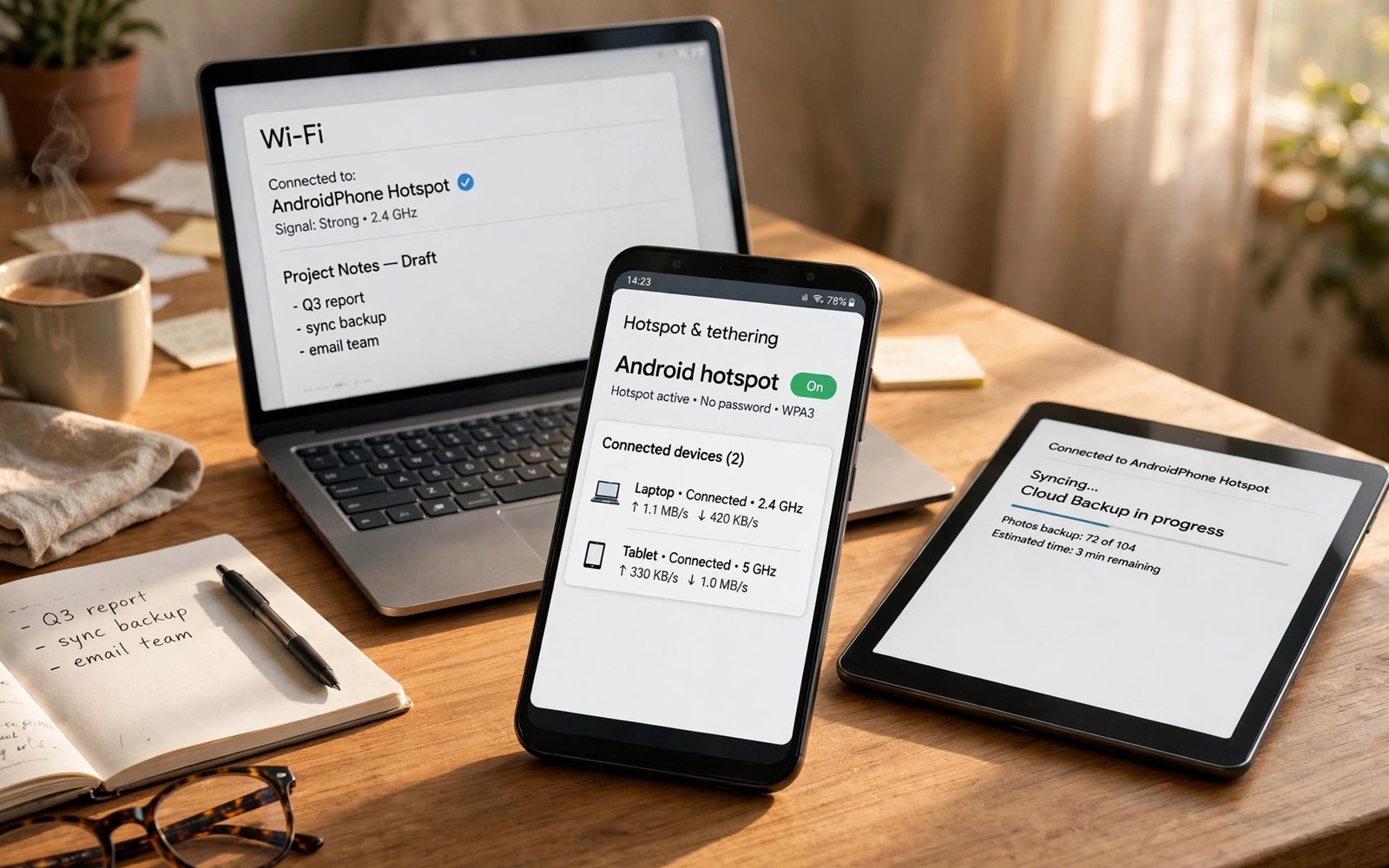
A phone hotspot shares mobile data with other devices. A laptop can go online through your phone connection. A tablet can browse without its own SIM card. This guide covers Wi-Fi hotspot and USB tethering. Both methods share the same mobile connection.
Wi-Fi hotspot suits several devices at once. USB tethering suits one computer with a stable link. USB tethering also charges the phone while it shares. Wi-Fi hotspot drains battery faster but offers freedom of movement. Choose the method that fits the moment.
Check your mobile plan before heavy hotspot use. Some plans limit hotspot data separately. Others charge extra after a hotspot allowance ends. A short check prevents a surprise bill. This guide shows how to set data limits as a safety net.
Turn On the Wi-Fi Hotspot
Open Settings and search for Hotspot. The setting usually sits under Network or Connections. Tap Wi-Fi hotspot and turn it on. Set a network name that you recognise. Choose a strong password before sharing it with anyone.
Other devices will see the hotspot name in their Wi-Fi list. Tap the name and enter the password. The connection should start within seconds. Keep the phone nearby for a stable signal. Distance weakens the hotspot link fast.
Use USB Tethering for One Computer
Connect the phone to the computer with a data cable. Open Settings and search for USB tethering. Turn on the USB tethering switch. The computer treats the phone as a network adapter. It should go online without extra software on most systems.
USB tethering gives a stable link for video calls. It also keeps the phone charging during the call. Use a good cable that supports data transfer. A charge only cable will not show the tethering option. Try another cable if the switch stays greyed out.
adb shell settings put global tether_dun_required 0
# hotspot controls live in Settings on most phones
Set a Strong Hotspot Password
Use a password with letters and numbers that others cannot guess. Avoid your phone number or birth year. Change the password after sharing it with guests. A changed password stops old guests from reconnecting later. Review connected devices in hotspot settings often.
Use WPA2 or WPA3 security when the phone offers a choice. Open hotspots invite anyone nearby to use your data. A stranger could also probe connected devices on an open network. Strong security protects both data and devices. Never leave a hotspot open in public.
Limit Data and Connected Devices
Set a data limit for the hotspot in Settings when offered. The limit stops sharing after a chosen amount. This guard protects your monthly allowance. It also stops one guest from streaming all your data. Warn guests about the limit before they start large downloads.
Limit the number of connected devices when possible. Each device shares the same mobile bandwidth. Video calls suffer when many devices stream at once. Disconnect devices you no longer need. A short connected list keeps speeds usable for everyone.
Fix Devices That Will Not Connect
A device that cannot see the hotspot may need Wi-Fi toggled off and on. Restart the hotspot on the phone as well. Check that the password matches exactly including capital letters. A single wrong character blocks the connection. Forget the network on the device and reconnect fresh.
If the hotspot turns on but gives no internet then check mobile data. Turn mobile data off and on again. Move to a spot with a stronger signal. A weak mobile signal gives a weak hotspot. Restart the phone if the problem persists after those steps.
Save Battery While Sharing
Hotspot use drains battery faster than normal browsing. Plug the phone into power during long sessions. Lower screen brightness and close unused apps. Turn off the hotspot when no device needs it. A forgotten hotspot can drain a full battery in hours.
USB tethering helps battery because the cable charges the phone. Wi-Fi hotspot has no such benefit. Carry a power bank for outdoor hotspot work. A power bank keeps the phone alive through a long work session. Plan power before you promise a shared connection.
Hotspot Security on Public Trips
Public places invite unwanted connection attempts. Keep hotspot visibility private when possible. Share the password only with people you trust. Change it after a trip with many guests. Check connected devices before sensitive work like banking.
Avoid banking on a device connected through a shared hotspot with guests. Guests on the same network could probe traffic. Use your own phone for sensitive tasks instead. Log out of accounts on shared devices after use. Small precautions prevent large problems.
Choose Hotspot or a Dedicated Router
A phone hotspot suits short trips and emergencies. It needs no extra hardware. A dedicated mobile router suits daily work for a team. It offers better battery and stronger antennas. It also keeps your phone free for calls.
Compare costs before buying a router. A router needs its own SIM plan in many cases. A phone hotspot uses your existing plan. For occasional use the phone wins on cost and simplicity. For daily team use a router wins on reliability.
How Hotspot Data Travels
Hotspot data travels from the phone modem to connected devices. The phone acts as a small router. It assigns local addresses to guests. It forwards their traffic to the mobile network. The whole process happens inside the phone system.
Speed depends on mobile signal strength first. A strong signal gives fast hotspot speeds. A weak signal gives slow speeds for everyone. No hotspot setting fixes a weak tower signal. Moving near a window often improves signal noticeably.
Hotspot for Remote Work
Remote work through a hotspot needs stability above speed. Video calls need steady bandwidth more than peak speed. Close background downloads before a call. Ask guests to pause streaming during your call. A stable call beats a fast but jittery one.
Carry a power bank for full day remote work. Hotspot plus video calls drain battery in hours. A power bank extends the workday reliably. Choose a bank with enough capacity for the phone. Test the setup at home before a travel workday.
Hotspot Etiquette With Guests
Guests should know data limits before heavy use. Tell them the allowance at the start. Ask them to avoid large downloads and updates. A short briefing prevents awkward cutoffs later. Most guests respect limits when told early.
Thank guests for light use after a session. Positive feedback encourages future cooperation. Change the password after guests leave. A changed password protects future allowances. Etiquette plus technical controls keep sharing pleasant.
USB Tethering Versus Wi-Fi Hotspot
USB tethering gives one device a stable wired link. Wi-Fi hotspot gives many devices wireless freedom. Tethering charges the phone during use. Hotspot drains battery without a charger. Choose tethering for long single device work.
Tethering avoids Wi-Fi interference in crowded places. A cable link stays stable near many networks. Hotspot links can suffer in busy venues. A cable in a bag solves many venue problems. Keep both options in mind for travel.
Hotspot and Mobile Plan Types
Prepaid plans often include hotspot data differently than postpaid plans. Some prepaid plans block hotspot entirely. Others count hotspot data from the same allowance. Check plan details before relying on hotspot abroad. A blocked hotspot ruins a travel plan.
Unlimited plans may still throttle hotspot speeds. Throttling caps hotspot bandwidth after a threshold. Read the fair use terms for your plan. A throttled hotspot still handles email and browsing. It may struggle with video calls after throttling.
Fixing Hotspot That Drops Repeatedly
Repeated drops often trace to power saving settings. Battery optimisation may kill the hotspot service. Exempt hotspot from aggressive optimisation when offered. Keep the phone awake during critical sessions. A sleeping phone can drop guest connections.
Overheating also drops hotspots during long use. Move the phone to shade and remove its case. Lower the number of connected devices. Fewer devices mean less heat and load. A cool phone holds connections far longer.
Hotspot for a Gaming Console
A phone hotspot can connect a gaming console temporarily. Consoles need stable bandwidth for online play. Mobile hotspots often add latency to games. Latency causes lag in fast multiplayer matches. Single player downloads tolerate hotspot use better.
Download game updates over hotspot only when necessary. Updates consume large data amounts quickly. Check update size before starting a download. A huge update can exhaust a monthly allowance. Wi-Fi remains better for large console downloads.
Monitoring Hotspot Data in Real Time
Real time monitoring prevents allowance surprises during sharing. Check data usage in Settings during a session. Watch the total climb as guests use data. Warn guests when approaching a self imposed cap. Early warnings allow graceful slowdowns.
Third party data monitor apps offer live widgets. A widget on the home screen shows usage at a glance. Choose a reputable monitor app with minimal permissions. A monitor should not itself consume much data. Visibility turns hotspot sharing from guesswork into management.
Hotspot Safety Checklist
Run through this list before you share your connection.
- Set a strong password and modern security.
- Check your plan for hotspot limits.
- Set a data limit as a safety net.
- Keep connected devices to a short list.
- Plug the phone into power for long sessions.
- Turn the hotspot off when you finish.
This checklist protects your data allowance and your battery. It also keeps strangers off your connection. Repeat it each time you start a hotspot.
Hotspot sharing works best alongside careful data habits. Read how to manage and limit mobile data usage to avoid extra fees.
For file sharing over the same connection see how to transfer files between Android and PC wirelessly and how to share large files instantly using Quick Share.
The steps above follow the approach described in the official developer documentation for Android devices. The documentation covers tethering behaviour and network sharing controls in general terms. Carriers and brands add their own hotspot menus on top of that shared system.
A phone hotspot is a pocket internet lifeline. Set a strong password and a data limit first. Use USB tethering for stable single computer work. Turn sharing off when you finish. With those habits your hotspot stays fast and safe.

