

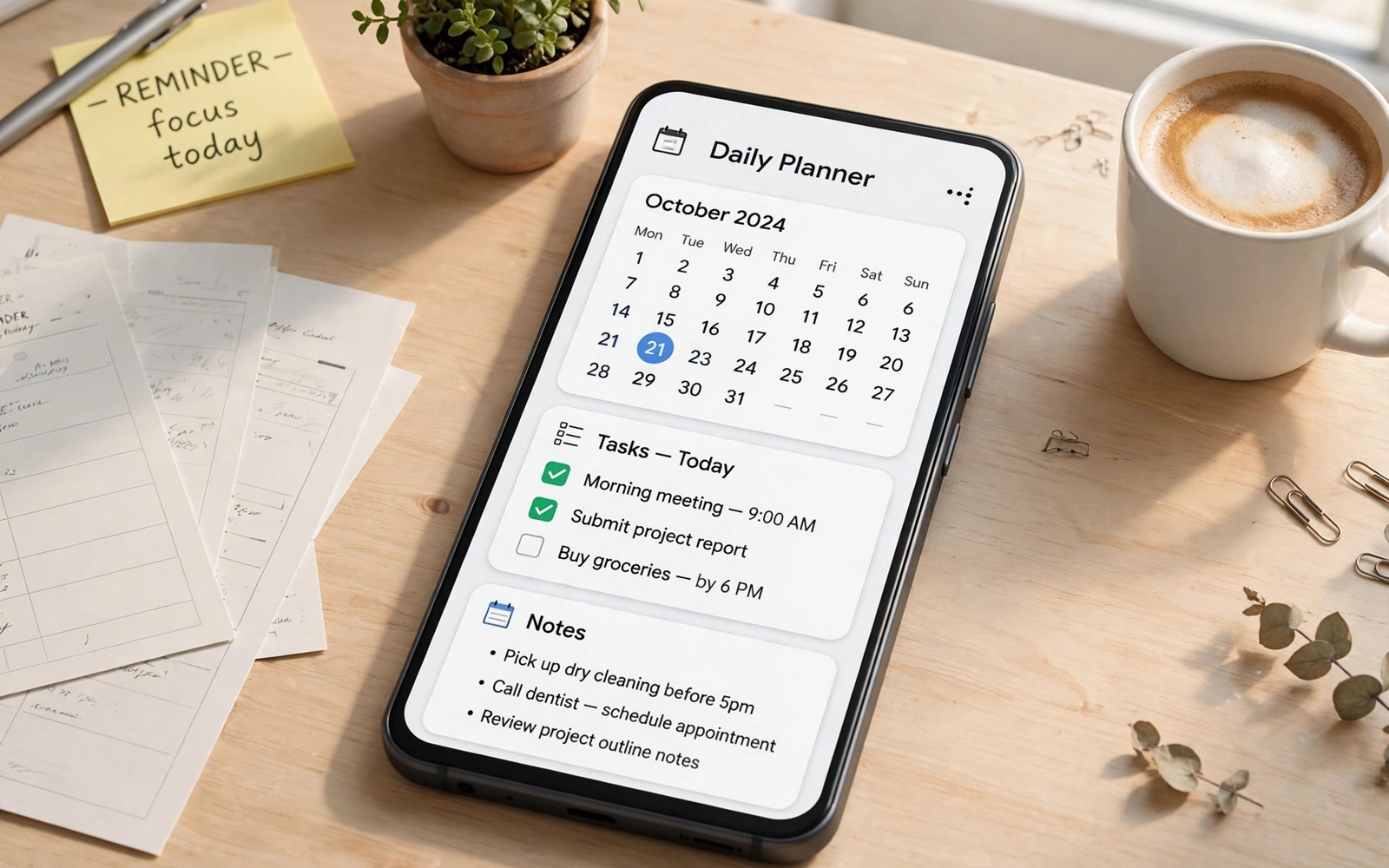
Top Android apps for daily organization and time management help you turn a busy day into a clear sequence of tasks. A calendar shows commitments and a task list shows next actions and a notes app captures ideas before they vanish. Together these tools reduce mental clutter and help you focus on one task at a time. This article shows how to build a simple organization system that survives real weeks rather than perfect Mondays.
Start with a calendar that syncs across your phone and computer. A synced calendar means an event added on one device appears everywhere without extra steps. Add a task app next and keep it separate from the calendar so tasks never hide inside event details. Owners who want a stronger system can also explore apps that turn a phone into a productivity engine after the basics feel solid. Simple tools used daily beat complex tools used rarely.
This article gives you a practical path through the topic without hype. You will learn what to install first and what to skip and how to judge each option on your own phone.
Review app settings after a major update because updates sometimes reset a preference. A two minute settings check after an update prevents silent changes to privacy or sync. Updates should improve an app and never surprise its owner.
Set a reminder to revisit a new app after thirty days. A month of use shows whether the app became a habit or a forgotten icon. Remove habits that faded and keep tools that proved their worth.
Protect your accounts with a second factor wherever the app offers it. A second factor blocks most automated attacks even when a password leaks. Enable it on mail and cloud and banking apps first because those guard the rest.
Calendars that keep promises
A good calendar makes adding an event fast and shows the day clearly at a glance. Add location and a reminder when you create the event so future you never guesses. Use one calendar for work and one for personal life with different colours so a quick look separates the two. Colour coding prevents double booking better than any reminder alone.
Review tomorrow tonight for two minutes and review the week each Sunday. That short review catches conflicts early when they are easy to fix. Share a calendar with family when schedules overlap so everyone sees the same plan. Shared visibility ends most scheduling arguments before they start.
Review app settings after a major update because updates sometimes reset a preference. A two minute settings check after an update prevents silent changes to privacy or sync. Updates should improve an app and never surprise its owner.
Notifications decide whether an app helps you or interrupts you all day. Keep alerts on for messages that need a fast reply and silence the rest. A quiet phone still delivers urgent news while it protects your focus.
Set a reminder to revisit a new app after thirty days. A month of use shows whether the app became a habit or a forgotten icon. Remove habits that faded and keep tools that proved their worth.
Task lists that stay useful
A task list works when it stays short and honest. Keep no more than five active tasks per day and move the rest to a later list. A long list feels heavy and invites avoidance while a short list invites action. Check off finished tasks at once because visible progress motivates the next task.
Break large projects into small next actions that take under thirty minutes. A vague task such as plan trip stalls while a clear task such as book hotel for Friday moves fast. Add a due date only when a real deadline exists because fake urgency trains you to ignore dates. Clarity turns a list into momentum. A related system worth studying is student apps for notes and scheduling alongside the tools above.
Set a reminder to revisit a new app after thirty days. A month of use shows whether the app became a habit or a forgotten icon. Remove habits that faded and keep tools that proved their worth.
A simple home screen layout makes good apps easier to reach. Put daily tools on the first screen and move rarely used apps into folders. Fewer taps mean you finish tasks faster and you are less likely to open a distraction by accident.
Storage and battery shape how well any app performs over time. Check storage use once a month and clear cached files that grow without adding value. A phone with free space runs smoother and updates install without errors.
Notes that you can find again
A notes app succeeds when search finds an old idea in seconds. Give each note a clear title and add one tag that describes its topic. Capture ideas in the moment and organise them later during a weekly review. Capture first and structure second keeps the system fast enough for busy days.
Link related notes when the app supports it so a project note connects to its research and its task list. Linked notes reduce duplicate work because you see prior thinking before you start again. Keep templates for repeated notes such as meeting records and trip plans. Templates save typing and keep records consistent.
Protect your accounts with a second factor wherever the app offers it. A second factor blocks most automated attacks even when a password leaks. Enable it on mail and cloud and banking apps first because those guard the rest.
Compare two similar apps on the same task on the same day. A direct comparison shows speed and clarity differences that feature lists hide. Pick the winner promptly and remove the loser so data never splits across two tools.
Test an app with your real routine before you judge it. A demo on a quiet afternoon hides problems that appear during a busy commute or a low battery day. Real use shows speed and reliability in a way that screenshots never can.
adb shell dumpsys alarm
adb shell cmd jobscheduler list
adb shell settings get global auto_time
The scheduling commands above follow the pattern used in Android developer guides for inspecting alarms and scheduled jobs on a device. The same guides explain that scheduled work controls reminders and background updates.
Routines and time blocking
Time blocking assigns a task to a calendar slot so work gets a protected window. Block deep work in the morning when focus is strongest and leave afternoons for messages and errands. Treat a block like an appointment and defend it from casual interruptions. A protected hour produces more than three scattered hours. New owners can start from must-have apps for new phones for the same routine.
A daily routine template saves decisions each morning. Wake and review and plan and work in the same order and the day starts without debate. Adjust the template monthly as seasons and projects change. A routine should serve your goals and never become a rigid cage.
Permissions deserve a quick review before you trust a new app with daily work. Grant only the access the app truly needs for its main job and leave the rest off until a feature asks for it. You can change any permission later in system settings without losing your data.
Review app settings after a major update because updates sometimes reset a preference. A two minute settings check after an update prevents silent changes to privacy or sync. Updates should improve an app and never surprise its owner.
Compare two similar apps on the same task on the same day. A direct comparison shows speed and clarity differences that feature lists hide. Pick the winner promptly and remove the loser so data never splits across two tools.
Review habits that keep the system alive
A weekly review clears finished tasks and updates project notes and plans the next week. Spend twenty minutes on the review and the system stays trustworthy. Without review a task list fills with stale items and trust fades fast. Trust is the real product of any organization system.
A monthly review looks further ahead and asks which projects still matter. Drop projects that lost their purpose and archive their notes so they stop cluttering active lists. Ending a project cleanly frees attention for work that matters now. Regular endings keep the system honest.
Updates matter because developers fix bugs and close security gaps in each release. Turn on automatic updates for trusted apps and read the changelog when an update changes a feature you rely on. Skip an update only when you have a clear reason and a backup plan.
Learn one advanced feature per month inside an app you already love. Small steady learning beats a weekend of tutorials that you forget by Monday. One feature per month compounds into mastery within a year.
Set a reminder to revisit a new app after thirty days. A month of use shows whether the app became a habit or a forgotten icon. Remove habits that faded and keep tools that proved their worth.
Common mistakes
A common mistake is installing five organization apps at once and splitting tasks across all of them. Another mistake is building a complex system that needs daily maintenance instead of a simple system that needs a weekly review. A third mistake is adding every idea to the task list instead of keeping a separate idea capture. One calendar and one task list and one notes app form a complete core.
Check how an app handles your data before you sign in. Read the privacy screen inside the app and look for clear controls to export or delete your content. Strong defaults beat long promises when you compare two similar apps.
Test a new app in a real situation before you trust it with important work. A short test on a busy day reveals speed problems that a quiet demo hides. Keep the test short and focused so you can judge fairly without wasting an afternoon.
Storage and battery shape how well any app performs over time. Check storage use once a month and clear cached files that grow without adding value. A phone with free space runs smoother and updates install without errors.
Frequently asked questions
Should tasks and calendar events live in one app?
Separate apps work better for most owners because tasks and events behave differently. A combined app can work when it keeps the two views clearly distinct.
How long should a daily review take?
A daily review should take two to five minutes. If it takes longer then the system holds too many items and needs a cleanup.
What if I fall behind on tasks?
Move unfinished tasks to a new date during the weekly review instead of letting them pile up. A fresh date restores honesty while an old date only adds guilt.
What to do next
Your concrete next step is to set up one calendar and one task list tonight and add tomorrow tasks before bed. Review them in the morning and check off each task as you finish it. One day of honest use shows whether the system fits your life.
Check how an app handles your data before you sign in. Read the privacy screen inside the app and look for clear controls to export or delete your content. Strong defaults beat long promises when you compare two similar apps.
Start small and review your setup after one week of real use. Keep what helped and remove what did not and your phone will stay fast and useful.

