

Mobile data fees hurt when an app quietly uses gigabytes. Video and cloud backup are common culprits. Background sync can also drain an allowance. Android offers warnings and limits to stop surprises. This guide shows how to use them.
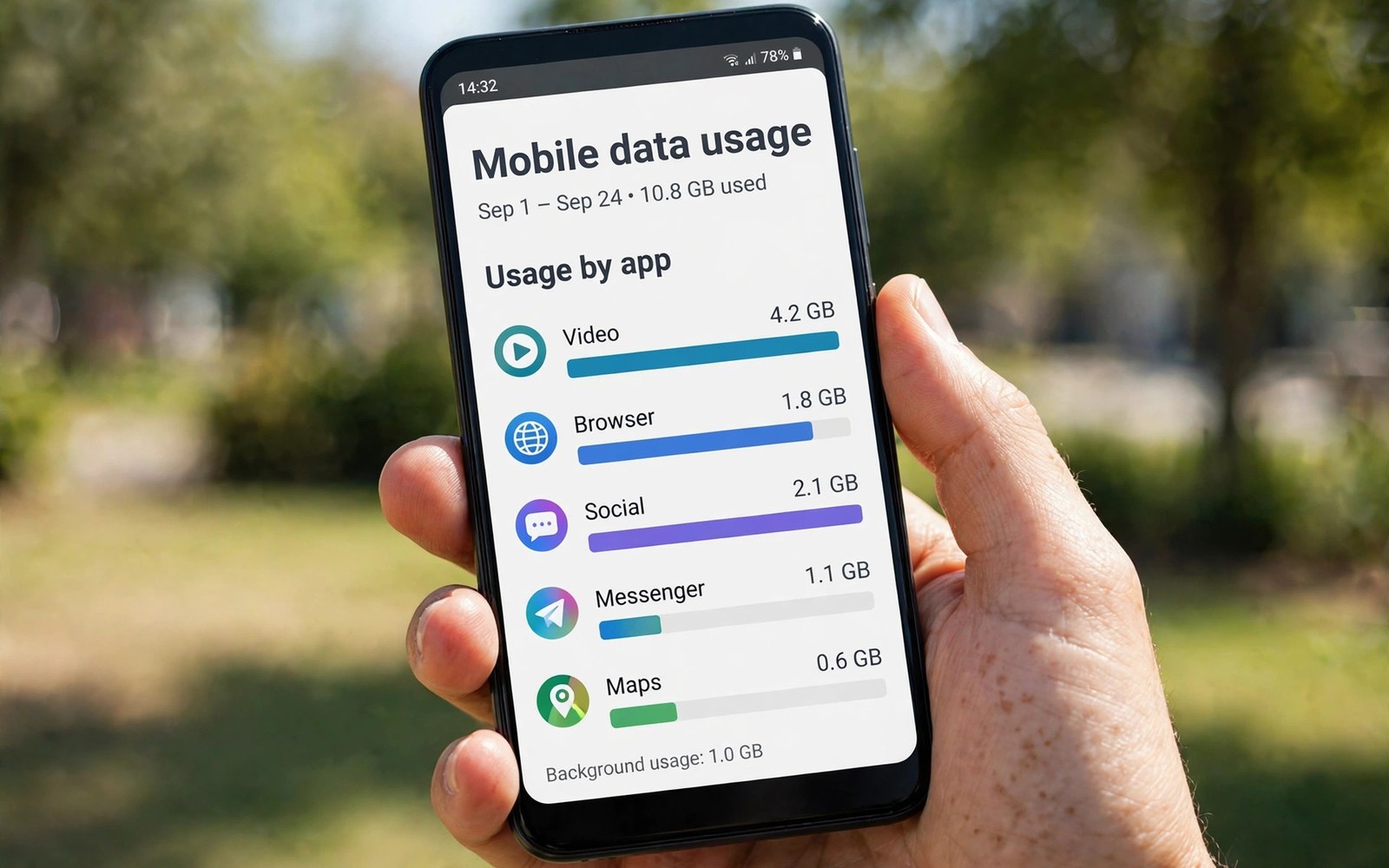
Data usage settings show which apps use the most data. The chart breaks usage into foreground and background parts. Foreground data comes from apps you open. Background data comes from sync and updates. Knowing the split helps you target the real culprits.
A data limit acts as a safety net for your plan. The phone warns you near the limit. It can cut mobile data at the limit. This guard works best when it matches your billing cycle. This guide shows how to align dates correctly.
Check Your Data Usage First
Open Settings and search for Data usage. The page shows total mobile data for the current cycle. Tap the chart to see per-app usage. Sort apps by data used to find the biggest consumers. Video and social apps usually top the list.
Check the billing cycle dates on the same page. The cycle should match your carrier billing period. Adjust the cycle start day if it differs. A mismatched cycle makes warnings useless. Correct dates turn the chart into a reliable budget tool.
Set a Warning and a Hard Limit
Open data usage settings and turn on the data warning. Set the warning below your plan allowance. A warning at eighty percent gives time to act. Turn on the data limit as well. Set the limit at or just below your allowance.
The phone will cut mobile data when the limit is hit. That cutoff prevents overage fees. You can turn data back on manually if needed. A manual override suits emergencies. Keep the override rare or the limit loses its purpose.
adb shell settings put global data_roaming 0
# data controls live in Network settings on most phones
Limit Background Data Per App
Open an app info page for a heavy data user. Look for Mobile data settings. Turn off background data for apps that do not need constant sync. The app will then use data only when you open it. News and shopping apps suit this restriction well.
Keep background data on for messaging and email. Those apps need timely updates. Restricting them delays important messages. Review background access every few months. New apps may request background data after install.
Turn On Data Saver Mode
Data Saver mode limits background data across the system. Open Settings and search for Data Saver. Turn it on to restrict most background use. Apps you exempt keep full background access. Exempt only messaging and other essential apps.
Data Saver also reduces image quality in some apps. That trade-off saves data on image heavy feeds. Foreground use stays mostly normal. Turn Data Saver off on Wi-Fi heavy days if needed. It matters most when you rely on mobile data.
Control Video and Autoplay Quality
Video apps offer data quality settings inside the app. Set video quality to standard on mobile data. Turn off autoplay for videos in social feeds. Autoplay burns data on videos you never watch. These in-app settings often save more than system controls.
Set cloud apps to upload only on Wi-Fi. Photo backup over mobile data can consume gigabytes. Open the cloud app settings and choose Wi-Fi only. Do the same for app store updates. Large updates should wait for Wi-Fi too.
Use Wi-Fi Wisely and Roaming Carefully
Connect to trusted Wi-Fi for large downloads and updates. Home and work Wi-Fi save mobile allowance daily. Turn off mobile data when Wi-Fi is strong and stable. The phone may still use mobile data if Wi-Fi drops. Check the Wi-Fi icon during long downloads.
Roaming data can cost far more than home data. Turn off data roaming before travel unless your plan covers it. Buy a local SIM or travel plan for long trips. A travel plan beats roaming fees in most cases. Check roaming charges before you leave home.
Monitor Usage Through the Month
Check data usage weekly rather than at month end. Weekly checks catch a runaway app early. A single app update can change data behaviour suddenly. Early detection lets you restrict it before fees appear. Set a weekly reminder if you forget to check.
Compare usage month to month after changes. A successful restriction should show in the chart. If usage stays high then another app is responsible. Investigate the next biggest consumer. Data management is an ongoing habit rather than a one time fix.
Fix a Sudden Data Spike
A sudden spike often follows an app update or a settings reset. Open data usage and find the app with the jump. Restrict its background data at once. Clear its cache if the spike came from repeated failed uploads. Restart the phone after the change.
If no app explains the spike then check system services. System updates and backup can use large amounts. Pause backup until Wi-Fi is available. Contact your carrier if the spike remains unexplained. Carrier logs can confirm whether the usage was real.
How Carriers Measure Data
Carriers measure data at the network level. Phone usage charts estimate from device counters. Small differences between the two are normal. Carrier totals govern billing decisions. Phone totals guide daily management.
Check carrier usage in the carrier app weekly. Compare it with phone usage for sanity. A large gap may signal a counting problem. Contact the carrier when gaps persist. Keep screenshots of both totals for disputes.
Data Use by App Category
Video apps dominate data use for most users. Social feeds with autoplay follow close behind. Cloud backup spikes during photo uploads. Maps use modest data except for offline downloads. Email uses little data except for large attachments.
Audit categories rather than single apps alone. A category view reveals habits clearly. Video habit changes save more than tweaking email. Focus effort where data actually goes. Category thinking makes budgeting intuitive.
Data Saving While Travelling
Travel increases data needs for maps and translation. Download maps offline before departure. Download translation packs before departure. Offline content cuts roaming data sharply. A prepared traveller uses far less mobile data.
Turn off automatic photo backup while travelling. Backup can upload gigabytes over roaming. Wait for hotel Wi-Fi for backups. Set backup to Wi-Fi only before leaving. A single setting prevents roaming surprises.
Family Data Sharing Plans
Family plans share one allowance across lines. One heavy user can exhaust the shared pool. Set per line warnings when the carrier offers them. Discuss limits with family members openly. Shared plans need shared responsibility.
Teach children about data costs in plain terms. Show them the usage chart for their line. Celebrate months under the limit together. Positive framing works better than blame. Family data habits improve with visibility.
Data Saver and App Behaviour
Data Saver changes how apps fetch content. Apps may delay image loading under Data Saver. Some apps show lower resolution images. Messaging apps still deliver texts promptly. Exempt apps keep normal behaviour at a data cost.
Test favourite apps under Data Saver for a day. Note any app that feels broken. Exempt only apps that truly need background data. Keep exemptions minimal for maximum savings. A short test prevents frustration later.
When to Upgrade Your Plan
Repeated limit hits signal a plan mismatch. Upgrading may cost less than overage fees. Compare overage costs with the next plan tier. A higher tier often wins after two overage months. Do the maths before deciding emotionally.
Downgrading suits users consistently under half allowance. A lower tier saves money monthly. Check usage across three months before downgrading. Seasonal spikes can mislead a single month view. Three months reveal the true pattern.
Data Usage Widgets on the Home Screen
Data widgets show usage without opening Settings. Place a widget from a monitor app on the home screen. A glance reveals remaining allowance daily. Glanceable data prevents end of month surprises. Widgets turn invisible usage into visible habit.
Choose a widget that updates reliably in background. Some widgets freeze under battery optimisation. Exempt the monitor app from optimisation when needed. Test widget accuracy against Settings totals. A widget that lies harms more than no widget.
Data Plans for Children Lines
Children lines need stricter data controls than adult lines. Set lower warnings for children lines early. Teach children to use Wi-Fi for video. Video habits dominate children data use. Early teaching prevents allowance battles later.
Review children usage together monthly. Celebrate months under the limit with praise. Discuss overages calmly without blame. Children learn budgeting through guided review. Family data talks build lifelong digital habits.
Data Roaming Alerts Abroad
Roaming alerts deserve special attention when travelling abroad. Set a roaming warning far below your normal warning level. Roaming data costs multiply quickly compared with home data. A low roaming warning gives time to buy a local plan. It also stops background apps from draining a travel budget silently.
Turn off automatic updates entirely while roaming. Updates can download hundreds of megabytes without asking. Manually update only essential apps on hotel Wi-Fi. Keep maps and translation apps updated before departure. Preparation plus strict roaming alerts keeps travel data bills predictable.
Data Saving Checklist
Use this list to protect your allowance.
- Set the billing cycle to match your plan.
- Set a warning at eighty percent of allowance.
- Set a hard limit at your allowance.
- Restrict background data for heavy apps.
- Set cloud backup and updates to Wi-Fi only.
- Turn on Data Saver when on mobile data.
This checklist stops most surprise fees. It takes ten minutes to set up once. Review it when you change plans or phones.
Data limits matter most when sharing your connection. Read how to use your Android phone as a portable hotspot before sharing data with others.
For related system care see how to fix app crashes by clearing cache and storage and how to share large files instantly using Quick Share.
The steps above follow the approach described in the official developer documentation for Android devices. The documentation covers data usage controls and background restrictions in general terms. Carriers and brands add their own data menus on top of that shared system.
Mobile data control starts with visibility. Check usage and match the billing cycle. Set a warning and a hard limit. Restrict heavy background apps. With those controls your allowance lasts the month and fees stay away.

