

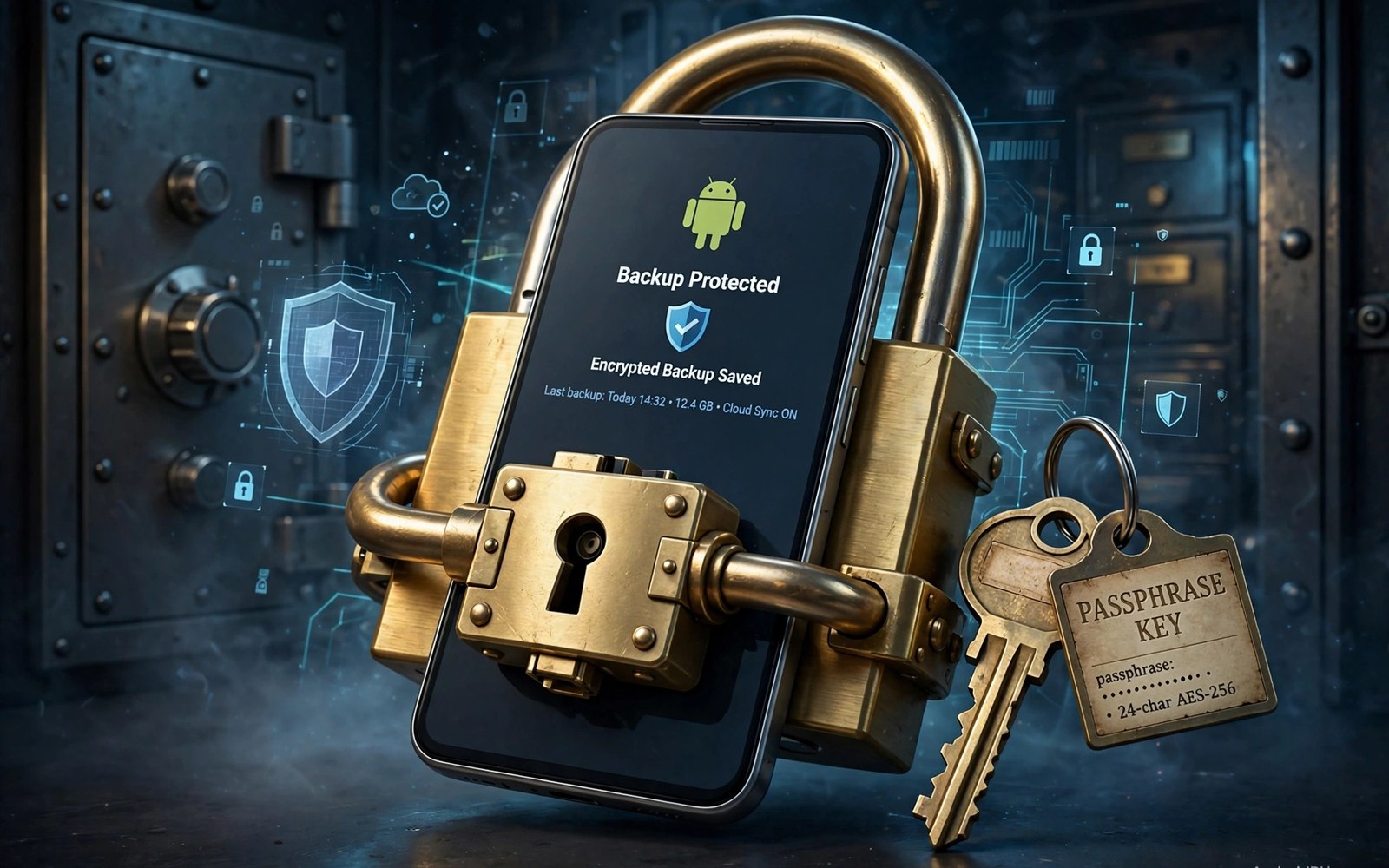
How to Encrypt Mobile Device Backups with Custom Passphrases
Losing a phone is bad enough. Losing the backup too is worse, and handing a stranger a readable copy of your photos, messages, and app data is worst of all. That is exactly what happens when a backup file sits unencrypted on a cloud drive, a laptop, or an old hard drive. Anyone who finds the file can open it. A custom passphrase changes that equation completely: the backup becomes a locked box, and only the passphrase opens it.
I set up encrypted backups on my own phone after a scare that taught me the lesson the cheap way. My old handset died on a trip, and while the cloud copy saved my photos, I realised anyone with access to that cloud account could have read everything in it. That week I rebuilt my whole backup routine around encryption I control, with a passphrase only I know. This guide walks you through the same setup, method by method, with real menu names and checks you can run at each step.
You will learn how Google One backup encryption actually works, how to add a custom passphrase to it, how to make an encrypted local copy with adb backup, and how to lock manual file copies inside an encrypted vault. You will also get a comparison table, a passphrase plan that does not rely on memory alone, and a test that proves your backup opens before the day you truly need it.
Why a Custom Passphrase Beats the Default Device Lock
Most Android backups are protected by something, but that something is often your screen lock PIN or your Google account password. That sounds safe until you think about who else knows those secrets. Your screen lock is typed in public, shoulder-surfed on trains, and sometimes shared with family. Your Google account password is the same key that opens your email. A custom passphrase is different: it exists for one job only, protecting backups, and it is never typed anywhere else.
The second reason is scope. A device lock protects the phone in your hand. It does nothing for a backup file sitting on a laptop or in cloud storage. If someone copies that file, your PIN never even enters the picture. Encryption with a passphrase scrambles the file itself, so the copy is useless without the secret. That is the whole point of learning how to encrypt mobile device backups with custom passphrases instead of trusting the default.
There is a trade-off, and you should hear it before you start. If you forget the passphrase, nobody can help you open the backup, not Google, not the app maker, not a repair shop. That is not a flaw in the system; it is the system working as designed. The fix is a passphrase you can remember and a safe place to keep a copy of it, which this guide covers in its own section. Get those two things right and the risk of forgetting drops close to zero.
How Google One Encrypts Android Backups and Where It Falls Short
Google One backup, the built-in backup on most Android phones, covers app data, call history, contacts, device settings, and photos and videos when Google Photos backup is on. Google encrypts this data in transit and at rest on its servers, and on Pixel phones and newer Android versions the backup is protected with your screen lock, which Google says it cannot read. That is real protection against a stranger who finds a server, but it is not the same as a passphrase only you hold.
Here is the catch. When your backup is locked with your screen lock, anyone who knows or guesses that lock, or who can reset it through account recovery, can reach the backup too. The encryption key is tied to credentials Google manages. You cannot pick a separate secret, you cannot change it independently, and you cannot verify the encryption yourself. For most people that is acceptable. For anyone who wants full control, it is a gap worth closing with a second, passphrase-protected copy.
That is why this guide treats Google One as layer one, not the whole plan. Keep it on, because it runs automatically and it revives a new phone fast. Then add a local encrypted copy that only your passphrase opens. The two layers cover different disasters: Google One covers a lost phone, and the encrypted local copy covers a compromised account. If you want to understand the revive side of the process, read about how auto restore reinstalls your setup so you know what the cloud copy brings back and what it leaves behind.
What Google One backup saves and what it skips
Google One backup saves app data for apps that support it, call history, contacts, SMS messages on many devices, device settings such as Wi-Fi passwords and wallpaper, and photos and videos if Google Photos is enabled. It does not save everything. Local files in your Downloads folder, music stored outside the cloud, app data from apps that opt out of backup, and anything on an SD card usually stay behind. Check the backup details screen on your own phone before you assume a file is covered.
Photos deserve a special note. Google Photos backup counts against your Google storage quota, 15 GB free shared across Gmail, Drive, and Photos, and once that fills up, photo backup quietly stops. I check my storage every month now because a full quota once left three weeks of photos unbacked up without a single warning I noticed. Open the Google One app, tap Storage, and look at the number before you trust the system.
Backup Methods Compared: Cloud, Local, ADB, and Encrypted Vaults
There is no single best way to encrypt a mobile device backup. The right method depends on what you want to protect, how much effort you will spend, and whether you want a copy that works without any company server. The table below compares the four methods in this guide side by side so you can pick your combination in one glance.
| Method | Encryption | Passphrase control | What it saves | Cost | Best for |
|---|---|---|---|---|---|
| Google One backup | Encrypted in transit and at rest; key tied to screen lock | No custom passphrase | App data, calls, contacts, SMS, settings, photos | Free to 15 GB, then paid plans | Automatic daily safety net |
| Local encrypted backup (adb backup) | AES-256 with a password you type at backup time | Full control, password chosen per backup | App data and APKs, shared storage with -shared flag | Free | A private copy on your own computer |
| Encrypted vault (Cryptomator) | AES-256 per file, open format | Full control, vault password | Any files you place in the vault | Free app, cloud storage extra | Photos and documents you sync anywhere |
| Encrypted container (VeraCrypt) | AES, Serpent, Twofish | Full control, container password | Any files, whole folders, whole drives | Free | Large archives on a hard drive |
| App-level export (WhatsApp, Signal) | End-to-end encrypted backup with a 64-digit key or passphrase | Full control inside each app | Chats and media for that app only | Free | Chat history that system backup misses |
Read the table as a menu, not a ranking. My own setup uses three rows at once: Google One for the automatic daily copy, an adb backup once a month for app data, and a Cryptomator vault for photos and documents. That combination costs nothing beyond a cloud plan I already had, and each layer covers a failure the others cannot. A single method, however good, always has one weak spot.
One row deserves a warning. The adb backup method is powerful but aging: Google deprecated adb backup in Android 12, and on Android 12 and later many apps refuse to be included because their developers set allowBackup to false. It still works for a useful subset of apps, and it is still the only free built-in way to make a password-protected full app backup on a computer. Treat it as a bonus layer, not your only layer, and test it on your own phone before you rely on it.
Step by Step: Encrypted Backup with a Custom Passphrase in Google One
Google does not offer a separate custom passphrase field for its built-in backup, so this method works in two parts. First you turn on the built-in backup and lock it down as tightly as Google allows. Then you add the passphrase-protected layer with an encrypted vault or an adb backup, covered in the next sections. Follow the steps in order and check each result before moving on.
- Open Settings, then tap Google, then tap Backup. On Samsung phones the path is Settings, then Accounts and backup, then Backup and restore, then Google backup. On Pixel phones it is Settings, then System, then Backup.
- Turn on Backup by Google One if it is off. Wait for the first backup to finish on Wi-Fi and while charging. The first run can take an hour for a large photo library, so start it in the evening.
- Tap Backup details and confirm each category shows a recent date: app data, call history, contacts, device settings, and photos and videos. Any category showing an old date or an error needs attention before you move on.
- Set a strong screen lock if you do not have one: Settings, then Security, then Screen lock, then choose Password rather than a short PIN. A password of at least 8 characters with letters and numbers protects the backup key far better than a 4-digit PIN.
- Turn on two-factor authentication for the Google account at myaccount.google.com under Security, then 2-Step Verification. This is the single biggest upgrade to your backup security, because the account password alone no longer opens anything.
- Open the Google One app, tap Storage, and confirm you have free space. If storage is full, backup stops silently, so either free space or buy a larger plan before you trust the setup.
Where the passphrase lives and who can read it
With Google One, the encryption key is derived from your screen lock and managed by Google, which means Google holds the technical ability to restore the data when you sign in on a new phone. That is convenient and it is also the limit of the method. A custom passphrase that only you know does not exist in this flow, which is exactly why the next two methods matter. Use Google One for convenience and automatic coverage, and use a passphrase method for the copies that must stay private even from the service holding them.
Check the backup date after the first run
After the first backup finishes, return to Settings, then Google, then Backup, and look at the last backup time. It should show today. If it shows an old date, tap Back up now and watch for an error message. Common causes are a full storage quota, a paused Wi-Fi connection, or battery saver blocking background work. Fix the cause, run it again, and only then call the setup done.
Keep the passphrase in a password manager, not in the backup folder
Never save a backup passphrase in a note inside the same folder as the backup, in a file called passwords.txt on the same drive, or in an email to yourself. A thief who finds the backup usually finds those too. A password manager with a strong master password is the right home, and this guide explains the choice in a later section.
Step by Step: Create an Encrypted Local Backup with ADB Backup
ADB backup creates a password-protected backup file on your computer using Android Debug Bridge, the developer tool that ships with Android Studio. The password you type becomes the AES encryption key for the file, so this is a genuine custom passphrase backup. It needs a computer, a USB cable, and about twenty minutes the first time.
- On your phone, open Settings, then About phone, and tap Build number seven times until you see the message that developer mode is on.
- Go to Settings, then System, then Developer options, and turn on USB debugging. Confirm the warning dialog.
- On your computer, install Android Studio or the standalone platform-tools package, which includes the adb command. Open a terminal or command prompt and run
adb versionto confirm it works. - Connect the phone with a USB cable, wake the phone, and tap Allow on the USB debugging prompt. Tick the box to always allow from this computer if it is your own machine.
- Run
adb devicesand confirm your phone appears in the list. If it shows as unauthorised, unplug the cable, revoke USB debugging authorisations in Developer options, and plug it in again. - Run
adb backup -apk -shared -all -f backup-2026-11-07.abusing a filename with the date in it. The phone will show a full backup screen. - On the phone screen, type your backup passphrase into the password field, type it again to confirm, and tap Back up my data. Use a passphrase of at least 12 characters that you have already saved in your password manager.
- Wait for the command to finish. The terminal returns to the prompt when the file is complete. Check the file size: a real backup is usually hundreds of megabytes or larger. A file of a few kilobytes means almost nothing was backed up.
- Copy the .ab file to a second location, such as an external drive, and note the passphrase location in your password manager. The backup is useless without the passphrase, and the passphrase is useless if you lose it.
What ADB backup can and cannot save
ADB backup saves app data and APK files for apps that allow backup, plus shared storage such as photos and downloads when you add the -shared flag. It does not save SMS messages on newer Android versions, it does not save accounts and passwords, and it skips any app whose developer disabled backup. That is why it is a companion to Google One rather than a replacement. Run it monthly, label each file with the date, and keep at most three recent copies so a corrupted file never leaves you with nothing.
Restoring is the reverse of the same command: adb restore backup-2026-11-07.ab, then type the same passphrase on the phone screen. Test this once on a spare or freshly reset device if you can, because a backup you have never restored is a hope, not a plan. If the phone is damaged, the same restore screen also teaches you what recovering data from a broken screen phone involves, since a broken display can block the on-screen confirmation that adb backup needs.
Encrypting Manual File Copies with Cryptomator and VeraCrypt
Not everything lives inside a system backup. Photos you copied by hand, documents in Downloads, voice recordings, and exported chats are files, and files need a vault. Cryptomator is the friendliest option: it creates an encrypted vault folder that looks ordinary from the outside, and every file inside it is encrypted individually with AES-256. You open the vault with one password, add files, lock it, and sync the vault folder to any cloud drive you like. The cloud provider sees only scrambled filenames and scrambled contents.
- Install Cryptomator on your phone and on your computer from its official site, then create a new vault inside a folder that syncs to your cloud drive.
- Choose a vault password of at least 12 characters with mixed case, numbers, and a symbol, and save it in your password manager before you put a single file inside.
- Copy your photos, documents, and exported files into the vault, then lock the vault and check that the files outside it are unreadable without the password.
- Let the cloud sync finish, then open the vault on your computer with the same password to prove the copy works on a second device.
VeraCrypt suits larger archives. It creates an encrypted container file, sometimes several gigabytes, that mounts as a virtual drive when you type the password. Copy a whole year of backups into it, unmount it, and the single container file is safe to keep on any hard drive or cloud drive. The trade-off is that a small change forces the whole container to re-sync, so VeraCrypt fits monthly archives better than daily photo sync. Use Cryptomator for files that change often and VeraCrypt for archives that sit still.
Cryptomator vault on Android step by step
On Android, open Cryptomator, tap the plus icon, choose Create new vault, and pick a cloud folder or a local folder as its home. Name the vault something plain like personal-2026, set the password, and tap Create. Then tap the vault to open it, use the plus button inside to add files or whole folders, and lock it when you finish. The app also offers a recovery key: write it down on paper and keep it apart from the phone, because it is your last resort if you forget the vault password.
Choosing a Passphrase You Can Remember and a Password Manager That Keeps It Safe
A passphrase is only strong if you can recall it under stress, on a new phone, months after you set it. The best format is four or five random words joined with a number and a symbol, something like correct-horse-battery-staple-47, but with words you pick yourself rather than copying an example. Random words beat a clever sentence because they resist guessing, and length beats complexity: a 20-character passphrase of plain words is far stronger than an 8-character tangle of symbols you will forget.
Do not reuse your backup passphrase anywhere else. Do not base it on your birthday, your pet, your phone model, or your street name. Do not type it into a chat app or a notes app that syncs without encryption. Write it in a password manager such as Bitwarden, 1Password, or KeePass, protected by its own strong master password and two-factor authentication. A password manager turns one secret you must remember into many secrets you never have to type, and that is exactly the deal you want for backup passphrases.
Keep a paper copy too, in one safe place, such as a locked drawer or a home safe. Paper cannot be hacked, and it saves you if the password manager itself becomes unreachable. Tell one trusted person where the paper is, without writing the passphrase where anyone else can find it, so your data is not lost forever if something happens to you. For contacts and other small data that changes often, the same habit applies: syncing contacts automatically keeps numbers safe day to day, while the passphrase protects the full backup that holds everything else.
How long should a backup passphrase be
Aim for at least 16 characters and prefer 20 or more. Short passphrases fall to guessing and to tools that try common passwords quickly. A long passphrase of random words stays strong even when computers get faster, because each added word multiplies the search space. Test your passphrase once by typing it from memory a day after you create it, then a week later. If you cannot recall it, change it now while the backup is still fresh, not after a disaster.
Testing the Backup Before You Need It
A backup you have never opened is a guess, and guesses fail at the worst moment. Testing takes thirty minutes and it is the most valuable step in this whole guide. Pick a safe test: restore one file from the vault, or restore the adb backup to a spare phone, or check one restored setting on a second device. Confirm the result matches the original, then write down the date and the result.
- Open the Cryptomator vault on a second device and open one photo and one document to confirm the password works there.
- Check the adb backup file size and date, and confirm the passphrase in your password manager opens the restore prompt.
- Open Google One backup details and confirm every category shows a recent date.
- Open one exported chat backup, such as WhatsApp, and confirm the media count looks right.
- Repeat the whole check after every system update, because updates can change menus, permissions, and backup behaviour.
Testing also teaches you how long a real restore takes. A full restore of a large photo library can take hours on slow Wi-Fi, and knowing that in advance stops panic later. Run the test on a calm weekend, note the time each step takes, and keep those notes with your backup plan. A short note is enough: date, method, result, time taken. That record is what turns a one-time setup into a routine you can trust.
Mistakes That Lock People Out of Their Own Backups
The most common mistake is changing the passphrase and forgetting to update the password manager, so the new backup uses a secret nobody recorded. Change the passphrase in one place only after you have written the new one down. The second mistake is encrypting the only copy of the passphrase with the same backup it protects, such as storing the password inside the vault it opens. Keep the key and the lock apart, always.
The third mistake is trusting a single copy. One hard drive fails, one cloud account gets locked, one file corrupts. Keep at least two copies in different places: the cloud copy and a local drive, or a local drive and a second account. Label each copy with the date and the device name so you never restore a two-year-old backup by accident. The fourth mistake is never testing, which this guide already covered. The fifth is starting a factory reset before confirming the backup date, which is how people lose years of photos in one afternoon. Confirm the date, confirm the passphrase, then reset.
If a restore fails, stop and read the error message before retrying. A wrong passphrase error means the secret is wrong, and guessing it ten times will not help; check the password manager entry and the paper copy. A corrupt file error means that copy is damaged, so try the second copy instead of repeating the same failed restore. A missing data error usually means the data was never in that backup, so check the app settings for that data type and make a manual export for the missing items.
Frequently Asked Questions About Encrypted Mobile Backups
Can I encrypt a Google One backup with my own passphrase?
Not directly. Google One backup is encrypted with a key tied to your screen lock and managed by Google, and there is no field for a separate custom passphrase. The way to get a passphrase you control is to add a second layer: an adb backup with a password you choose, a Cryptomator vault, or an app-level encrypted export such as WhatsApp with its 64-digit key. Keep Google One for automatic coverage and use the passphrase layer for the copies that must stay private.
What happens if I forget my backup passphrase?
The backup cannot be opened, by you or by anyone else, and there is no reset link or support ticket that recovers it. That is the price of real encryption. Your only recovery is the copy of the passphrase in your password manager or on paper, or the recovery key for a Cryptomator vault. This is why the guide insists on saving the passphrase before you create the backup, and on testing recall a day and a week later.
Does encryption slow down backups or use more battery?
The effect is small on modern phones. Encryption happens as data is written, and the extra time is usually a few percent of the total backup time, far less than the upload itself. Battery use rises slightly during a large first backup, which is why the guide starts big backups while charging on Wi-Fi. Daily automatic backups after the first one are small and the encryption cost is barely noticeable.
Is adb backup still worth using on Android 12 and later?
Yes, as a bonus layer, with honest expectations. Google deprecated adb backup in Android 12 and many apps opt out, so it no longer captures everything. It still captures a useful set of apps and shared storage, it is free, and it is the only built-in method that lets you pick the encryption password yourself. Use it monthly alongside Google One and a vault, test it on your phone, and never treat it as your only copy.
Your next step takes ten minutes. Open Settings, then Google, then Backup, and confirm the last backup date is today. Then open your password manager and create a backup passphrase of four random words with a number, and save it. That single evening of work gives you an automatic cloud copy, a private passphrase, and a plan you have actually checked. Do the vault or the adb backup this weekend, test one restore, and your phone is covered in a way most people never get around to.

