

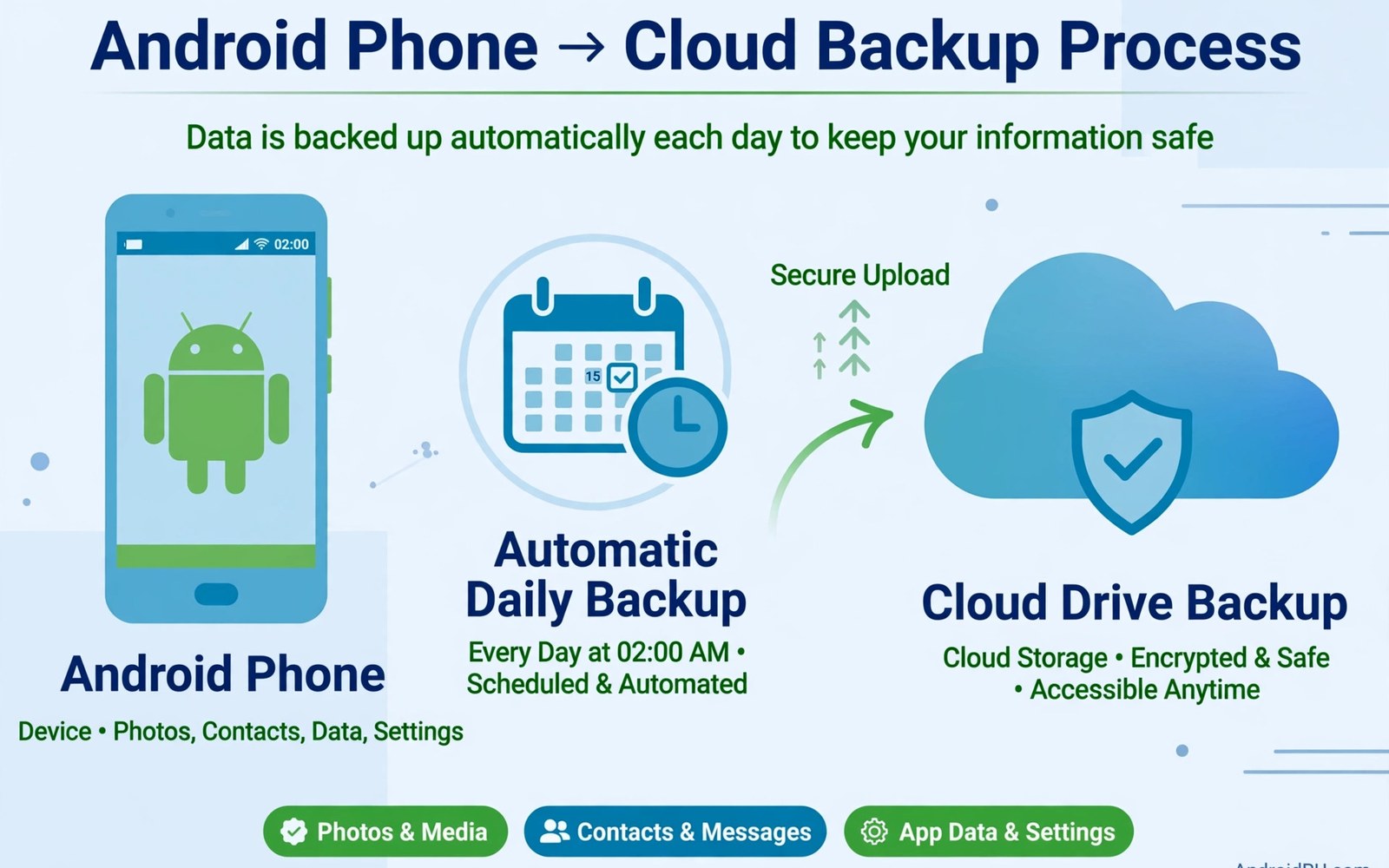
How to Set Up Automated Daily Android Backups to Google Drive
Losing a phone should not mean losing years of photos, messages, and settings. A daily automated backup turns that risk into a routine: the phone copies what matters to Google Drive while you sleep, and you check it once in a while instead of worrying about it every day. This guide sets that routine up from scratch, step by step, with the real menu paths, the real limits, and the checks that prove it worked.
I set this up on my own phone after a cracked screen taught me the lesson the hard way. The repair took a day, but the worry took longer, because I was not sure which photos had been copied and which had not. Since then, the backup runs every night while the phone charges, and the monthly check takes about two minutes. That is the whole point of this guide: a setup you do once, and a check you do rarely, that holds up when you actually need it.
By the end, your phone will back up app data, call history, device settings, and SMS messages to your Google account every day, your photos and videos will copy to Google Photos, and your WhatsApp chats will back up on their own schedule. You will also know the 15 GB free limit, what counts against it, and what to do when it fills up.
Why Automated Daily Android Backups to Google Drive Matter
A phone holds more of your life than any other device you own. Photos from holidays, messages from family, saved Wi-Fi passwords, home screen layouts, and app settings all live in one small object that can be dropped, stolen, or soaked. A manual backup habit fails because it depends on remembering. An automated daily backup works because it does not depend on memory at all.
Daily matters more than weekly for one simple reason: the gap between backups is the amount you can lose. A weekly backup can lose six days of photos. A daily backup can lose, at most, one day. That gap is small enough that most people never notice it, and it is the reason this guide sets the schedule to daily rather than leaving the default alone.
The backup also saves time when you switch phones. Instead of moving files by hand, signing into every app, and rebuilding your home screen, you sign into your Google account on the new phone and let the backup bring your apps, settings, and messages back. The transfer is not perfect, and this guide covers the gaps, but it turns a weekend of setup into an afternoon.
What Android Backs Up to Google Drive and What It Leaves Out
Android backup to your Google account covers app data for apps that support it, call history, contacts, device settings such as Wi-Fi passwords and wallpaper, and SMS text messages. It does not cover everything. Files in your Downloads folder, music files you added by hand, and data from apps that opt out of backup are not included unless you copy them another way. Knowing the gap matters, because the gap is where people lose things.
Google gives every account 15 GB of free storage, shared across Google Drive, Gmail, and Google Photos. That 15 GB is the number to plan around. Photos and videos eat it fastest, followed by large app data and WhatsApp media. When the free space fills up, backups pause, and the phone will warn you. This guide shows you how to check the number and what to do when it gets close to full.
One detail catches people out: Android device backup itself does not count against the 15 GB limit in most cases, because Google treats the device backup quota separately, but photos, files, and Gmail do count. That means your photos can fill the account even while the device backup keeps running. Check the storage breakdown in the Google One app or in Google Drive, and treat the photo library as the thing to manage first.
How the 15 GB Free Google Drive Limit Works in Practice
Open the Google One app or drive.google.com and look at the storage meter. It shows how much of the 15 GB is used by Drive files, Gmail attachments, and Photos. A phone with a few thousand photos can use 8 to 10 GB on photos alone. Add a Gmail inbox with large attachments and a few video clips, and the meter fills faster than most people expect.
When the meter hits the limit, new photos stop uploading, new emails bounce back to senders, and new files cannot be added to Drive. The device backup may keep running, but the parts that matter most to you will stall. The fix is to free space, buy a Google One plan, or change Photos to a lower quality setting. This guide covers all three, so you can pick the one that fits your budget.
Google One Plans and Prices for Extra Backup Space
Google One is the paid storage plan that sits on top of the free 15 GB. The Basic plan offers 100 GB, the Premium plan offers 200 GB, and larger plans go up to 2 TB and beyond. Prices vary by country and change over time, so check the current price in the Google One app before you buy. A 100 GB plan is enough for most people who back up photos at full quality and keep a few years of messages.
Paid storage shares across the same Google account, so it covers Drive, Gmail, and Photos together. You can also share a plan with up to five family members, which makes the 200 GB plan good value for a household. Do not buy storage before you check what is using the space: deleting a few large videos or an old WhatsApp media folder often frees more room than you expect.
Step-by-Step: Turn On Automated Daily Android Backups
Follow these steps in order. They use the menu paths on a recent Android phone, usually Android 12 or newer. Menu names vary a little by maker: Samsung calls some screens by different names, and Pixel phones follow the stock layout most closely. If a menu name looks different on your phone, search Settings for the word Backup and follow the result to the same screen.
- Step 1: Check your Google account. Open Settings, tap Google, and check the account shown at the top. This is the account your backup will use. If it is the wrong account, tap the account name and switch. A backup to the wrong account is the most common setup mistake, and it is much easier to fix now than after you lose a phone.
- Step 2: Open the backup screen. Go to Settings > Google > Backup. On Samsung phones, the path is Settings > Accounts and backup > Google Drive, then tap Back up data. On Pixel phones, the stock path works as written. You should see a screen with a toggle for Backup by Google One and a list of what is included.
- Step 3: Turn backup on. Tap the toggle for Backup by Google One to turn it on. The phone may ask you to confirm with your lock screen, such as a PIN or fingerprint. That confirmation proves the backup belongs to you and stops someone else from turning it on from a phone you left open.
- Step 4: Check what is included. On the same screen, look at the list: app data, call history, contacts, device settings, and SMS messages. Make sure each one you care about is listed. If an item is missing, tap it and check whether it is turned on. Some items need a separate toggle inside their own app, which the next sections cover.
- Step 5: Start the first backup now. Tap Back up now and wait. The first backup can take from a few minutes to an hour, depending on how much data you have and how fast your Wi-Fi is. Leave the phone on Wi-Fi and charging while it runs. Do not turn the phone off in the middle of the first backup.
- Step 6: Check the last backup time. When the first backup finishes, the screen should show a time such as Last backup today at 02:14 or a similar recent time. If it shows a date from days ago or a failed message, tap Back up now again and check your Wi-Fi. A backup that never shows a recent time is a backup that is not running.
- Step 7: Set the phone to charge at night. Daily backups run best when the phone charges overnight and connects to Wi-Fi. Plug the phone in before bed, keep Wi-Fi on, and let the schedule do its work. The phone will pick a quiet time, usually in the early hours, and copy the changes from the day.
- Step 8: Turn on Wi-Fi only if you have a small data plan. In the backup settings, check whether backups are set to Wi-Fi only. If you have a large mobile data plan and you want backups to run anywhere, you can allow mobile data, but Wi-Fi only is the safer default. A first backup over mobile data can use a large amount of data without warning.
Settings Path for Samsung, Pixel, and Other Android Phones
Pixel phones use Settings > Google > Backup, exactly as written above. Samsung phones use Settings > Accounts and backup > Back up data, with a Google Drive option inside. Xiaomi, Oppo, and other makers keep the Google path under Settings > Google, though the backup screen may sit one level deeper under All services. If you cannot find it, open Settings, tap the search bar at the top, type Backup, and tap the result that mentions Google. That search works on almost every Android phone made in the last five years.
What to Do When the Backup Toggle Is Greyed Out
A greyed-out toggle usually means the phone is managed by work, the account is a child account with backup off, or the phone has no Google account signed in. Check Settings > Accounts for the Google account first. If the phone is a work phone, ask your IT team whether backup is allowed. If the account is a child account, a parent needs to allow backup in Family Link. Do not try to force the toggle with a third-party app; the block is a policy, not a bug.
How to Check the Last Backup Time in 30 Seconds
Open Settings > Google > Backup and read the line under the toggle. It shows the last successful backup time and the size of the backup. If the time is today or yesterday, the schedule is working. If the time is a week old, tap Back up now, check Wi-Fi, and check storage space. This 30-second check is the monthly habit that makes the whole setup trustworthy.
Setting Up Google One Backup and Storage Management
Google One is the app that manages your storage and your backup in one place. Open it, tap Storage, and you will see the breakdown by Drive, Gmail, and Photos. Tap Backup to see the device backup status, the last backup time, and the option to back up now. The app also shows cleanup suggestions, such as large files, blurry photos, and old screenshots, which are the fastest way to free space.
Use the cleanup tools before you buy more storage. In Google One, tap Storage, then Clean up, and review the suggestions one by one. Delete screenshots you no longer need, large videos you have already shared, and duplicate photos. Then check the meter again. Many people free 2 to 5 GB in ten minutes, which is often enough to keep the free 15 GB plan working for another year.
If you do buy a plan, pick the smallest one that covers your real use plus room to grow. A 100 GB plan suits most single users with a few years of photos. A 200 GB plan suits families or people who film a lot of video. You can change plans later, and Google will pro-rate the change, so there is no need to overbuy on the first day.
How to Free Space Without Losing Photos You Care About
Freeing space is not the same as deleting memories. Before you delete anything, check that the photos are backed up: open Google Photos, tap your profile picture, and check the backup status. Only delete local copies after the cloud copy is confirmed. In Google Photos, the Free up space option deletes device copies of photos that are already backed up, which is the safest way to reclaim room on the phone itself.
For Drive, sort files by size and look for old videos, large PDFs, and installers you no longer need. For Gmail, search for large attachments with the search term has:attachment larger:10M and delete the ones you do not need. Empty the trash in Drive, Photos, and Gmail after you delete, because deleted files sit in trash for 30 days and still count against your storage until they are gone.
Backing Up Photos and Videos to Google Photos Automatically
Photos are the part of a backup people care about most, and they need their own setup. Open Google Photos, tap your profile picture, tap Photos settings, then Backup. Turn Backup on, pick the Google account, and choose the folders to back up. The app backs up the camera folder by default, but screenshots, WhatsApp images, and downloads from other apps need to be turned on one by one under Back up device folders.
Choose the backup quality that fits your storage. Original quality keeps every pixel and counts against the 15 GB limit at full size. Storage saver compresses photos and videos slightly, uses less space, and looks the same on a phone screen for most people. If you print large photos or edit video professionally, pick original quality and plan for a paid plan. If you mostly view photos on a phone, storage saver is the practical choice.
Check that backup is actually running. In Google Photos, a small cloud icon on a photo means it is backed up. A photo with an upload arrow is still waiting. Open the app on Wi-Fi, wait a few minutes, and the waiting icons should clear. If they do not, check the storage meter and the Wi-Fi connection first, because those two cause most photo backup stalls.
For the full-quality workflow, read backing up photos at full resolution before you change the quality setting, because the choice between original quality and storage saver decides how much space every photo uses for years. The article explains the trade-off in detail and helps you pick the setting you will not regret later.
Setting Up WhatsApp Backup to Google Drive
WhatsApp keeps its own backup, separate from the Android device backup. Open WhatsApp, tap the three dots, then Settings > Chats > Chat backup. Pick the Google account, tap Back up to Google Drive, and choose Daily. Turn on Include videos only if you have the space: videos are large, and a daily video backup can fill the 15 GB limit in weeks. Most people leave videos off and back up text, photos, and voice messages instead.
Tap Back Up to run the first WhatsApp backup now. The first run can take a while if you have years of chats and media, so do it on Wi-Fi while the phone charges. After that, the daily schedule runs on its own, usually at night. You can check the last backup time on the same screen: it shows the date, the time, and the size of the backup.
WhatsApp backups have a limit worth knowing. Google does not count WhatsApp backups against the 15 GB Drive limit in most regions, because of an agreement between Google and WhatsApp, but that arrangement can change, and the backup still needs the account to be in good standing. Keep the WhatsApp backup on, keep the app updated, and do not delete the backup from Drive by hand unless you are sure you do not need it.
What WhatsApp Backup Includes and What It Misses
WhatsApp backup includes messages, photos, videos if you turned them on, voice messages, and documents shared in chats. It does not include your call history outside WhatsApp, and it does not back up chats that use disappearing messages after they have gone. It also does not back up media that was deleted from the chat before the backup ran. If a photo matters, save it to the phone gallery as well, so Google Photos picks it up too.
Fixing a WhatsApp Backup That Will Not Start
If the backup stalls, check three things in order: the Google account is the same one you use for WhatsApp, the phone has free space in Drive, and the phone is on Wi-Fi. Then try again. If it still stalls, turn off Include videos, which shrinks the backup a lot, and try again. A backup that fails at 90 percent is usually a size problem, not a connection problem.
How to Verify Your Backup and Test Recovery Before You Need It
A backup you have never tested is a hope, not a plan. Test it now, while the old phone still works, so you know the recovery path before you need it. The test takes about fifteen minutes and it answers the only question that matters: if this phone died today, what would come back?
Start with the easy check. On the phone, open Settings > Google > Backup and confirm the last backup time is recent. Then open Google Photos on a computer, sign into the same Google account, and confirm your recent photos are there. Then open drive.google.com, click Storage, and confirm the meter shows room to spare. Those three checks prove the backup is running and the files are in the cloud.
The stronger test uses a second device or a factory reset you plan anyway. On a spare phone or a tablet, sign into the same Google account, and during setup choose the backup from your main phone when the setup wizard offers it. Watch which apps come back, which settings return, and which chats appear after WhatsApp is set up. Note the gaps: an app that does not come back, a setting that resets, a folder that stays empty. Fix the gaps now, while you still have the original phone.
If you do not have a spare device, use the setup wizard check instead. When you next change phones, the wizard will list the available backups by device name and date. Confirm your current phone appears there before you wipe the old one. That single check prevents the most painful mistake in this whole guide: wiping a phone whose backup never finished.
When you move to a new handset, read moving all data to a new phone for the full transfer checklist, including the cable option, the wireless option, and the items that need a separate step. And if you ever wipe a phone on purpose, read restoring apps after a factory reset before you start, so the recovery order is clear and you do not miss a step while the phone is still setting up.
A Monthly Two-Minute Backup Check That Prevents Nasty Surprises
Put a monthly reminder on your calendar: the first Sunday of the month, open Settings > Google > Backup, check the last backup time, open Google Photos and check that recent photos are backed up, and open Google One and check the storage meter. Two minutes, once a month, is enough. The people who lose data are rarely the people who never set up a backup; they are the people who set it up once and never checked it again.
What to Check After a Phone Update or a New App Install
After a major Android update, open the backup screen once and confirm the toggle is still on and the last backup time is recent. Updates sometimes reset settings, and a backup toggle is an easy one to miss. After you install an app that holds important data, such as a notes app or a banking app, check whether that app supports backup and whether its own backup is turned on. Some apps keep their data outside the Android backup, and their own setting is the only copy you will get.
Troubleshooting: When Daily Android Backups Stop Working
Backups stop for a small set of reasons, and the fix is usually one of four things: no Wi-Fi, no storage, no battery, or a paused schedule. Work through them in order instead of changing everything at once, so you know which fix worked.
If the backup fails, first check Wi-Fi. Open Settings > Google > Backup and tap Back up now while the phone is on Wi-Fi. If it works on Wi-Fi but not on mobile data, the backup is set to Wi-Fi only, which is the default and the right setting for most people. If it fails on Wi-Fi too, check the storage meter in Google One. If the meter is full, free space or buy a plan, then try again.
If the storage meter has room and Wi-Fi works, check the battery and the schedule. Backups run when the phone is charging and idle, usually at night. A phone that is used until 2 a.m. and then charged for an hour may miss its window. Charge the phone earlier, leave it plugged in overnight, and check the last backup time in the morning. If the time is still old, restart the phone and try a manual backup once more.
If a manual backup still fails, check the Google account itself. Sign out and back in only as a last step, because signing out can pause other services, and do it on Wi-Fi with time to spare. Before that, check whether the phone has a system update waiting: an old backup service can fail on a new account feature, and an update often fixes it. If none of that works, the error message on the backup screen, or in the Google One app, will name the cause: read it before you search for a fix, because it usually points at storage, account, or connection.
Common Backup Mistakes That Leave Gaps in Your Data
The most common mistake is backing up to the wrong Google account. Many people have two accounts, one for work and one for personal use, and the phone backs up to whichever one was signed in first. Check the account at the top of Settings > Google before you trust the backup. The second mistake is forgetting device folders in Google Photos: screenshots and WhatsApp images sit in folders that are not backed up by default, and people only notice when they change phones.
The third mistake is turning off Include videos in WhatsApp and then wondering why a video is missing, or leaving it on and then wondering why storage filled up. Pick the setting on purpose and write it down. The fourth mistake is deleting the backup from Drive to free space, which removes the only copy. Free space by deleting files and photos you do not need, never by deleting the backup itself.
Frequently Asked Questions About Daily Android Backups to Google Drive
How much free storage does Google Drive give for Android backups?
Every Google account gets 15 GB of free storage, shared across Google Drive, Gmail, and Google Photos. Android device backups usually do not count against that 15 GB, but photos, files, and Gmail do. If you back up photos at original quality, plan for a paid Google One plan, starting at 100 GB, once the free space fills up.
Does Android back up automatically every day without me doing anything?
Yes, once you turn on Backup by Google One in Settings > Google > Backup. The phone then backs up daily when it is charging, idle, and on Wi-Fi, usually overnight. You do not need to open the settings every day, but you should check the last backup time once a month to confirm the schedule is still running.
Can I get my apps and settings back after a factory reset?
Yes. During setup after a reset, sign into the same Google account and choose the backup from before the reset when the wizard offers it. Apps that support backup will reinstall with their data, and settings such as Wi-Fi passwords and wallpaper will come back. Some apps need you to sign in again, and some keep data outside the backup, so check your most important apps one by one after setup.
Why did my backup stop when my storage got full?
When the 15 GB free limit fills up, Google stops new uploads to Photos and Drive, and new Gmail messages can bounce. The device backup may keep running, but the photos and files you care about will stall. Free space with the cleanup tools in Google One, delete large files you no longer need, or move to a paid Google One plan, then run a manual backup to catch up.
Should I back up WhatsApp videos to Google Drive?
Only if you have the space and the videos matter. Videos are large, and a daily video backup can fill the free 15 GB limit in weeks. Most people back up WhatsApp text, photos, and voice messages daily, and save important videos to Google Photos separately. If you do turn on Include videos, check the storage meter weekly until you know how fast it grows.
Your Backup Is Set: What to Do Next
You have done the hard part. The backup is on, the first copy is made, Photos and WhatsApp have their own schedules, and you know how to check the last backup time. The next step is the monthly two-minute check from the section above. Set the reminder now, while the setup is fresh, and the routine will hold for years.
If you are about to change phones, do the verification test before you wipe the old one. Open the backup screen, confirm the time is recent, and confirm the new phone setup wizard lists your backup. That check takes a minute and it is the difference between a smooth move and a lost year of photos. Daily backups only help when they run every day, so the monthly check is part of the setup, not an extra. Turn the backup on tonight, check it in the morning, and your phone will look after itself from here on.

