

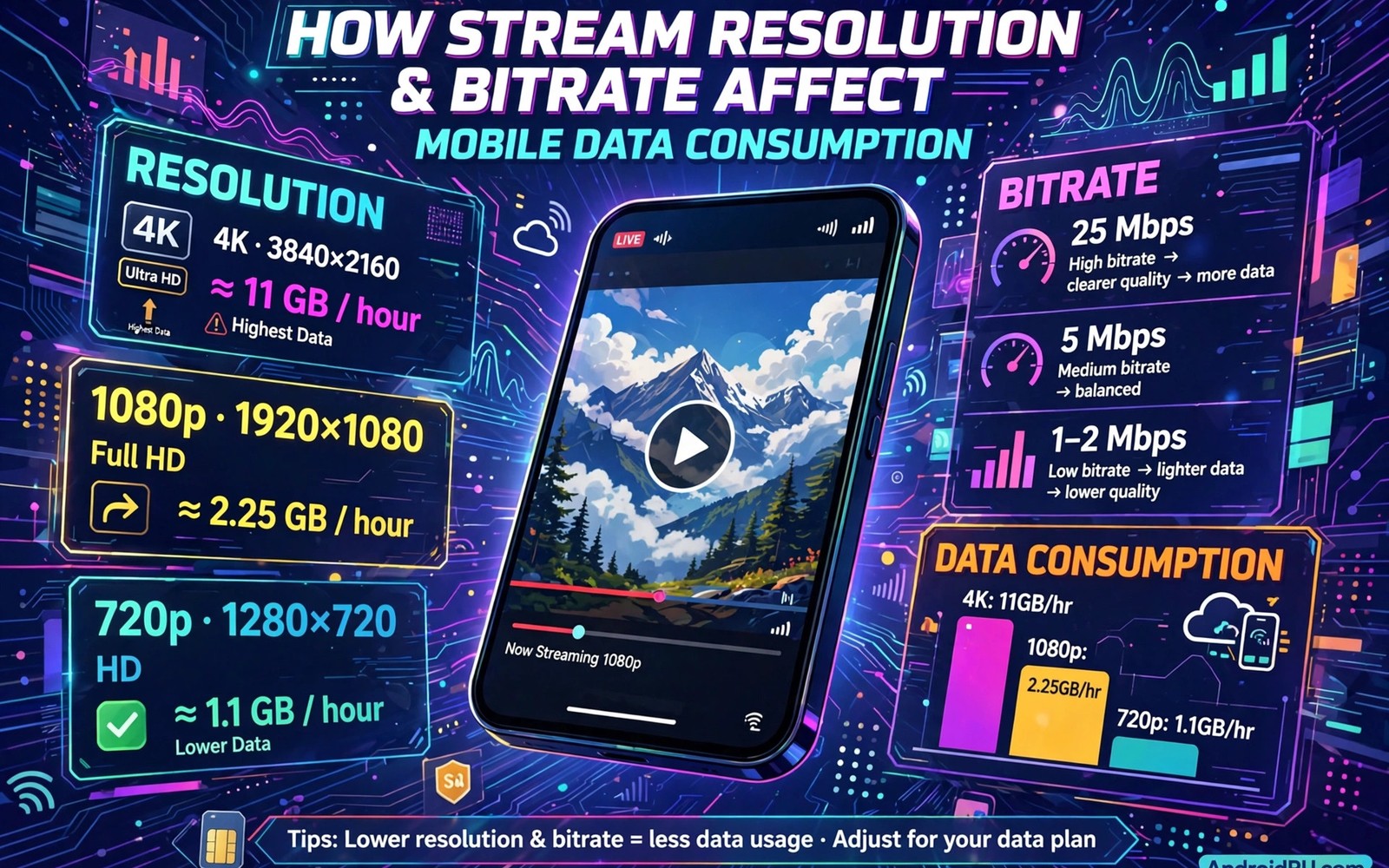
Cloud gaming data usage depends more on stream resolution and bitrate than on any other setting. A crisp 1080p stream can burn several gigabytes per hour. A modest 720p stream can cut that figure sharply. Players on capped plans feel this difference fast. A few long sessions can eat a monthly allowance before the month ends.
Bitrate means how much data the stream uses each second. Higher bitrate means sharper video and smoother motion. It also means faster data burn. Resolution sets the frame size. Frame rate sets how many frames arrive each second. All three multiply together into your hourly total. This article gives real figures and controls that keep usage sane.
Data use by quality level
A 720p stream at 30 frames per second often uses about 2 to 3 gigabytes per hour. The same resolution at 60 frames per second uses about 3 to 4 gigabytes. A 1080p stream at 60 frames per second uses about 5 to 7 gigabytes. A 4K stream can exceed 12 gigabytes per hour. These figures vary with game motion. Fast action with constant camera moves uses more data than a calm puzzle game.
Audio adds only a small amount. Voice chat adds a little more. The video stream dominates the total. Lowering resolution saves the most data. Lowering frame rate saves the second most. Lowering bitrate caps saves data but can soften the picture. Balance these three to fit your plan.
Test your own usage for one hour. Note your data meter before and after a session. Your real number beats any general figure. Game genre and service settings shift totals a lot. One measured hour gives you a reliable hourly rate for planning.
Why bitrate matters for quality
Bitrate decides how much detail survives compression. Low bitrate streams show blocky patches during fast motion. High bitrate streams stay clean during the same scenes. A phone screen hides some flaws. A tablet or TV reveals them. Match bitrate to your display size. Small screens need less bitrate for a clean look.
Services adjust bitrate automatically when your link weakens. The stream softens but keeps playing. This adaptive behavior protects playability. It also makes data use vary hour by hour. A stable link holds high bitrate and uses more data. A weak link drops bitrate and uses less while looking worse.
Manual caps give you control. Most apps let you set a quality ceiling. A cap stops the service from pushing bitrate up on a strong link. This is the best tool for capped plans. Set the cap once and forget it. Your usage becomes predictable.
Settings that protect capped plans
Set stream quality to 720p for mobile data sessions. The savings are large and the visual loss on a phone is modest. Save 1080p for Wi-Fi sessions. Turn on any data saver mode the app offers. These modes cap bitrate without forcing you to tweak numbers yourself.
Track usage weekly rather than monthly. A monthly surprise is too late to fix. Check your carrier app each Sunday. If usage runs high then lower quality for the next week. Small weekly corrections keep you inside the cap without harsh cuts.
Download nothing extra during cloud sessions. Game updates and cloud backups compete for the same allowance. Pause them during play. Use Wi-Fi for all downloads and updates. Reserve mobile data strictly for the stream itself.
A script to plan your monthly data
The script below projects monthly cloud gaming data from your hourly rate and weekly hours. Edit the numbers to match your measured usage.
hourly_gb = 4.5
hours_per_week = 6
weeks = 4
monthly_game_gb = hourly_gb * hours_per_week * weeks
other_monthly_gb = 20
plan_cap_gb = 100
total = monthly_game_gb + other_monthly_gb
print("Gaming data GB:", monthly_game_gb)
print("Total data GB:", total)
print("Plan cap GB:", plan_cap_gb)
if total <= plan_cap_gb:
    print("Inside your cap")
else:
    print("Over cap by GB:", round(total - plan_cap_gb, 1))
This snippet is an original data planner written for this article. It is included here so you can project your own monthly total before the bill arrives.
Common mistakes
Many players stream at maximum quality on mobile data without checking usage. A week of high quality play can burn a whole cap. Set a mobile quality cap on day one. Another mistake is trusting advertised data figures. Real usage varies with game motion and link stability. Measure your own hour for truth.
Some players forget background data. Backups and updates and video apps all draw from the same cap. Audit background usage monthly. Others play long sessions on mobile data while Wi-Fi sits available nearby. Join Wi-Fi whenever possible. Mobile data is for travel and gaps only.
A final mistake is ignoring throttling rules. Some plans slow video after a cap rather than charging extra. Throttled streams look terrible. Read your plan terms so a throttle never surprises you mid match.
Carrier app alerts and tools
Carrier apps offer usage alerts that catch overages before they happen, but only when you enable them deliberately. Default alert thresholds often sit at ninety percent use, which leaves little room to correct course. Set a custom alert at fifty percent and another at seventy five percent for real control. Early alerts give you weeks to adjust quality settings. Late alerts give you days of panic and throttled streams. Five minutes of alert setup protects a whole month of play.
Per line usage views help families and shared plans most, because one heavy user can drain a shared allowance silently. Check per line totals weekly and discuss them openly at home. A teenager streaming cloud games daily may not realize the shared impact. Gentle awareness solves most shared cap problems without arguments. Data transparency turns a hidden conflict into a simple household conversation.
Carrier speed test tools inside official apps sometimes measure differently from independent tests. Official tools may test against carrier servers with priority routing. Independent tests measure real world paths to game servers. Compare both results when they disagree, and trust the independent test for gaming decisions. A carrier test that flatters your link does not improve your stream. Honest numbers guide honest settings.
Wi-Fi first routines
Wi-Fi first routines save mobile data automatically when you build them into daily habits. Set your phone to join home Wi-Fi automatically and forget weak public networks that hijack connections. A phone that clings to a weak cafe network drains data and patience at once. Review saved networks monthly and remove networks you no longer trust. Clean network lists prevent accidental mobile data use in familiar places.
Download scheduling also protects data caps without effort. Set app updates and cloud backups to Wi-Fi only in system settings. Schedule large downloads for overnight Wi-Fi hours. These settings run silently and save gigabytes monthly. Players who skip this step blame games for data use that actually comes from background updates. Check background totals to see the truth for your own phone.
Travel routines need a Wi-Fi first mindset too. Hotels and cafes often offer free Wi-Fi that suits cloud play for short sessions. Test hotel Wi-Fi with a quick stream before committing to a long session. Weak hotel networks suit story games better than competitive matches. When hotel Wi-Fi fails, switch to short mobile sessions at capped quality rather than long high quality streams. Discipline on travel days preserves your cap for the rest of the month.
Prepaid and family plan tricks
Prepaid plans suit cloud gamers with variable monthly use, because you pay only for data you expect to need. Heavy gaming months can use a larger prepaid bundle, while light months use a smaller one. Flexibility beats fixed contracts for players whose habits change seasonally. Compare prepaid data prices carefully, because per gigabyte costs vary widely between carriers. A cheap headline plan may hide expensive data rates.
Family plans pool data across lines, which helps when one member games heavily and others use little. Pooling smooths individual spikes across the household total. A heavy gamer benefits from light using family members without extra cost. Check pooling rules before joining, because some family plans cap individual lines despite a shared total. True pooling helps gamers most.
Data rollover features rescue heavy months by banking unused data from light months. Carriers that offer rollover let you accumulate a buffer for gaming heavy periods. Holiday months with travel gaming drain data fast, and banked rollover covers the spike. Choose carriers with rollover when your gaming varies by season. Rollover turns light months into insurance for heavy months.
Student and loyalty discounts cut plan costs for eligible players, and many gamers never ask about them. Carriers offer student plans with extra data at lower prices. Long term customers may qualify for loyalty data bonuses. Ask about every discount category that might apply to you. A single question can lower your monthly bill for a year or more.
Roaming data deserves special attention for travelers who game abroad, because roaming rates can exceed home rates many times over. A single hour of high quality cloud play while roaming may cost more than a month of home service. Buy a local SIM or a travel data pass before gaming abroad. Local SIMs offer local rates and generous data allowances in most countries. Check compatibility with your phone bands before buying a local SIM at the airport.
FAQ
How many gigabytes does one hour of cloud gaming use?
Expect 3 to 7 gigabytes per hour at good quality on most services. A 720p stream uses less. A 4K stream uses far more. Measure one hour on your settings for your exact figure.
Does lowering resolution really save much data?
Yes a lot. Dropping from 1080p to 720p can nearly halve hourly use. The phone screen hides much of the visual loss. This is the best single saving for capped plans.
Can I set a data limit inside cloud gaming apps?
Most apps offer quality caps and data saver modes. Carrier apps can warn at usage thresholds. Combine both tools for the safest setup on a capped plan.
Data planning gets easier when you combine quality caps with cap tracking habits. The data cap limits for frequent players page projects monthly totals for daily players. The guide to bandwidth needs for lag free cloud gaming lists steady speeds each quality level needs. The notes on cloud gaming battery and storage savings explain the other side of streaming efficiency on phones.
Conclusion
Stream resolution and bitrate decide your mobile data bill for cloud gaming. High settings look great and burn data fast. Modest settings on a phone look nearly as good and cost far less. Measure one hour of your own usage. Set a mobile quality cap. Track usage weekly. Your next step is simple. Open your carrier app tonight and note your remaining data. Then set your cloud app to 720p on mobile data before your next session on the go.

