

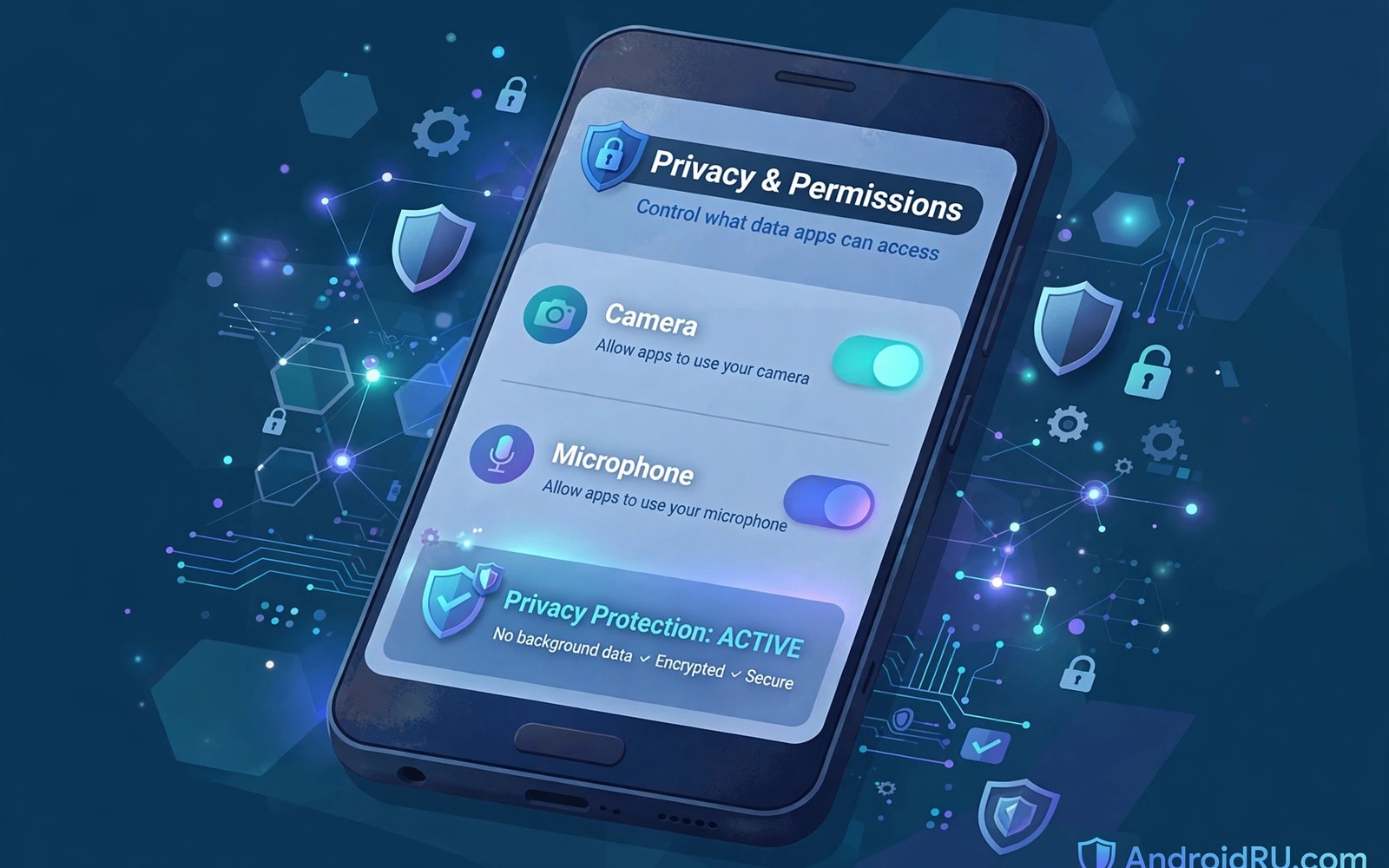
Managing Permissions for Camera and Microphone in Social Apps
Open Instagram to post a story and the app asks for your camera. Join a voice chat and it wants your microphone. Those requests feel routine, and most of us tap Allow without a second thought. The trouble starts later, when the same permissions sit quietly for months on apps we barely open.
This guide covers every camera and microphone setting that matters on a modern Android phone: what each permission level really does, how to read the green dot and the Privacy Dashboard, and how to audit Instagram, TikTok, WhatsApp, Snapchat, and Facebook one by one.
Camera and Microphone Permission Levels on Android 12, 13, and 14
Android gives you four choices when a social app asks for the camera or the microphone. Allow only while using the app grants access while the app is on your screen, and stops the moment you switch away. Ask every time forces a fresh request on each attempt. One-time permission grants access for one session, then resets. Allow all the time lets the app reach the sensor even when closed, which is the riskiest choice.
A social app has almost no honest reason to use your camera or microphone while you are not looking at it. Voice activation is the one exception some apps claim, and even that deserves a hard look. To check an app’s level, open Settings, then Privacy, then Permission manager, then Camera or Microphone.
Allow only while using the app: the default worth keeping
Allow only while using the app is the sane default for nearly every social app you actually use. Instagram needs the camera while you record a story, WhatsApp needs the microphone while you are on a call, and Snapchat needs the camera while the lens screen is open. The sensor is tied to an action you can see.
Ask every time and one-time permission: best for apps you rarely open
Ask every time suits apps you open once a month or less: a shopping app with a social feed, a dating app you check occasionally, or a second messaging app for one group chat. The prompt is a small price for the guarantee that nothing happens without your say-so. One-time permission works the same way for a single session: grant it, post the story, and it is gone when you leave.
Allow all the time: why social apps almost never need it
Allow all the time means the app can switch on your camera or microphone while it runs in the background, with no visible window and no tap from you. No feed, no story editor, and no chat feature needs background sensor access. If you find a social app on allow all the time, change it today. If a feature stops working after the change, you have learned which feature was quietly using the background.
The Green Dot Indicator: How Android Shows Live Camera and Microphone Use
Since Android 12, a small green dot appears in the top-right corner of the status bar whenever the camera or the microphone is active. The dot appears the moment an app opens the sensor and disappears when the app releases it. Tap it and Android shows you exactly which app triggered it, and whether it was the camera, the microphone, or both.
Context is everything. A green dot while you are filming a story is normal. A green dot while the phone sits idle on your desk is not, and one that stays on after you closed the camera app is a reason to investigate at once.
What to do when the green dot appears at a strange moment
A dot during idle use deserves a calm, quick investigation. Tap the dot, note the app name and the time, and think about what you were doing in the last minute. A feed auto-playing video with sound or a call screen left open are the common innocent explanations.
Check the app name behind the dot
Tap the green dot as soon as you see it, because Android shows the responsible app by name. Then open the app and look for the feature that could explain the access: a live stream, a voice message recording, or a video call.
Check the time against what you were doing
Open Settings, then Privacy, then Privacy Dashboard, and look at the timeline for the last hour. A microphone entry at 2 a.m. while you were asleep needs an explanation, and so does a camera entry while the phone was in your pocket. If no good explanation exists, revoke it on the spot.
Privacy Dashboard: Reading Your 24-Hour Camera and Microphone History
The Privacy Dashboard is the audit log Android keeps for you. Open Settings, then Privacy, then Privacy Dashboard, and you will see a timeline of the last 24 hours, with separate rows for camera, microphone, and location. Tap Camera and you see every app that used it, most recent first. Tap an app name to see its accesses across the day.
What you are looking for is not a single access, but a pattern that does not match how you use the app. A social app you open at lunch should not show microphone use at midnight, and a feed-only app should not show camera use at all. I review the dashboard every Sunday evening, and it takes about three minutes.
How to read the timeline without guessing
Start at the top and work down, asking one question per entry: was I using that feature at that time? One unexplained entry is worth a look; three from the same app in one week are worth a revocation.
Auditing Instagram, TikTok, and WhatsApp Camera Access Step by Step
The fastest way to clean up sensor permissions is to audit the apps you actually use, one by one, starting with the biggest social apps. Audit the camera list first, because visual data is the most sensitive thing a phone can capture, then the microphone list. Any app where you only read a feed has no business on either list.
Before you start changing levels, it helps to know the in-app controls too, and this is where the top privacy settings for Instagram and TikTok come in. The in-app screens control who can see your content, while the system permission manager controls what the app can sense.
Instagram camera and microphone settings
Instagram needs the camera for stories, reels, and direct-message photos, and the microphone for reels with sound and voice messages. It does not need either sensor while you are only scrolling the feed, which is why allow only while using the app is the right level. Set it in Settings, then Privacy, then Permission manager, then Camera: tap Instagram, choose Allow only while using the app, then repeat under Microphone. After the change, post a test story to confirm it still works.
TikTok camera and microphone settings
TikTok needs the camera for recording videos and the microphone for sound, and asks for both the first time you open the camera screen. The same rule applies: allow only while using the app, and nothing broader. Set it the same way, under Camera and then Microphone. Test it by recording a 10-second clip with sound: the dot should appear while you record and vanish when you leave the camera screen.
WhatsApp, Snapchat, and Facebook camera access
WhatsApp is the one social app where the microphone earns its keep daily, because calls and voice messages are core features. Keep both sensors on allow only while using the app. Snapchat is camera-first by design, so it needs the camera while open, but not the microphone unless you record video with sound. Facebook is the app most people over-permit: if you mainly read the feed, it needs neither sensor, so set it to ask every time.
What to check after you change a setting
After every permission change, run the feature that needed the sensor and watch for two things: it should work normally while the app is open, and the dot should appear while it runs and disappear when you leave it. If the dot stays on after you close the app, force-stop the app from Settings, then Apps, then Force stop.
One-Time Permissions and Ask Every Time for Social Apps
One-time permission is the most underused setting on Android, and the best fit for a one-off story upload or a single call with an app you do not trust. Grant it, use the feature once, and the permission resets itself when you leave the app. Tap Only this time on the prompt instead of While using the app.
Ask every time is the permanent version of the same idea, for apps you open rarely but want to keep installed. The prompt each time is mildly annoying, and that annoyance is the point: it creates a pause before every sensor use, where you notice requests you would otherwise approve on autopilot.
Background Microphone Access and Voice Activation in Social Apps
Background microphone access is the riskiest permission pattern a social app can hold, because it means the app can listen while it is not on your screen. Some apps request it for voice activation features like hands-free mode, which sound convenient and listen continuously. Unless you use voice activation daily, that trade is a bad one. Disable it in Permission manager under Microphone, and turn off the voice activation toggle inside the app too.
App updates can quietly introduce new permission requests, so read update prompts instead of tapping Allow blindly. A feed app that suddenly asks for microphone access after an update deserves scepticism: check the feature it claims to need, and deny the request if it is a voice note button you will never use. The app will ask again if you ever tap that feature. The same caution applies to device-level layers: read about securing your messaging apps with biometric app locks, because a locked phone plus tight permissions is stronger than either one alone.
Background activity leaves other clues too, and battery drain is one of the most reliable. An app that uses the microphone in the background also burns battery there, so a sudden jump in battery use from a social app is worth a look at the dashboard. Read how social media apps impact battery and data use to learn which background behaviours are normal. High background battery use plus unexplained sensor entries is a strong warning sign.
A Five-Minute Weekly Permission Audit Routine
A weekly audit sounds like work until you do it twice: it takes five minutes. Set a Sunday reminder and review camera and microphone access for the past week in the dashboard. Revoke access for any app without a good explanation, and record each revocation in a notes app so you do not re-grant it casually a month later.
- Open Settings, then Privacy, then Privacy Dashboard, and review the camera timeline.
- Repeat for the microphone timeline, and note any access at a time you were not using the app.
- Open Permission manager, tap Camera, and confirm every social app is on allow only while using the app.
- Repeat under Microphone, and move any feed-only app to ask every time or deny.
- Revoke access for any app with unexplained entries.
- Deny any sensor request from an app update that you do not recognise.
Audit new apps on install day
Do not wait for Sunday to audit a new app. Open its permission settings on install day, right after the first launch, and deny camera and microphone access unless the core feature needs them. Grant access later, only when you actually use the feature.
Camera and Microphone Permissions for Children and Shared Devices
Children need stricter sensor rules than adults: set their social apps to ask every time for both camera and microphone. Teach them that camera access means an app can see through the phone, and microphone access means it can hear around the phone. Review their permission history together each week. Shared family tablets need separate user profiles where possible, because a shared profile mixes permission grants across users. Elderly users benefit from the same simple setup, plus a written list near the phone of which apps legitimately need each sensor. Journalists and activists should go further: deny background sensor access entirely. Match the strictness to the actual risk level, because rules so strict they get switched off help nobody.
FAQ: Camera and Microphone Permissions in Social Apps
What happens if I deny camera access to Instagram?
Nothing breaks except the camera features themselves. You can still scroll the feed, read comments, send text messages, and post text updates. The first time you tap the story camera, Instagram asks for the camera again.
How do I know if an app used my microphone at night?
Open Settings, then Privacy, then Privacy Dashboard, tap Microphone, and scroll to the overnight hours. Each entry shows the app name and the time it accessed the microphone. A single short entry may come from a scheduled feature such as a voice message upload finishing late. Repeated entries, or entries at times when the phone was untouched, deserve a closer look. Advanced users can also run adb shell dumpsys appops –op RECORD_AUDIO from a computer to print the recording history.
Can social apps record audio in the background without showing the green dot?
On Android 12 and later, no. The green dot is a system-level indicator that appears whenever any app uses the camera or the microphone, and an app cannot hide it or switch it off. That said, the dot only shows live use, so an app that records a short clip shows the dot only while it records. If you miss it in the moment, the Privacy Dashboard still keeps the record.
Should I set ask every time for every social app?
For apps you open daily, no, because the constant prompts become annoying and most people start tapping Allow without reading. Use the foreground-only level for daily social apps, and reserve ask every time for apps you open rarely or distrust. That split keeps the prompts rare enough that you actually read them.
Managing camera and microphone permissions is a small habit with an outsized payoff. Allow only while using the app covers nearly every social app you open daily, the green dot indicator tells you the moment a sensor goes live, and the Privacy Dashboard keeps the record for the times you were not watching. Open the permission manager today and move every feed-only social app to no camera and no microphone. That one pass takes ten minutes.

