

Transforming Your Android Tablet into a Portable Workstation
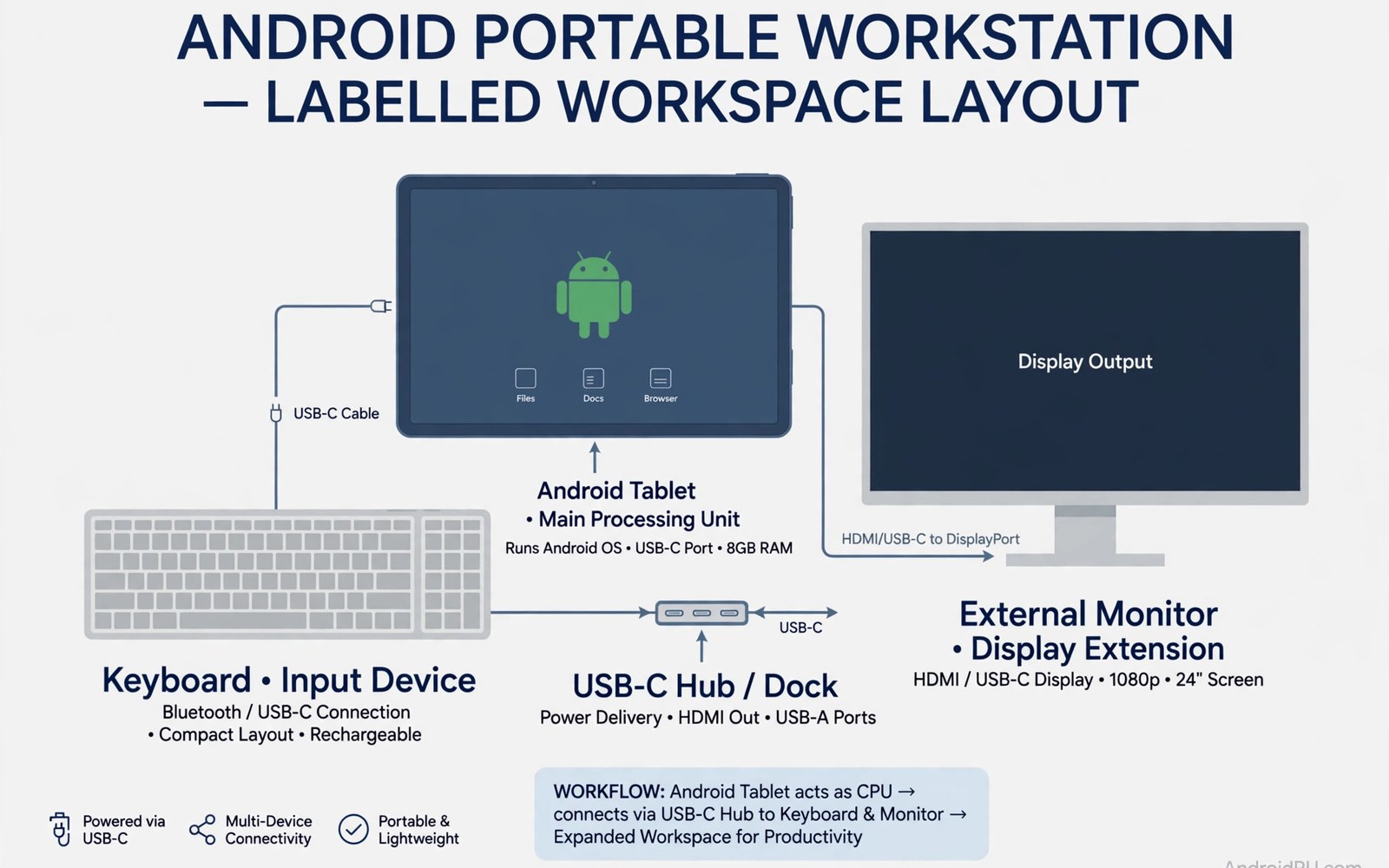
An Android tablet workstation means real work on a light device rather than a big screen for videos alone. A good tablet setup pairs a keyboard and a desktop mode and cloud files that travel with you, and this article shows a setup that handles writing and spreadsheets and email without a laptop in the bag. I worked from a tablet for a full week while my laptop was in repair, and the week taught me more about what matters than any review ever did.
Many tablet setups fail because they copy a laptop layout onto a touch screen without changes. Touch apps need larger targets and simpler windows and a file system you can reach fast. A workstation setup must respect touch limits while it borrows desktop habits that actually help. Start with one core job that the tablet must handle well each day, because a tablet that handles one job perfectly will earn daily use far faster than a tablet that handles five jobs poorly.
What Matters Most in a Tablet Workstation
A keyboard changes a tablet more than any other accessory. A good keyboard offers a trackpad and a stable angle and keys that travel well for long typing, while a flimsy keyboard will push you back to a laptop within a week no matter how good the tablet is. Desktop mode matters because it lets apps run in windows beside each other, and a single full screen app forces constant switching that breaks focus during research. Windows let you read a source and write a draft side by side like a real desk.
File access must be simple and predictable across apps and cloud folders. A file saved in one app should open in another app without a hunt through menus, so test file movement between your writing app and your spreadsheet app before you travel. A closer look at office suites on Android can help you compare daily tools before you commit to one setup.
The Keyboard Is the Whole Decision
Judge a keyboard by a full day of typing, not by five minutes in a shop. Type a real document each day for a week and note speed and comfort, because a keyboard judged after one hour will feel worse than it really is. A week of real typing reveals angle and key travel problems honestly, and a keyboard that still hurts after a week should be replaced rather than endured.
Desktop Mode and Windowed Apps
Desktop mode turns a tablet from a single-app device into a desk. Learn the gestures for split view and window switching and app switching on day one, because gestures learned early will save hundreds of taps each week. Test whether your writing app and your spreadsheet app both resize cleanly in window mode before you rely on them for work.
How to Choose the Right Tablet Setup
A tablet with a large screen suits split windows and long documents, while a smaller tablet suits travel and reading and quick notes on the move. Choose screen size for the job you do most rather than for the largest screen you can afford. A USB hub expands one tablet port into charging and display and storage and accessories, and a hub that supports video output lets a tablet drive a hotel monitor or a home display.
Check power delivery so the tablet charges while it drives a display. A stylus helps for notes and signatures and precise selection on a tablet, and a stylus that charges inside the tablet case will always be ready when you need it. A stylus that needs a separate charger will often be flat at the wrong moment.
Screen Size, Hub, and Stylus: Picking the Trio
An 11-inch screen is the sweet spot for most workstation use, since it fits two windows side by side without shrinking text to unreadable sizes. A 13-inch screen suits desk use and hurts portability, while a 10-inch screen suits travel and cramps split view. Buy the hub before the stylus, because charging and display matter every day while handwriting matters only sometimes.
Power Delivery and External Display Support
External display support turns a tablet into a desk machine at home or in an office. A display with the right cable and resolution makes long documents far easier to read, so test display scaling because tiny text on a large screen strains eyes quickly. Carry a compact charger for long days rather than trusting a single charge.
A Practical Daily Routine for Tablet Work
Start work by opening the daily plan and the main document side by side. A side by side start keeps the goal visible while you work, while a single app start hides the plan and lets email steal the morning. A related look at distraction-free apps can show how a second tool fits the same workday without adding clutter.
Use cloud folders as the single home for active work so files follow you to a phone or a computer. Save locally only for offline travel and sync as soon as connection returns, because a single home prevents duplicate files across devices. Close work by saving and syncing and charging the tablet and keyboard together, since a charged setup ready in the bag removes friction tomorrow morning.
Morning Start: Plan and Document Side by Side
Open the plan first, then the document, then close everything else. That order takes thirty seconds and it protects the first hour of the day. A work focused home screen supports the same idea: keep work apps on the first home screen and leisure apps in a folder, because a mixed home screen will pull attention to videos during work hours.
Evening Close: Sync, Charge, and Reset
Save, sync, charge, and clear the desk. A five-minute evening routine means the morning starts with work instead of with charging cables and missing files. A setup that needs charging before work will lose the first hour, while a ready setup turns the tablet into a tool you reach for without thinking.
Costs, Privacy, and Limits of a Tablet Workstation
A tablet workstation can cost less than a laptop when you already own a tablet. A keyboard and a hub and a case may cost less than a new laptop upgrade, so add costs honestly and compare the total against a laptop that already includes a keyboard. Some tablet apps need subscriptions for full desktop features and cloud storage, and a writing app and a spreadsheet app and a cloud plan can add up each month.
Check which features stay free and which features need a paid tier before you commit. Battery life matters because a workstation tablet must last a full workday, and a keyboard with its own battery can extend typing time without draining the tablet. Security matters when a portable workstation travels through public places, so a lock screen and encrypted storage and a remote wipe option protect work files if the tablet is lost. Set those protections before travel rather than after a loss.
Subscription Costs That Creep Up Quietly
Add up the monthly cost of your writing app, your spreadsheet app, and your cloud storage before you commit. A free tier often covers the basics, and a paid tier usually buys offline access and more storage. If the total passes the cost of a cheap laptop over two years, the tablet stops being the budget choice and becomes the preference choice, which is fine as long as you choose it knowingly.
Security on a Portable Workstation
A practical look at password and encryption apps can help you judge whether your current setup still earns its place on your phone. Use a strong lock screen, turn on encryption, and set up remote wipe before your first trip. Those three protections cost ten minutes and they are the only thing standing between a lost tablet and a lost client file.
A Useful Example: Freeform Windows on Android
A tablet feels like a workstation when apps can resize and float like desktop windows. The commands below enable freeform window support and resizable activities for testing. Use them only on a test setup and check each app in window mode before you rely on it.
adb shell settings put global enable_freeform_support 1
adb shell settings put global force_resizable_activities 1
adb shell dumpsys activity activities | grep -i task
This window setting pattern follows the approach described in the official Android developer documentation for developer settings and window modes. The same documentation explains how resizable activities behave on larger screens. Test each app you rely on in freeform mode, because some apps resize cleanly and others break their layout when forced into a small window.
Which Apps Resize Well and Which Do Not
Writing apps and browsers usually resize well, while banking apps and some games refuse to shrink or lose their toolbar. Keep a short list of the apps that work in windows and the apps that demand full screen, and plan your daily routine around that list rather than fighting it.
When Freeform Mode Is Worth the Effort
Freeform mode earns its place when you regularly compare two documents or copy between apps. If your work is mostly one app at a time, split view is enough and freeform adds complexity without benefit. Enable it, test it for a week, and keep it only if it saves you real time.
What to Check After a Week of Tablet Work
After a week check whether the tablet handled your core job without a laptop rescue. Count the times you reached for a laptop and note the reason each time, because a pattern in those reasons shows the next accessory or app to fix. After a week check file sync by opening a tablet file on a phone and on a computer, since a file that fails on one device reveals a sync gap that travel will expose. Fix sync rules before a trip rather than during a trip.
After a week check typing comfort after a full day of writing. Hand strain or slow typing points to a keyboard angle or key travel problem, and a better keyboard costs less than weeks of slow work.
The Laptop Rescue Count
Write down every laptop rescue and its cause. Three rescues for the same reason point to one fix: a missing app, a broken sync rule, or a keyboard that hurts. Fix one rescue cause per week rather than buying many accessories at once, because a proven full day will grow confidence in the tablet setup naturally.
Sync Test: Phone, Tablet, and Computer
Open the same file on all three devices and confirm the latest version appears everywhere without duplicates. A clean sync proves the folder setup works for travel, while a sync gap shows a folder rule to fix before a trip. Test offline access before a trip rather than during a trip.
Deeper Checks for Careful Tablet Users
Multitasking gestures need practice before they feel natural on a tablet. Learn the gestures for split view and window switching and app switching on day one, and practise them with real work rather than with an empty screen. File naming on a tablet needs the same discipline as on a computer: use a topic and a date and a version in every active file name, because a vague file name will confuse sync and sharing within weeks. Rename files at creation rather than during a later cleanup.
A desk mode needs a clear separation between work apps and leisure apps. Review the home screen monthly and move any leisure app that crept back, since a work focused home screen supports the workstation idea every time you wake the tablet.
A Week of Practice That Proves the Setup
Day one of practice should complete your core job using only the tablet and keyboard. Write or edit or email for a full session without a laptop, and note each rescue moment and its cause precisely. Day three should test split view with a real research and writing pair, working for an hour with source and draft side by side. A comfortable hour proves window sizes and gestures work, while an uncomfortable hour shows a keyboard or display problem.
Day five should test file sync by opening a tablet file on a phone and a computer, checking that the latest version appears everywhere without duplicates. Day seven should review the week and count laptop rescues and their causes. A week with zero rescues proves a workstation setup, and a week with a pattern of rescues shows one accessory or app to fix next.
Travel Backup Plan for Display, Power, and Files
Travel with a tablet needs a backup plan for display and power and files. Carry a compact charger and a cable that supports video output, because a travel bag without a backup charger will fail on the longest day. A backup plan for files means offline copies of active work, tested before the trip rather than during it.
Common Mistakes That Send People Back to Laptops
Most tablet workstation setups fail from accessory choices rather than from tablet power. The list below names the mistakes that send people back to laptops, and each one is easy to avoid with one core job and a weekly check.
- Buying a flimsy keyboard that makes long typing painful.
- Copying a laptop layout without learning tablet window gestures.
- Saving files in many apps with no single cloud home.
- Skipping a sync test before the first work trip.
- Ignoring battery and charger needs for a full workday.
- Adding five new apps before the core job works well.
A tablet that handles daily work without rescue will earn its place in the bag. Keep the setup simple and upgrade one piece at a time, and decide on evidence rather than on shopping excitement.
Why One Core Job Beats Five Half Jobs
A tablet that handles one job perfectly will earn daily use far faster than a tablet that handles five jobs poorly. Pick the job that pays your bills, prove the tablet handles it for a week, and only then add the next job. That order builds trust in the setup instead of disappointment.
The Accessory Trap
Accessories feel like progress and they are usually a distraction. A new hub will not fix a broken sync rule, and a new stylus will not fix a bad keyboard. Fix the workflow first, then buy the accessory that the fixed workflow actually needs.
Frequently Asked Questions About Tablet Workstations
Can an Android tablet replace a laptop for work?
An Android tablet can replace a laptop for writing and email and spreadsheets and browsing for many users. Heavy desktop software and complex workflows may still need a laptop, so test your core job on a tablet for a week before you sell a laptop.
Do I need desktop mode on a tablet?
Desktop mode helps when you need windows side by side for research and writing. Single app work may feel fine without it, so enable desktop mode if split view alone feels cramped for your daily work.
What accessories matter most for a tablet workstation?
A good keyboard matters most, followed by a hub for display and charging. A stylus helps for notes and signatures, so buy the keyboard first and add other accessories only when a real need appears.
How long does it take for a tablet workstation to feel natural?
About a week of daily use. The first two days feel slow because gestures are new, the middle of the week feels workable, and by day seven the routine either fits or it does not. Judge the setup on day seven, not on day one.
A tablet workstation works when a keyboard and windows and files support one core job well. Touch limits matter, and a setup that respects them will feel fast rather than cramped. Build around daily work rather than around a laptop fantasy. Your concrete next step is to pick one core job and test it on your tablet with a keyboard for seven days. Note every laptop rescue and fix the cause before you add new apps, because a proven core job will grow into a full workstation naturally.

