

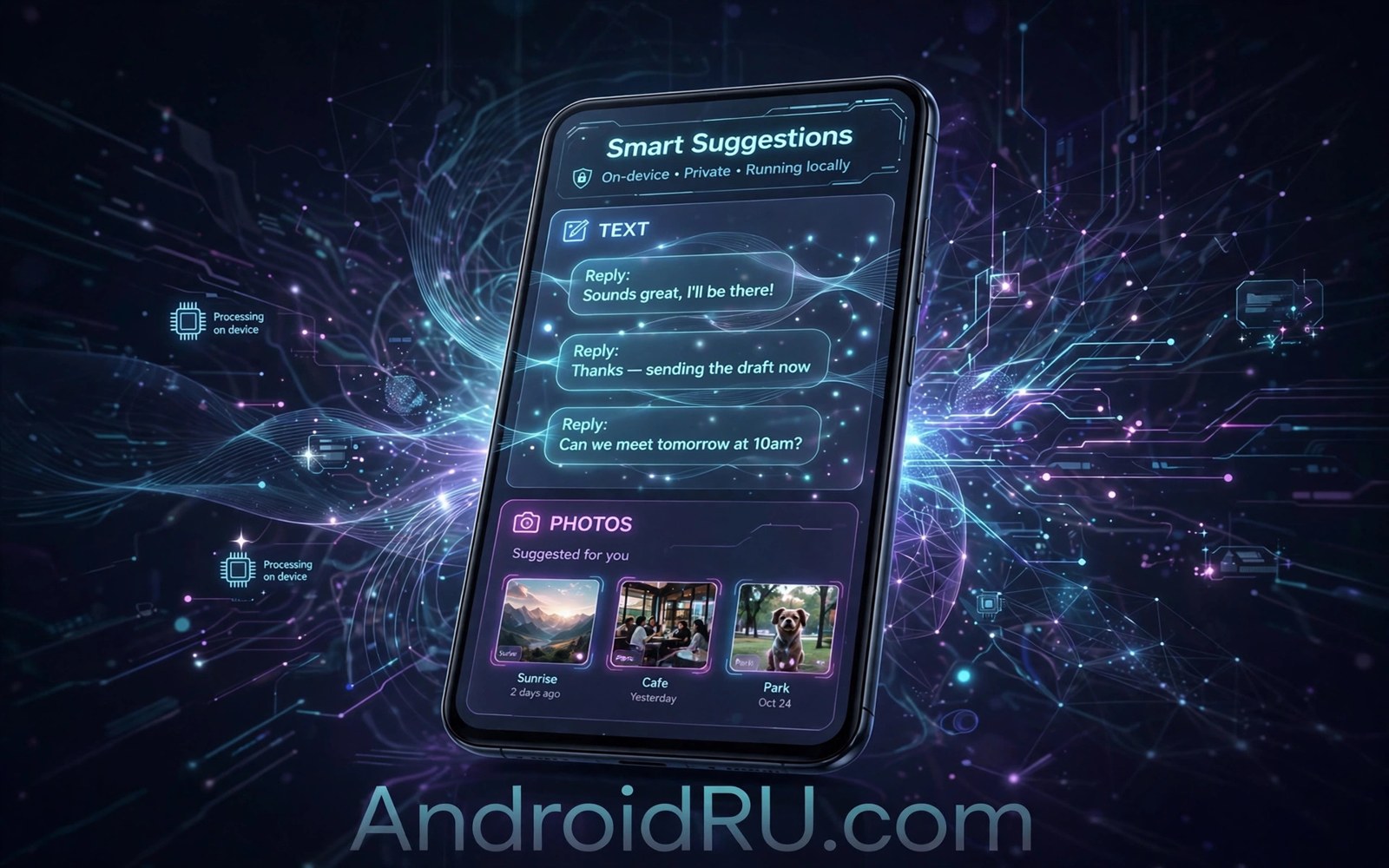
How Google Uses Machine Learning Directly Inside Stock Android
Your phone finishes your sentences, captions a video you are watching on mute, names a song playing in a cafe, and quietly stretches your battery through the afternoon. None of that happens by accident. Google builds machine learning straight into stock Android, and on Pixel phones in particular the models run on the device itself, in real time, often without sending your voice or your screen to a server. The result is a phone that feels less like a collection of apps and more like one system that pays attention.
I spent a week turning these features on one at a time on a Pixel, noting what actually changed in daily use and what was only marketing. Some of them earned a permanent place in my routine. Live Caption changed how I watch videos on the train. Adaptive Battery genuinely carried my phone past 10 pm on days when it used to die at 8. A couple of others, like the photo suggestion picks, took a few days to learn my habits before they became useful. This guide walks through the real features, how each one works under the hood, where to find the setting, and what to do when one of them stops behaving.
If you use a phone that runs clean, unmodified Android, most of what follows applies to you directly. If you run another brand skin, the same ideas apply, but the menu names and the exact feature list will differ. The thread that ties everything together is a clean software experience: fewer layers between you and the system means the learning features can see your real habits instead of a distorted copy of them.
What On-Device Machine Learning Means in Stock Android
Machine learning inside stock Android is not one single feature. It is a set of small models that live in the system and in Google apps, each trained to do one job: recognise speech, predict the next word, guess which app you will open, or decide how bright the screen should be. Google calls this approach on-device intelligence, and the key idea is that the model runs on your phone, using the phone processor, instead of shipping your data to a data centre and waiting for an answer.
That matters for three practical reasons. First, speed. A caption model that runs locally starts writing words on your screen in a fraction of a second, with no network delay. Second, privacy. Your voice, your photos, and your call audio can be processed without leaving the handset. Third, reliability. Live Caption still works in airplane mode, and Now Playing still recognises a song in a basement bar with no signal. The trade-off is that these models need modern hardware: a Tensor chip on a Pixel, or a recent Snapdragon or equivalent, with a dedicated AI core that can run them without draining the battery or heating the phone.
Google ships the models through two channels. Some arrive with the system itself, as part of Android System Intelligence, the system component that powers features like Live Caption, Smart Reply, and the At a Glance widget. Others live inside individual apps such as Gboard, the Phone app, or Google Photos. Both kinds improve over time through app updates and through Play system updates, so a feature that feels rough today can get noticeably better after a monthly update without a full Android version upgrade.
A good way to think about it is to separate the features into four families: understanding speech and text, understanding sound and images, predicting your routine, and protecting you from spam and scams. The rest of this guide walks through each family with the actual feature names, the settings paths, and the honest limits I found while testing them.
Live Caption and Live Translate: Speech Models That Run on Your Phone
Live Caption is the feature that convinced me this whole approach is real. Turn it on, play any video, podcast, or voice message, and words appear on screen as the audio plays, even if the app itself has no subtitles. The speech recognition model runs entirely on the device, which is why it works in airplane mode and why Google says the audio never leaves your phone. On a Pixel you enable it under Settings, then Sound and vibration, then Live Caption. There is also a quick shortcut: press a volume button, tap the caption icon under the volume slider, and captions start at once.
Live Caption settings worth changing first
The default setup is fine for most people, but three settings make a real difference. First, turn on “Caption calls” if you want live text during phone calls, which is genuinely useful in a noisy street or for anyone with hearing difficulty. Second, open the caption style settings and pick a text size and background that stays readable over bright video. Third, remember that Live Caption skips music and heavily accented speech sometimes mangles names and places, so treat it as a helper, not a transcript you can quote word for word.
Turn on Live Caption on a Pixel phone
Open Settings, tap Sound and vibration, tap Live Caption, and switch it on. Play any video and a caption box appears. You can drag the box anywhere on screen, and double tapping it expands the text. The volume shortcut is faster for everyday use: press volume up or down, then tap the small caption button that appears beneath the slider.
Live Caption on other stock Android phones
Live Caption is a Pixel feature first, and it has spread to some other phones running near-stock Android, usually under Settings, then Accessibility, then Live Caption, or under Sound. If your phone lacks the toggle entirely, the speech model is not shipped for your device, and no settings change will add it. In that case the closest alternative is the caption support built into YouTube and other video apps, which uses server-side captions instead.
Live Translate for conversations and messages
Live Translate takes the same on-device speech model and adds translation. On Pixel phones it can translate a live conversation in the Messages app, translate text in the camera viewfinder, and offer translated captions for foreign-language video. The translation models for supported languages are downloaded to the phone the first time you use them, which is why the first translation takes a moment and later ones feel instant. It handles everyday phrases well and struggles with slang, jokes, and fast overlapping speakers, exactly like any translation tool.
To try it, open a conversation with someone writing in another language in Google Messages, tap the translate suggestion that appears above the keyboard, and pick the language pair. For spoken conversation, the Interpreter mode in Google Translate uses the same idea with a split-screen layout so each person can read the translation in their own language. I tested Interpreter mode in a market in Jakarta with a vendor who spoke no English, and the exchange was slow but it worked: short sentences, one speaker at a time, and the phone in the middle of the table.
How accurate is on-device speech recognition in practice
Accuracy depends on the audio you feed it. Clear speech in a quiet room captions almost perfectly. A podcast with two hosts talking over each other, background music, or a thick accent will produce errors, especially with names, numbers, and brand words. The model improves with context: it guesses the next word from the sentence around it, so a misheard word often gets corrected a second later as more words arrive. After three days of regular use I stopped noticing the small errors and started noticing how often I reached for the feature without thinking, which is the honest test of whether a feature earns its place.
Now Playing and Call Screen: Audio Models Listening Locally
Now Playing is the quietest feature in this guide, and possibly the most clever. When it hears music in the room, it matches the sound against a small database of song fingerprints stored on your phone and shows the artist and title on your lock screen. The database covers tens of thousands of popular songs and it updates over Wi-Fi when the phone is idle. Because the matching happens locally, Google says the audio is never sent to a server, and the feature keeps working with no connection at all.
Find it under Settings, then Sound and vibration, then Now Playing, and switch on “Identify songs playing nearby”. You can also tap “Show search button on lock screen” so you can manually ask it to listen when it misses a track. Tapping a recognised song opens a history list, and from there you can jump to YouTube or your music app. I found it catches radio and cafe playlists reliably and misses obscure live recordings and very new releases until the on-device database catches up.
Call Screen and Hold for Me in the Phone app
Call Screen answers unknown numbers with the Google Assistant, asks the caller to state their name and reason, and shows you a live transcript so you can decide whether to pick up. The screening model runs on the device, and the caller hears a natural voice asking the questions. It is one of the best spam defences on any phone because a robocall usually hangs up the moment a voice asks it a question, while a real human answers without trouble. Enable it in the Phone app under Settings, then Spam and Call Screen, then Call Screen.
Hold for Me is the companion feature for the opposite problem: you are stuck on hold with a company. Turn it on in the same menu, and when you are placed on hold the Assistant listens for a human voice, then alerts you to come back. The hold music detection model runs locally, so the call audio stays on your phone. Both features are Pixel-only in their full form, though some other Android phones offer simpler spam screening through the same Phone app.
Spam call filtering and scam warnings
Behind Call Screen sits a simpler layer: spam identification. The Phone app checks incoming numbers against a list of reported spam callers and labels the call as suspected spam before you answer. Newer Pixel models add scam detection, where an on-device model listens for the patterns of common scams, such as a caller pretending to be a bank and asking for a code, and plays a warning on screen. The warning is a nudge, not a verdict: the model can be wrong, so use it as a reason to pause and verify, never as proof that a call is safe or dangerous on its own.
Adaptive Battery and Adaptive Brightness: Learning Your Daily Routine
Adaptive Battery is the feature most people feel without ever opening its settings. It watches which apps you actually use and when you use them, then limits background activity for the apps you rarely touch. An app you open every morning keeps full background access. An app you opened once last month gets its background work delayed until you open it again. The result is a phone that lasts longer without you doing anything, and the model keeps learning as your routine changes.
You will find it under Settings, then Battery, then Adaptive Battery. When I tested it over a full week, the difference was real but not dramatic: roughly an extra hour of screen-on time on a normal day, and a much bigger difference on days when I barely touched the phone, because the system stopped waking rarely used apps in the background. The catch is the learning period. The first two or three days after a reset or a new phone, Adaptive Battery has no history to work with, so it guesses, and a few notifications can arrive late. Give it a week before you judge it.
Adaptive Battery app standby and restricted apps
Adaptive Battery puts apps into standby buckets: active, working set, frequent, rare, and restricted. You can see the effect under Settings, then Battery, then Battery usage, where the system shows which apps used power in the background. If an app you care about is missing notifications, open its app info page, tap Battery, and set it to Unrestricted. That tells the model to leave that app alone. Do this only for messaging and alarm apps you genuinely need instantly; setting every app to Unrestricted cancels the whole benefit.
Check which apps Adaptive Battery restricts
Open Settings, tap Battery, tap Battery usage, and look at the background usage figures for each app. An app with high background use that you rarely open is a candidate for restriction. Tap the app, tap Battery, and choose Restricted to stop its background activity almost entirely, or Optimized to let the system decide. Restricted apps may miss notifications until you open them, so only restrict apps where late notifications do not matter.
When to turn Adaptive Battery off
Turn it off only as a test, not as a permanent fix. If notifications arrive late, first check the individual app battery setting above, because one misclassified app is a far more likely cause than the whole feature. If several apps misbehave at once after a system update, switch Adaptive Battery off for two days and see whether the problem clears. If it does, turn it back on and give the model a fresh week to relearn your routine.
Adaptive Brightness and how it learns your taste
Adaptive Brightness uses a light sensor plus a model of your manual adjustments. Every time you drag the brightness slider, the phone records the ambient light level and the brightness you chose, and over time it stops needing your corrections. The path is Settings, then Display, then Adaptive brightness. I noticed the learning curve clearly: during the first week I adjusted brightness two or three times a day, and by the second week I almost never touched the slider. The model had learned that I like a dimmer screen indoors than the default and a brighter one outdoors.
Resetting the learning is useful if someone else uses your phone for a while or if you change your habits. There is no single reset button, but clearing the data of the Device Health Services app under Settings, then Apps, then See all apps, removes the learned brightness model and starts it fresh. Your other settings stay untouched. Expect a few days of manual adjustments again while it relearns.
Smart Reply, Smart Compose and Voice Typing in Gboard
Smart Reply is the small row of suggested answers that appears above your keyboard in Messages and Gmail. The model reads the last message, not your whole inbox, and offers two or three short replies that fit the context: “Sounds good”, “See you at 7”, or “Thanks, I will check”. It works offline for common cases because a compact language model ships with the app. The suggestions are a starting point, and the honest way to use them is to tap one and then edit it before sending, so the reply still sounds like you.
Smart Compose goes a step further in Gmail, finishing your sentence as you type with a grey suggestion you can accept with a swipe or a tap. It learns from the way you write, which means it gets better the more you use it and slightly worse if you share the phone with someone whose writing style differs. Both features live in the settings of their own apps: in Gmail under Settings, then your account, then Smart Reply and Smart Compose; in Gboard under Settings, then Text correction, then Show suggestion strip and Suggest next word.
Voice typing with the Google Assistant model
Voice typing on a Pixel uses an on-device speech model that is noticeably faster and more accurate than the old server-based dictation. It handles punctuation commands such as “comma” and “new paragraph”, and it keeps up with normal speaking speed instead of forcing you to pause after every phrase. Turn it on in Gboard under Settings, then Voice typing, and make sure “Faster voice typing” is enabled, which downloads the on-device model. The first time you use it, speak a full sentence at your normal pace and watch the words appear almost as fast as you say them.
The same model powers voice commands across the system, from setting a timer to sending a message hands-free while driving. The difference between on-device voice typing and the older cloud version shows up most clearly with no signal: the cloud version stops working, the on-device version keeps going. That is the practical benefit of the whole on-device approach in one small test you can run yourself in airplane mode.
At a Glance and the Pixel Launcher predictions
At a Glance is the widget at the top of the Pixel home screen that shows your next calendar event, the weather, a boarding pass, or a delivery update, depending on what the system thinks matters right now. It is powered by the same routine-learning model that drives Adaptive Battery, and it reads your calendar, your location, and your recent app use to decide what to show. If you want to change what it displays, long press the widget, tap Customise, and toggle each type of information on or off. For a broader look at how the Pixel home screen is put together, see these Pixel launcher options, which cover the At a Glance widget and the launcher settings around it.
Magic Eraser, Best Take and Photo Picks in Camera and Photos
Machine learning in the camera starts before you press the shutter. The Pixel Camera uses models to pick the best frame from a burst, sharpen a face that moved slightly, and balance the exposure between a bright sky and a dark subject. Night Sight stacks several short exposures and uses a model to align them and remove noise, which is why a handheld night photo on a Pixel looks usable instead of blurry. None of these need a tutorial; they are on by default, and the camera decides when to use them based on the scene it detects.
Magic Eraser is the feature people ask about most. Open a photo in Google Photos, tap Edit, tap Tools, tap Magic Eraser, and brush over an object you want to remove. A generative model fills in the background behind it, guessing what the wall or the grass looked like. It works best on small distractions against a simple background, like a stranger walking past a beach photo, and it struggles with large objects in front of complex patterns. Camouflage mode is the subtler option: instead of deleting an object, it drains its colour so it stops pulling your eye.
Best Take and Photo Unblur for group shots
Best Take solves the classic group photo problem where one person always blinks. It captures a short burst and lets you swap in a different face from another frame in the same burst, so everyone looks their best in one image. Open the photo in Google Photos, tap Edit, and look for Best Take in the Tools section. It only works on bursts the camera captured with the feature in mind, so it will not appear for every photo. Photo Unblur is the companion tool for old photos: it sharpens a blurry image from years ago using a model trained to recognise what a sharp version should look like. It cannot recover detail that was never captured, but it often turns an unusable photo into a shareable one.
Photo suggestion picks and Memories in Google Photos
Google Photos groups your pictures into Memories, picks the best shots from a trip for a highlight reel, and suggests prints and collages, all using models that judge composition, faces, and duplicates. The face grouping model runs on your phone when face grouping is enabled, and the groups it creates stay on the device unless you turn on backup. If the Memories feel random, open Photos settings, tap Memories, and set which people and pets to feature and which to hide. The model learns from your choices: hiding a person once teaches it to stop featuring them.
How the Models Stay Private: Private Compute Core and Your Controls
The privacy story is the part Google talks about most, and it deserves a careful look rather than blind trust. Features like Live Caption, Now Playing, and Smart Reply run inside a sandboxed part of the system called Private Compute Core. The core is an isolated environment with no direct network access, which means a model running inside it cannot send your data to a server even if it wanted to. Android System Intelligence, the app that hosts many of these features, runs inside that sandbox. You can check it under Settings, then Apps, then See all apps, then Android System Intelligence.
Not every feature is fully on-device. Live Translate sometimes falls back to a server for a language pair whose model you have not downloaded. Voice search and Assistant queries go to the cloud by design. The honest rule is simple: if a feature works in airplane mode, it runs on the device. If it stops working without a connection, it needs the cloud. Test any feature you care about with airplane mode on before you decide how much you trust it.
Private Compute Core and what it actually isolates
Private Compute Core uses the same isolation ideas as a work profile: separate storage, separate memory, and no permission to open a network socket. The models inside it can read your notifications, your calendar, and your recent audio, because that is what they need to do their job, but they can only hand results back to the system through a narrow interface. You can audit this yourself in the permissions screen for Android System Intelligence, where you can revoke access to individual data types and watch the related features degrade gracefully instead of failing outright.
Turn off any learning feature you do not want
Every feature in this guide has its own switch, and turning one off does not break the others. Live Caption has its toggle under Sound and vibration. Adaptive Battery has its toggle under Battery. Smart Reply has its toggles inside Gmail and Messages. Now Playing has its toggle under Sound and vibration. If you want to go further, open Settings, then Privacy, then Permission manager, and review what Android System Intelligence can access. The system is designed so that disabling a feature stops its model from running, not merely hides its icon.
One more control is worth knowing: the “Usage and diagnostics” toggle under Settings, then Privacy, controls whether anonymous usage data goes back to Google to improve these models. Turning it off does not stop the features from working, it only stops your usage from feeding future model training. That distinction is useful if you like the features but prefer not to contribute training data.
Troubleshooting Machine Learning Features That Stop Working
The most common problem is a feature that vanishes after an update. The fix is usually boring: check that Android System Intelligence and the related app, such as Gboard or the Phone app, are updated in the Play Store, then restart the phone. Model updates arrive through app updates, and a half-updated system can leave a feature with a new interface but an old model, which usually means the toggle is present but nothing happens when you switch it on.
If Live Caption produces no text, check that the language is supported and that the media volume is not muted, because the model listens to the audio stream and silence gives it nothing to transcribe. If Now Playing never recognises anything, check that its song database has had a chance to download: connect to Wi-Fi, leave the phone idle and charging overnight, and check again the next day. If Adaptive Battery seems to delay notifications, check the individual app battery setting first, as described earlier, before you blame the whole feature.
Feature missing after a system update
Open Settings, then Apps, then See all apps, and confirm that Android System Intelligence is installed and enabled. If it is disabled, no learning feature will work. Then check Settings, then System, then System update, and install any pending update, because model features sometimes depend on a Play system update that arrives separately from the monthly security patch. A restart after the update finishes the install for most model components.
Captions or suggestions suddenly get worse
A sudden drop in quality usually means the model was reset, which happens after a factory reset, after clearing the data of Android System Intelligence, or after switching to a new phone. The fix is patience: use the feature normally for three or four days while it rebuilds its personal model from your habits. If the problem started right after an update, check whether other users report the same regression, and consider turning the feature off and on once, which forces the model to reload without deleting its learned data.
One last note on customization without root: stock Android gives you enough control to shape these features without rooting or installing third-party tools. The toggles, the per-app battery settings, and the permission screens cover nearly every adjustment a careful user needs, and keeping the system unmodified means the models keep receiving their official updates.
Frequently Asked Questions About Machine Learning in Stock Android
Does on-device machine learning send my voice or photos to Google?
For the features that run inside Private Compute Core, such as Live Caption, Now Playing, and Smart Reply, the processing happens on your phone and the audio or text does not leave the device. Features that need the cloud, such as web search and some translation pairs, will say so in their settings or simply stop working in airplane mode. Use the airplane mode test on any feature you are unsure about: if it works with no connection, it runs locally.
Can I turn off machine learning features on stock Android?
Yes, each feature has its own switch in its own settings screen, and turning one off leaves the others working. You can disable Live Caption, Adaptive Battery, Now Playing, Smart Reply, and At a Glance independently. Android System Intelligence itself can be disabled from its app info page, but that turns off nearly every learning feature at once, so use the individual toggles unless you want a clean break from all of them.
Does machine learning drain the battery or slow down an older phone?
The models are built to run on dedicated AI cores, so on a supported phone the cost is small, and Adaptive Battery usually saves more power than the other features consume. On an older phone without a dedicated AI core, heavy features like Live Caption and Magic Eraser can warm the phone and use more battery, and some features simply are not offered on that hardware. If you notice heat or drain, turn off the features you use least and keep the ones that earn their keep.
Which stock Android phones have the most machine learning features?
Pixel phones have the fullest set, because Google builds the models for its own Tensor chips first and ships features like Call Screen, Hold for Me, and Best Take only on Pixel. Phones running clean Android from other makers get the shared features, such as Live Caption where supported, Adaptive Battery, and Smart Reply, but not the Pixel-only extras. Check the settings paths in this guide on your own phone: if the toggle exists, the feature is supported; if it does not, no update will add it.
Start With One Feature Today
If you take one thing from this guide, make it Live Caption. It is free, it works offline, it needs no account, and it changes a daily habit the first time you use it on a video without subtitles. Turn it on under Settings, then Sound and vibration, then Live Caption, and watch one video with the sound off. Then, over the next week, turn on Adaptive Battery if it is not already on, let Now Playing listen for a few days, and try Call Screen on the next unknown number. Small tests, one at a time, will tell you more about machine learning in stock Android than any list of feature names ever could.
The bigger picture is that stock Android is no longer a plain, empty system waiting for you to fill it. The learning features are part of the system now, and they work best when you treat them as tools with settings, limits, and an off switch, not as magic. Keep the ones that save you time, switch off the ones that do not, and check back after each monthly update, because the models keep improving quietly in the background.

