

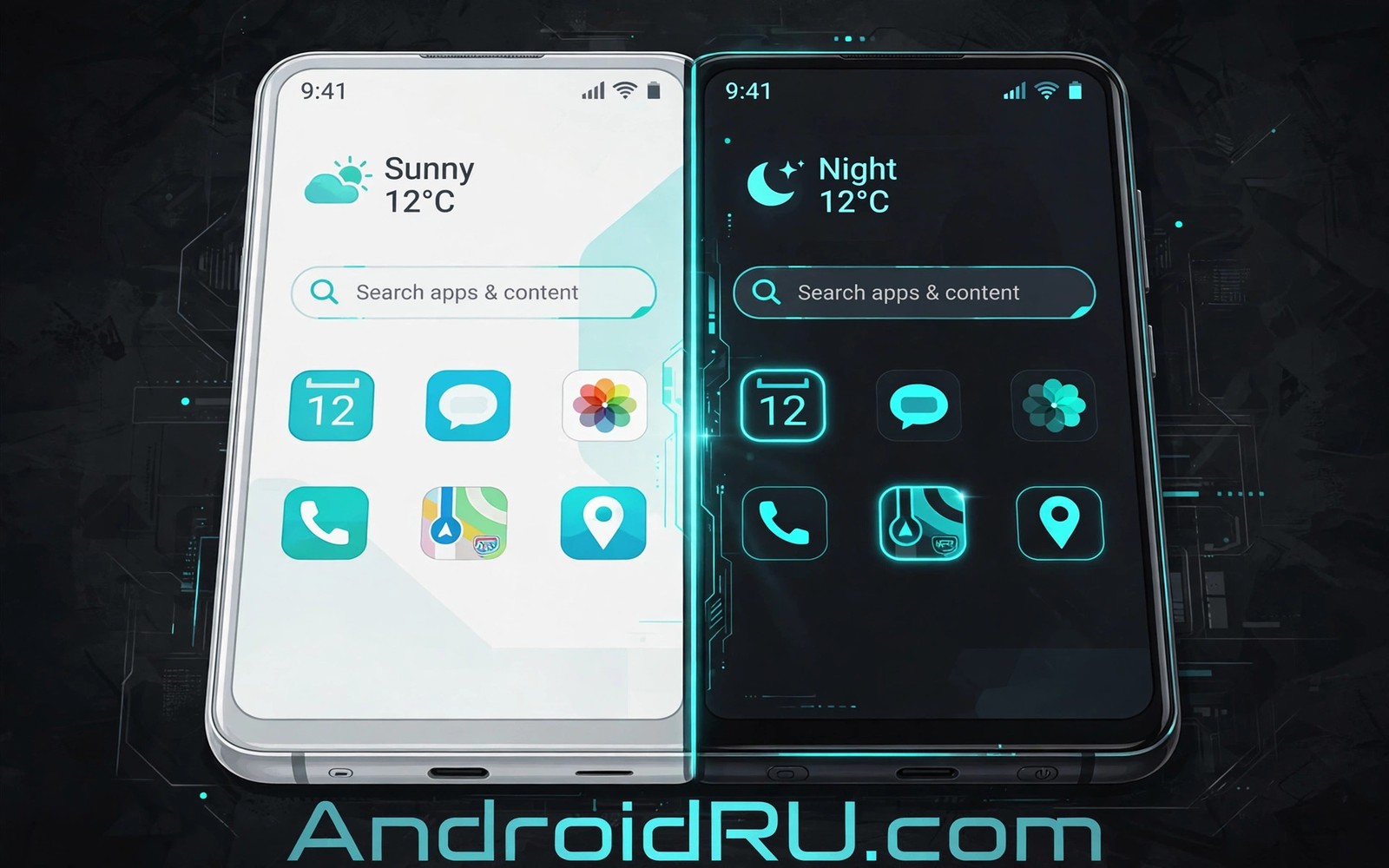
Systemwide light and dark themes are where Material You proves its value or exposes its flaws. A good adaptation keeps the same personality while it flips surfaces and text. A poor adaptation keeps bright accents that glare at night or dull accents that vanish by day. The system must solve both cases from one seed color.
This guide explains how the adaptation works and how to tune it for comfort. You will learn how tones shift at night and why some apps lag behind the system. You will also learn how to schedule the switch so you never think about it. If you want the engine theory then read about dynamic color engine basics before you tune the schedule in this article.
How tones shift after dark
Dark theme is not a simple inversion of light theme and the tone system proves it. Light theme pairs dark text with light surfaces. Dark theme pairs light text with dark surfaces but it does not reuse the same tone steps in reverse. Accent tones shift lighter at night so buttons stay visible on dark backgrounds. Surface tones shift darker but they stop short of pure black so depth cues survive.
Contrast rules tighten at night because glowing text on dark surfaces strains the eye faster. The system favors slightly muted accents after dark and it avoids pure white text on pure black surfaces. The result is a softer interface that still passes readability checks. Users who force pure black backgrounds often lose this careful balance and they gain glare in return.
App behavior varies because each app decides when to follow the system. Well built apps switch at once with the system signal. Older apps may need a restart or they may ignore the signal until an update. A few apps keep their own theme toggle that overrides the system entirely. Check the in app theme setting whenever an app refuses to follow the system switch.
Set up a comfortable theme schedule
A schedule removes daily decisions and it keeps the phone consistent across morning and night.
- Open Settings and then Display and find the dark theme setting.
- Turn on the schedule option and pick sunset to sunrise for automatic switching.
- Set a custom schedule instead if your sleep times differ from sunset times.
- Pick a palette and check it in light mode during the day.
- Wait for the scheduled switch and check the same screens at night.
- Adjust the palette if any accent glares or vanishes after dark.
- Check your three most used apps for correct switching after the schedule change.
- Fix any app with its own theme toggle so it follows the system setting.
Practical tips for both themes
Test palettes at night first when you care most about eye comfort. A palette that looks fresh at noon can feel harsh at midnight under low room light. Night testing reveals glare that day testing hides. If a palette fails at night then no day beauty can rescue it for a daily driver phone. You can also explore theme performance effects to check whether theme switching carries any battery or speed cost on your device.
Use scheduled switching even when you prefer one theme most of the time. A short dark period at night rests the eyes and it keeps the system adaptation tested. A phone stuck in one theme for months may surprise you with a broken dark palette after an update. A nightly switch catches that drift early while the fix is still simple.
Keep wallpaper and palette stable across the switch so the phone feels like one system. Constant wallpaper changes plus theme switches create a restless interface. One wallpaper and one palette across both modes builds familiarity fast. Change the wallpaper seasonally and not daily for the calmest result.
/* values-night colors follow the same roles */
<resources>
    <color name="surface">#1C1B1F</color>
    <color name="onSurface">#E6E0E9</color>
    <color name="primary">#D0BCFF</color>
</resources>
The snippet above follows the pattern shown in the official Android developer documentation for night resources and in the Material Design guidelines for dark theme roles. It shows how the same roles take different values at night and you should test every role pairing before you ship a dark theme.
Common mistakes
Theme schedule problems are usually setting conflicts and not system bugs.
- Forcing pure black everywhere. Pure black kills depth cues and it can increase glare from bright text. Let the system use deep grey surfaces instead.
- Leaving app overrides on. An app theme override blocks the system switch silently. Check in app settings when one app stays bright at night.
- Judging dark mode indoors only. Indoor light flatters dark themes and outdoor light tests them. Check dark surfaces in daylight too.
- Picking a palette for day only. A day palette can glare at night and ruin sleep comfort. Test every palette after dark before adopting it.
- Disabling the schedule after one glitch. One app lagging is not a reason to abandon scheduling. Fix the app setting and keep the schedule.
FAQ
Does dark theme save battery on all phones?
Dark theme saves noticeable battery mainly on OLED screens where dark pixels draw less power. LCD screens gain little battery benefit from dark surfaces.
Why does one app stay light at night?
That app likely has its own theme toggle set to light or it has not adopted the system signal. Open its settings and set its theme to follow the system.
Should I use sunset scheduling or a custom time?
Sunset scheduling follows seasons automatically and it suits most users. Custom times suit shift workers and users with fixed sleep windows.
A seven day routine
Theme scheduling comfort becomes obvious after a week of automatic switches in varied light.
- Day one: enable sunset scheduling and note the first switch time.
- Day two: check the same five screens in light mode during the day.
- Day three: check those screens again after the night switch.
- Day four: open your three daily apps and confirm they switched too.
- Day five: fix any app with its own theme override blocking the switch.
- Day six: test readability outdoors in both modes for glare issues.
- Day seven: adjust the palette once based on the whole week of notes.
Troubleshooting quick answers
Schedule complaints usually come from one override or one untested palette rather than from scheduling itself.
- Phone stays light at night. An app or system override may block the schedule. Check Display settings and in app theme toggles.
- Dark mode glares. A loud accent can glare on dark surfaces. Choose a softer palette option for night comfort.
- One app stays bright. That app likely has a fixed light theme setting. Set it to follow the system in its own settings.
- Schedule switches too early. Sunset times shift with seasons. Switch to a custom schedule matching your sleep window.
Putting it all together
Automatic scheduling removes a daily decision and it keeps both themes tested. A phone that switches nightly reveals palette drift early. A phone stuck in one mode hides drift until a manual switch surprises you. The nightly switch is gentle maintenance disguised as comfort.
Both modes deserve equal design attention because users live in both across a day. A theme tuned only for daylight fails the night shift worker and the late reader. A theme tuned only for night looks dull under office light. The week test across both modes finds the honest balance.
Keep the schedule even when you strongly prefer one mode because brief exposure to the other mode preserves adaptability. Eyes adjust to both palettes and the phone stays ready for any light condition. Preference can guide the default while the schedule keeps the alternative healthy.
Real world scenarios
A night owl reads in bed with a soft dark palette that never glares. Scheduled switching dims surfaces automatically at sunset. The reader never taps a theme toggle before sleep. Automation protects both eyes and sleep routine quietly.
An office worker moves between bright windows and dim meeting rooms daily. Light mode stays readable near windows while dark mode rests eyes in meetings. Scheduled switching handles both without manual thought. The phone adapts to rooms the way eyes do.
A parent shares a phone with a child for evening videos. Dark mode at night keeps the screen gentle in a dark living room. The child interface stays readable without harsh white surfaces. One schedule serves the whole household after sunset.
Checklist before you finish
The light and dark setup is complete when all of these pass.
- Schedule is set to sunset to sunrise or to a custom sleep window.
- Palette was checked in light mode during daytime use.
- Same screens were checked again after the night switch.
- No accent glares or vanishes in dark mode on daily screens.
- Three daily apps were confirmed to follow the system switch.
- App level theme overrides blocking the switch were fixed.
- Dark surfaces were checked in daylight as well as at night.
- Palette choice survived a full week of scheduled switching.
What changes after a month
After a month scheduled switching feels like the phone breathing with the day. Light surfaces greet mornings while dark surfaces ease evenings. The user never thinks about toggles anymore. Automation at its best becomes invisible.
Seasonal sunset shifts change switch times gradually and the body adapts alongside. Winter early darkness brings earlier dark themes naturally. Summer late sunsets delay the switch without manual input. Sunset scheduling follows nature better than fixed clock times.
App developers gradually improve theme following through updates over months. An app that lagged last year may follow perfectly now. Rechecking stubborn apps quarterly retires old complaints. The ecosystem improves slowly and steadily.
Eye comfort accumulates as a long term benefit of consistent scheduling. Reduced night glare supports better sleep routines over months. Small nightly improvements compound into noticeable wellbeing. Theme scheduling is a health habit disguised as a style choice.
Looking further ahead
Display technology shapes theme benefits because OLED and LCD panels respond differently to dark surfaces. OLED pixels turn off for black areas and save measurable power. LCD panels keep backlights on regardless of surface color and gain little. Users should set expectations by panel type rather than by generic battery claims. Honest expectations prevent disappointment when a dark theme fails to extend LCD battery life.
Circadian comfort adds another reason to schedule themes beyond simple preference. Bright surfaces late at night can disturb sleep preparation through light exposure. Dark surfaces reduce emitted light during evening hours naturally. Theme scheduling therefore supports sleep hygiene alongside visual comfort. A phone that dims itself at night respects the body clock without any conscious effort from its owner.
Conclusion
Light and dark themes are two faces of one palette and both deserve testing. A palette that works only by day is half a theme. A schedule that flips cleanly every night is the mark of a finished setup. You may also enjoy One UI palette comparison when you want another angle on the same theme.
Your next step is to enable sunset scheduling today and check your palette tonight. Note any screen that glares or vanishes and adjust the palette once. Keep the schedule for a week before you judge it.

