

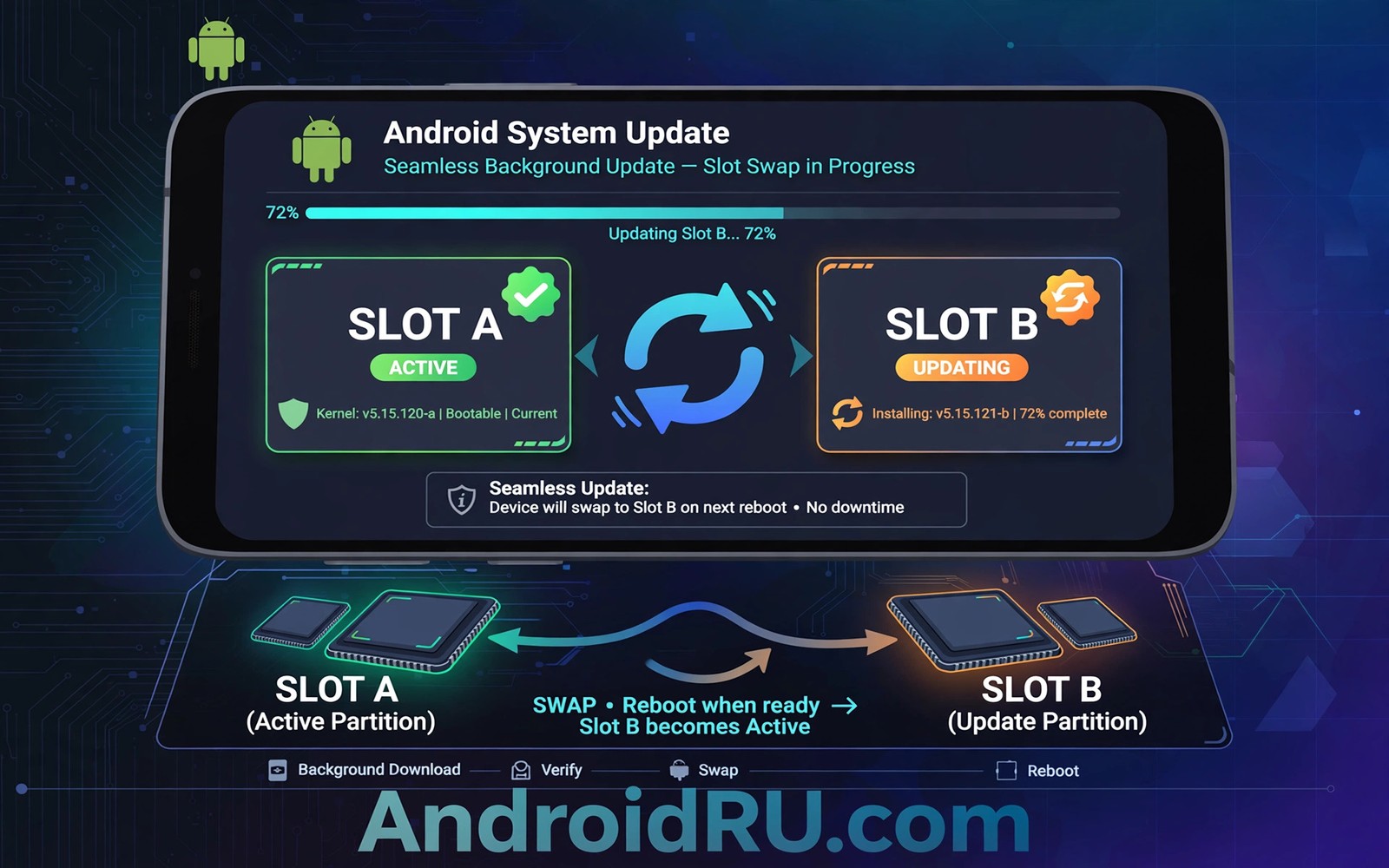
Android seamless updates use AB partitioning to install a new system in the background while you keep using your phone. The phone holds two system slots called A and B. One slot runs the current system and the other slot receives the new update. When the install finishes the phone switches slots on restart.
This design removes the long waiting screen that old updates required. It also gives the phone a fallback if the new system fails to boot. Owners notice faster restarts and fewer scary progress bars. If you want the wider update picture then what to do when an update breaks functionality covers recovery when something still goes wrong.
How A and B slots work
Each slot contains a full copy of the system partitions needed to boot. The active slot runs the phone today. The inactive slot sits ready to receive the next update. The update writes to the inactive slot only so the running system stays untouched during download and install.
After the inactive slot receives the full update the system marks it as the next boot target. A restart then boots from the updated slot. If that boot succeeds the new slot becomes active. If it fails the phone can fall back to the previous slot which still holds the old working system.
Why installs feel faster
Seamless installs happen in the background while you use apps and browse and message. The phone does not lock you out during most of the install. Only the final restart takes noticeable time and that restart is usually shorter than an old style update screen. Background work uses idle resources so daily use feels mostly normal.
Background installs also let the system verify the update before switching slots. Verification catches a corrupt package before it becomes the active system. That check adds safety without adding a long wait for the owner. The result is a smoother experience for most users.
What happens when an update fails
If the new slot fails to boot the phone can return to the old slot automatically in many cases. That fallback prevents a common bricking scenario from old update designs. The owner may see the old version again after a failed attempt. The update can then be retried after the cause is fixed.
adb shell getprop ro.boot.slot_suffix
adb shell getprop ro.build.version.release
adb shell ls -l /dev/block/by-name/ | grep -i slot
These commands follow the approach described in the official Android developer documentation for inspecting boot slot and partition information on a device.
Fallback does not protect user data from every failure. A backup still matters before a major update. Seamless design protects the system partitions well but it cannot undo a data problem caused by a faulty app or a full storage failure during install.
Storage cost of two slots
Two system slots need more storage than a single slot design. The phone reserves space for the inactive system copy. That reservation reduces usable storage slightly on phones with small capacity. Most modern phones handle this cost without trouble because storage sizes have grown.
Owners of phones with very small storage may feel the cost more sharply. Freeing unused apps helps in that case. Reading about the evolution of Android OS names and versions shows how update designs evolved alongside storage growth over Android history.
Which phones use seamless updates
Most modern Android phones from major brands now use AB partitioning. Pixel phones use it as a core design. Samsung and other brands adopted it across many recent models. Very old phones and some budget models may still use the older non seamless method with a long update screen.
Owners can tell the difference by experience. A phone that installs in the background and restarts quickly likely uses seamless updates. A phone that shows a long progress screen and blocks use during install likely uses the older method. Learning how Play system updates work adds the other background update layer that complements seamless system updates.
Seamless updates and enterprise fleets
Enterprise fleets benefit greatly from seamless updates because background installs reduce downtime. Employees can keep working while the update installs in the inactive slot. A short restart finishes the process. That pattern suits offices where long update screens would disrupt work. IT teams can schedule restarts for quiet periods to minimise disruption further. Seamless design therefore improves fleet productivity as well as individual convenience.
Fleet managers also value the fallback protection of AB slots. A failed update on one employee phone can fall back to the old system rather than bricking the device. That fallback reduces support tickets and replacement costs. It also gives IT teams time to investigate a bad build before it affects the whole fleet. Staged fleet rollouts combined with seamless fallback create a robust update strategy for businesses.
Seamless updates still require careful storage management across a fleet. Phones with small storage may struggle to hold two system slots plus user data. IT teams should set storage policies that keep free space available for updates. Regular cleanup of old files and unused apps helps fleet phones update smoothly. A fleet phone that cannot update due to full storage creates a security gap for the whole organisation.
Training also matters for seamless updates in a fleet. Employees should know that a background install is normal and that they should not restart repeatedly during install. Clear guidance prevents well meaning interference. A short internal notice before a major fleet update can prevent many support calls. That notice should explain the restart prompt and the expected downtime in plain terms.
Seamless updates on low storage phones
Low storage phones face a special challenge with AB partitioning because the inactive slot reserves system space. Owners of such phones should treat storage management as part of update preparation. Moving photos to cloud storage and deleting downloaded media frees space for the update process. Regular storage checks prevent a situation where an update cannot start due to lack of room.
App data often consumes more storage than owners realise. Messaging apps can hold gigabytes of media files. Clearing old media inside messaging apps can free significant space without deleting the apps themselves. Owners should review storage breakdown by app before deleting apps they still use. Targeted media cleanup preserves useful apps while freeing space for updates.
SD card storage does not always help with system updates because system partitions live on internal storage. Moving photos to an SD card frees internal space indirectly by removing files from internal storage. That indirect benefit still helps. Owners should move large media files to SD card or cloud storage before a major update if internal storage is tight.
Manufacturers could help low storage owners with clearer warnings before updates fail. A warning that shows required free space and current free space would let owners act early. Some brands already show such warnings while others show only a vague failure message. Clear warnings reduce frustration and support calls. Owners should check storage proactively rather than waiting for a failure message.
Seamless updates and data safety
Data safety during seamless updates depends on backup habits as much as on AB slot design. AB slots protect the system but they do not back up photos or messages. Owners who rely only on slot fallback may lose data if a rare data corruption occurs during install. A cloud backup or a computer backup before a major update remains essential. Slot design and backup together provide complete protection.
Owners should verify backup completion before starting a seamless update rather than assuming backup works automatically. Backup settings can fail silently due to storage limits or account issues. Checking the last backup date in settings takes seconds. That check confirms that a restore would succeed if needed. Verification turns backup from an assumption into a proven safety net.
App data that does not sync to the cloud deserves special attention before an update. Some apps store data only on the phone. Owners should export that data manually where the app offers export. A messaging app with local backups should create a fresh local backup before update. Those manual steps protect data that automatic cloud backup may miss.
After a seamless update owners should verify that data survived before deleting old backups. Opening photos and messages and checking contacts confirms a successful transition. Deleting a backup immediately after update removes the safety net too early. Keeping the pre update backup for a week provides insurance against a late discovered data problem. Patience in backup deletion protects owners from rare post update surprises.
Common mistakes
A common mistake is restarting the phone repeatedly during a background install out of impatience. Repeated restarts can interrupt verification and delay completion. Another mistake is assuming seamless updates remove the need for a backup. The fallback protects the system but a backup still protects personal data.
- Restarting repeatedly during a background install can interrupt verification and delay the update.
- Assuming seamless design removes backup need leaves personal data exposed to rare install problems.
- Forcing a restart during the final slot switch risks confusing the boot state and should be avoided.
Frequently asked questions
Do seamless updates use more battery?
Background installs use some battery but the system schedules work to limit impact. Charging the phone during a major update remains good practice. The final restart uses little extra power.
Can I use my phone during a seamless update?
Yes most of the install runs in the background while you use the phone normally. Performance may dip slightly during heavy install work. Only the final restart interrupts use briefly.
What if my phone still shows a long update screen?
Your model may use the older update method or the update may be a special type that needs a longer install. That method still works but it blocks use during install. Check your brand documentation for the method used by your model.
Conclusion
Seamless updates with AB partitioning install the new system into an inactive slot while you keep using the phone. A restart switches slots and a failed boot can fall back to the old system. The design makes updates faster and safer than older methods.
Your next step is to let the next update install in the background without repeated restarts. Keep the phone charged and back up your data first. When the restart prompt appears you can finish the update in minutes.

