

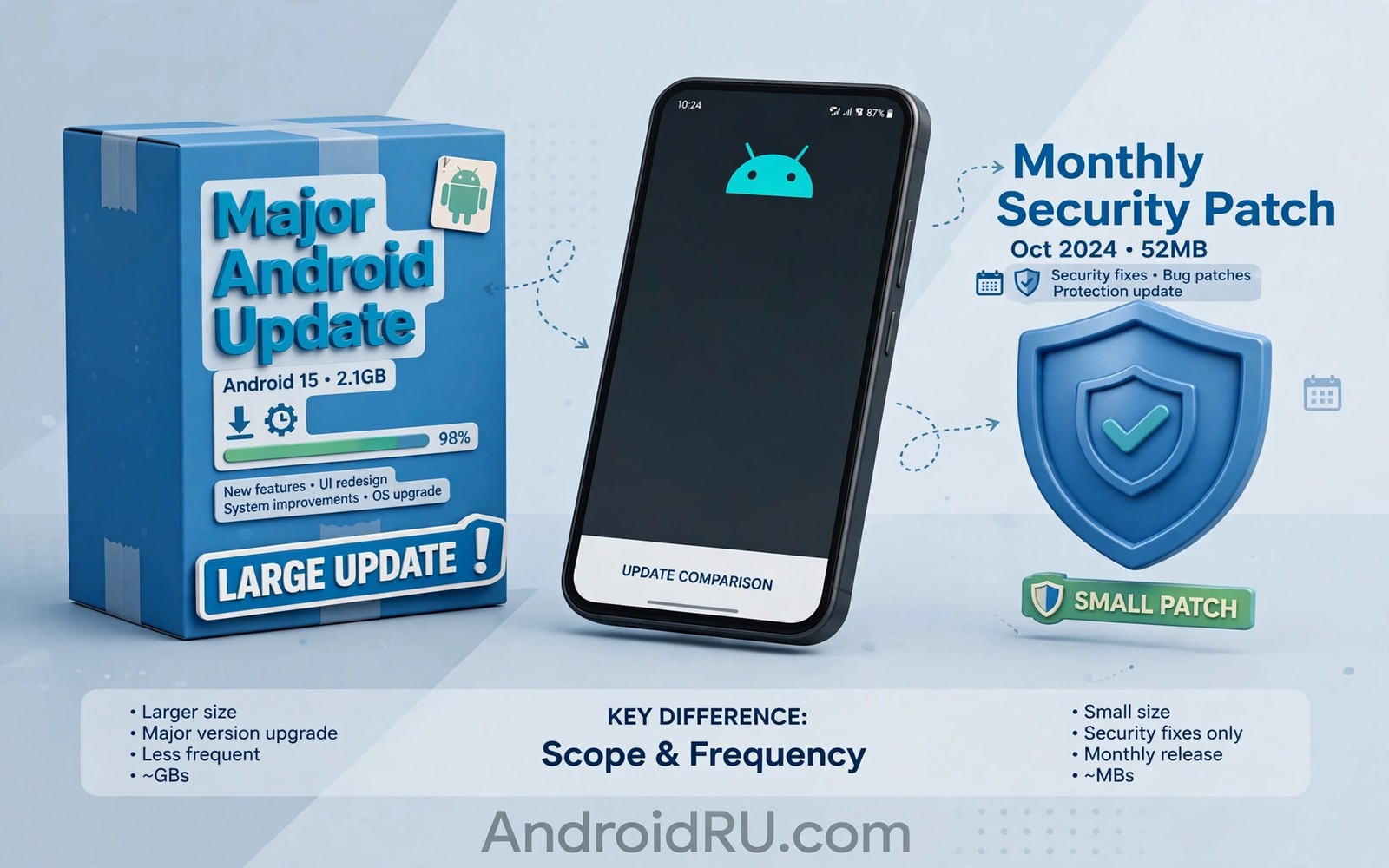
Android Major Updates vs Monthly Patches: Understanding the Difference
Your phone buzzes with a system update, and the notification looks the same as last month’s. Same icon, same restart prompt, same vague promise of improvements. Yet one of these updates will change how your phone looks and feels for the next year, while the other quietly closes security holes you will never see. Treating them as the same thing is how people install a major version at the worst possible moment, or ignore a patch that actually mattered.
This guide separates the two clearly. You will learn what a major Android update does, what a monthly patch does, how they differ in size, time, and risk, why brands ship them on different schedules, and how to handle each one well. By the end you will be able to read three small dates in your settings and know more about your phone’s health than most owners ever do.
What a major Android update actually does to your phone
A major update moves the phone to a new Android version, such as Android 14 to Android 15, or Android 15 to Android 16. It brings new features, new privacy controls, and often a refreshed interface. Notifications may look different, permission prompts may ask in new ways, and settings you use every day may move to a new menu. The phone feels different after a major update in a way a patch never causes.
Major updates also change the tools developers work with. Apps may need updates to use new features or to meet new rules, which is why a few apps behave oddly right after a major release. A banking app may ask for a permission again, a camera app may lose a shortcut, or a launcher may look slightly wrong for a day. Developers usually fix those issues quickly once the stable release reaches many phones, but the first week after a major update is when those small glitches appear.
There is a longer story behind each major release too. Google ships one major Android version a year, usually in the second half of the year, after months of public beta testing. Pixel phones get it first, then Samsung, Xiaomi, OnePlus, and other brands adapt it to their own interfaces over the following weeks and months. That adaptation work is why your neighbour’s phone can get Android 16 in September while yours waits until November, even when both phones are new.
What a monthly Android security patch actually does
A monthly patch fixes security flaws and serious bugs without adding major features. It usually arrives as a small download and installs quickly. The version number stays the same, but the security patch date moves forward, and that date is the clearest proof that a patch installed correctly.
Monthly patches protect against flaws that attackers could exploit. Skipping them leaves known holes open even if the phone feels fine, because a phone can look normal while carrying a serious security flaw. Prompt patch installation is therefore a basic safety habit, like locking a door you cannot see. Security researchers publish details of patched flaws after patches ship, and attackers can study those details and target unpatched phones, so the window between patch release and patch installation is a real risk period.
Google publishes these patches on the first Monday of each month as part of the Android Security Bulletin, and brands then adapt and ship them. Some brands ship within days, others take weeks, and that timing gap is one of the most honest signals of how seriously a brand takes your phone’s safety. A brand that ships patches within days of release shows strong update discipline, while a brand that ships them months late shows weaker discipline even if its marketing promises long support.
Android major updates vs monthly patches: the comparison table
The table below puts the two update types side by side on the criteria that matter when you decide how much care each install deserves. Read it once and the difference becomes hard to forget.
| Aspect | Major update | Monthly patch |
|---|---|---|
| What changes | Android version number, new features, interface, privacy controls, developer tools | Security fixes and serious bug fixes only; version number stays the same |
| Download size | Usually 1 to 3 GB, sometimes more on first install | Usually 30 to 300 MB, often under 100 MB |
| Install time | 20 to 60 minutes including optimisation and restart | 5 to 15 minutes including restart |
| Frequency | Once a year per phone, after months of beta testing | Once a month, on a steady schedule from Google |
| Risk of visible bugs | Higher, because many parts of the system change at once | Lower, because a narrower set of components changes |
| Preparation needed | Backup, free space, charged battery, Wi-Fi, free time afterwards | Charged battery and a few minutes; little else |
| How to verify it | Settings shows a new Android version number | Settings shows a newer security patch date |
The table shows a fair balance, and neither side is the “better” update. A major update gives you new abilities and a fresh interface, while a monthly patch gives you quiet protection that you never notice until it is missing. A phone that gets major updates but no patches is exciting and exposed at the same time. A phone that gets patches but no major updates is safe and slowly ageing. You need both, on different schedules, for different reasons.
Verdict per use case: who should care about which update most
If you keep a phone for five years, patch length matters at least as much as the major update count. A phone with four major updates but only three years of patches offers less total protection than a phone with three major updates and five years of patches, so check both promises before you pay. If you use your phone for work email and client data, prompt patching is the priority, because an unpatched business phone can expose company information through a known flaw. If you love new features and a fresh interface, major updates are the fun part, but plan them for a quiet evening rather than the morning of a trip.
Size, time and risk compared in real life
Major updates are large and take longer to download and install. They need more free space, a charged battery, and a stable connection, and the phone may feel warm and slow for a while afterwards while apps optimise in the background. Monthly patches are small and install fast with less risk, and a failed patch is rarer and easier to retry than a failed major update.
Risk also differs in a way that shapes how careful you should be. A major update touches many parts of the system, so the chance of a visible bug is higher: a battery drain issue, a Bluetooth quirk, or an app that crashes on launch. A patch touches a narrower set of components, so the chance of a new bug is lower, though never zero. Both types deserve a backup, but major updates demand more preparation, and reading about how long brands support Android updates shows how long each type keeps arriving for your model.
Owners with limited data plans should plan major updates around Wi-Fi availability while allowing small patches over mobile data. A major update can consume several gigabytes and exhaust a monthly data allowance quickly, while a patch usually consumes far less data and can install safely over mobile data when Wi-Fi is unavailable. That data-aware approach keeps the phone secure without unexpected data costs.
How to check your patch level and version in under a minute
Open Settings, then About phone, and look at two lines: Android version and Android security update. The version tells you the major platform level, and the security update date tells you the latest monthly fixes. For a deeper check, you can run a command from a computer with Android platform tools connected, which reads the same values straight from the system. The commands below follow the approach described in the official Android developer documentation for checking patch level and platform version on a device.
adb shell getprop ro.build.version.security_patch
adb shell getprop ro.build.version.release
adb shell dumpsys package android | grep -i versionName
What the three dates in your settings actually mean
Professionals read three dates together rather than judging a phone by one number. The Android version shows the major platform level, the security patch date shows the latest monthly fixes, and the Play system date shows the latest module level. Together those dates reveal whether a phone receives full care or only partial care. A phone with a new version but an old patch date still carries known flaws, while a phone with an old version but a recent patch date may still be reasonably safe for daily use.
Why brands and carriers treat major updates and patches differently
Brands must adapt a major update to their interface and test it on each model, and that work is costly and slow. Samsung has to fit Android 16 into One UI, Xiaomi into HyperOS, and OnePlus into OxygenOS, each with its own features, camera software, and settings layout. Monthly patches need less adaptation because the interface stays the same, so brands can ship patches faster and to more models, including older ones that will never see another major version.
Carriers treat the types differently too. A carrier may test a major update deeply before approval, because a broken major update generates support calls and returns. A monthly patch often passes through a lighter approval process, which explains why patches arrive on a steadier schedule than major updates. In some regions, carrier approval adds weeks to a major update and only days to a patch, and that gap is outside the brand’s control.
There is also a business reason. A major update is a marketing event: new features, new screenshots, and a reason to talk about the phone again. A patch is invisible work that earns no headlines, so it gets less attention in launch events even though it protects owners for longer. That is why owners should track patch timing for a few months before purchase by reading owner forums for a model. That research predicts future patch behaviour better than a launch promise alone, and if you track why phones stop getting updates you will see why losing either type changes the value of a phone over time.
How to handle each type well: numbered steps that work
Good update habits are boring, and that is the point. A short routine before each install prevents the two classic failures: a major update that fails for lack of space, and a patch that sits uninstalled for months because nothing visible changed.
Steps for a major Android update
Follow these steps in order, and do them when you have a free evening, not minutes before an important trip or meeting.
- Back up your photos, messages, and important files to your Google account or a computer, and confirm the backup finished before you continue.
- Free at least 5 GB of space by removing unused apps and old videos, since a major update needs room to download and install.
- Charge the phone to at least 60 percent and plug it in, then connect to stable Wi-Fi so the download does not eat your mobile data.
- Open Settings, then System, then System update, read the change list, and check that apps you rely on daily are compatible with the new version.
- Start the install, leave the phone alone until it restarts, and then test calls, Wi-Fi, Bluetooth, and your most-used apps before the next morning.
Steps for a monthly security patch
Patches are simpler, and the whole point is to install them promptly rather than perfectly.
- When the patch notification appears, charge the phone above 30 percent and connect to Wi-Fi or mobile data, since the file is small.
- Open Settings, then System, then System update, and tap to install the patch without delaying for weeks.
- Restart the phone if the system asks for it, then open Settings and About phone to confirm the security patch date moved forward.
- If no patch has arrived for two months, run a manual check in the same menu, and check your brand’s support page for your exact model.
Learning Android 14 vs Android 15 performance shows what a major update adds beyond the quiet work of patches, and it is a good reminder that the visible changes are only half the story.
Reading patch dates like a professional
Patch dates reveal brand behaviour over time, and a short personal habit turns them into useful evidence. Keep a simple update diary that records version changes and patch dates over time. That diary reveals whether a brand delivers patches promptly or slowly for a specific model, and it helps you spot a missed update that others received. Over a year that evidence becomes a useful record of brand reliability for future purchase decisions, and it gives support teams something concrete to act on when you contact them.
Support teams benefit when owners understand the difference between update types. An owner who reports a patch date and a version number together gives support a clearer picture than an owner who reports only a version number, and clear reporting speeds diagnosis and reduces back-and-forth questions. Monthly security patch dates are the single most useful detail you can give a support agent, because they show exactly how far behind your phone is.
What a lagging patch date really means for your safety
A patch date that lags by one month is normal for many brands, since adaptation and carrier testing take time. A lag of three months or more deserves attention, and a lag of six months means the phone is carrying several rounds of known flaws. At that point, check whether the model is still inside its promised support window. If it is, contact support with the dates written down. If it is not, start planning a replacement, because the gap will only widen.
How quarterly releases fit between majors and patches
Between the yearly major update and the monthly patch sits a third type: the quarterly feature drop, which Google ships to Pixel phones as a Feature Drop and other brands fold into their own schedules. These add a few visible features, like new camera modes or interface tweaks, without changing the version number. They are closer to a patch in risk and closer to a major update in visibility, so treat them like a patch for preparation and like a small major update for testing afterwards.
Major updates and patches in purchase decisions
Purchase decisions should weigh patch length as heavily as major update count, and the maths is simple once you see it. Pixel and Samsung flagships now offer promises that fit a five-year ownership plan, with up to seven years of updates on recent models. Budget phones rarely offer five-year promises yet, so buyers with a long ownership plan should either budget for a flagship or accept that a budget phone will need earlier replacement. Honest budgeting avoids surprise costs later.
Refurbished phone buyers should pay special attention to remaining patch years. A refurbished flagship may still receive major updates for a year, but patches may end sooner or later depending on the promise, and the seller rarely advertises remaining patch years clearly. Buyers should check the brand support page for the exact model before purchase, a check that takes minutes and prevents an expensive mistake.
Parents buying phones for teenagers should also consider patch length. Teenagers often keep phones for several years and install many apps, so a phone with long patch support stays safer through those years, while a phone with short support may become risky before the teenager is ready for a replacement. Long support offers peace of mind for families as well as for individual owners, and it is worth paying a little more for when the phone will be used by someone who will not think about updates at all.
Frequently asked questions about Android updates and patches
Can a phone get patches without major updates?
Yes, and this is common. Many phones receive security patches after major updates stop, and the patch period often lasts longer than the major update period. Google’s own Pixel phones and Samsung’s recent flagships both promise patch years beyond their major version years. Check the brand promise for both periods separately, because a phone can be safe without being new.
Do monthly patches add new features to my phone?
Patches rarely add visible features. Their job is security and serious bug fixes, and new features arrive through major updates and quarterly releases instead. If a patch changes something you can see, it is usually a bug fix for a broken feature rather than a new one. That is normal, and it is not a sign the patch failed.
Should I install a monthly patch at once, or wait to see if it causes problems?
Install monthly patches promptly. They are small and low risk, and they close known flaws, while delaying them offers no benefit for most owners. The risk period between patch release and installation is exactly when attackers know the flaw details, so waiting increases your exposure without reducing it. If a patch ever does cause a problem, the fix is usually a restart or a follow-up patch within days.
Why does my phone get patches later than my friend’s identical phone?
Staged rollouts are the usual reason. Brands release updates to a small group first, watch for problems, and then widen the rollout over days or weeks, so two identical phones can differ by a fortnight. Carrier approval, region, and model variants add further delays. If your phone is more than a month behind the same model in the same country, run a manual check in Settings, then System, then System update.
Does a major update slow down an old phone?
Sometimes, but less often than owners fear. A major update can feel slower for a day or two while apps optimise in the background, and then settle back to normal. Real slowdowns usually come from a full storage or an ageing battery rather than the update itself. Free up space, check battery health in settings, and give the phone two days before judging the new version. If it stays slow, a factory reset after a full backup is the last resort, not the first step.
Your next step: check your patch date today
Major updates change the version and the feel of the phone, while monthly patches protect the phone without visible change. Both types play a distinct role, and both deserve attention on different schedules: patches as urgent, major updates as planned events. The habit that ties them together is simple, and it takes less than a minute.
Open Settings, then About phone, and read your Android version and your security patch date right now. If the patch date lags by months, run a manual update check in the same menu. Then back up your data so the next major update installs without stress, and write the two dates down somewhere you will see them next month. That one small check is the difference between owning a phone and merely hoping it is looked after.

