

A Single Cable To A Bigger Screen
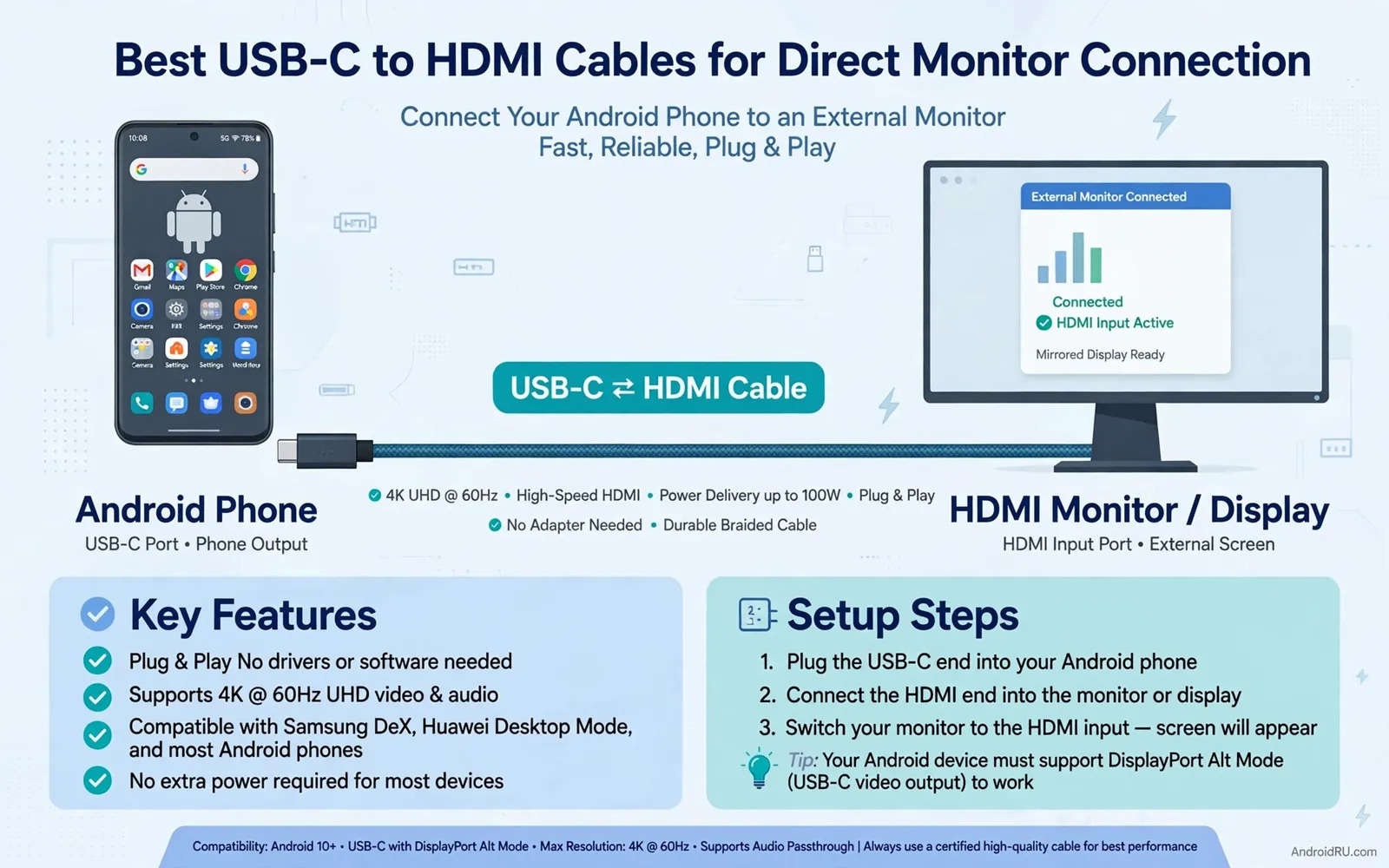
A USB-C to HDMI cable lets an Android phone drive a monitor or a television without a dock and without wireless casting. The phone sends video through its USB-C port and the cable converts that signal for an HDMI display. The result suits presentations and films and documents and desktop mode sessions where a large screen improves comfort dramatically. The appeal lies in simplicity because one cable and one display can transform a pocket device into a workstation or a media player. Simplicity only works when the phone supports video output and when the cable matches the required video mode.
Not every USB-C port carries video even though every USB-C port looks identical from the outside. Some phones support DisplayPort over USB-C while others support an alternative video mode and some support charging and data only. Check your exact phone model before buying because a cable cannot add video capability to a port that lacks it. The display side matters too because monitor resolution and refresh rate and HDMI version affect the final picture. A cable rated for a modest resolution may still work at higher settings with compromises or may fail outright. Readers learning cable fundamentals can explore USB-C cables covering data transfer speeds and wattage for background that applies to video cables as well.
Video Modes Resolution And Refresh Explained
DisplayPort over USB-C is the most common video path on Android phones that support external displays. The phone outputs a DisplayPort signal and the cable converts it to HDMI for the monitor. Some cables include an active converter chip while others rely on a simpler conversion path. Active cables often handle higher resolutions more reliably but they cost more and may need power in some designs. Resolution describes image detail while refresh rate describes motion smoothness. A cable that handles a sharp still image may still struggle with smooth high refresh video if its bandwidth falls short.
Bandwidth is the practical limit behind resolution and refresh combinations. Higher resolution at higher refresh needs more bandwidth and a cable built for a lower bandwidth ceiling will drop to a lower mode or show flicker or show nothing at all. Check the cable rating in plain terms and match it to your monitor rather than assuming that all USB-C to HDMI cables behave identically. Cable length also affects signal quality because very long passive cables lose signal strength. A short cable usually performs more reliably than a long cable for a desk setup. Keep the run as short as practical and add length only when the layout truly requires it.
Choosing A Cable For Work Presentations And Films
Work users should prioritise reliability and desktop mode compatibility. A cable that maintains a stable connection during a long meeting matters more than a headline resolution figure. Test the cable with your actual monitor and your actual apps before an important presentation because monitor compatibility varies. Presentation apps may mirror the phone screen while desktop mode apps may extend into a full desktop layout. Knowing which behaviour your phone offers prevents a surprise in front of an audience. Carry a spare cable for critical presentations because cables fail and adapters get forgotten.
Film viewers should prioritise picture stability and sound routing. Some setups send audio to the monitor speakers while others keep audio on the phone. Check audio output settings when the picture appears but sound stays on the phone. A monitor with built-in speakers simplifies film nights while a television usually handles sound naturally. Readers using their phone as a workstation display may also enjoy Android desktop mode and whether it can replace a laptop for the software side of a large screen setup. Hardware and software together decide whether the big screen feels like a real workspace.
- Confirm video output support on your exact phone model first
- Match cable bandwidth to monitor resolution and refresh rate
- Keep cable length short for reliable desk setups
- Test audio routing before presentations and film nights
- Carry a spare cable for critical work sessions
Setup Steps And Troubleshooting
Connect the cable firmly at both ends and select the correct HDMI input on the monitor. Unlock the phone because some phones require an unlocked screen before video output starts. Wait a few seconds for the display handshake because the phone and monitor negotiate resolution and timing before an image appears. If the screen stays blank then try a different HDMI port and a different monitor input and a direct connection without any intermediate adapter. A second monitor test separates a cable problem from a monitor problem quickly.
If the image flickers or drops then suspect cable length or cable quality or a loose connector. Reseat both ends and remove any case that prevents full insertion. If colours look wrong then check monitor picture settings and phone display settings for colour mode mismatches. If the image appears but touch or keyboard input behaves oddly then check desktop mode settings rather than blaming the cable. Readers who move files between phone and computer alongside display work can review transferring files between Android and PC wirelessly and by USB for the data side of a desk setup. Systematic checks solve most cable problems without a return.
Power Delivery And Charging While Connected
Some USB-C to HDMI cables include an extra USB-C port for charging while the display runs. That feature matters during long desktop sessions because driving a large screen drains a phone battery steadily. A cable without charging forces a choice between display time and battery life. A cable with charging keeps the phone topped up but needs a suitable charger connected to the extra port. Check whether the charging port supports enough power for your phone because a weak charger may only slow drain rather than charge during use. Heat can build up during simultaneous display and charging so give the phone airflow during long sessions.
Adapters and hubs offer an alternative when a direct cable lacks charging or extra ports. A hub can add HDMI and USB ports and charging in one device but it adds cost and complexity and another point of failure. A direct cable suits travel and simple setups while a hub suits a permanent desk. Choose the simpler option when it meets your needs because fewer components mean fewer troubleshooting steps when something stops working unexpectedly.
A Buying Checklist For First-Time Success
Buy in this order to avoid a blank screen disappointment. Confirm video output on your exact phone model first. Match cable bandwidth to your monitor second. Decide whether charging during use matters third. Choose a practical length fourth. Test with your real monitor and apps during the return window last. That order turns a confusing cable market into a short and reliable decision.
A good USB-C to HDMI cable disappears into the setup and lets the large screen do the work. It should connect quickly and hold a stable image and route sound sensibly and charge when needed. When those basics work the phone becomes a genuinely flexible device that moves from pocket to desk to television without friction or fuss.
- Confirm video support before ordering any cable
- Match bandwidth and length to your monitor and desk
- Decide if charging during display use matters
- Test picture and sound with real apps early
Monitor Choice And Desk Ergonomics For Phone Display
Monitor choice shapes phone display success as much as cable choice does. A monitor with an HDMI input and a comfortable size for the desk makes phone desktop mode feel natural. A very large monitor can overwhelm a phone interface designed for smaller screens while a very small monitor offers little benefit over the phone itself. Resolution should match the cable and phone output so the system runs at a native setting rather than a scaled compromise. A monitor stand that adjusts height and tilt protects neck posture during long desktop sessions.
Ergonomics deserve attention because a phone on a desk invites poor posture when the setup is improvised. Place the monitor at eye level and at arm’s length and keep the keyboard at elbow height. Use a separate keyboard and mouse for long sessions rather than typing on the phone screen while it drives the monitor. Take breaks and stretch during long work because a comfortable screen does not remove the need for movement. A well arranged desk turns a phone into a genuinely productive workstation rather than a cramped compromise.
Multiple displays add complexity that a single cable cannot always solve. Some phones support one external display only while others support desktop mode with additional flexibility. Check phone capabilities before buying a second monitor for a phone desk. A single good monitor with a phone dock often serves better than two monitors with a confusing setup. Simplicity and reliability beat impressive desk photographs when real work must get done every day.
- Choose a monitor size and resolution matching phone output
- Place the monitor at eye level and arm’s length for posture
- Use a separate keyboard and mouse for long desktop sessions
- Check single-display limits before planning multiple monitors
- Take movement breaks even when the desk setup feels comfortable
Presentation Confidence With A Phone And Monitor
Presentation confidence grows from rehearsal with the exact cable and monitor that will be used. Rehearse slide transitions and video playback and desktop switching before an audience arrives. Check font sizes on the large screen because text that looks fine on a phone can look tiny or huge on a monitor. Prepare a backup plan such as a downloaded copy of slides on the phone in case network access fails during the talk. A presenter who has tested the full chain speaks calmly while a presenter discovering problems live loses audience trust quickly.
Audience experience depends on more than picture quality. Speak toward the audience rather than toward the monitor and use the large screen as a visual aid rather than a script. Pause after key points so the audience can absorb visuals. Keep the phone silent except for presentation audio because a notification sound during a talk distracts everyone. A confident presenter uses technology quietly in service of ideas rather than letting cables and settings dominate the event.
- Rehearse with the exact cable and monitor before presenting
- Check font sizes on the large screen during rehearsal
- Keep a downloaded backup of slides for network failures
- Silence notifications except presentation audio during talks

