

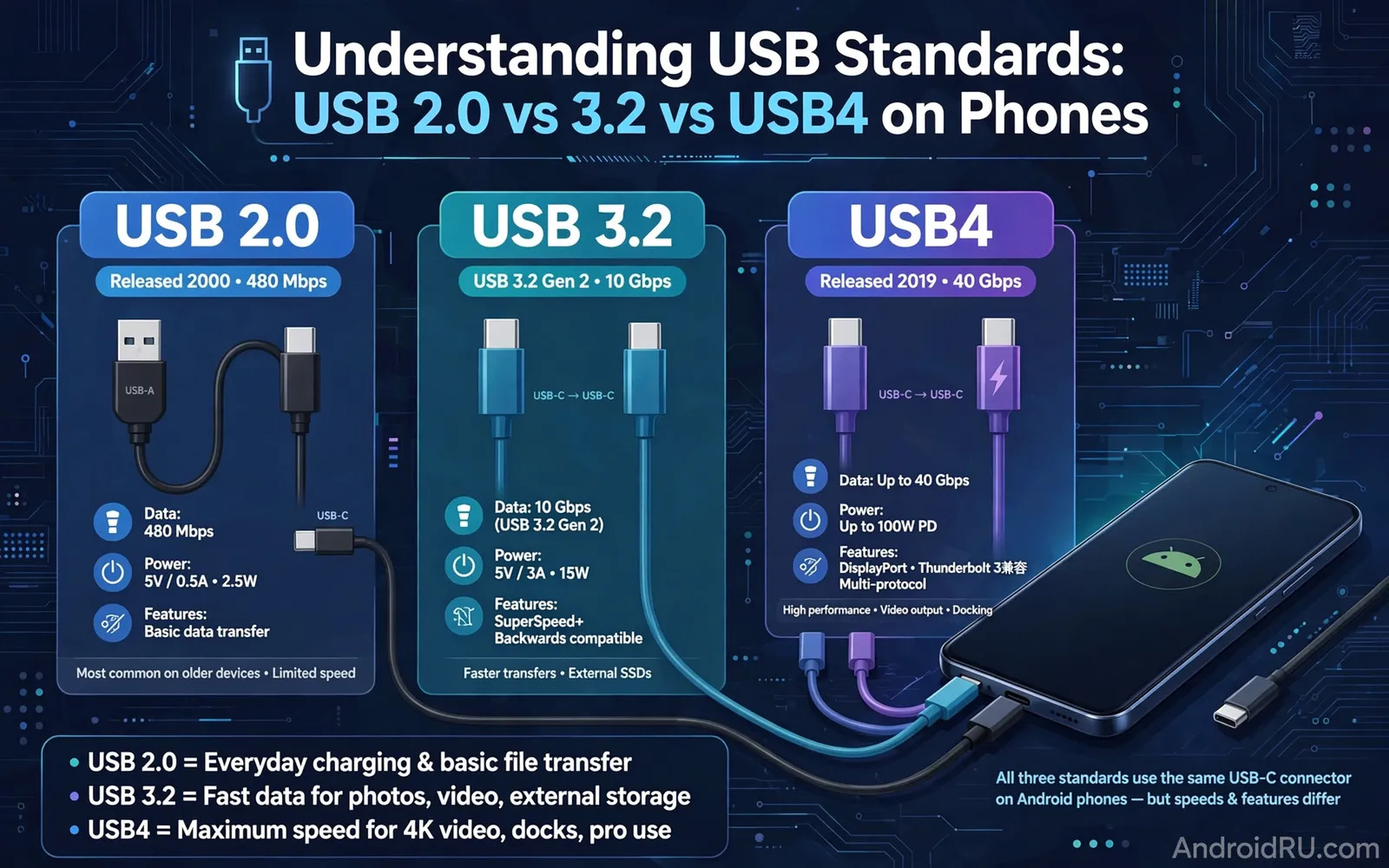
Understanding USB Standards: USB 2.0 vs 3.2 vs USB4 on Phones
Two phones can look identical from the outside, share the same USB-C shape, and still move files at wildly different speeds. I learned that the hard way when I copied a 12 GB folder of 4K clips from a new phone and watched the progress bar crawl for almost half an hour, while a cheaper-looking tablet finished a similar job in a few minutes. The connector told me nothing. The USB standard hiding behind that connector told me everything. USB 2.0, USB 3.2, and USB4 are not just marketing labels that climb in order. They describe different data ceilings, different video abilities, different hub behaviour, and different expectations for the cable in your hand.
This guide answers the question most buyers actually ask: which USB standard does my phone have, what does it change in real life, and when is it worth paying more for a faster one? You will get plain numbers for each generation, a side-by-side comparison table, honest verdicts for casual users, photo lovers, video creators, and desk workers, plus a timed test you can run at home with a cable and a stopwatch. No spec-sheet worship, no hype about peak speeds you will never see.
USB 2.0 on Phones: What 480 Mbps Really Means in Daily Use
USB 2.0 is the oldest standard still common on phones, and its headline number is 480 Mbps, or 60 MB/s in theory. In practice, after protocol overhead, phone storage limits, and cable quality, most USB 2.0 phones land between 25 MB/s and 40 MB/s for a large single file, and far slower for folders full of small photos. That is enough for a music playlist, a handful of documents, or a quick photo backup. It is not enough for a 20 GB video project, a full camera-roll backup before a flight, or a regular 4K editing workflow. The wait grows with every gigabyte, and a 10 GB transfer at 30 MB/s still takes close to six minutes.
Why does USB 2.0 still exist on new phones in 2026? Cost is the main reason, and the second reason is that many buyers never move large files over a wire. Budget phones, entry-level tablets, and some mid-range models keep USB 2.0 because their buyers charge over USB-C, sync photos to the cloud, and rarely plug into a computer. The phone still charges, still connects to a computer, and still works with keyboards, mice, and flash drives through OTG. The limit only bites when you move big files often. That said, a USB 2.0 port can still charge quickly, because charging power is governed by separate power delivery rules, not by the data standard. Do not judge a phone by its connector shape, and do not assume a slow transfer means a faulty cable until you have checked the port standard first.
How fast is USB 2.0 for photos, music, and documents?
For small files, USB 2.0 feels fine. A 200-photo backup of 3 MB JPEGs, about 600 MB in total, usually finishes in under a minute. A podcast folder or a set of PDF documents moves in seconds. The pain starts with video: a single 4 GB 4K clip at 30 MB/s takes more than two minutes, and a wedding shoot or a holiday folder of 50 GB can take half an hour. Small files add another drag, because each file carries overhead for opening, checking, and closing. A thousand 2 MB photos will transfer slower than one 2 GB video of the same total size, even on the same port. If your weekly routine is mostly photos and chat backups, USB 2.0 will rarely annoy you. If your weekly routine includes video, treat USB 2.0 as a real bottleneck.
Which phones still ship with USB 2.0 in 2026?
Entry-level Samsung Galaxy A-series models, many Motorola Moto G models, budget Xiaomi and Redmi phones, and a long tail of affordable tablets still list USB 2.0 in their spec sheets. Some mid-range phones hide it too, which is why the port section of a spec sheet matters more than the launch price. I have seen phones at very different prices share the same 480 Mbps ceiling, and I have seen cheaper tablets beat them. Check the official spec page, search for the words USB version or data transfer speed, and ignore any page that only says USB Type-C. That phrase describes the shape of the plug. It says nothing about speed.
USB 2.0 charging speed is a separate question
A USB 2.0 phone can support 25 W, 45 W, or even faster charging, because the charging negotiation happens through USB Power Delivery or a vendor fast-charging protocol. The data wires and the power wires are different jobs. A phone that charges from empty to half in 30 minutes can still take 20 minutes to copy a large video. Judge charging by the wattage and the charging time in reviews, and judge data by the USB version and a timed copy test. Mixing the two numbers up is the most common buying mistake in this whole topic.
USB 3.2 on Phones: Gen 1, Gen 2, and Gen 2×2 Explained
USB 3.2 is where transfers start to feel quick. The naming is famously messy, because the USB Implementers Forum renamed older generations along the way. USB 3.2 Gen 1 is the old USB 3.0 and USB 3.1 Gen 1, rated at 5 Gbps, or about 625 MB/s in theory. USB 3.2 Gen 2 is the old USB 3.1 Gen 2, rated at 10 Gbps. USB 3.2 Gen 2×2 uses two 10 Gbps lanes at once for 20 Gbps. Real-world speeds sit well below those ceilings, but the jump from USB 2.0 is still dramatic: a good USB 3.2 Gen 1 phone often sustains 200 to 400 MB/s to a fast external drive, and a Gen 2 phone can pass 500 MB/s when the drive and the phone storage both keep up.
That speed changes habits. A 10 GB video folder that took six minutes on USB 2.0 can finish in under a minute on USB 3.2 Gen 2. A full photo library backup becomes a coffee-break job instead of an overnight job. Video creators can move footage to a laptop, edit, and move a finished export back without planning the day around transfers. The trade-off is price and heat: faster ports need better controllers, better cables, and often better internal storage to show their advantage. A USB 3.2 port paired with slow phone storage will still feel capped, which is why a timed test with your own files beats any headline number.
USB 3.2 Gen 1 vs Gen 2: is the difference visible?
For most people, Gen 1 at 5 Gbps is already a large upgrade from USB 2.0, and Gen 2 at 10 Gbps only shows its edge with very large files and very fast external drives. Copying a 2 GB video, the gap between Gen 1 and Gen 2 is a few seconds. Copying 100 GB of 4K footage, the gap can be several minutes. Gamers moving large game data, photographers backing up RAW files, and creators moving ProRes or high-bitrate clips will notice Gen 2. Casual users moving photos and documents will not. Buy Gen 2 when your files are large and frequent, and treat Gen 1 as plenty when they are not.
What USB 3.2 Gen 2×2 means, and why phones rarely use it
Gen 2×2 at 20 Gbps needs two data lanes, a special cable, and a matching drive, and almost no phone ships with it. It appears far more often on laptops, desktop motherboards, and high-end external SSD enclosures. A phone that lists USB 3.2 without a Gen label usually means Gen 1, and a phone that lists Gen 2 is already in the faster group. Do not pay extra for a Gen 2×2 cable for a phone that cannot use the second lane. The cable will still work, it will simply run at the phone’s lower ceiling, and the extra money buys nothing on that device.
USB 3.2 and external display support are not the same thing
A USB 3.2 port can be fast for data and still offer no video output at all. Video over USB-C needs DisplayPort Alt Mode or a similar video mode, which is a separate feature from the data generation. Some USB 3.2 phones support video to an external monitor, and some do not. Samsung DeX phones, many flagship models, and several gaming phones do. Many mid-range USB 3.2 phones do not. Check for the words DisplayPort, video output, or desktop mode in the spec sheet before buying a monitor or a video hub for a phone.
USB4 on Phones: 20 Gbps, 40 Gbps, and Thunderbolt Compatibility
USB4 is the newest generation in this comparison, and it brings the biggest ceiling: 20 Gbps for USB4 Gen 2×2 and 40 Gbps for USB4 Gen 3×2, with a shared bandwidth design that can split capacity between data and video on the fly. The headline number sounds extreme for a phone, and for most daily transfers it is, because phone storage and most external drives cannot feed 40 Gbps. Where USB4 earns its keep is in flexibility: it can carry high-speed data, drive a high-resolution external display, and run a full desk hub through one cable, all at once, with more headroom than USB 3.2. That is the standard to look for when a phone is meant to be a pocket computer at a desk.
USB4 also brings closer ties to Thunderbolt. USB4 and Thunderbolt 3 share a lot of DNA, and many USB4 ports work with Thunderbolt accessories, though compatibility is not guaranteed on every device. A phone with USB4 may drive a Thunderbolt dock, a high-speed SSD enclosure, or a 4K monitor that a USB 3.2 phone cannot drive smoothly. The catch is cost and rarity: USB4 still appears mainly on flagship phones, premium tablets, and high-end laptops. If you buy a USB4 phone and a USB4 cable, you are buying headroom for the next few years, not speed you will use every day. That headroom is worth it for creators and desk workers, and it is wasted money for a phone that only charges and syncs photos.
USB4 20 Gbps vs 40 Gbps on a phone: what changes?
USB4 at 20 Gbps already doubles the best USB 3.2 Gen 2 speed, and USB4 at 40 Gbps doubles it again. In a timed test with a fast NVMe enclosure, a 40 Gbps port can sustain over 1,000 MB/s, sometimes far more, while a 20 Gbps port lands in the 800 to 1,500 MB/s range depending on the drive. Those numbers only appear with a matching drive, a matching cable, and large files. With a normal SATA SSD or a USB flash drive, both USB4 speeds feel the same, because the drive is the limit. The practical difference between 20 and 40 Gbps on a phone is therefore small today, and it grows only when you pair the phone with a top-tier drive and a 4K display at the same time.
Does USB4 make USB 3.2 obsolete?
No, and it will not for years. USB 3.2 Gen 2 is already faster than most phone storage, most external drives people own, and most files people move. USB4 matters for a narrow group: video professionals moving hundreds of gigabytes, desk workers driving a monitor and a drive through one hub, and buyers who keep a phone for four or five years and want the port to stay useful. For everyone else, a USB 3.2 phone with a good cable and a fast drive is the sweet spot. The standard that fits your files beats the standard that wins a spec-sheet race.
USB 2.0 vs 3.2 vs USB4 Comparison Table: Speed, Power, Video, and Price
Numbers alone do not tell the story, but a side-by-side table makes the trade-offs visible in one glance. Read the theoretical speed as a ceiling, the real-world speed as the number you are more likely to see, and the video and hub columns as the features that decide whether a phone can drive a desk setup. Prices are ranges, not promises, because the same standard appears on phones at very different prices.
| Feature | USB 2.0 | USB 3.2 | USB4 |
|---|---|---|---|
| Theoretical data speed | 480 Mbps | 5 to 20 Gbps by Gen | 20 to 40 Gbps |
| Real-world large-file speed | 25 to 40 MB/s | 200 to 800 MB/s | 800 to 2,000 MB/s with fast drive |
| 10 GB video folder time | About 5 to 7 minutes | About 20 to 60 seconds | About 10 to 20 seconds |
| Video output to monitor | Rarely, usually none | Sometimes, needs Alt Mode | Often, with high resolution |
| Hub and desk use | Basic, splits low bandwidth | Good for drive plus display | Best for drive, display, and network together |
| Charging power | Separate, can be fast | Separate, can be fast | Separate, often 45 W or more |
| Typical phones | Budget and entry-level | Mid-range and flagship | Flagship and premium tablets |
| Cable cost | Low | Medium | Higher, certified cables cost more |
The table hides one honest truth: the slowest link sets the speed. A USB4 phone with a USB 2.0 cable runs at USB 2.0 speed. A USB 3.2 phone with a slow flash drive runs at the drive speed. A fast port, a fast cable, and a fast drive all have to agree before the headline number appears. When you upgrade, upgrade the weakest link first, and test again before spending more.
USB-C Charging and Power Delivery: Why Version Numbers Do Not Set Wattage
Charging confuses buyers because the USB version and the charging wattage live in different worlds. USB Power Delivery, usually written as USB PD, is the rulebook for negotiating voltage and current over USB-C. USB PD 3.0 and the newer PD 3.1 with Extended Power Range can deliver up to 240 W in theory, though phones use far less. A phone that lists 25 W, 45 W, 65 W, or 100 W charging is describing its PD or vendor charging protocol, not its USB data generation. That is why a USB 2.0 phone can charge faster than a USB 3.2 phone, and why a USB4 phone can charge slowly if its maker capped the power.
Cables matter for charging too. A cable rated for 60 W will cap a 100 W phone at 60 W, and a cable rated for 240 W with the right e-marker chip will let a laptop charge at full speed. For phones, a 60 W cable is enough for almost every model, and a 100 W cable covers the rest. Check the wattage printed on the cable or its packaging, and check the phone maker page for the charging standard the phone actually supports. The USB-C Cables Buying Guide: Data Transfer Speeds & Wattage explains how cable choice shapes speed and power in daily use, and it is worth reading before you buy a drawer full of look-alike cables.
How to read charging wattage without a lab
Charge from 20 percent to 80 percent with the phone screen off, note the minutes, and compare that time with the maker claim. A phone that claims a full charge in 60 minutes should reach roughly half in about 25 to 30 minutes under normal room temperature. If it takes far longer, the charger, the cable, or a warm battery is the likely limit. Heat slows charging on purpose, so a phone left in sunlight will charge slower than the same phone on a cool desk. Test with the charger and cable that came in the box first, then test your third-party set, so you have a fair baseline.
USB Video Output, DisplayPort Alt Mode, and Desktop Mode on Android Phones
Video output is the feature that turns a phone into a pocket computer, and it is also the feature most buyers discover too late. A phone with DisplayPort Alt Mode can send video over USB-C to a monitor, a TV, or a portable display, often while charging and while a keyboard and mouse are connected through a hub. Samsung DeX, Motorola Ready For, and similar desktop modes build on that video output to give you a desktop-style screen with windows, a taskbar, and resizable apps. Without video output, none of that works, no matter how fast the data port is.
Resolution and refresh rate decide how good that desktop feels. A 1080p monitor at 60 Hz is easy for most video-capable phones. A 4K monitor at 60 Hz needs more bandwidth, and a 4K monitor at 120 Hz needs a USB4-class port or a very good USB 3.2 Gen 2 implementation. If your plan is a portable 15.6-inch 1080p display for travel, a USB 3.2 phone with Alt Mode is enough. If your plan is a 27-inch 4K desk monitor with a drive attached, aim for USB4. Buy the monitor after you confirm the phone video spec, not before, and test the exact hub and cable you plan to use, because a hub that works for charging can still fail for video.
Why some USB-C phones show no video at all
Some makers leave the video wires out of the port to save cost, even on phones with fast data. Others enable video only on the top model in a range. A USB-C port is a shape, not a promise. The spec sheet is the only reliable guide, and the words to search for are DisplayPort Alt Mode, video output, or desktop mode. If none of those words appear, assume the phone has no video output until a trusted review proves otherwise with a real monitor test.
USB-C Hubs, OTG Accessories, and Portable SSD Backups on Android
A hub turns one phone port into a desk: a monitor, a keyboard, a mouse, a wired network adapter, and an external drive, all at once. The hub needs enough bandwidth for everything attached, and that is where the USB standard shows up again. On USB 2.0, a hub can run a keyboard and a flash drive, but a monitor plus a drive will stutter. On USB 3.2, a hub can run a 1080p display and a fast drive together without much complaint. On USB4, a hub can run a 4K display, a fast NVMe drive, and a wired network link at the same time. The Top USB-C Hubs for Expanding Android Tablet Connectivity shows how hubs use phone and tablet ports in real desk setups, and the same logic applies to phones.
OTG accessories are the smaller, cheaper side of the same idea. A flash drive, a keyboard, a mouse, or a game controller plugs straight into the phone through a small adapter, and Android treats it as a normal accessory. Each device draws a little power from the phone, so a power-hungry drive or a controller with vibration may need a powered hub. Test OTG devices one at a time, add a powered hub when devices disconnect or stutter, and keep adapters in a small pouch so they do not vanish in a bag. Direct backup to fast storage benefits from the same thinking, and the guide in Top Portable SSDs for Backing Up Android Data directly explains how portable drives pair with phone ports for backups.
How to pick a hub that matches your port
Match the hub to the port, not to the dream. A USB 2.0 phone needs a simple hub with a few USB-A ports and a charging pass-through. A USB 3.2 phone can use a hub with HDMI, an SSD slot, and a network port. A USB4 phone can use a full Thunderbolt-style dock, though you should confirm compatibility with the phone maker first. Read the hub power rating, because a hub that cannot pass enough watts will charge the phone slowly while it drives a display. A 60 W pass-through is enough for most phones, and a 100 W pass-through covers a laptop as well.
How to Check Your Phone USB Version and Test Your Cable at Home
Start on the official spec page for your exact phone model, not a retailer listing, and look for the port or connectivity section. Search the page for USB, and read the full line: USB 3.2 Gen 1, USB 3.2 Gen 2, USB4, or USB 2.0. If the page only says USB Type-C, treat the speed as unknown until you test it. A second check is a USB hardware info app that reads the port speed from the system, though those apps vary in accuracy, so treat their result as a hint, not proof. The proof is a timed copy test with a large file and a known good drive.
Run the test like this. Pick a folder you actually back up, ideally 5 GB or more, with a mix of photos and video. Copy it from the phone to a computer or a fast external drive with the cable you want to test, and time it with a stopwatch. Divide the folder size by the seconds, and you have a rough MB/s figure. Repeat with a second cable, and compare honestly. A large gap points to a cable limit. A small gap points to a storage limit. Repeat the test after a major software update, because updates can change storage behaviour. Timed tests beat spec-sheet promises every time, and they cost nothing.
Why does my USB 3.2 phone transfer slowly?
Slow transfers on a fast port usually trace back to four culprits: a slow cable, slow phone storage, a slow destination drive, or a folder full of tiny files. Swap the cable first, because it is the cheapest fix. Then test with one large file instead of a thousand small ones, and see if the speed jumps. Then test a different destination drive. If the speed stays low in every test, the phone storage is the limit, and no cable will fix it. That result is still useful, because it stops you spending money on a cable that cannot help.
Is USB-C the same as USB 3.2 or USB4?
No. USB-C is the shape of the connector, a small oval plug that fits either way up. USB 2.0, USB 3.2, and USB4 are the data standards that can live inside that shape. A USB-C port can hide any of the three, and a USB-A port on an old computer can also carry USB 3.2 speeds. Shape and speed are different questions, and every buying decision needs both answers. When a listing says only USB-C, it has answered the shape question and dodged the speed question.
Can a slow cable damage a fast phone?
No, a slow cable cannot damage a fast phone. The port and the cable negotiate the fastest speed both ends support, and the result is simply the lower speed. A slow cable caps speed politely, it does not force extra voltage or break the port. The only risk from a cheap cable is poor build quality: loose plugs, frayed wires, or a plug that wobbles and wears the port. Buy cables from makers you trust, check them for wobble, and replace any cable that feels loose.
Do I need a USB4 cable for a USB4 phone?
Yes, if you want USB4 speeds. A USB4 phone with a USB 2.0 or USB 3.2 cable runs at the cable speed, not the phone speed. A certified USB4 cable, usually marked with the USB4 logo and a 20 or 40 Gbps rating, is the only way to reach the top speed. That said, a good USB 3.2 Gen 2 cable is enough for most real transfers, because phone storage rarely feeds 40 Gbps. Buy the USB4 cable when you own a USB4 drive and a 4K display as well, and buy the cheaper Gen 2 cable when you do not.
Which USB Standard Fits Your Use Case: Verdicts for Casual Users, Creators, and Travellers
Casual users who charge, sync photos to the cloud, and move documents now and then should not pay extra for USB4. A USB 2.0 phone with a sturdy cable is fine, and a USB 3.2 Gen 1 phone is a comfortable bonus. Spend the money on storage size or battery life instead, and keep one good cable at your desk and one in your bag. Photo lovers who back up a camera roll every week should aim for USB 3.2 Gen 1 at least, because a weekly backup that takes two minutes instead of twenty changes whether you actually do it. Video creators, photographers shooting RAW, and anyone moving 50 GB or more in a session should aim for USB 3.2 Gen 2 or USB4, with a fast NVMe drive and a certified cable to match. Desk workers who want a monitor, a keyboard, and a drive through one hub should check video output first, then USB4 if the budget allows, then USB 3.2 Gen 2 as a solid fallback.
Students moving files between a phone and campus computers should understand USB versions before buying cables for assignments, because a slow cable can turn a simple video submission into a long wait, while a fast cable plus a fast port can finish the same transfer during a short break between classes. Travellers who carry one cable for many devices should label that cable with its tested speed and power ability, because an unlabeled cable that works for charging can still fail for fast data transfers. Office workers who dock phones at desks should check whether their dock shares bandwidth between display and storage, because a dock that slows file transfers whenever an external display is active can frustrate backup routines. The fastest port is the one that matches your files, not the one with the biggest number on the box, and the timed copy test is the cheapest upgrade check you own. Keep this guide beside you when you compare phones, compare port details side by side, and choose the port set that fits your files and your desk. Speed you use daily beats speed you only admire on a spec sheet, and a cable labelled by tested speed will save you more mornings than any headline number ever will.

